Storyboard & Shot Sheet
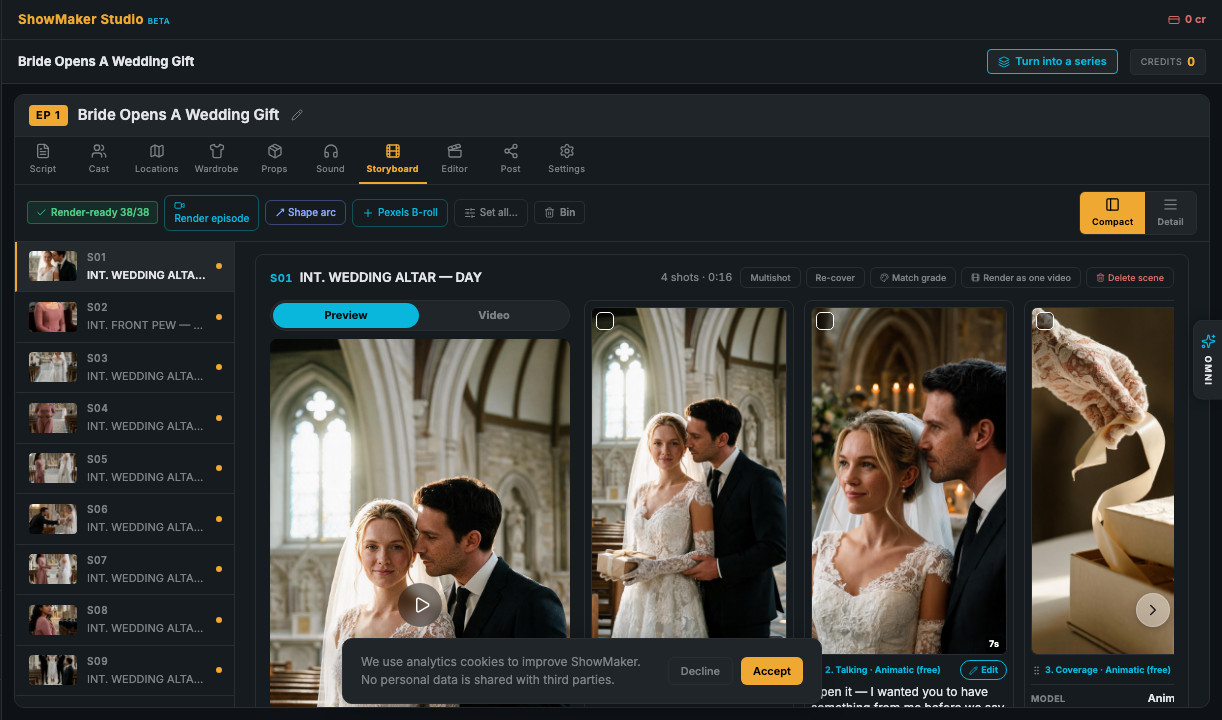
The storyboard is where a script becomes a sequence of shots. Each scene is a row; each shot in it has its own framing, still, and settings — the plan for your whole show, laid out visually.
Generate the stills
Build stills creates a still frame for every character and location that doesn't have one yet. Each shot then gets its own still, framed for that moment. If a still fails or looks wrong, you can Retry a single shot (it automatically tries again) or Edit its prompt and regenerate just that one.
Choose how each shot is captured
Every shot has a type that decides how it's turned into motion. Set them per shot, or use Set All to choose one type for the whole show before you render.
- Pan & zoom — a moving still. Uses no video credits — the fastest, most economical way to a finished cut.
- Animate from still — bring a single still to life with subtle motion.
- Lip-sync dialogue — a character speaks their line on camera.
- Silent coverage — a reaction or cutaway with no dialogue.
- Cinematic shot — a richer, fully generated shot.
- Bridge to next shot — motion that flows into the following shot.
Coverage: cover a scene like a director
Instead of one flat shot per scene, ShowMaker can cover the action the way an editor would — a wide shot to establish, alternating singles on each speaker, and reaction cutaways. Or render the whole beat as one multishot clip where the cuts happen inside a single generation. You can keep both and pick which goes in the cut.
Add a shot
Use Add Shot to insert a new shot. In the composer, describe the framing and type @ to pull in cast, wardrobe, locations, and props — for example, "CU on @mandy, tense, cold kitchen light." Enhance the prompt with AI, then generate the still and add it to the scene.
Fine-tune a shot
Open a shot's Options to control its motion preset, whether it speaks (None / Dialogue / Voiceover / Lip Sync), its voice playback (speed, pitch), and its caption. Advanced settings cover the clip prompt and native audio. You can also set up an insert or an L-cut, where a line of dialogue carries over the next silent shot.
The deleted-shot Bin
Removed a shot by mistake? The Bin holds recently deleted shots. Drag one back onto any scene to restore it exactly as it was — or discard it permanently.
Render the show
When the board looks right, Render All generates every draft shot (a few at a time). Pan-and-zoom shots use no video credits and finish quickly; video shots use credits. From here you move to the Editor to assemble the cut.