Step-by-step guide · 38 steps

Make an AI shot from a still: Shoot with AI, re-shoot angles, pick a model

Turn an action line into a shot. Draw the still, fix it in plain words, re-shoot from a reverse angle or punch in, then choose a video model and render only what changed.

Draw the still
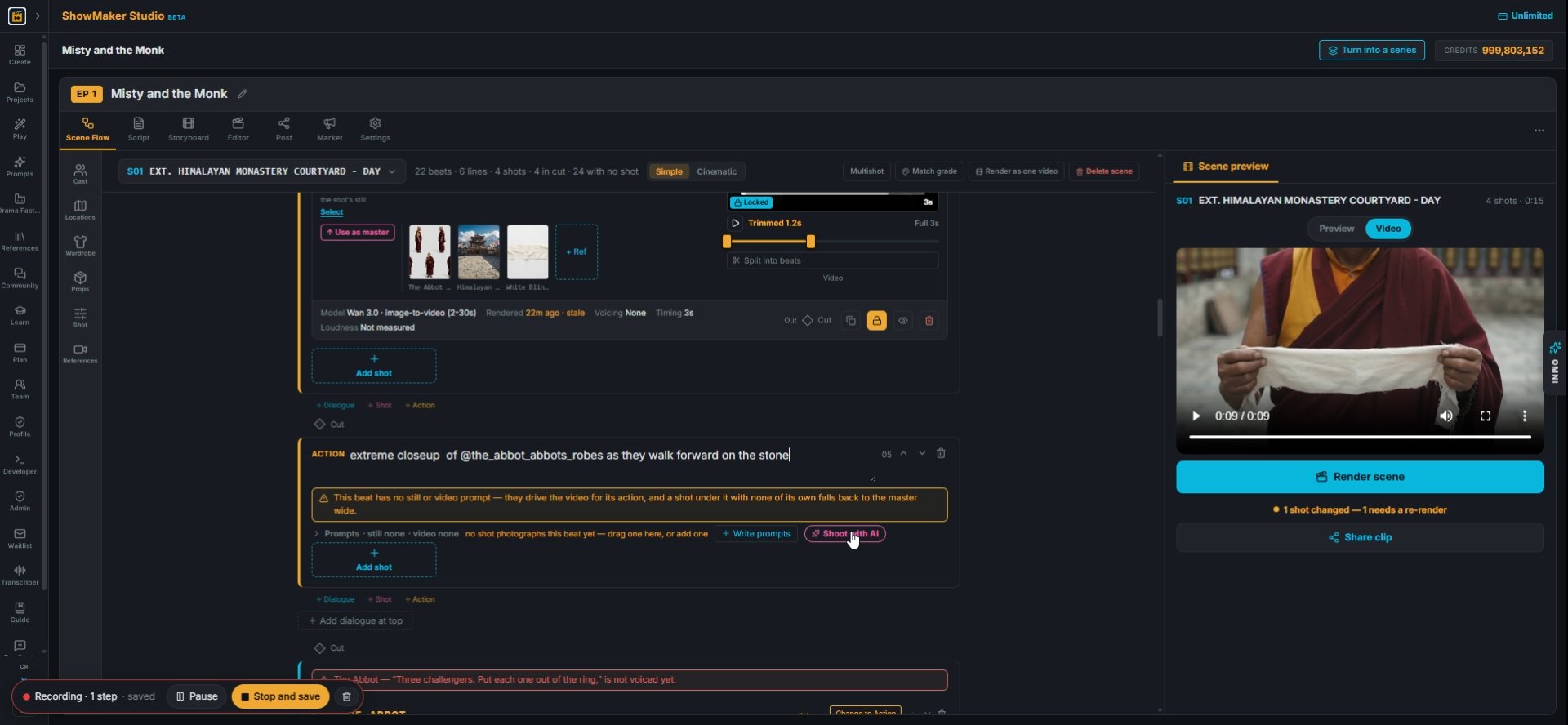
What happens — no dialogue. @tag whoever and whatever is in frame.
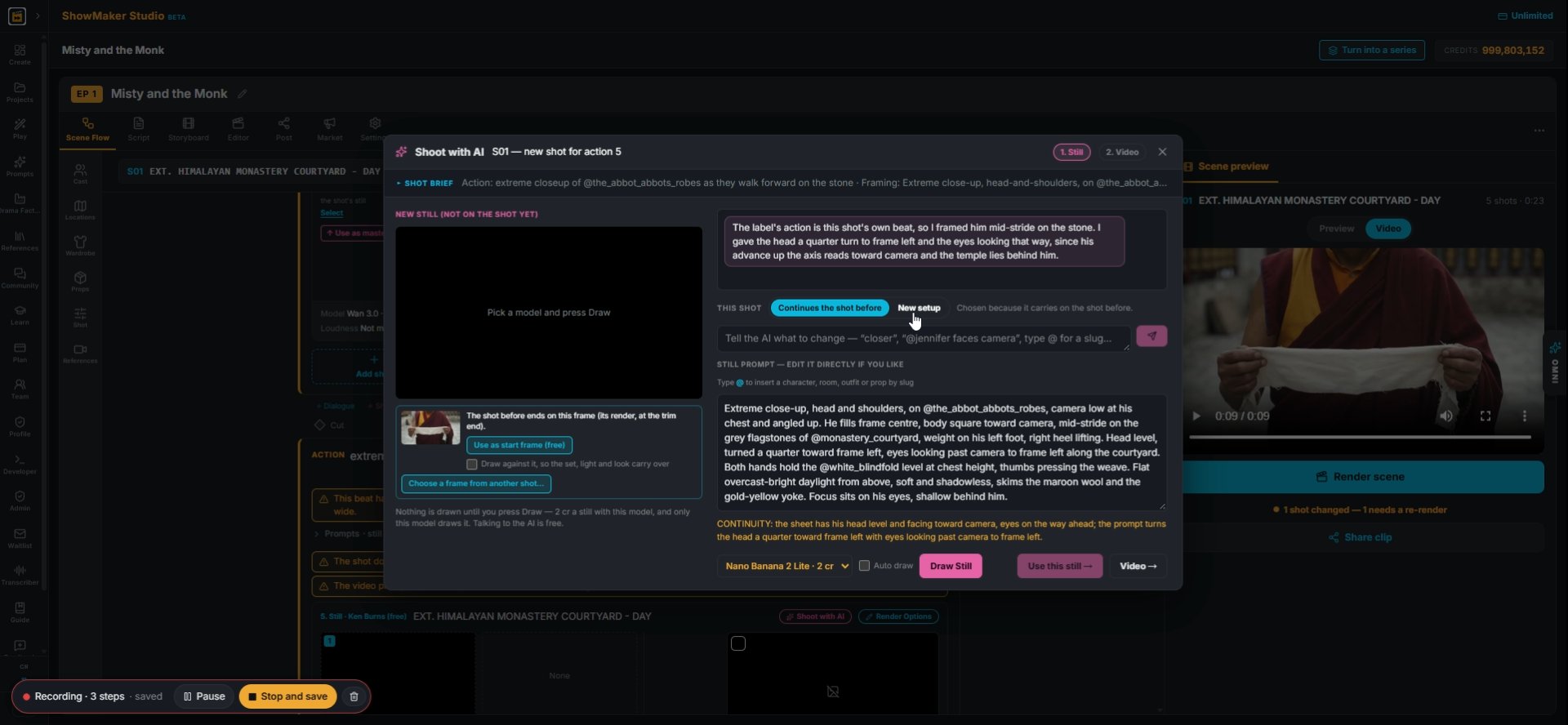
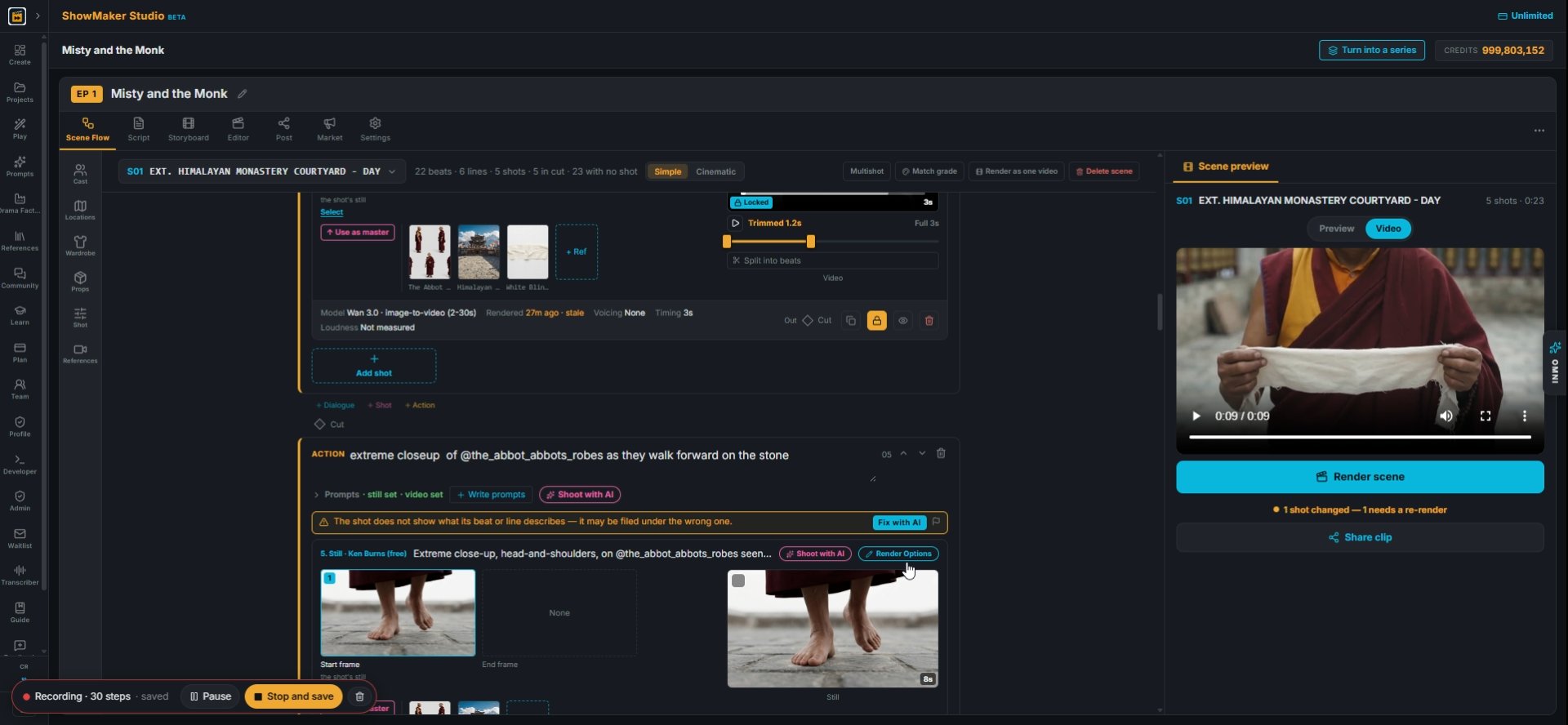
1Write what happens in the ACTION line, with @tags for cast and outfits. Then press Shoot with AI under the line.
New setup
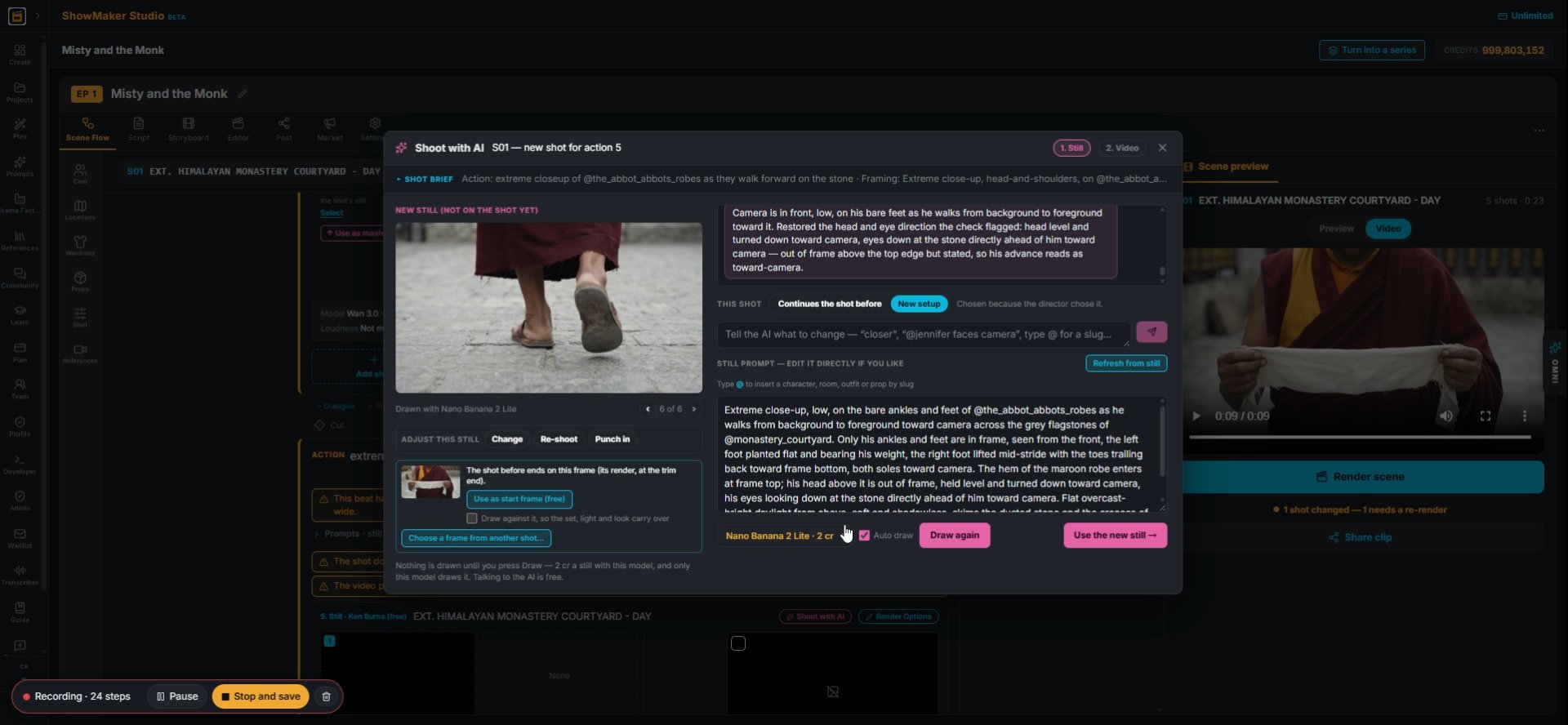
2Shoot with AI opens on step 1, Still. Choose Continues the shot before to carry on from the last shot, or New setup for a fresh camera position.
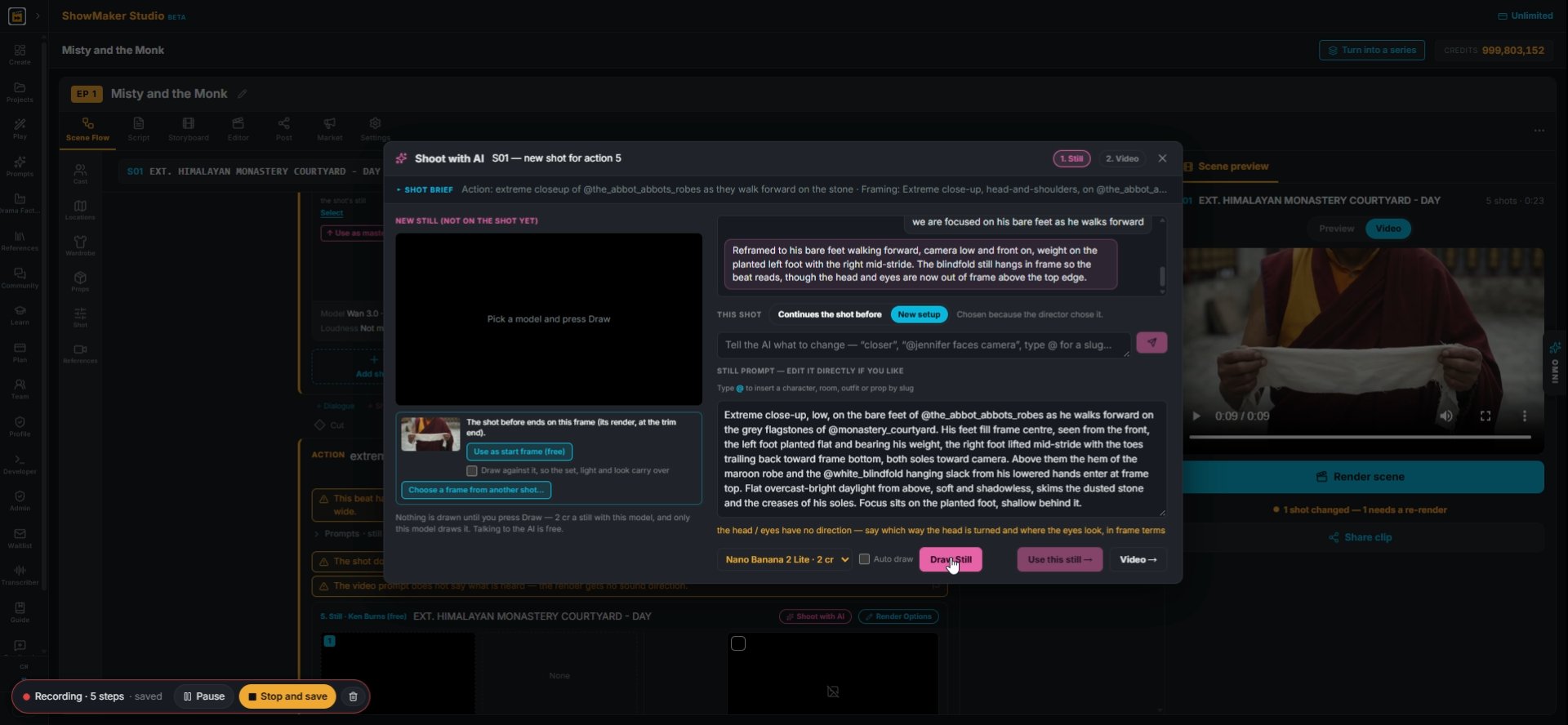
Draw Still
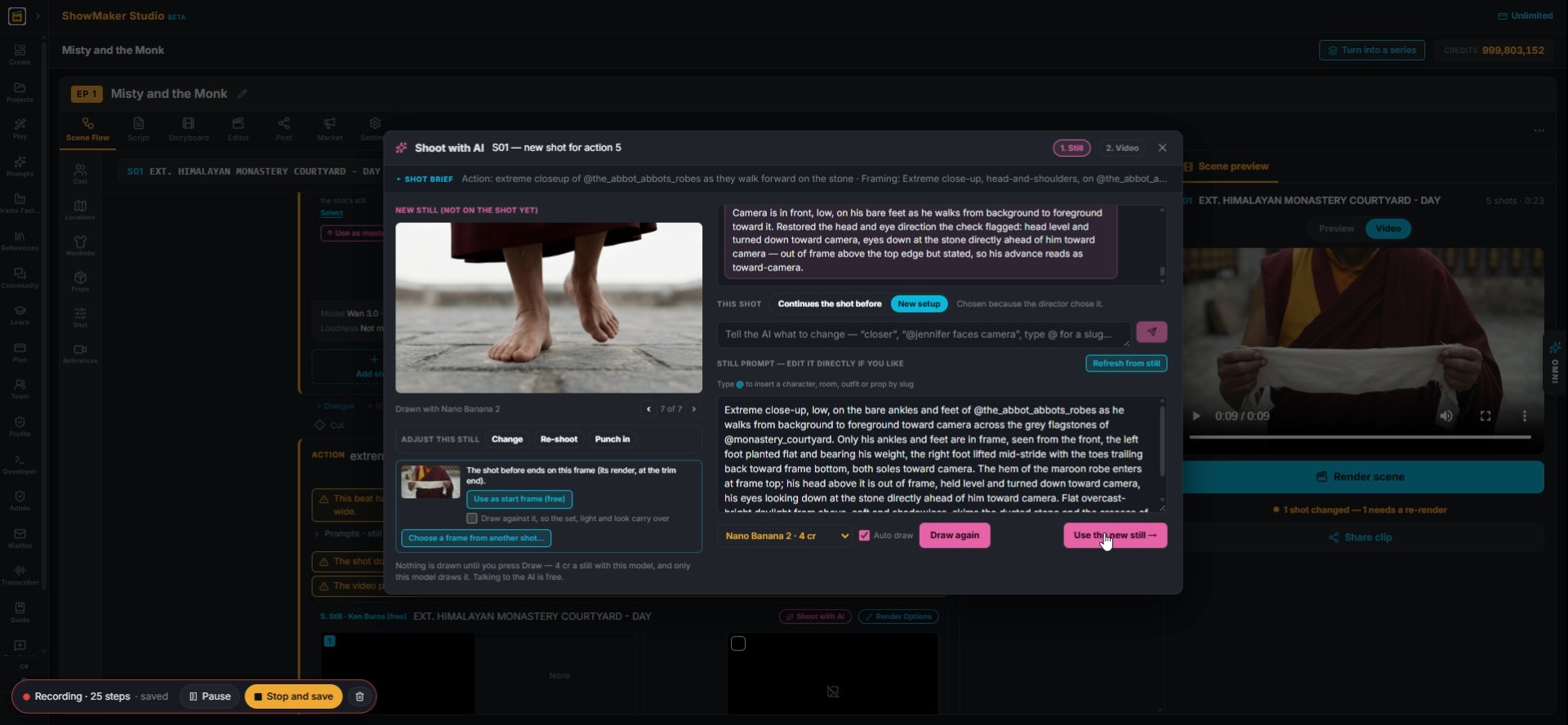
3The still prompt is written for you. Pick a still model at the bottom and press Draw Still. Nano Banana 2 Lite costs 2 cr.
Tell the AI what to change — “closer”, “@jennifer faces camera”, type @ for a s…
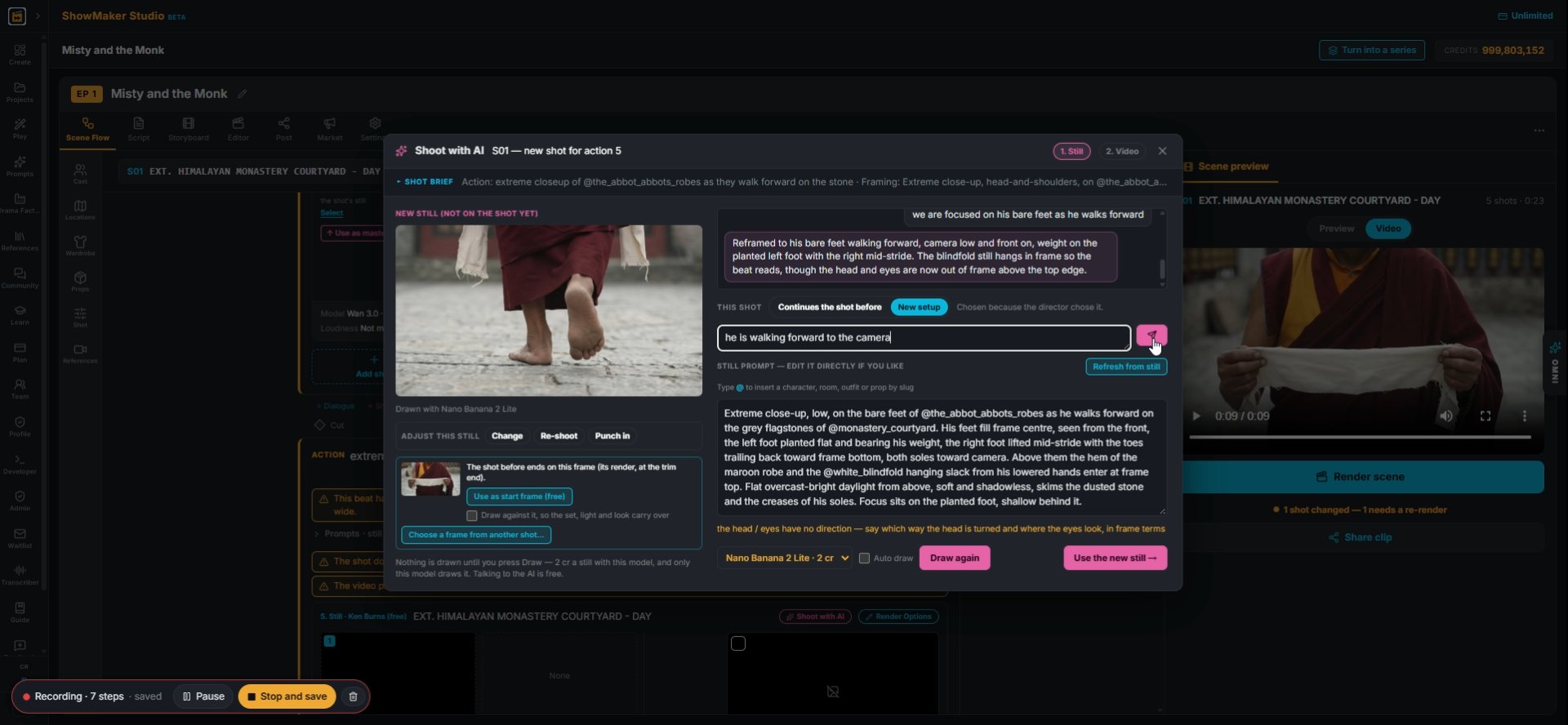
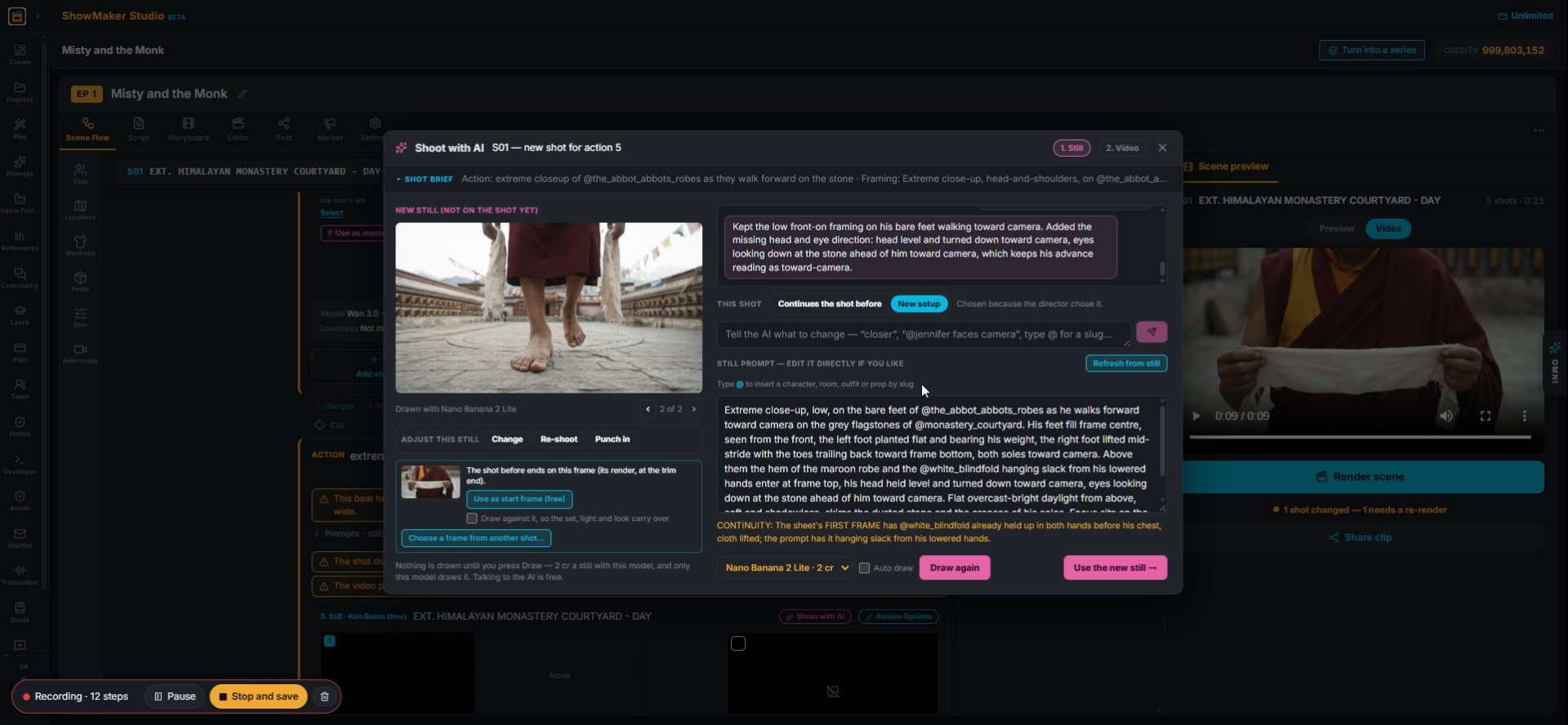
4If it's not right, tell the AI what to change in the chat box, like "he is walking forward to the camera", and press send. It rewrites the prompt.
The label's action is this shot's own beat, so I framed him mid-stride on the s…
5You can also edit the STILL PROMPT box yourself. Then press Draw again.
Seedream · 5 cr Nano Banana 2 · 4 cr Nano Banana 2 Lite · 2 cr GPT Flare 2.5 ·…
6Switch to Nano Banana 2 (4 cr) for more detail. Tick Auto draw to draw again each time you send a change.
Use the new still →
7When the still is right, press Use the new still.

Add the motion

Tell the AI what to change in the motion — type @ for a slug…
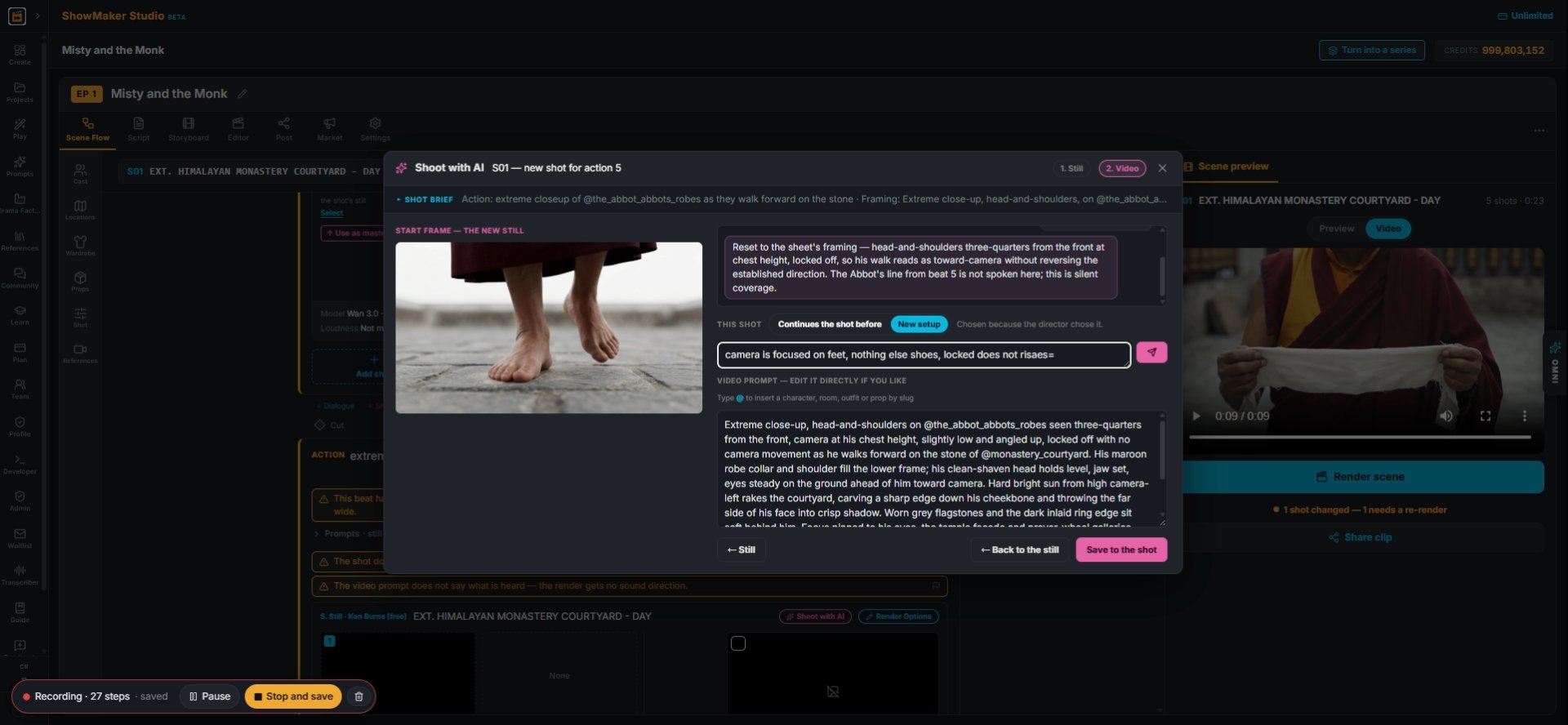
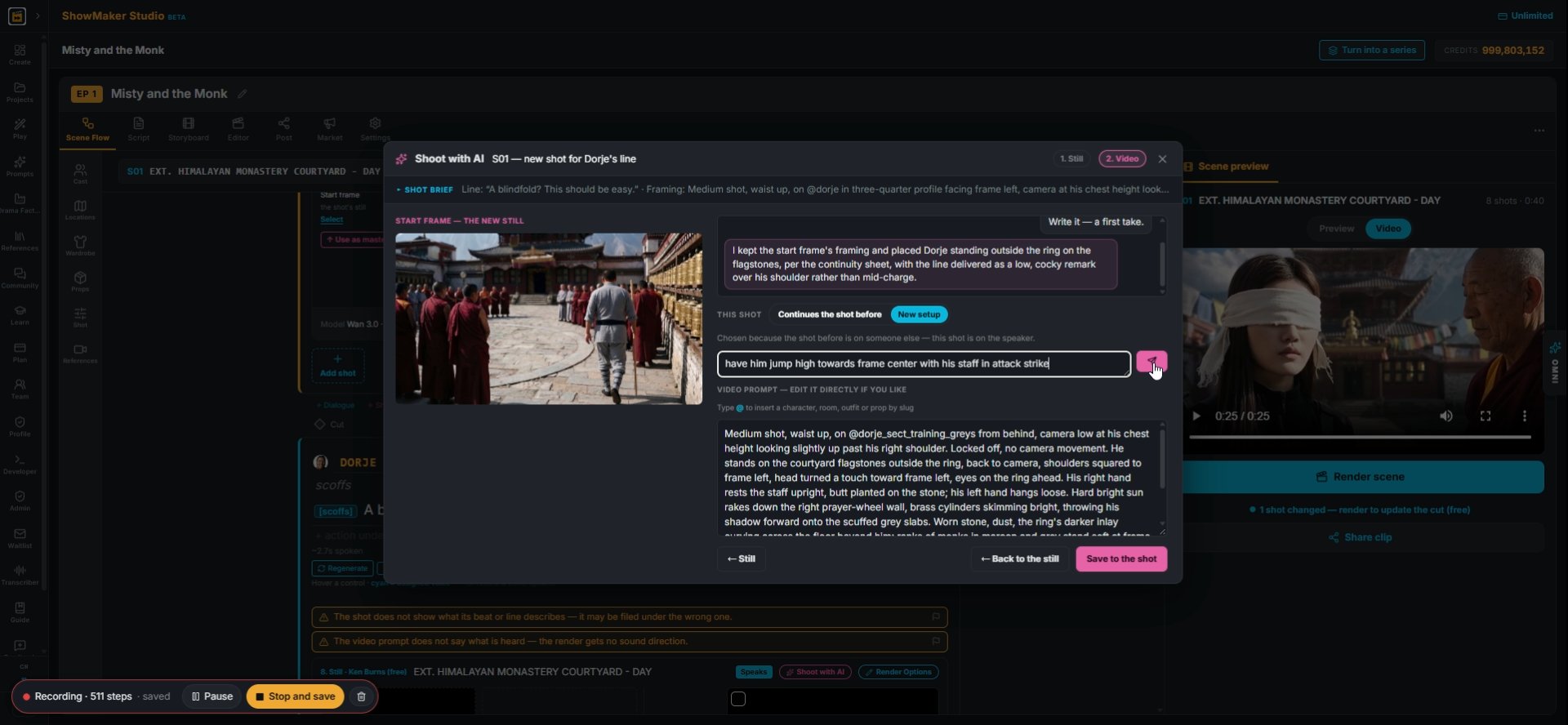
8Step 2 is Video. Type how the shot should move, like "camera is focused on feet, nothing else, locked", and send.
Save to the shot
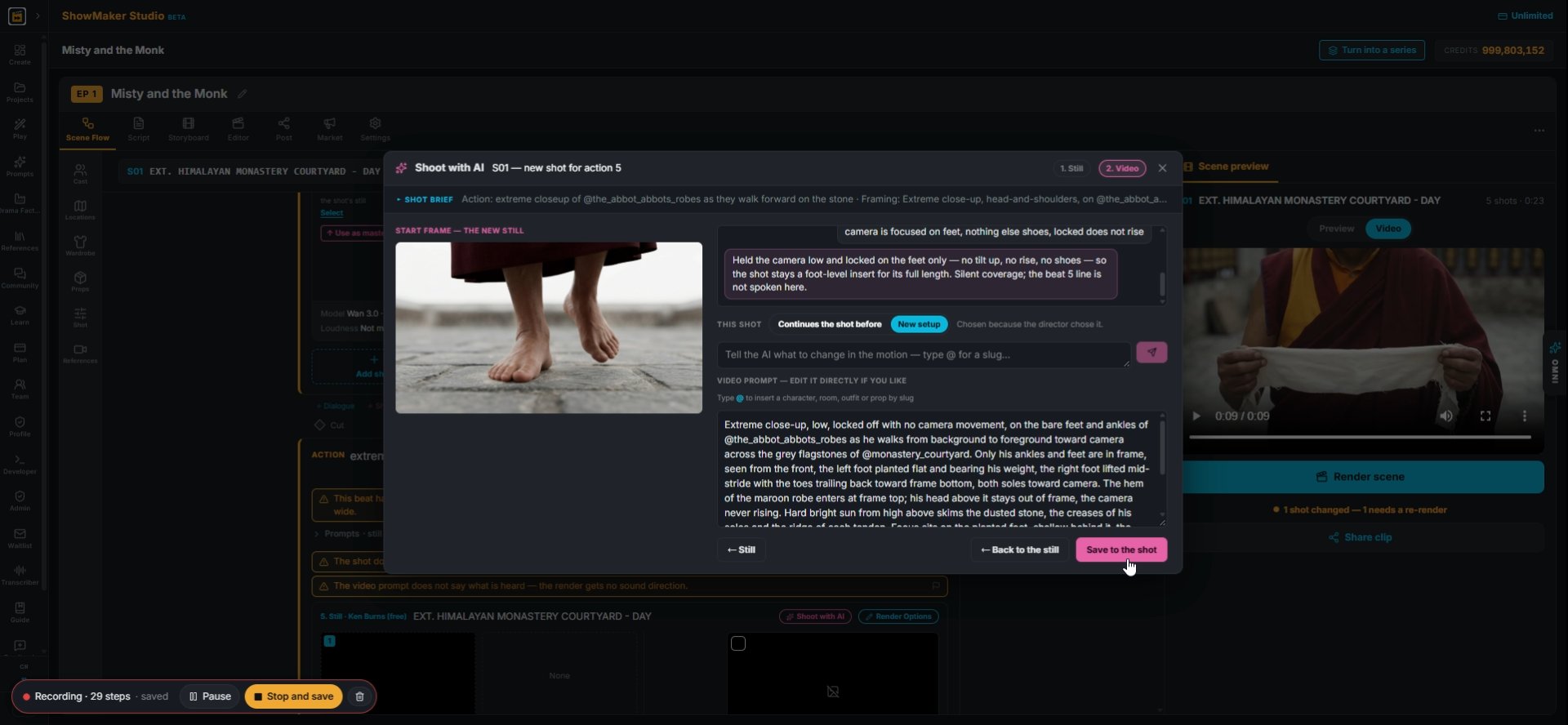
9Read the new VIDEO PROMPT, then press Save to the shot.
Render Options
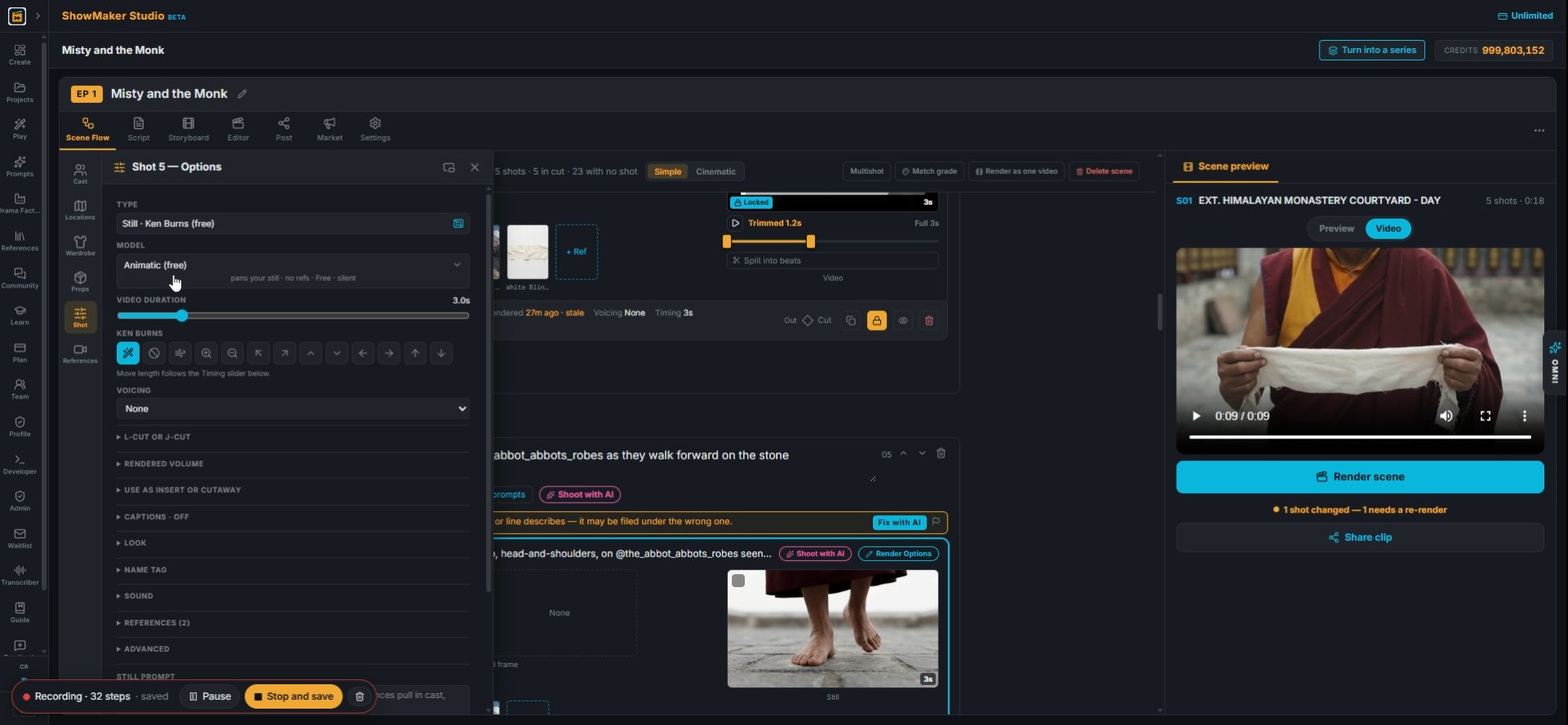
10On the shot card, press Render Options to pick how it renders.
Animatic (free) pans your still · no refs · Free · silent
11Animatic (free) and Still with Ken Burns cost nothing. Use them to check timing first.
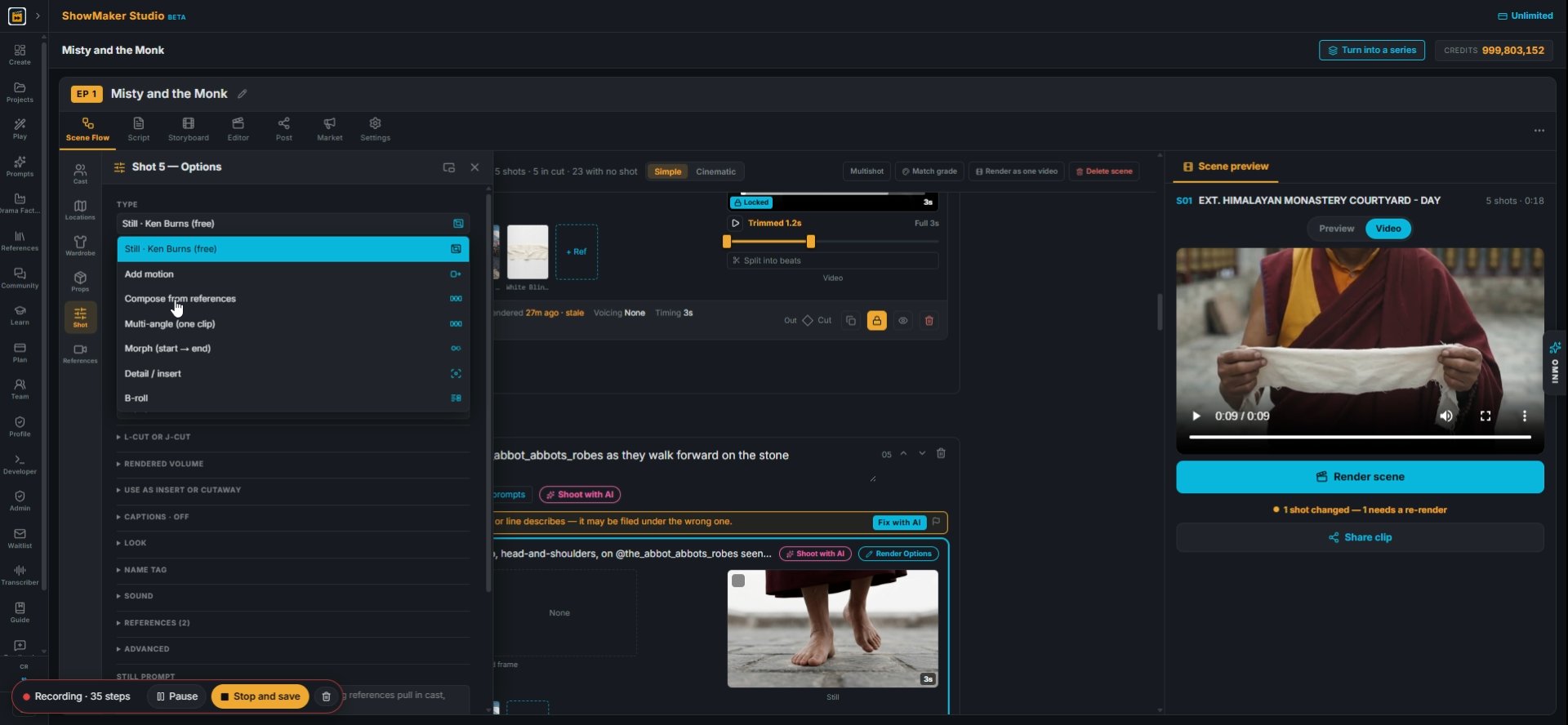
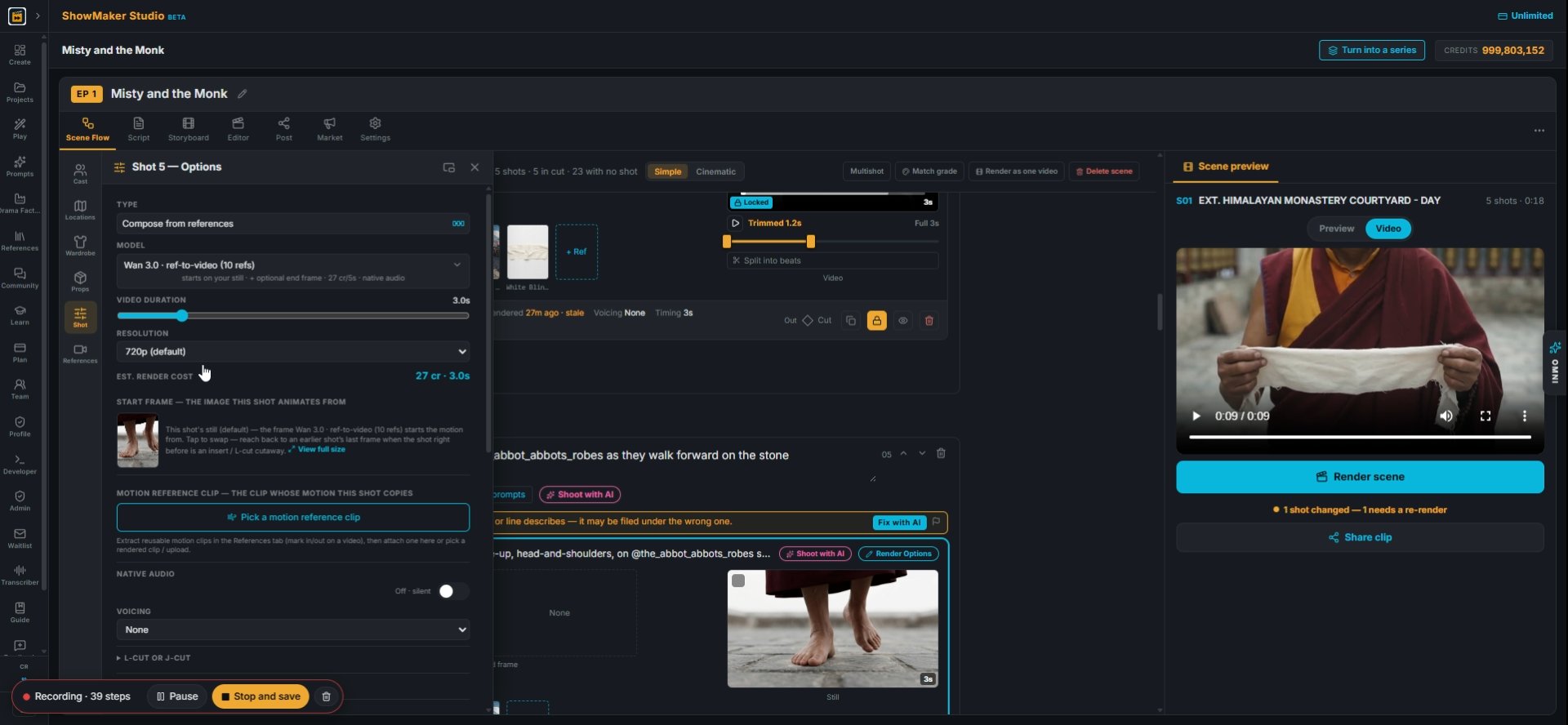
Compose from references
12For a real clip, open TYPE and pick Compose from references or Add motion. Compose builds the clip from your cast and location sheets.
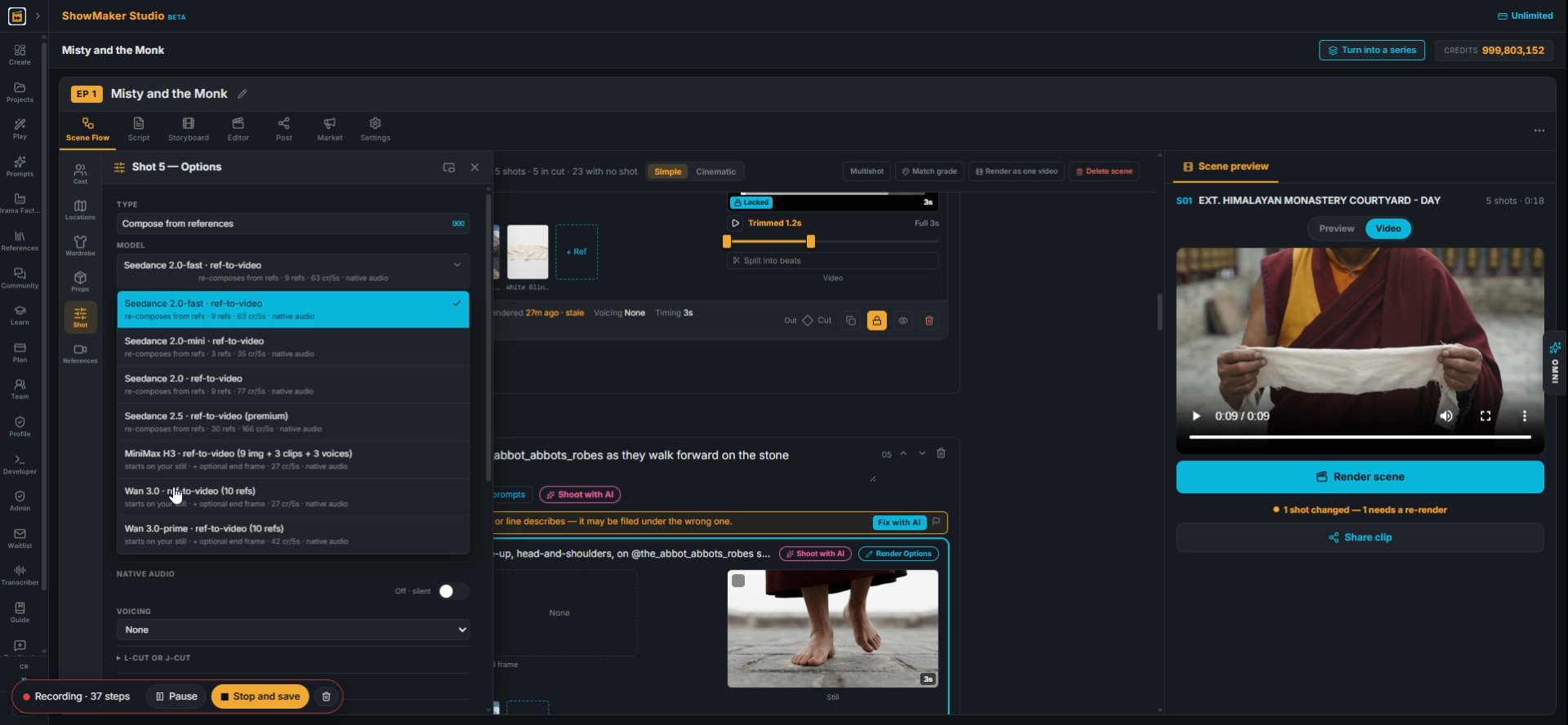
Wan 3.0 · ref-to-video (10 refs) starts on your still · + optional end frame ·…
13Then pick a MODEL. Each one lists its price per 5 seconds. Here it is Wan 3.0 ref-to-video, which takes up to 10 references.
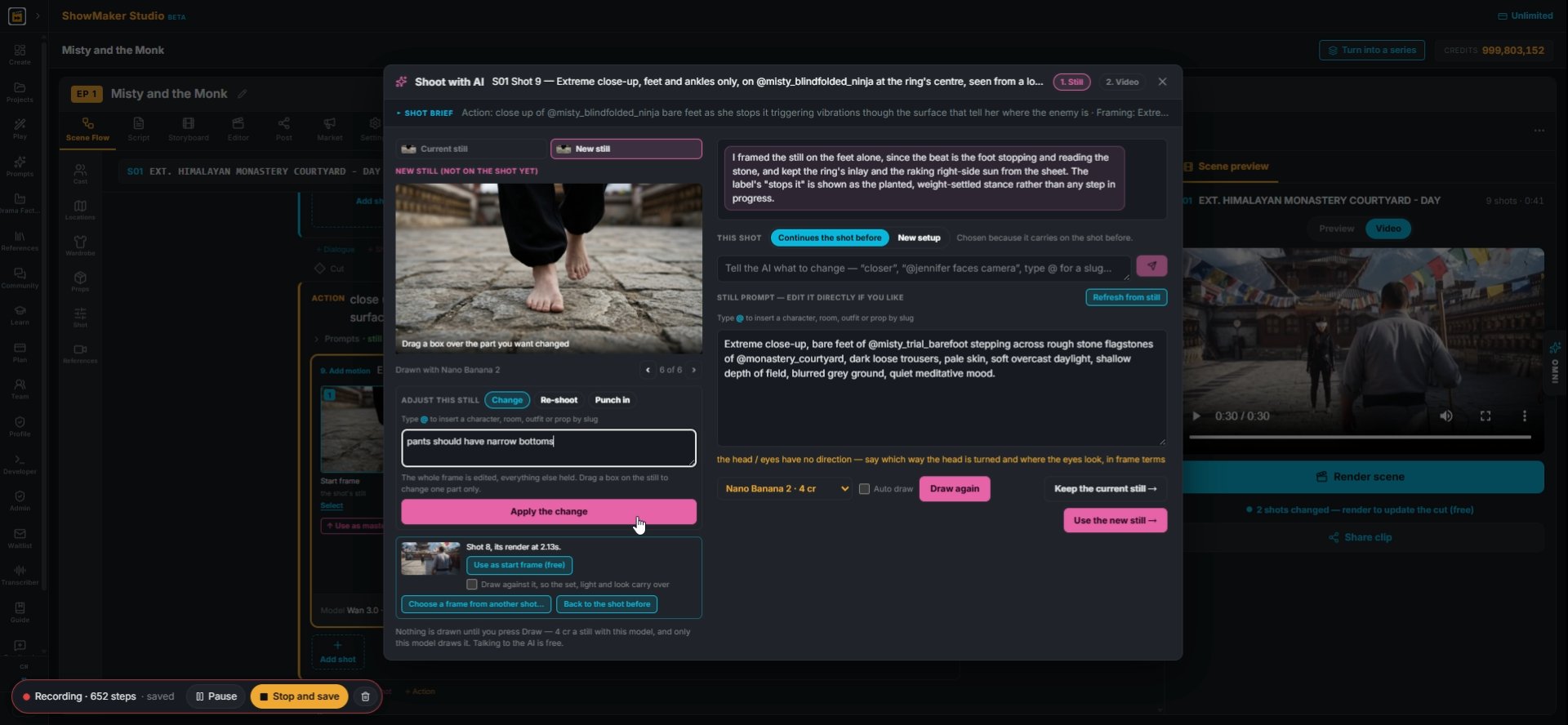
Resolution480p720p (default)1080p
14Set RESOLUTION. 480p keeps the price low while you are still testing. The cost shows under it.
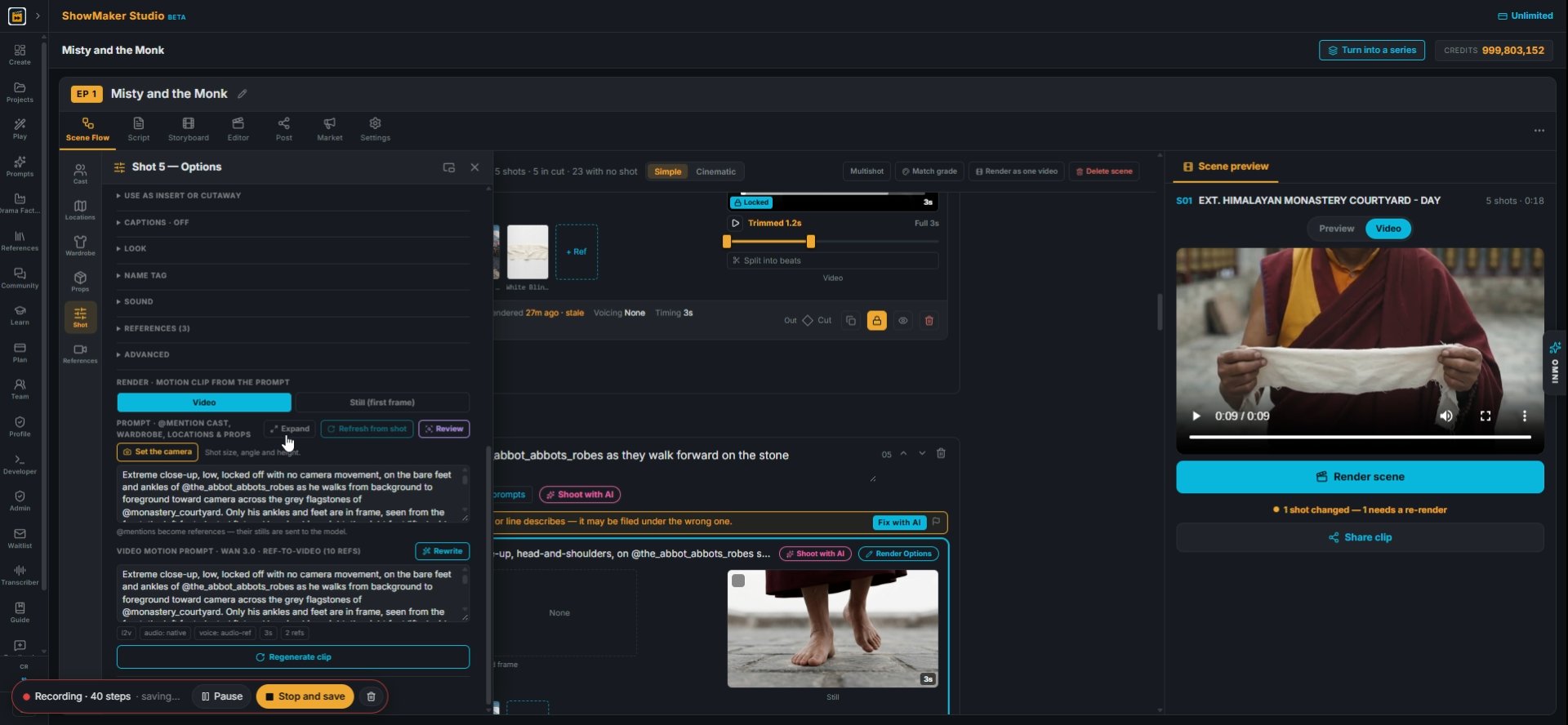
Expand
15Press Expand to read the whole prompt before you spend anything.
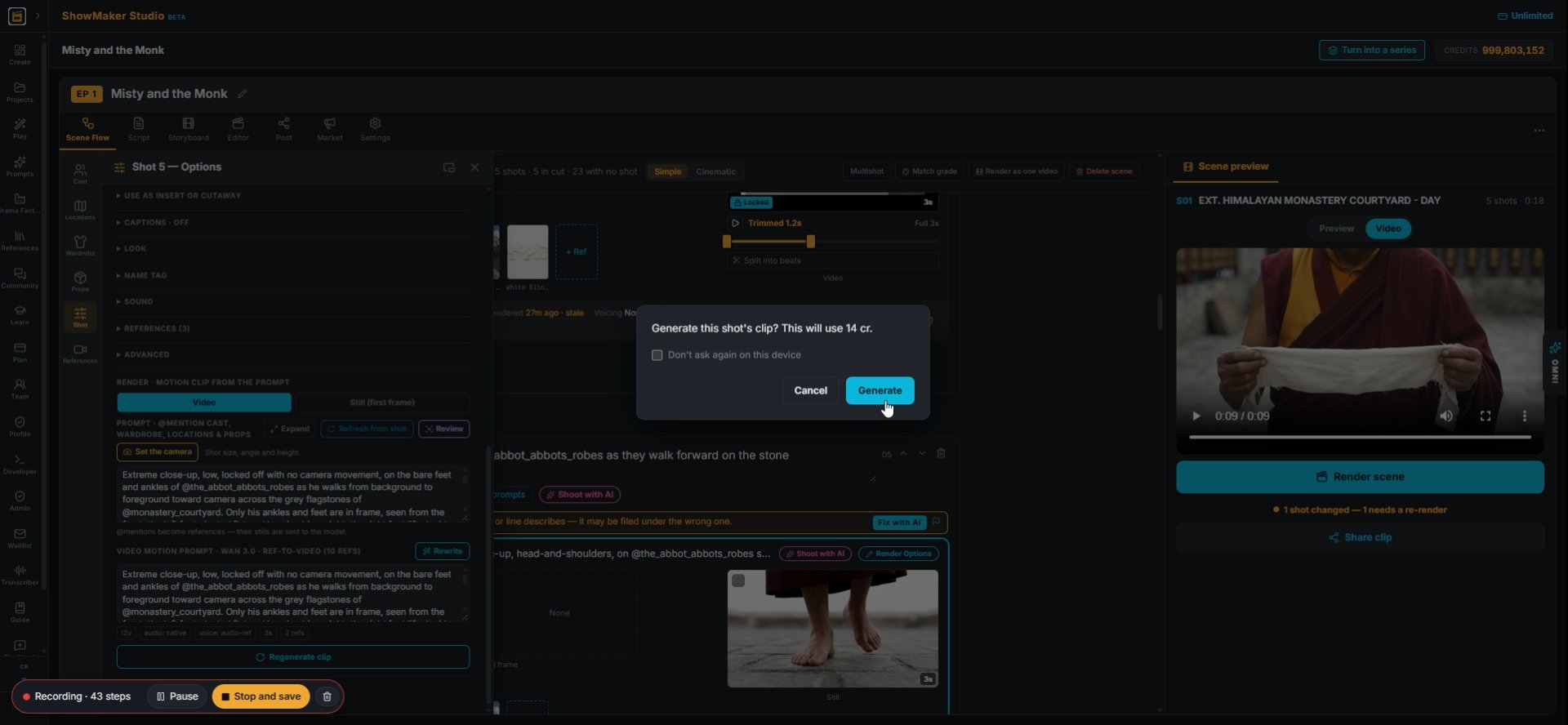
Generate
16Press Regenerate clip. The box shows the price, here 14 cr. Press Generate.
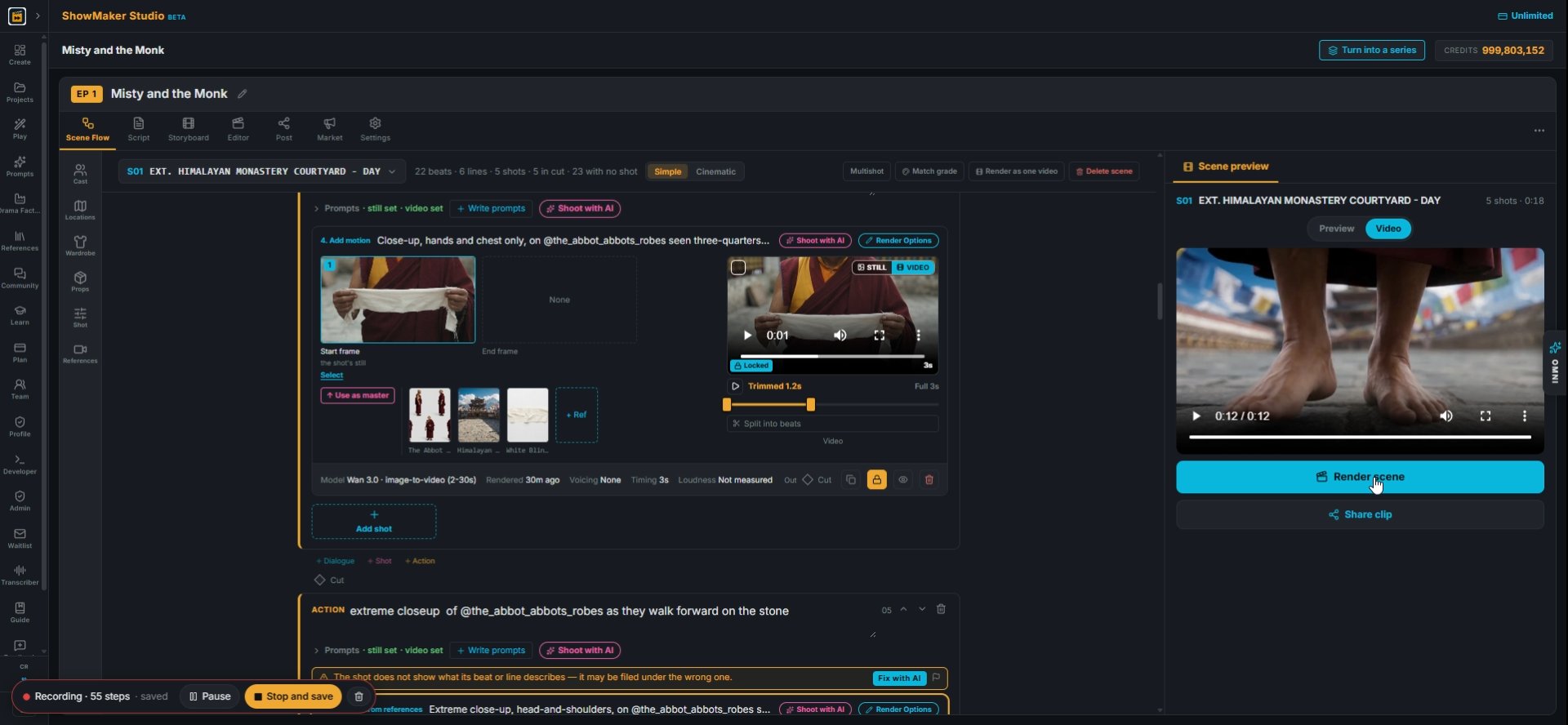
Render scene
17When the clip is in, press Render scene to put it into the scene preview.

Re-shoot a still from a new angle
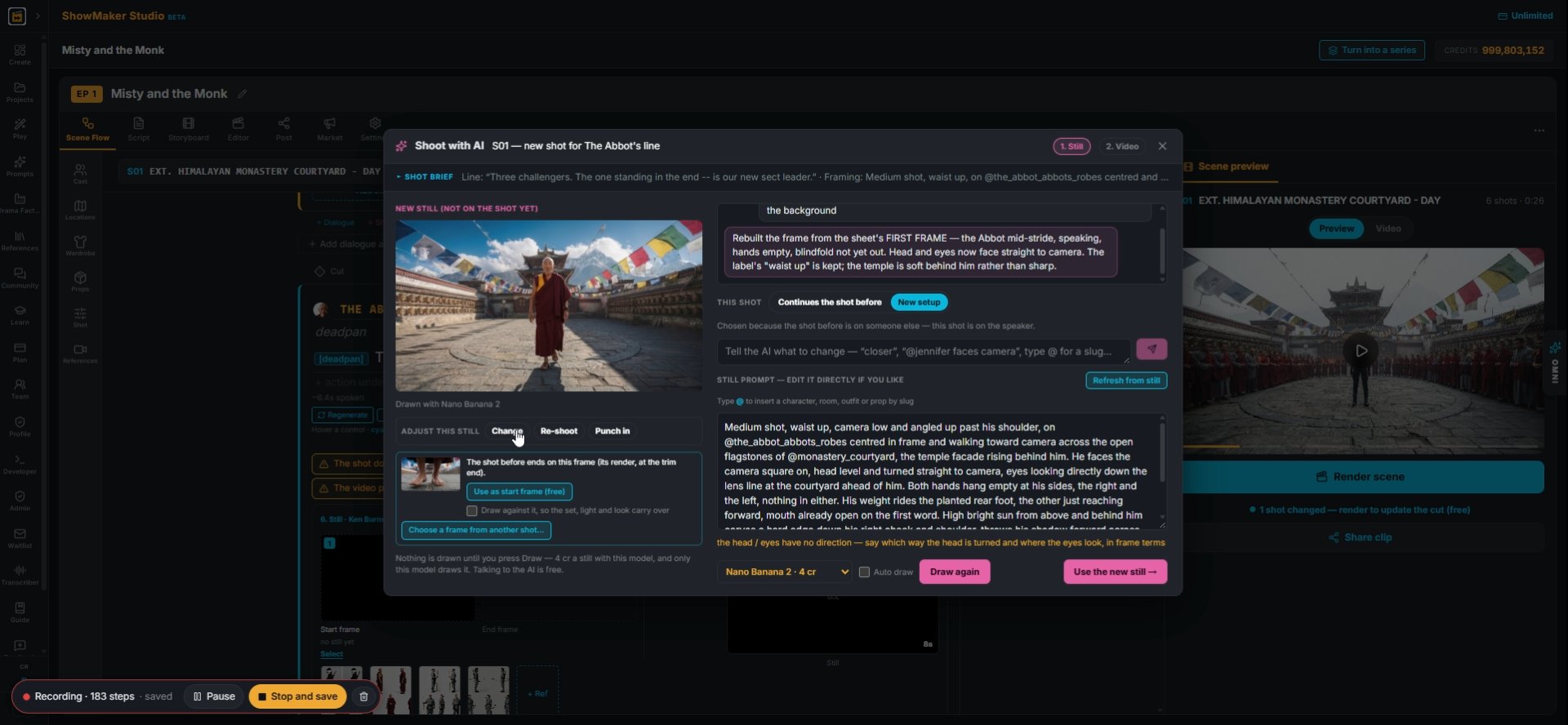
Change
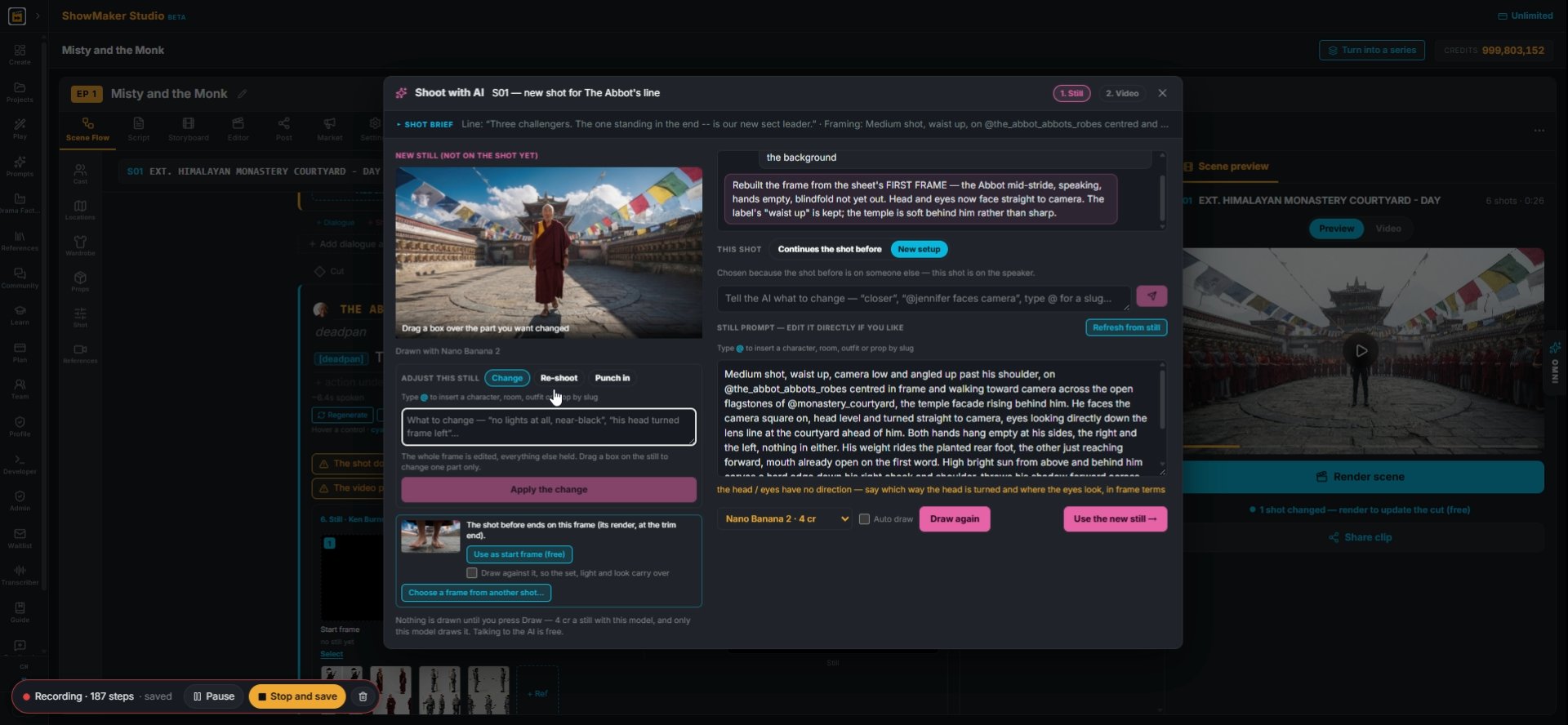
18Under ADJUST THIS STILL there are three tools: Change, Re-shoot and Punch in.
Re-shoot
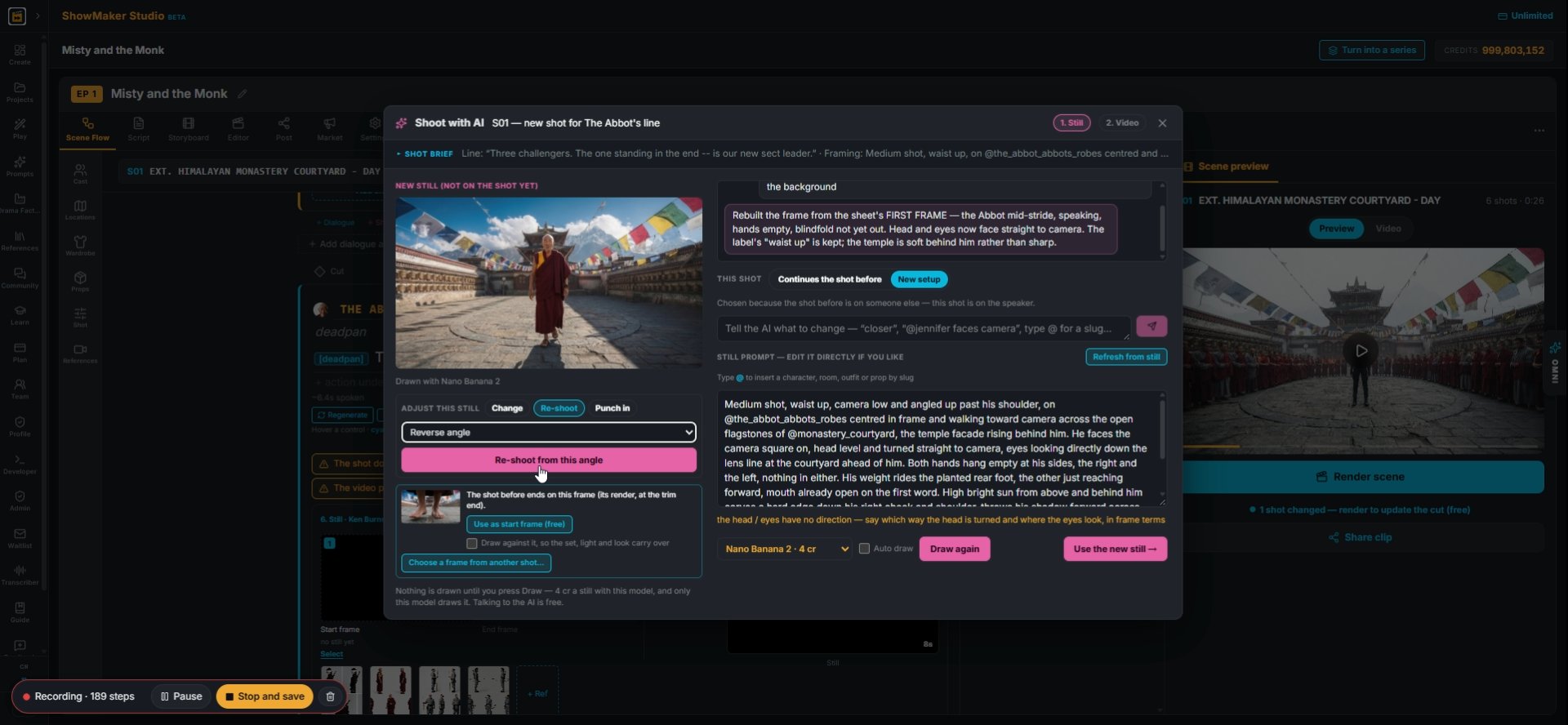
19Press Re-shoot to keep the scene and move the camera.
Re-shoot from this angle
20Pick an angle from the list, here Reverse angle, then press Re-shoot from this angle.
Tell the AI what to change — “closer”, “@jennifer faces camera”, type @ for a s…
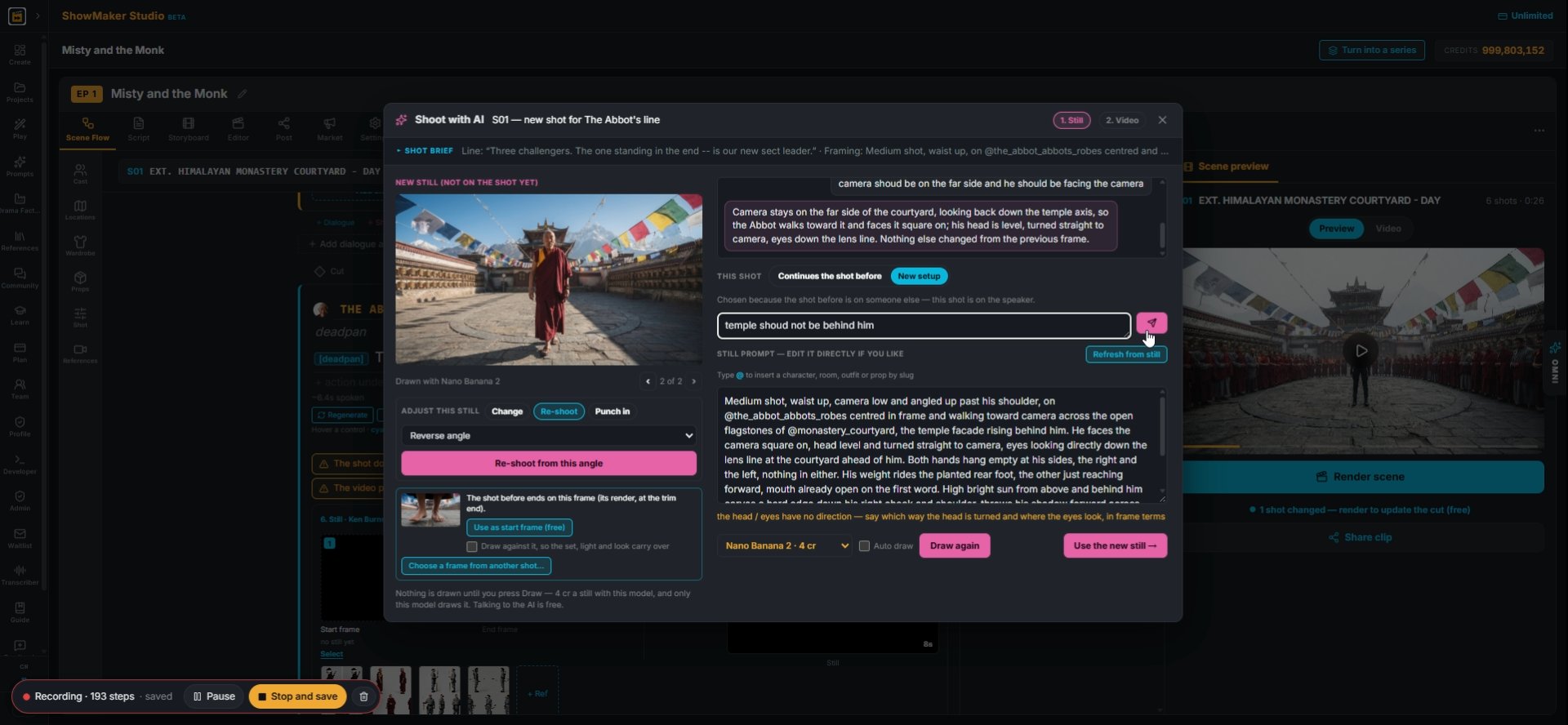
21Fix what the new angle got wrong in the chat box, like "temple should not be behind him".
Drag a box over the part you want changed
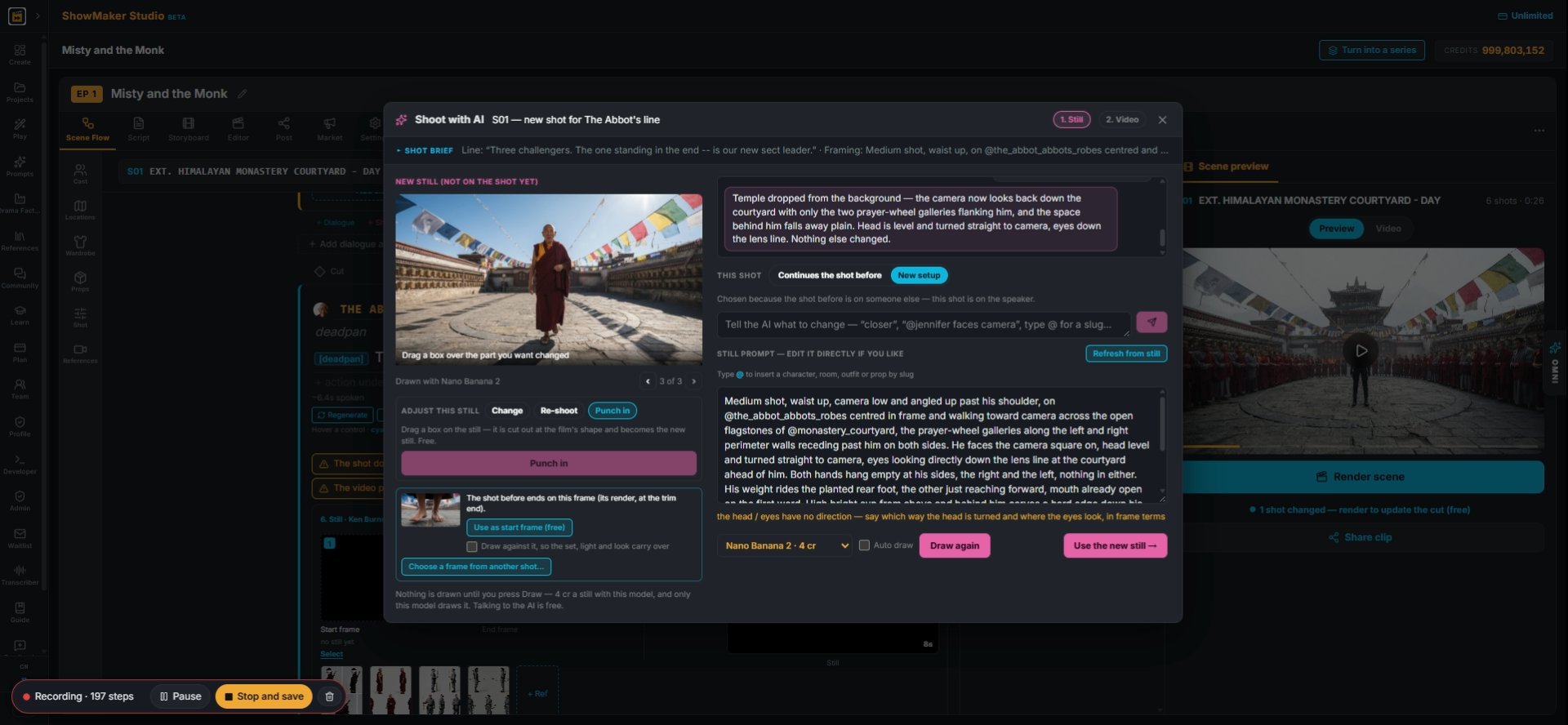
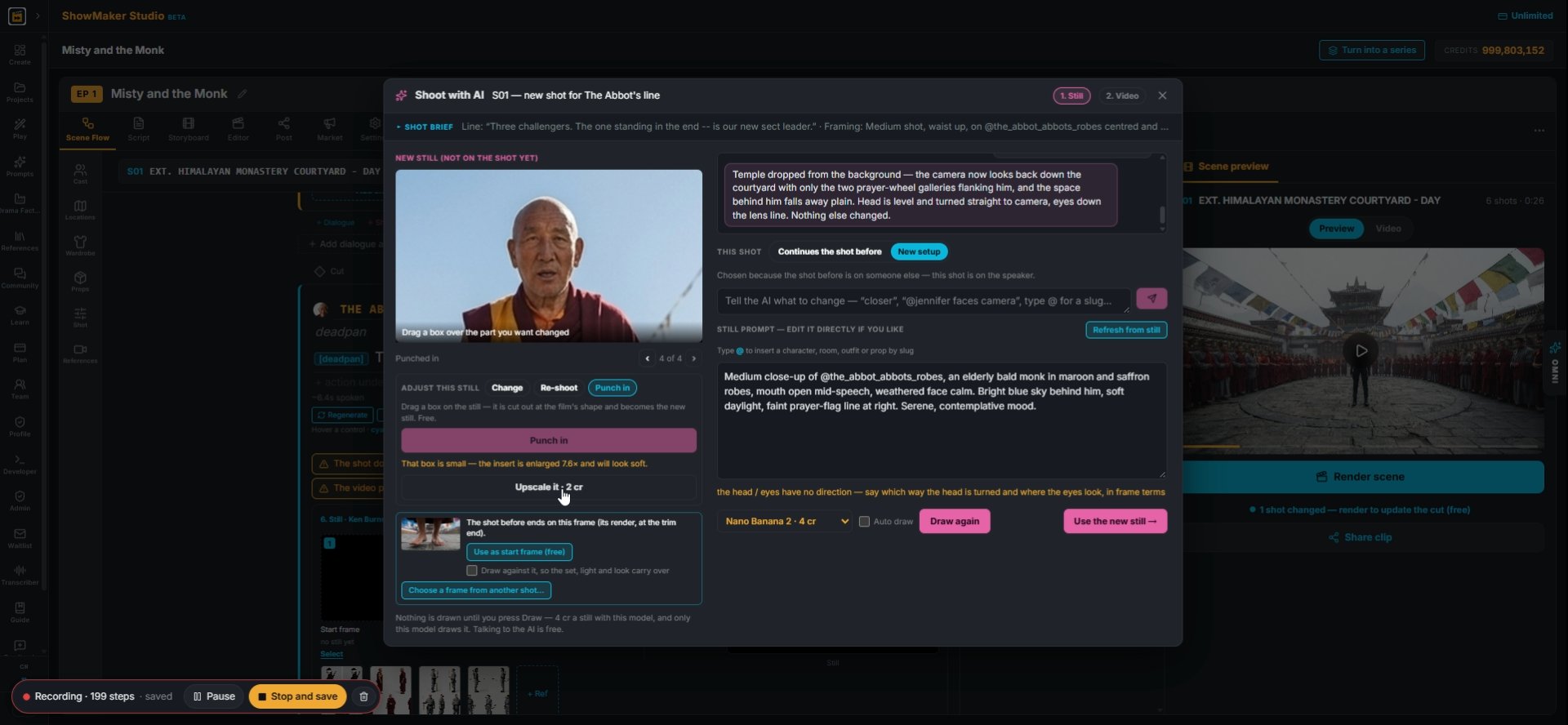
22Press Punch in and drag a box over the part you want. Here it is the Abbot's face, for a close-up.
Upscale it · 2 cr
23A small box gets soft when it is enlarged. Press Upscale it, 2 cr, to sharpen it.
Use the new still →
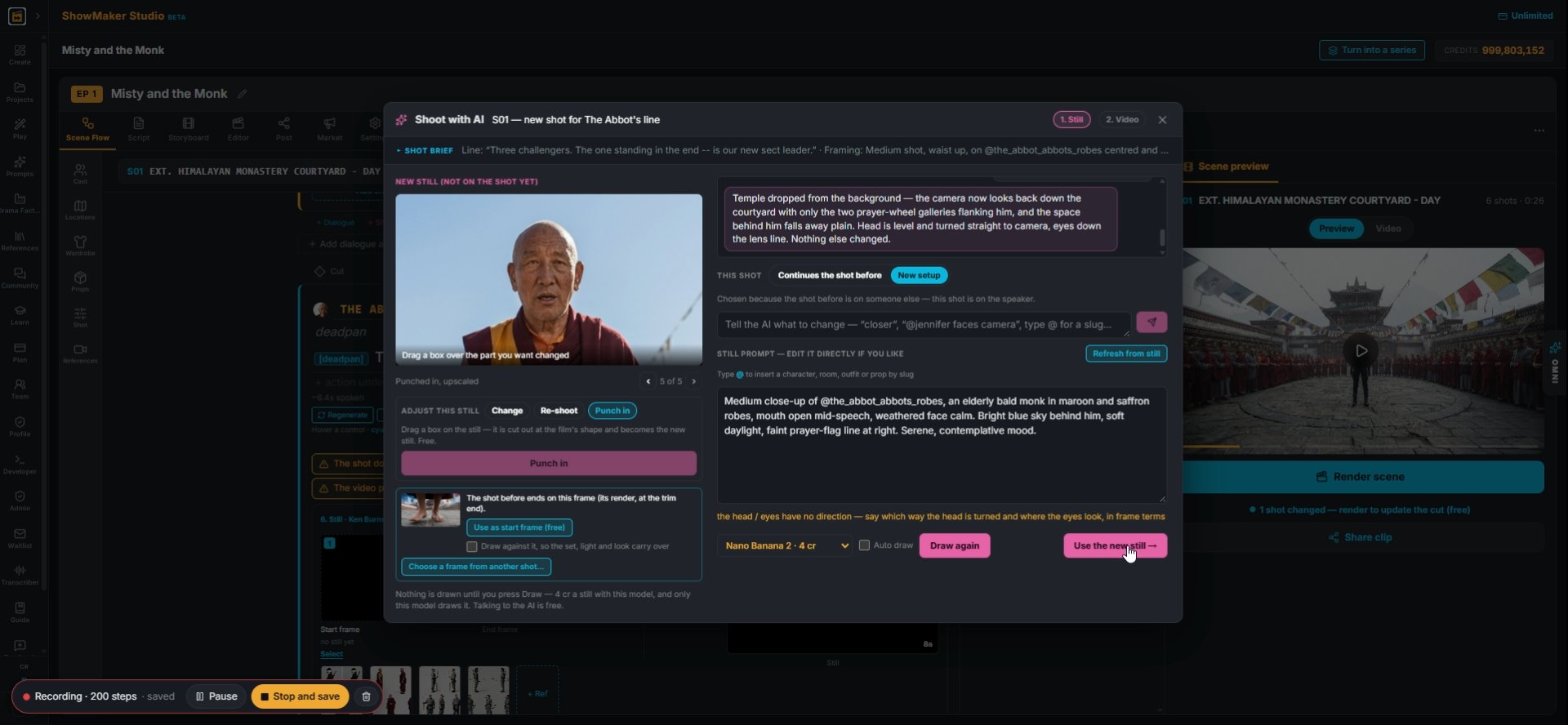
24Press Use the new still. You got a reverse angle and a close-up from one drawing.

Fix a still with Change

Apply the change
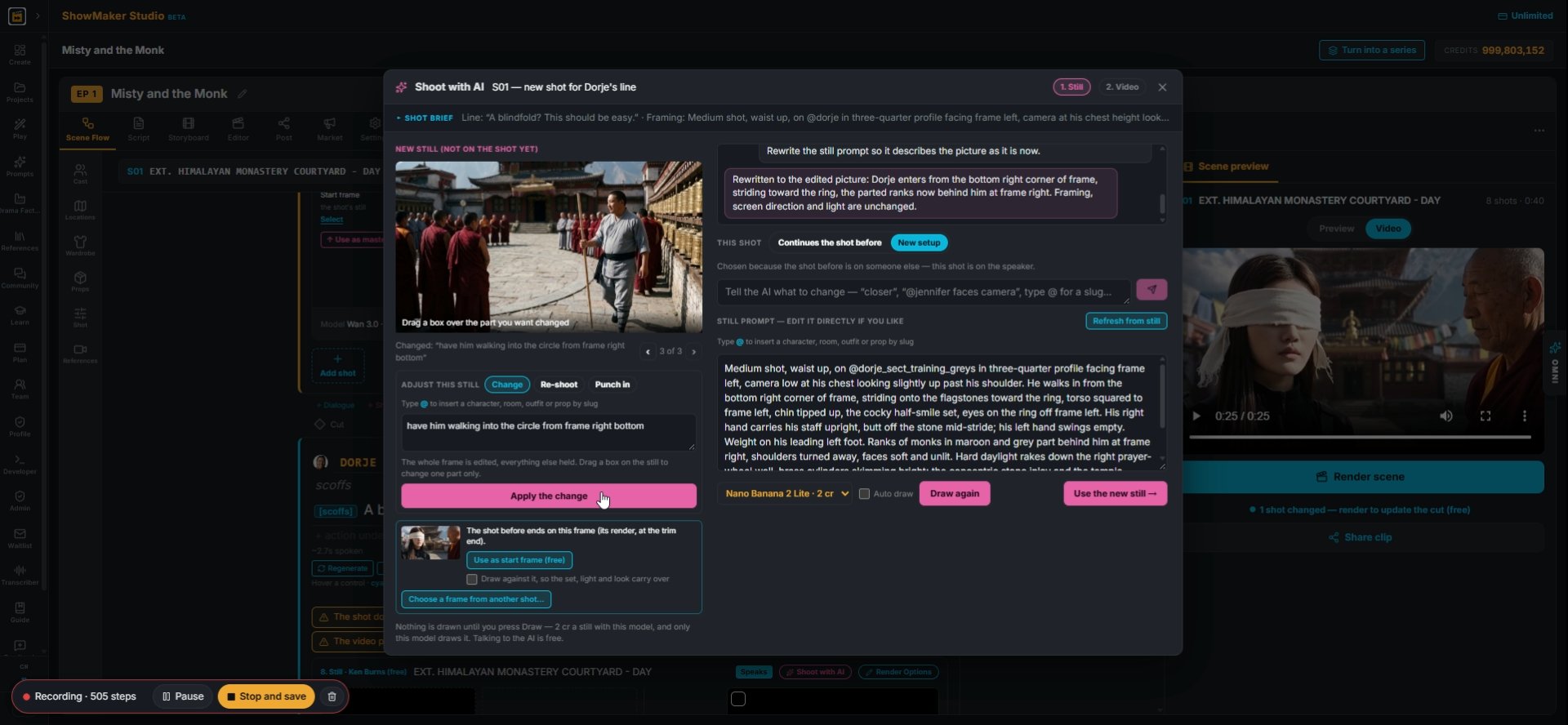
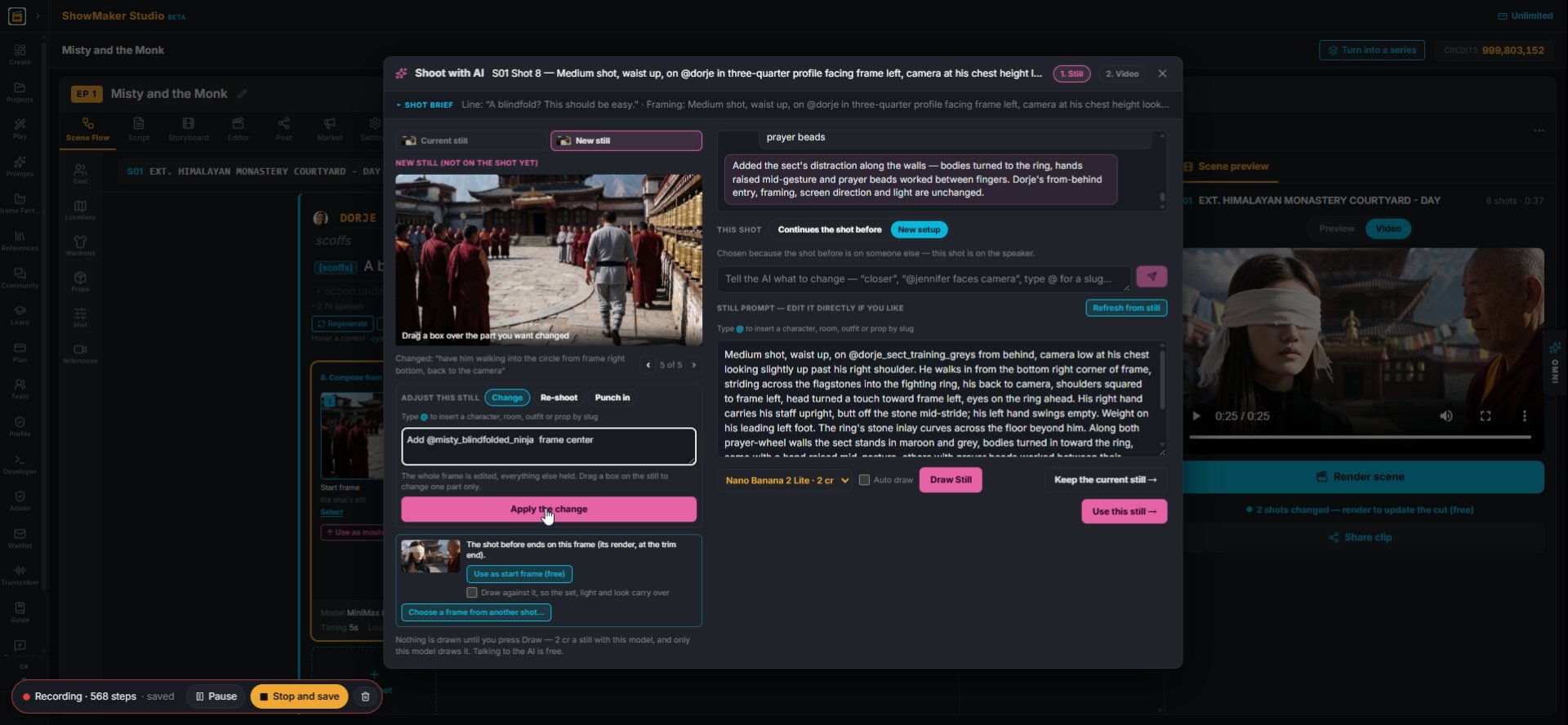
25Press Change and type what should be different, like "have him walking into the circle from frame right bottom". Press Apply the change.
What to change — “no lights at all, near-black”, “his head turned frame left”…
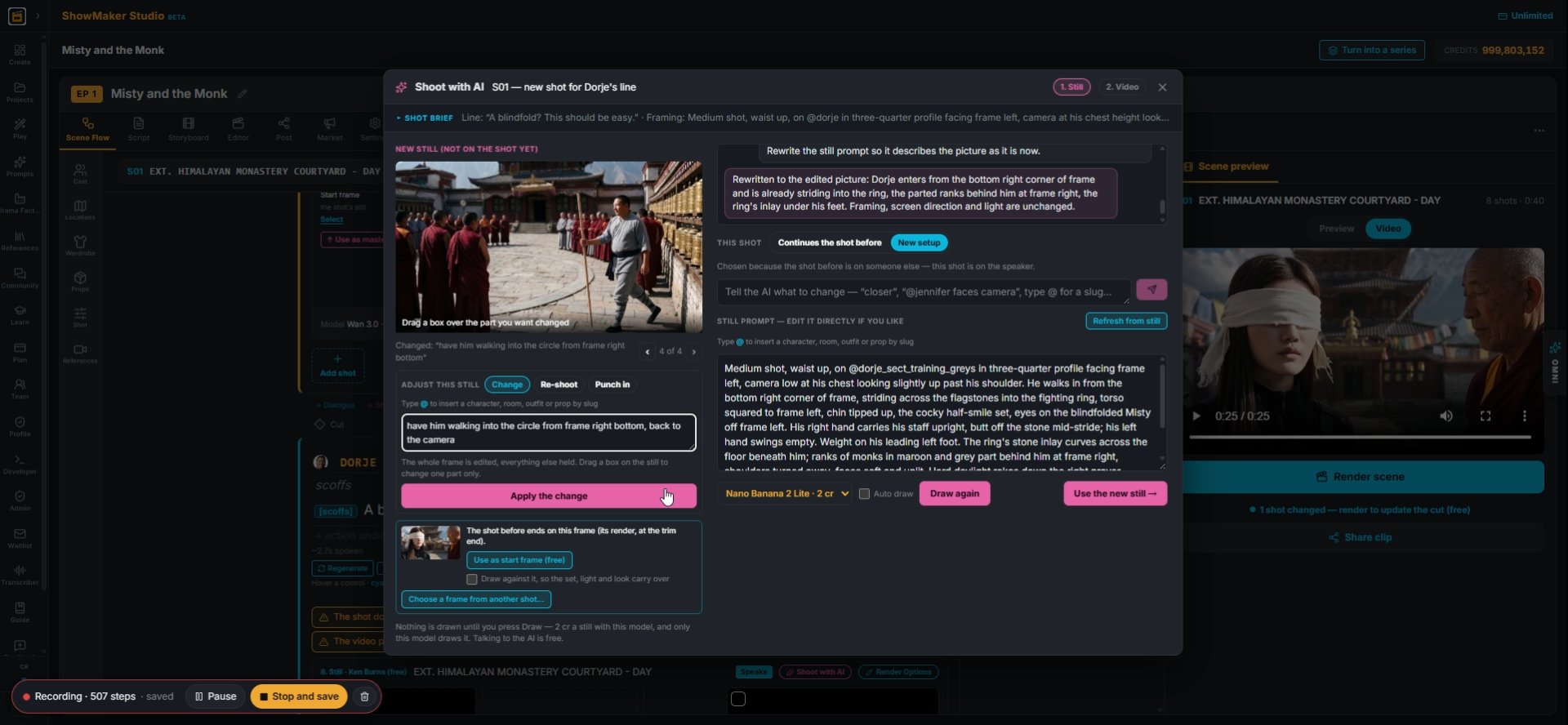
26Add more detail and apply again until it is right. The rest of the frame stays the same.
What to change — “no lights at all, near-black”, “his head turned frame left”…
27Type @ to add a character. "Add @misty_blindfolded_ninja frame center" puts Misty in the shot.
Choose a frame from another shot…
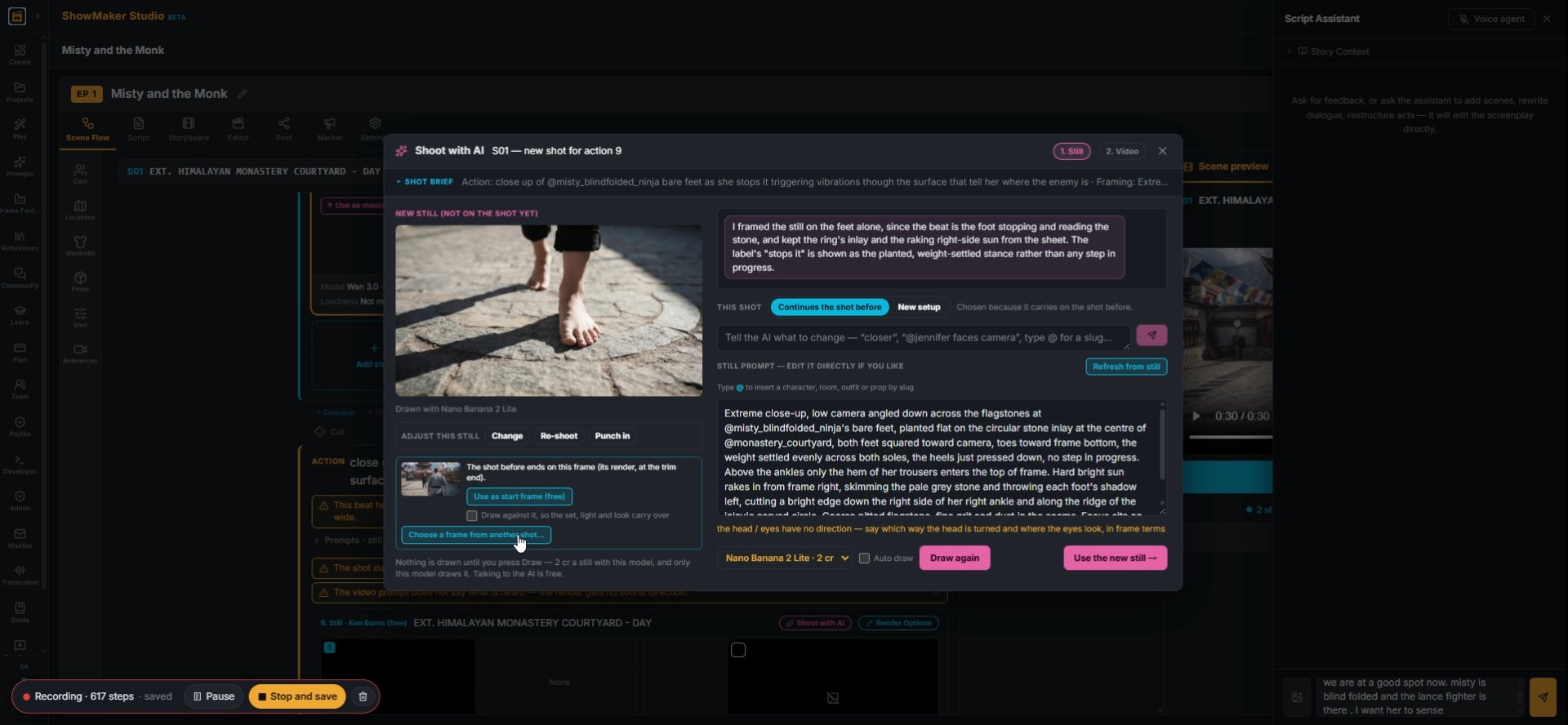
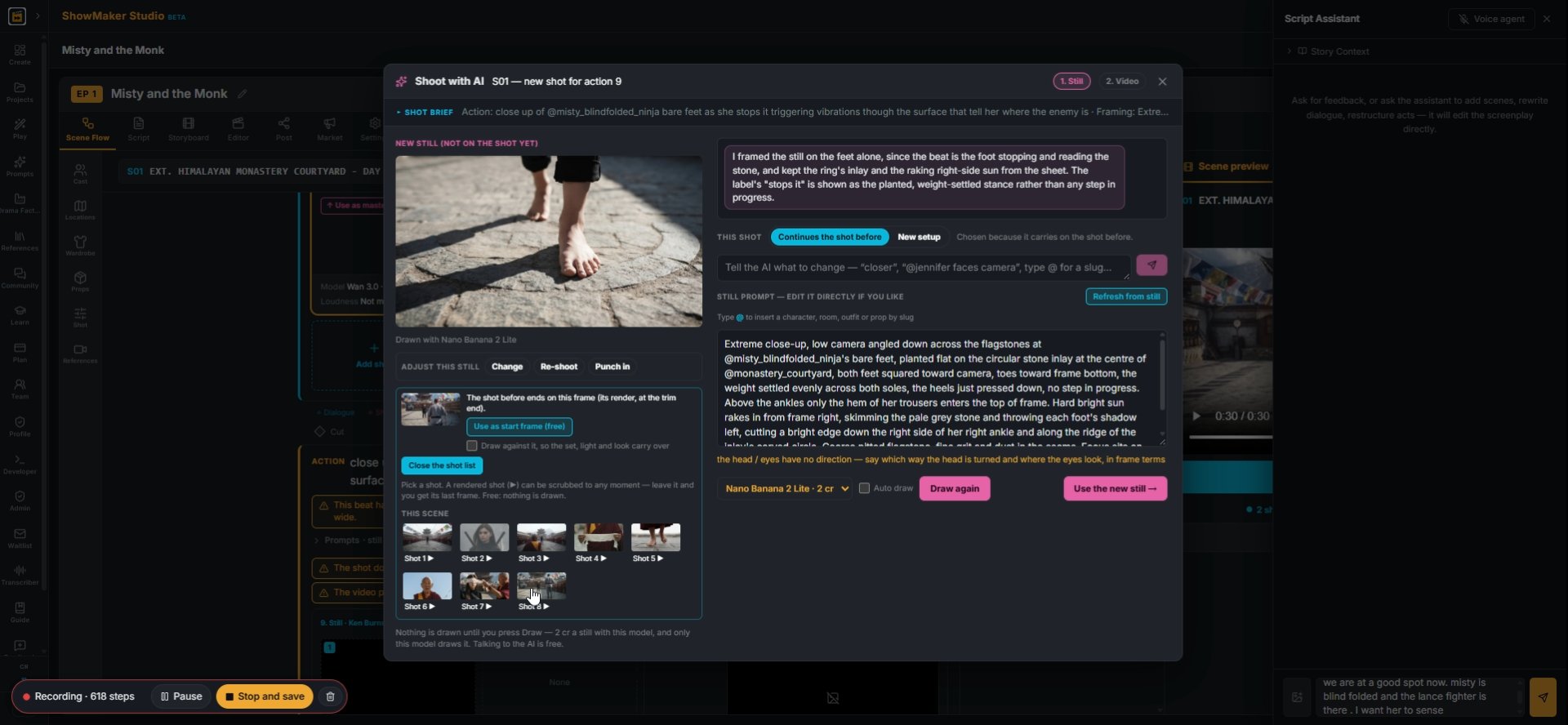
28To match an earlier shot exactly, press Choose a frame from another shot.
Shot 8 ▶
29Pick the shot from THIS SCENE.
Use the frame at 2.13s
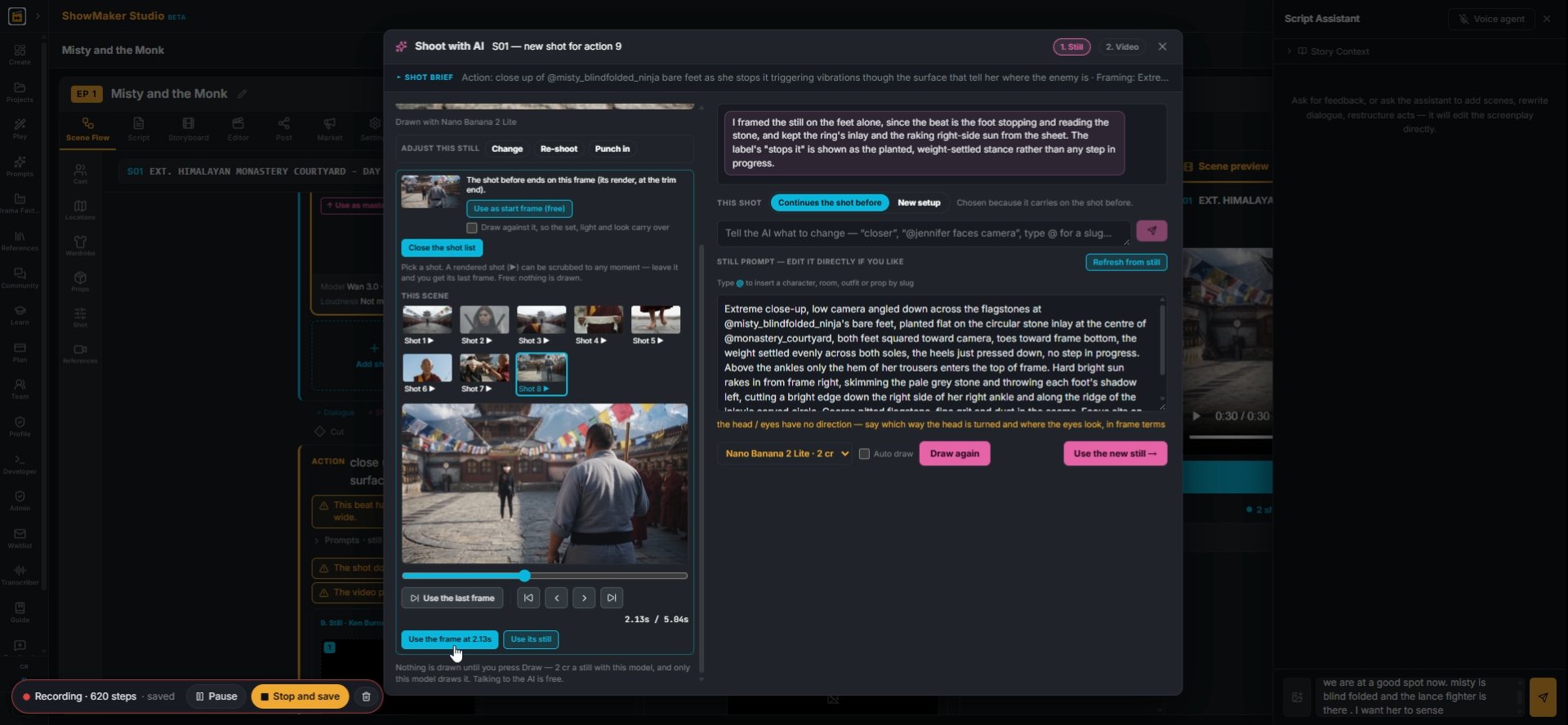
30Scrub to the moment you want and press Use the frame at that time. It becomes this shot's start.
What to change — “no lights at all, near-black”, “his head turned frame left”…
31Small fixes work too, like "pants should have narrow bottoms". Press Apply the change.

Talking shots, takes and re-renders
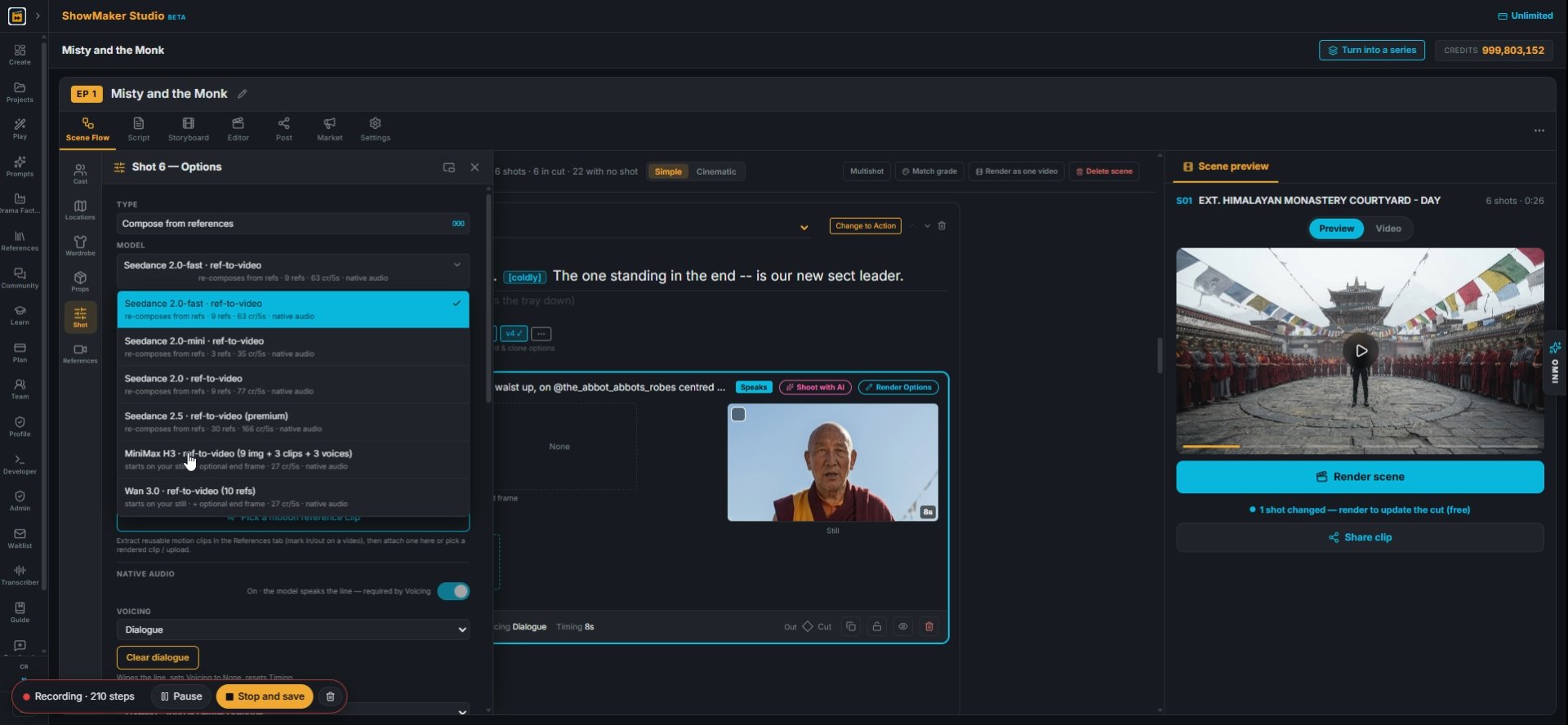
MiniMax H3 · ref-to-video (9 img + 3 clips + 3 voices) starts on your still · +…
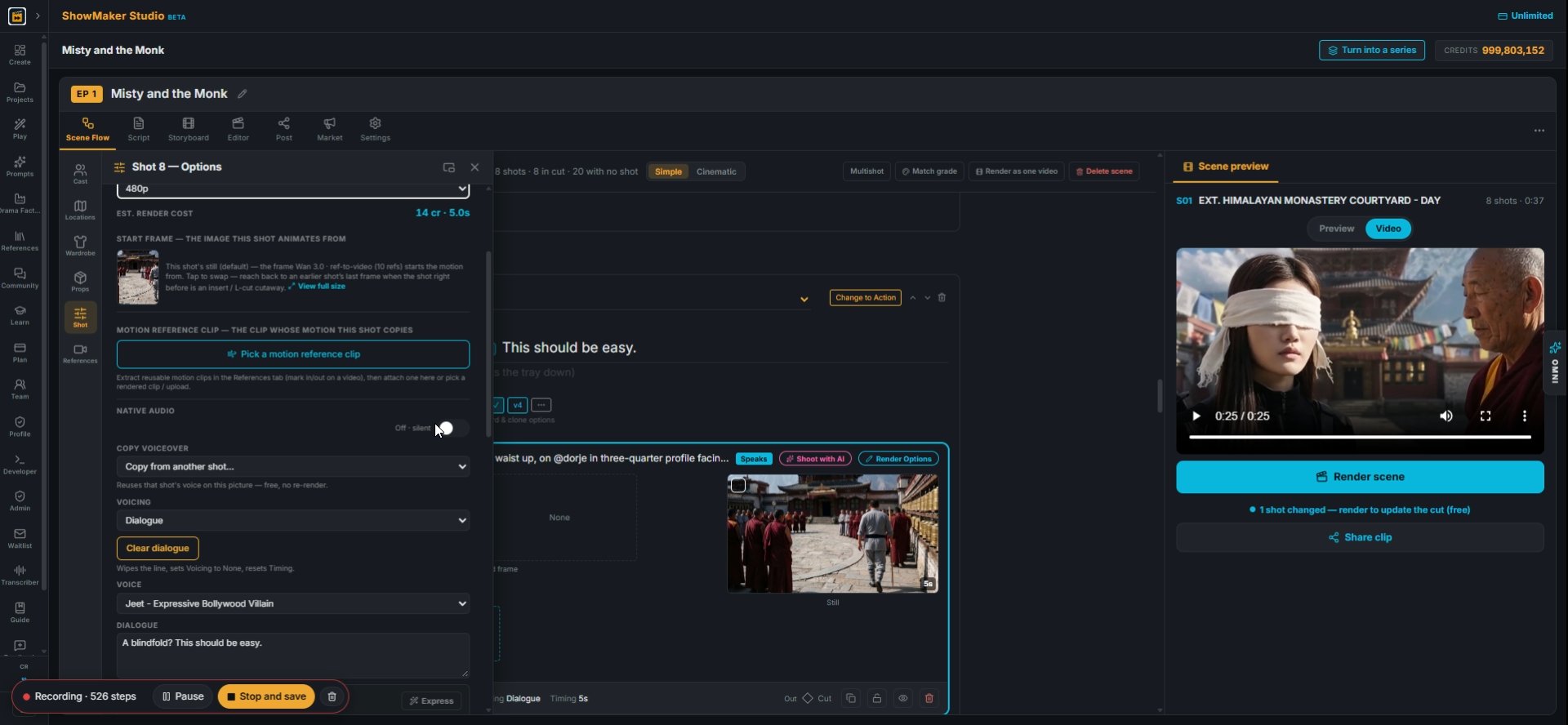
32For a shot where someone speaks, pick a model that takes voices, like MiniMax H3 ref-to-video. Turn NATIVE AUDIO on and set VOICING to Dialogue.
Tell the AI what to change in the motion — type @ for a slug…
33In step 2, describe the action, like "have him jump high towards frame center with his staff in attack strike".
NATIVE AUDIO Off · silent
34Native audio adds sound from the model. Turn it off if you only want your own voice and sound.
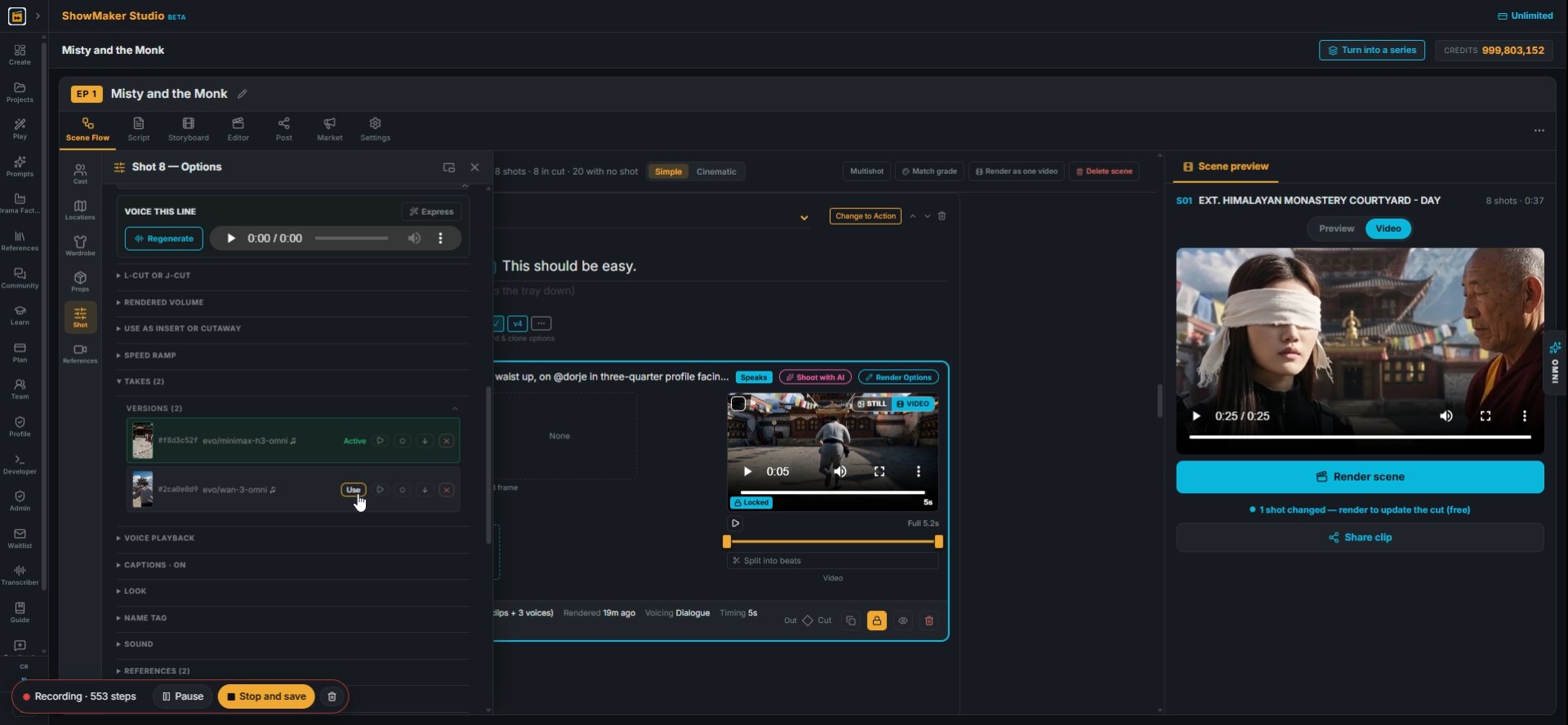
Use
35Open TAKES to see every render of the shot. Press Use on the take you like best.
What this shot shows — type @ to reference cast, wardrobe, locations & props…
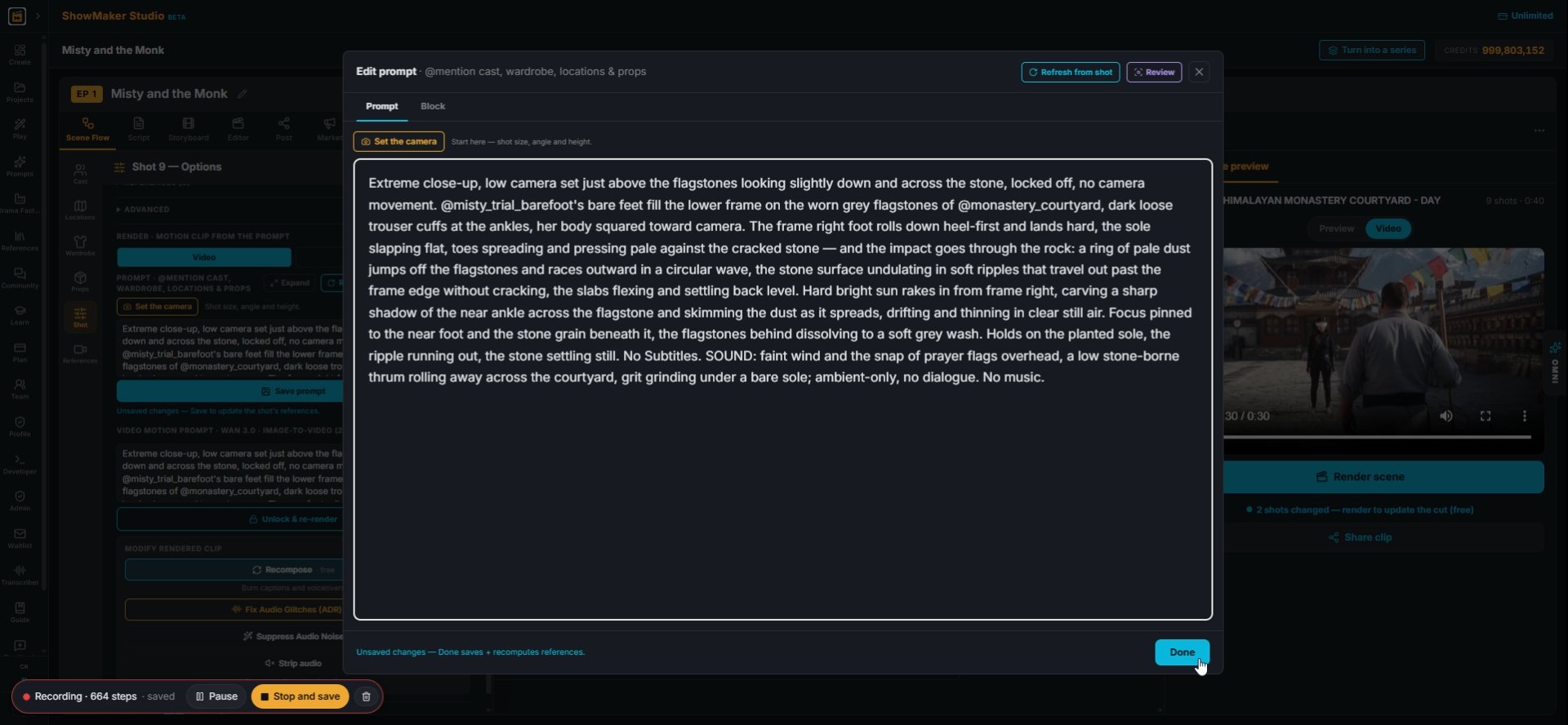
36To change a rendered shot, edit the prompt in Render Options and press Done.
Unlock & re-render
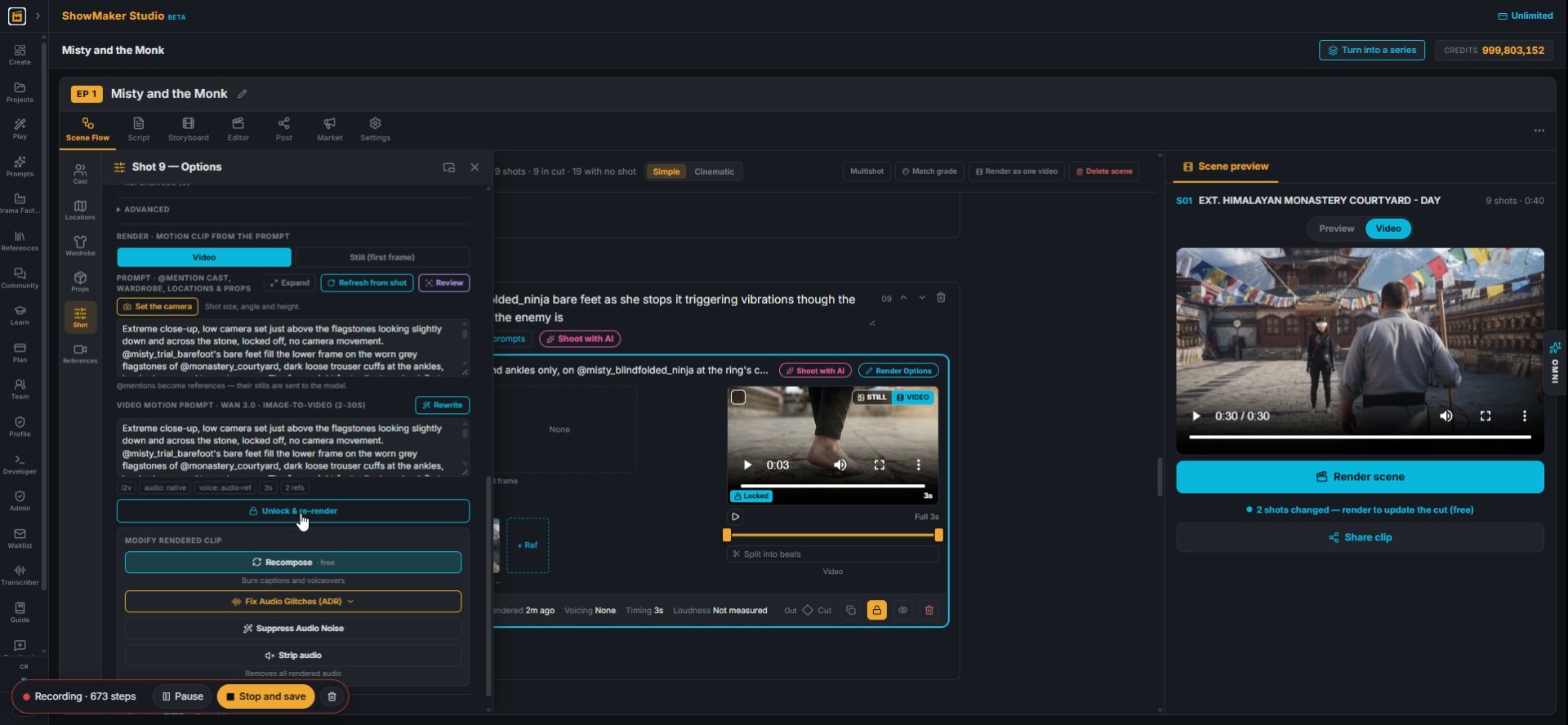
37A rendered clip is locked so it is not re-rendered by mistake. When you want a new take, press the re-render button under the prompt. It lifts the lock first.
Render scene
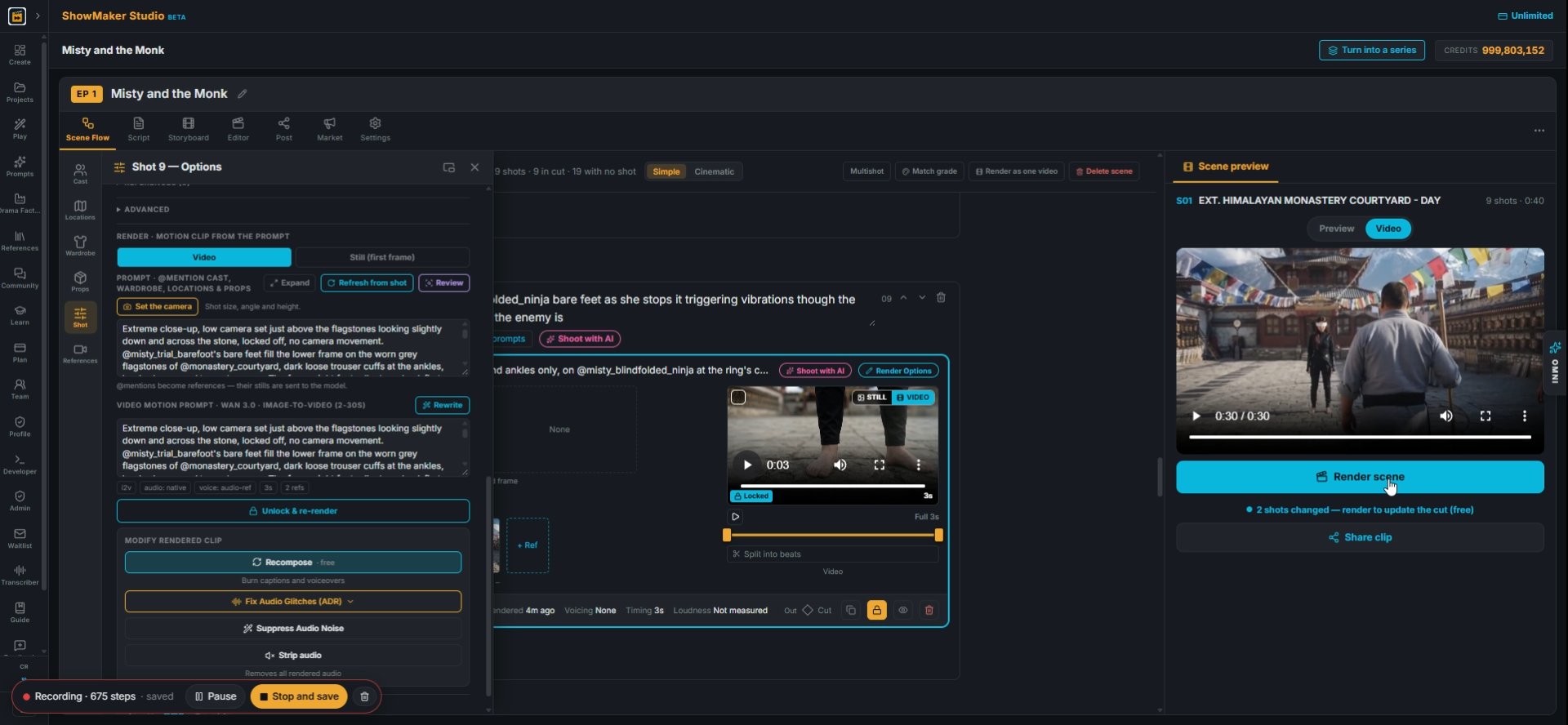
38Press Render scene to rebuild the scene preview with the new shots.

Make your own episode.

Start free with 200 credits: a narrated film from AI stills, no credit card.

Make an AI shot from a still: Shoot with AI, re-shoot angles, pick a model | ShowMaker Studio