Step-by-step guide · 32 steps

Keep the room steady in AI video: a start frame for every Multishot beat

AI video rebuilds the set after every cut, so furniture moves and people jump. Give each Multishot beat its own start frame: draw it, pick it from an earlier clip, or adjust it in words, and check it against the room before you render. Built on Blood Child, a Nollywood micro drama.

Set up the beat
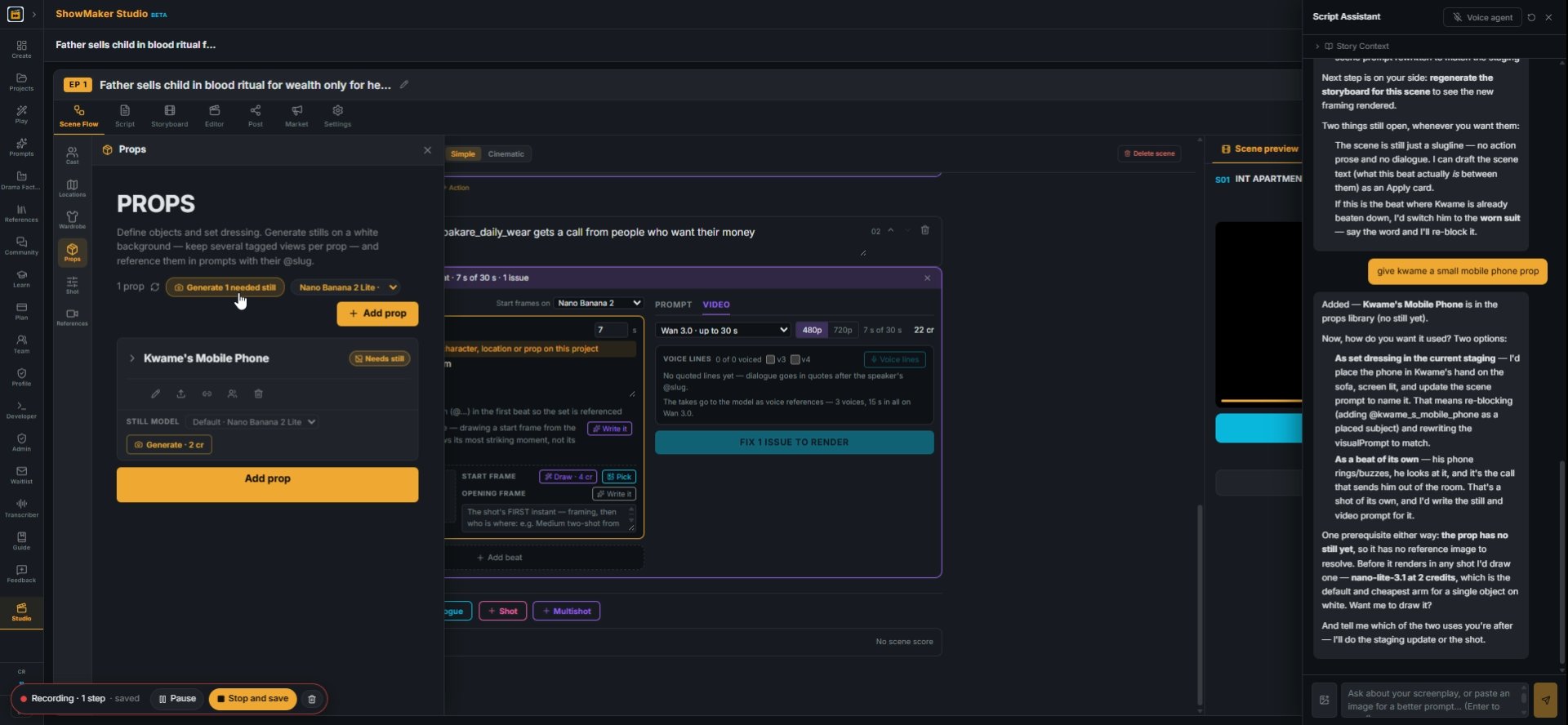
Generate 1 needed still
1If the scene needs an object you haven't drawn, open Props and press Generate 1 needed still, so the prop has a picture to send with the shot (here, Kwame's Mobile Phone).
What happens, with @slugs. Dialogue in quotes after the speaker: @chloe turns t…
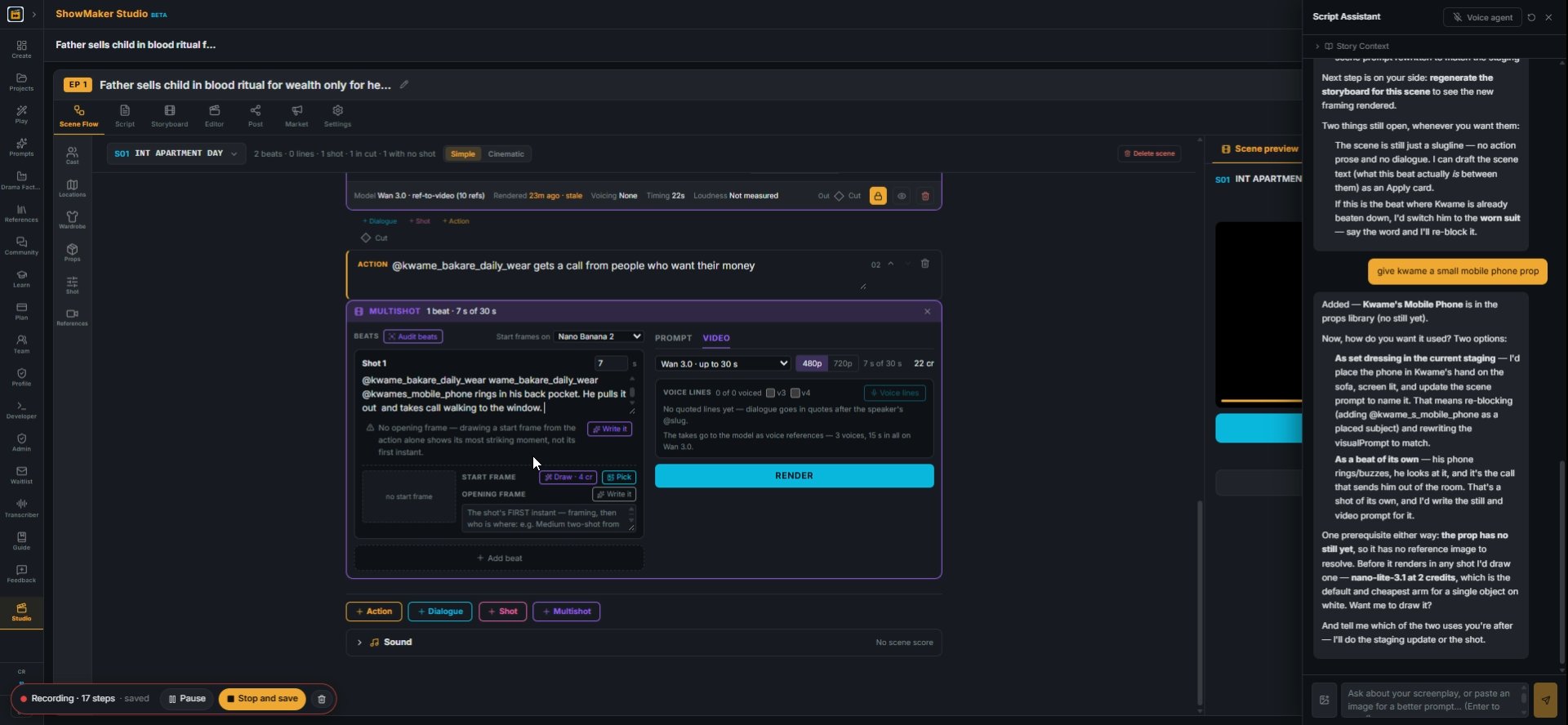
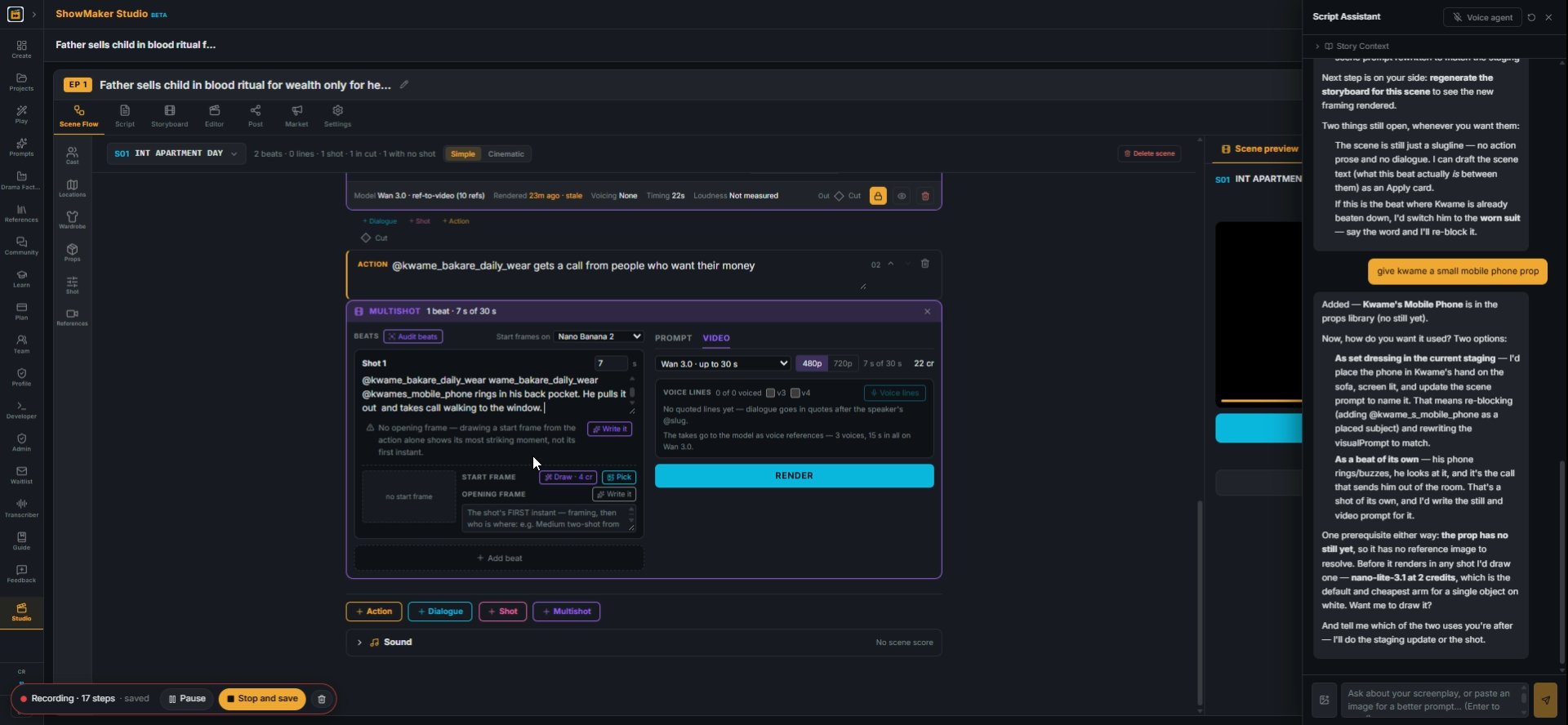
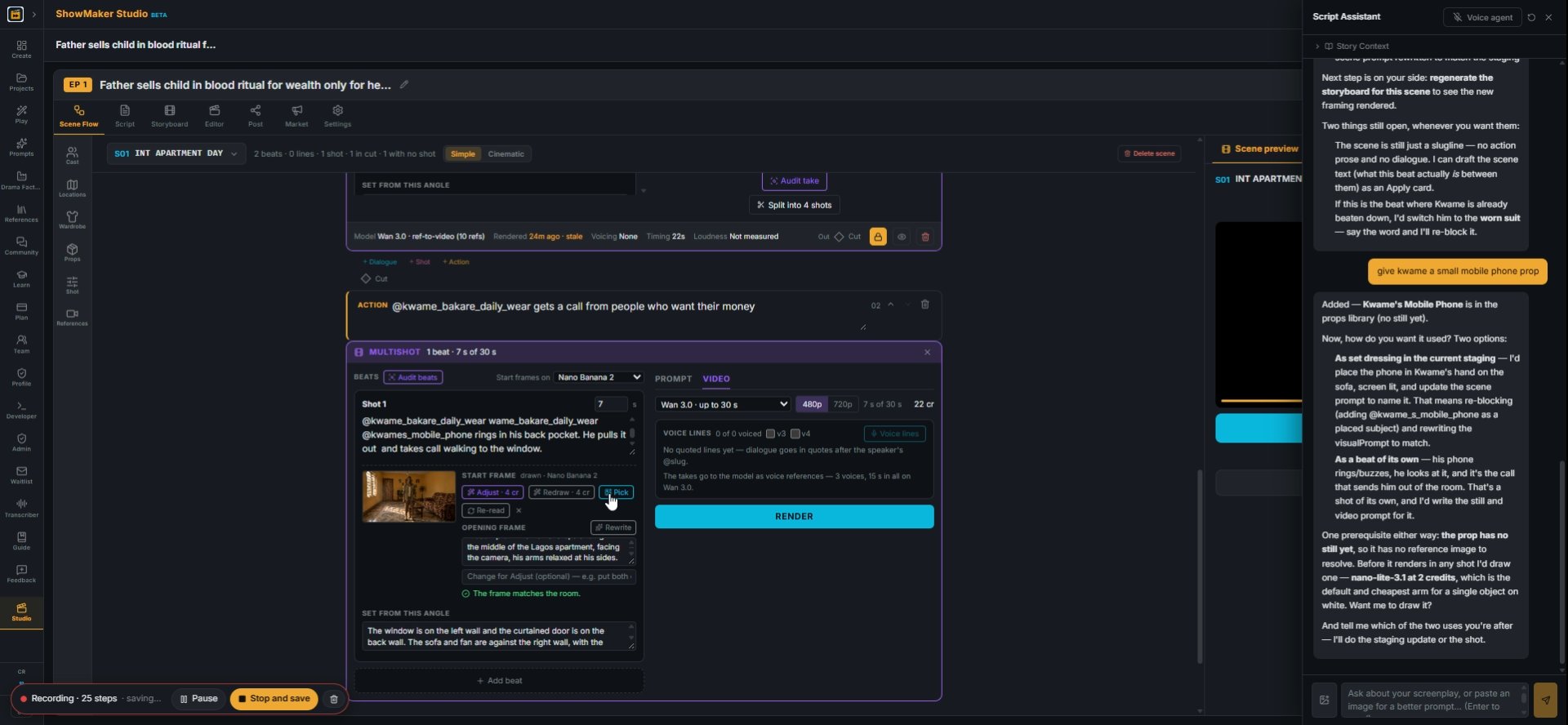
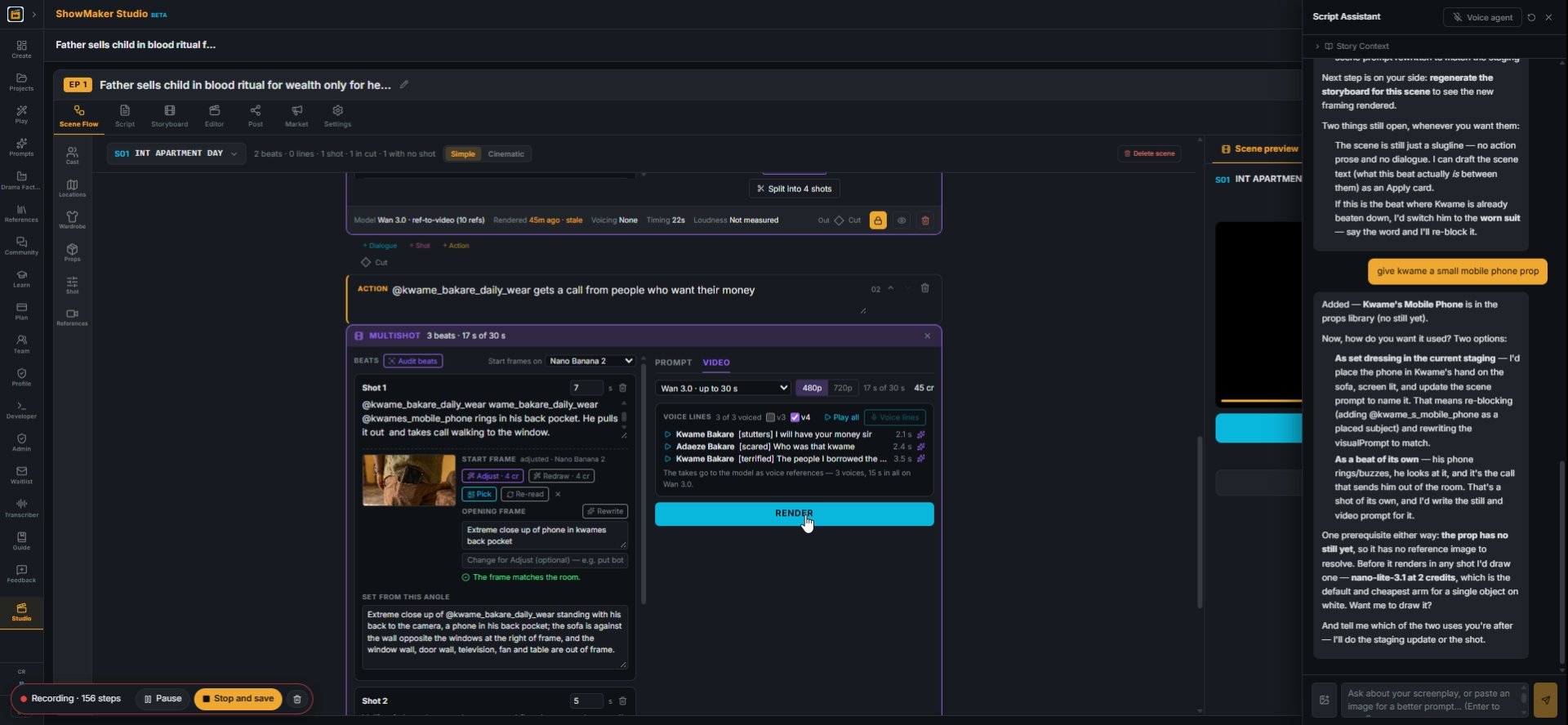
2In the Multishot panel, write the beat with @slugs for the people, the room and the prop: "@kwame_bakare_daily_wear's @kwames_mobile_phone rings in his back pocket. He pulls it out and takes the call".
No opening frame — drawing a start frame from the action alone shows its most s…
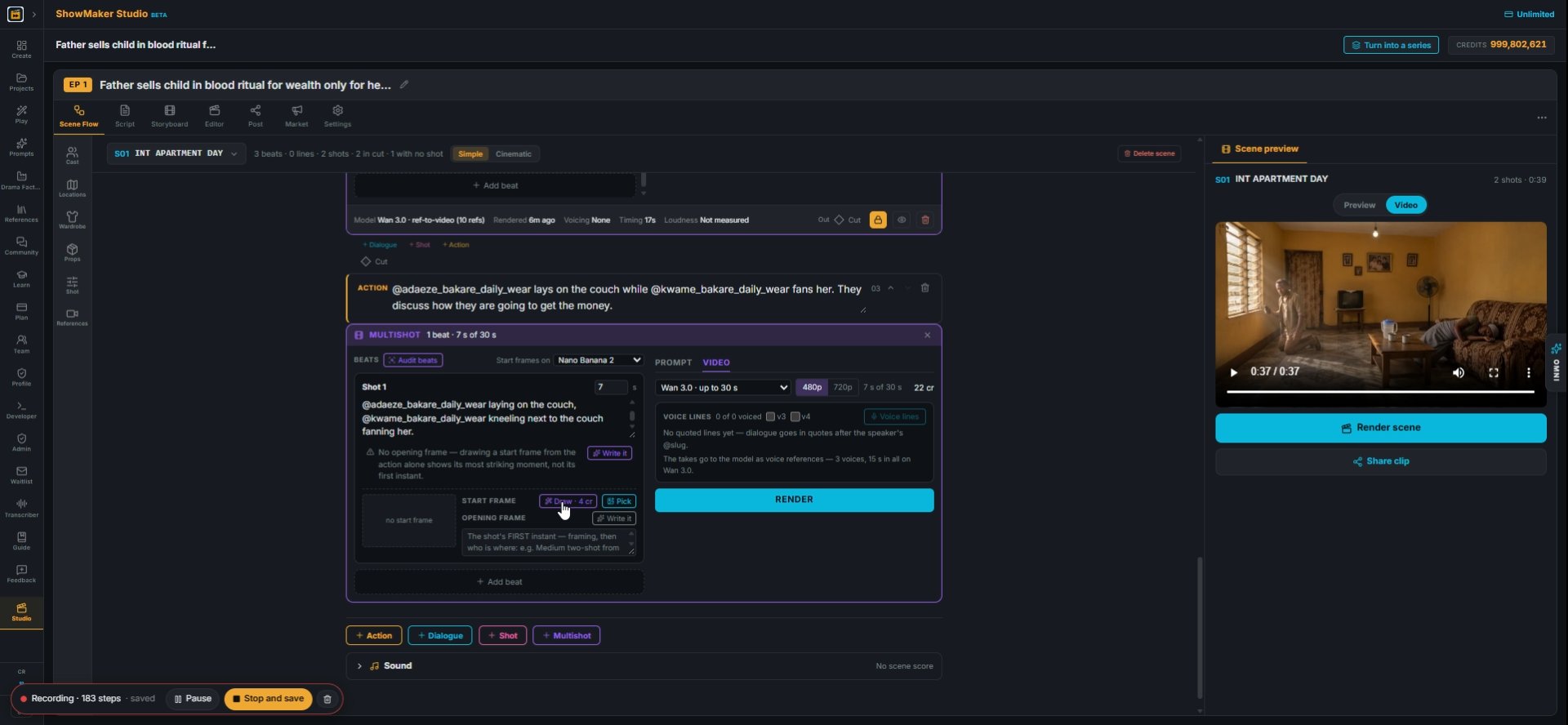
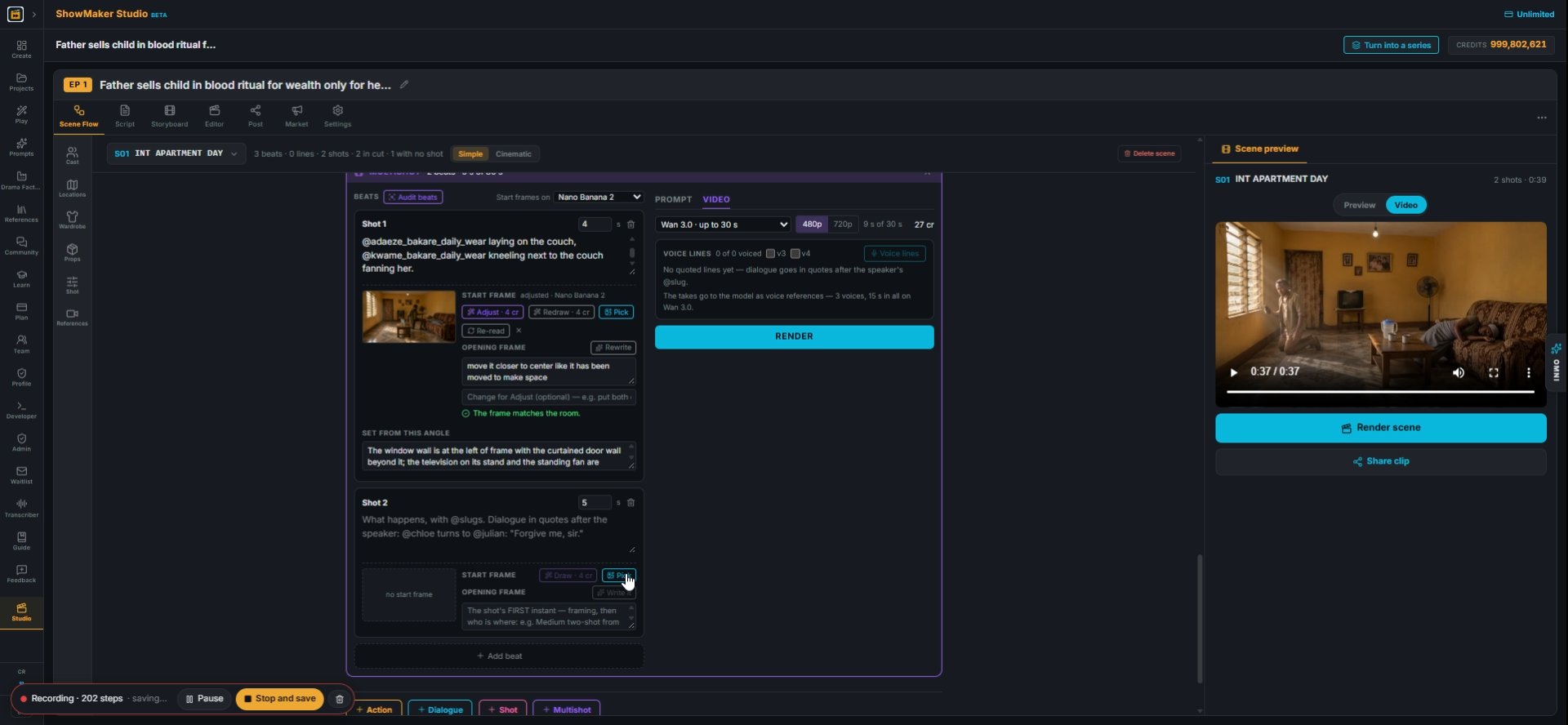
3A beat with no start frame shows a warning: drawn from the action alone, the frame shows the most striking moment, not the first instant. Press Write it.
The shot's FIRST instant — framing, then who is where: e.g. Medium two-shot fro…
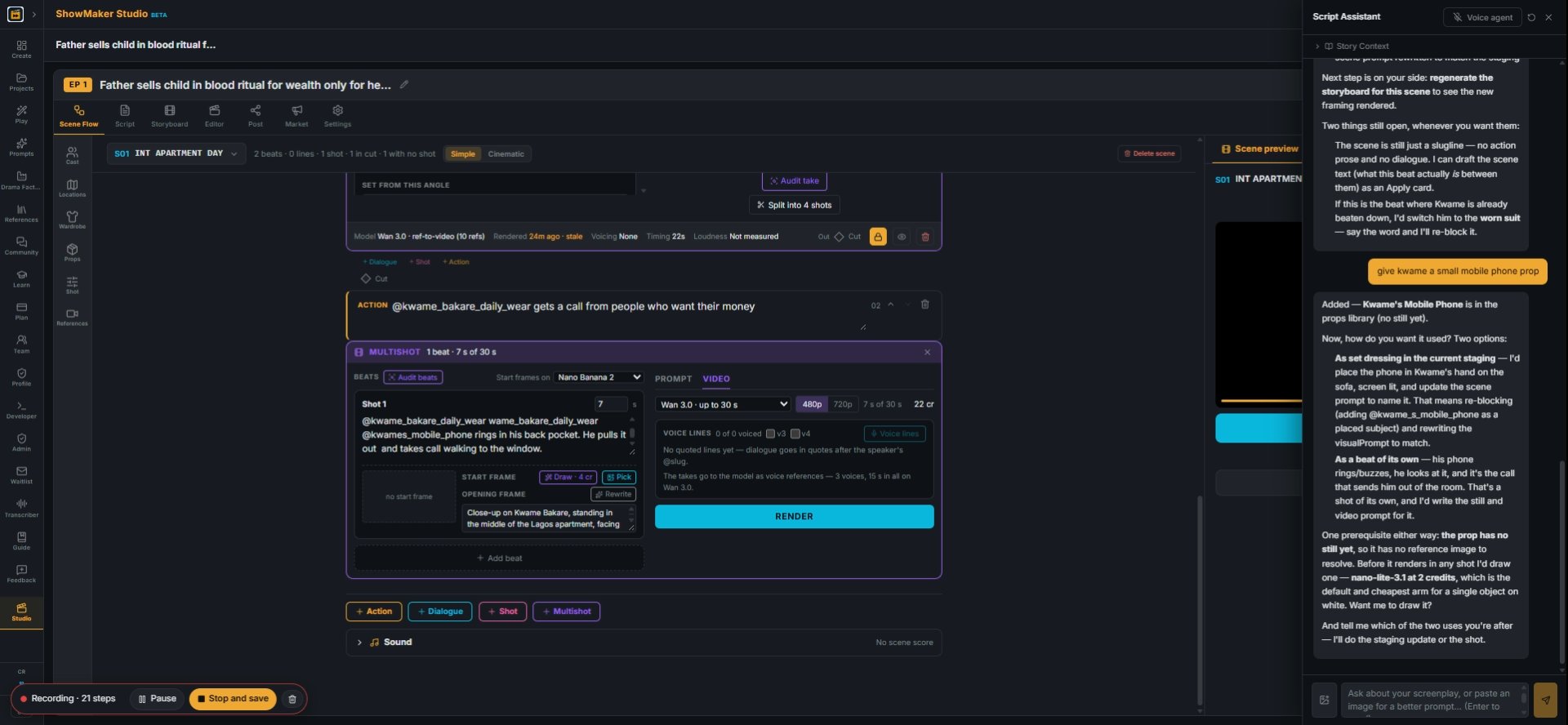
4Write it fills OPENING FRAME: the shot's first instant, with the framing and who is where. Edit it if it isn't how the shot should open.

Draw or pick the start frame

Draw · 4 cr
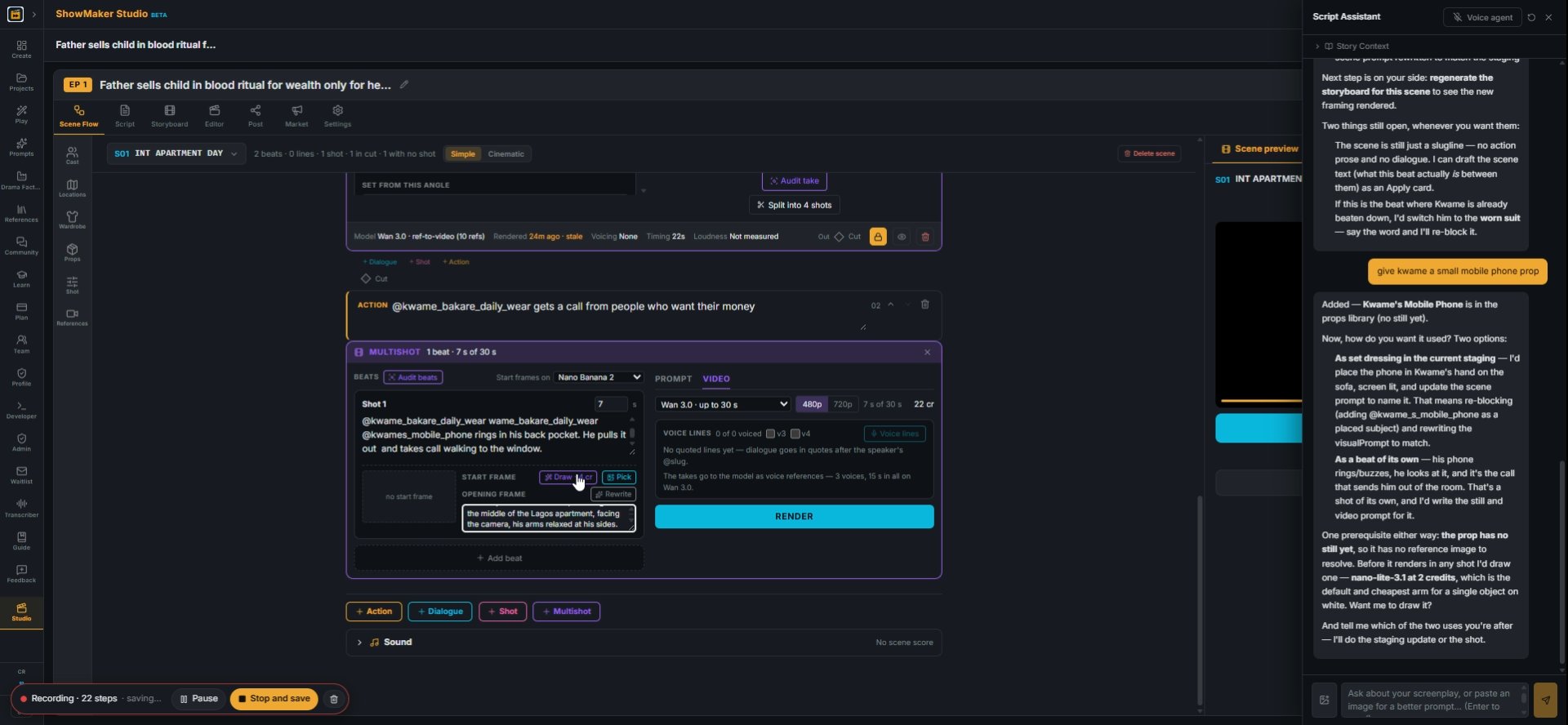
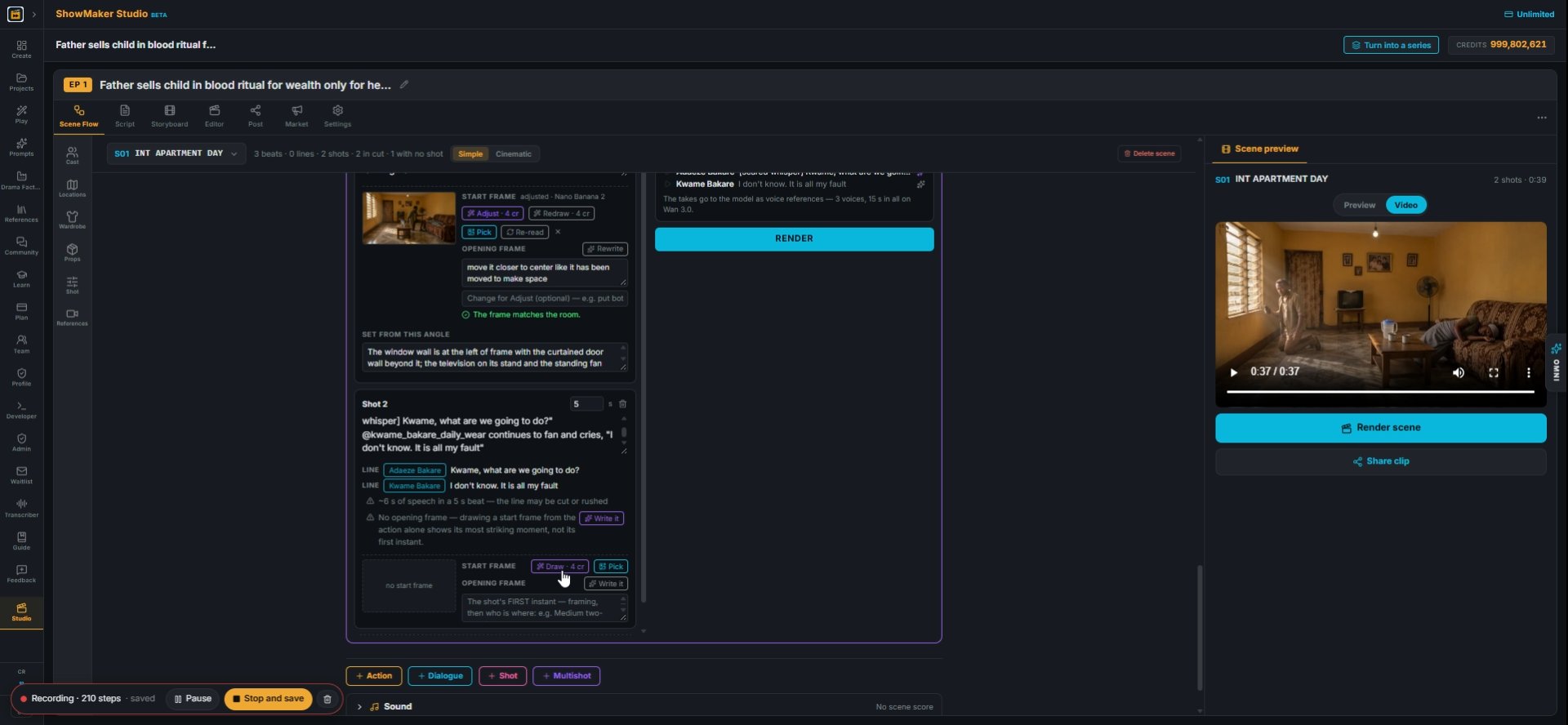
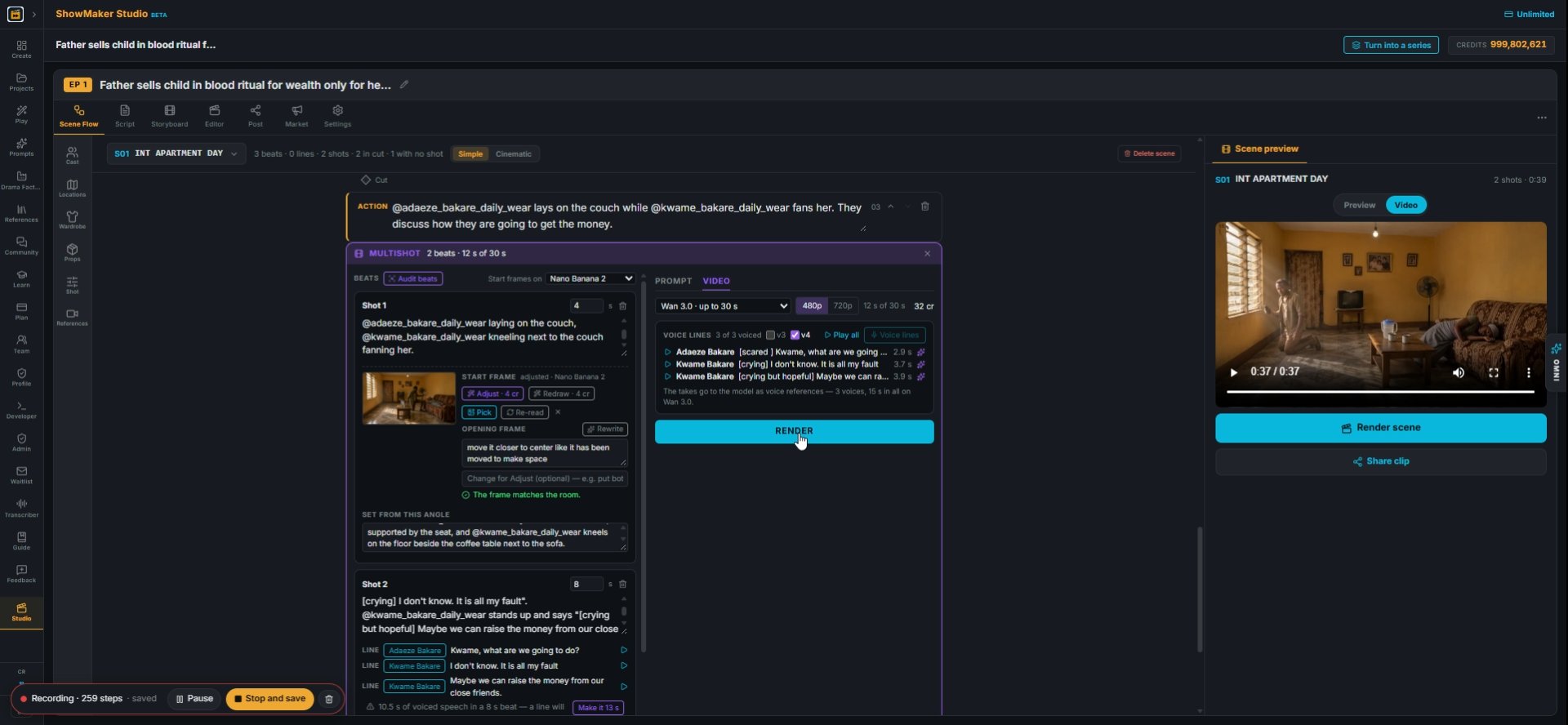
5Press Draw · 4 cr under START FRAME to paint the opening from that text, with your cast, room and prop as references.
Pick
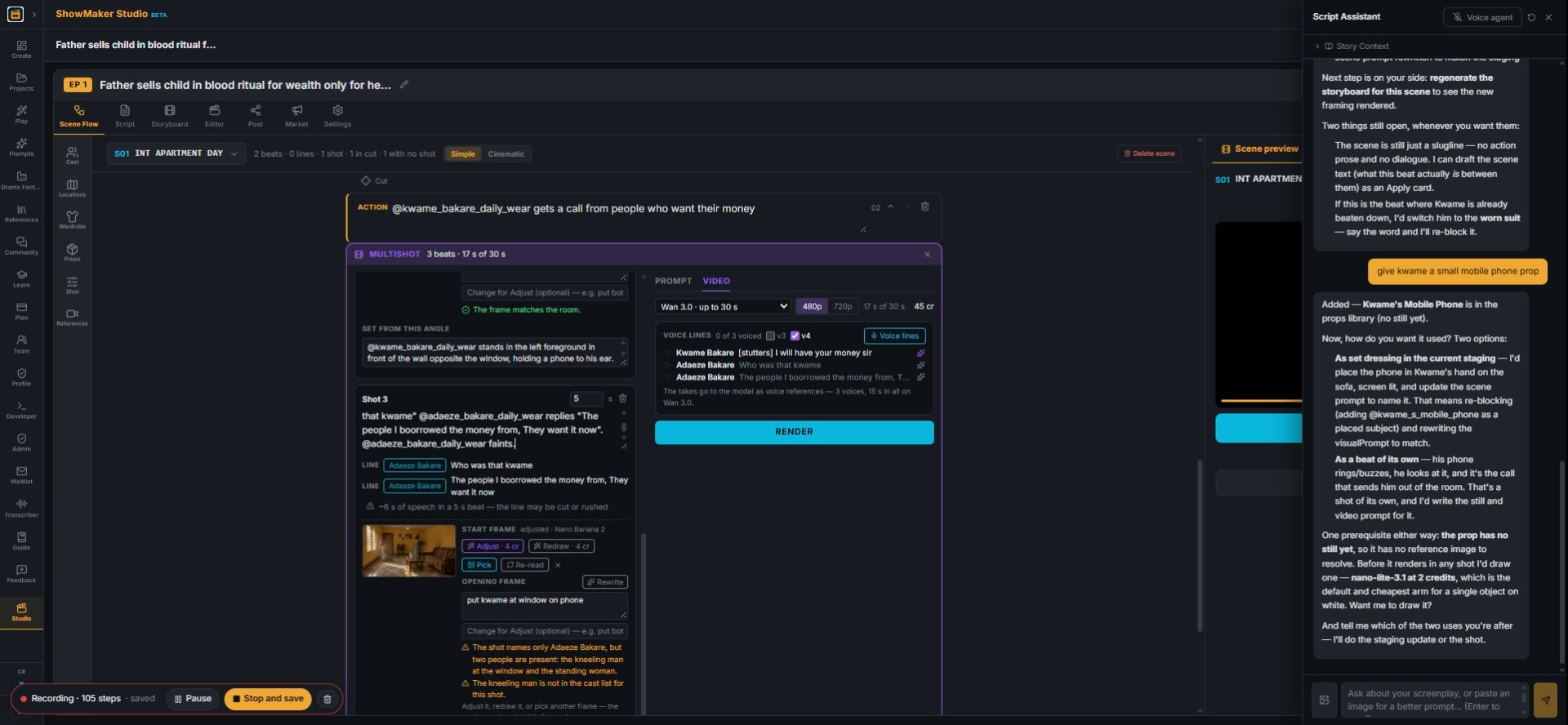
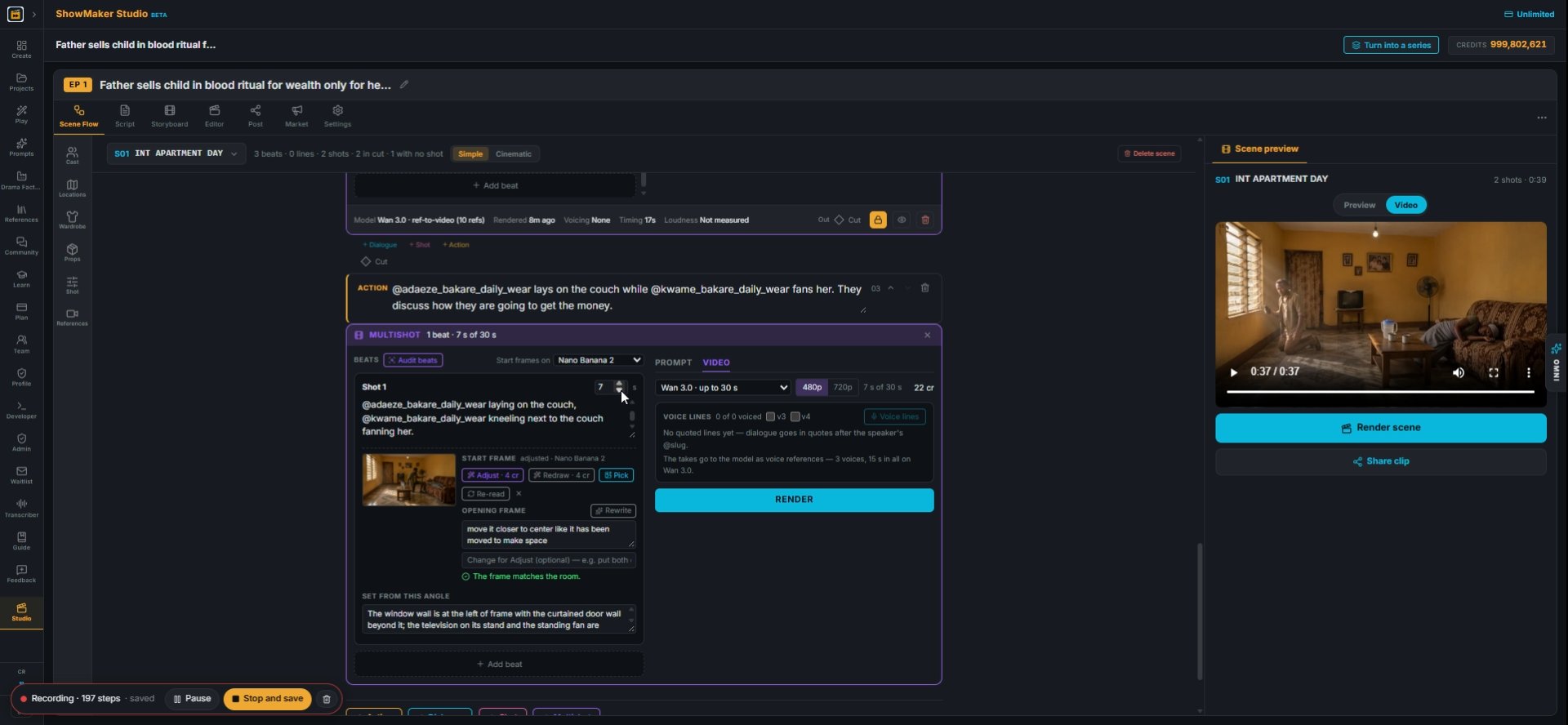
6The frame appears with a free room check underneath ("The frame matches the room") and SET FROM THIS ANGLE, a note of where the walls, windows and furniture sit.
clip Shot 1 ▶
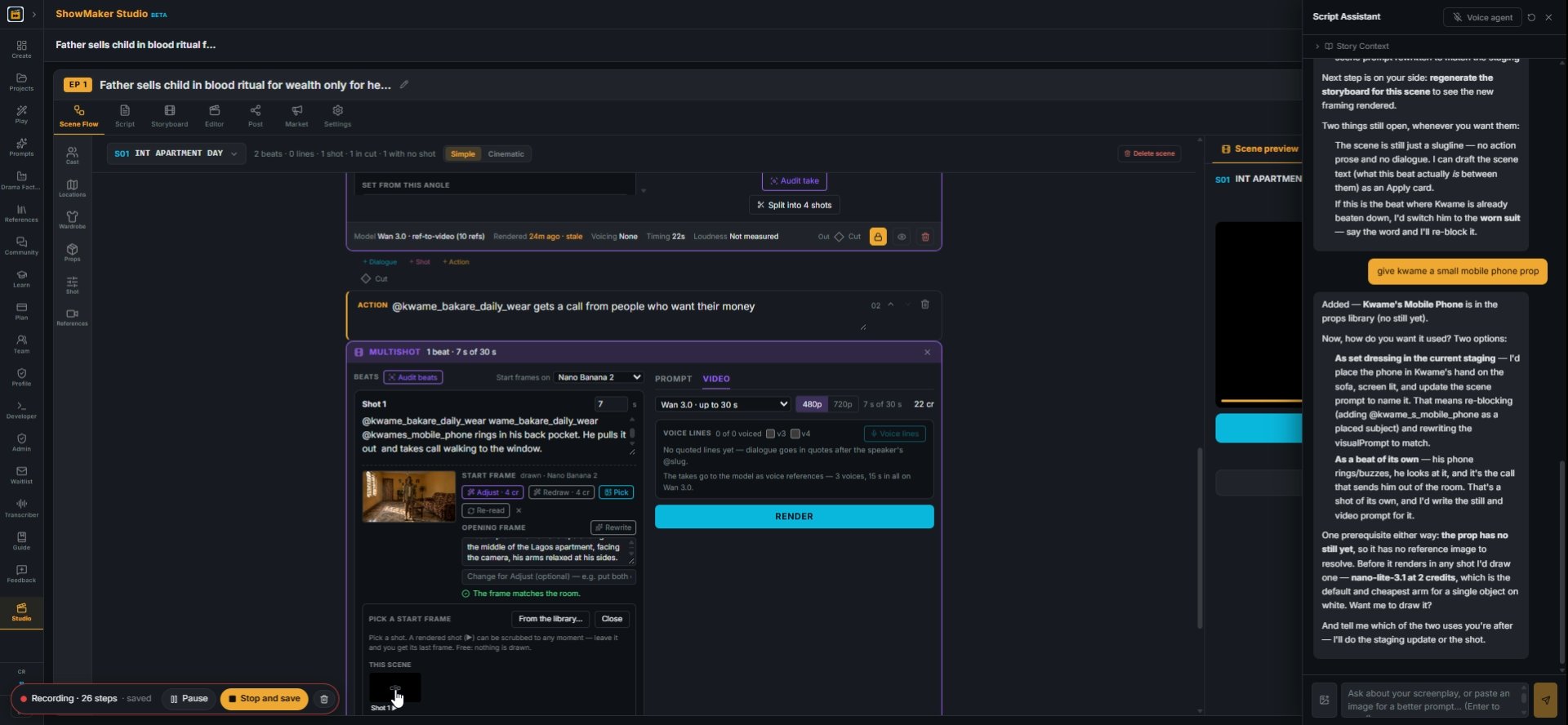
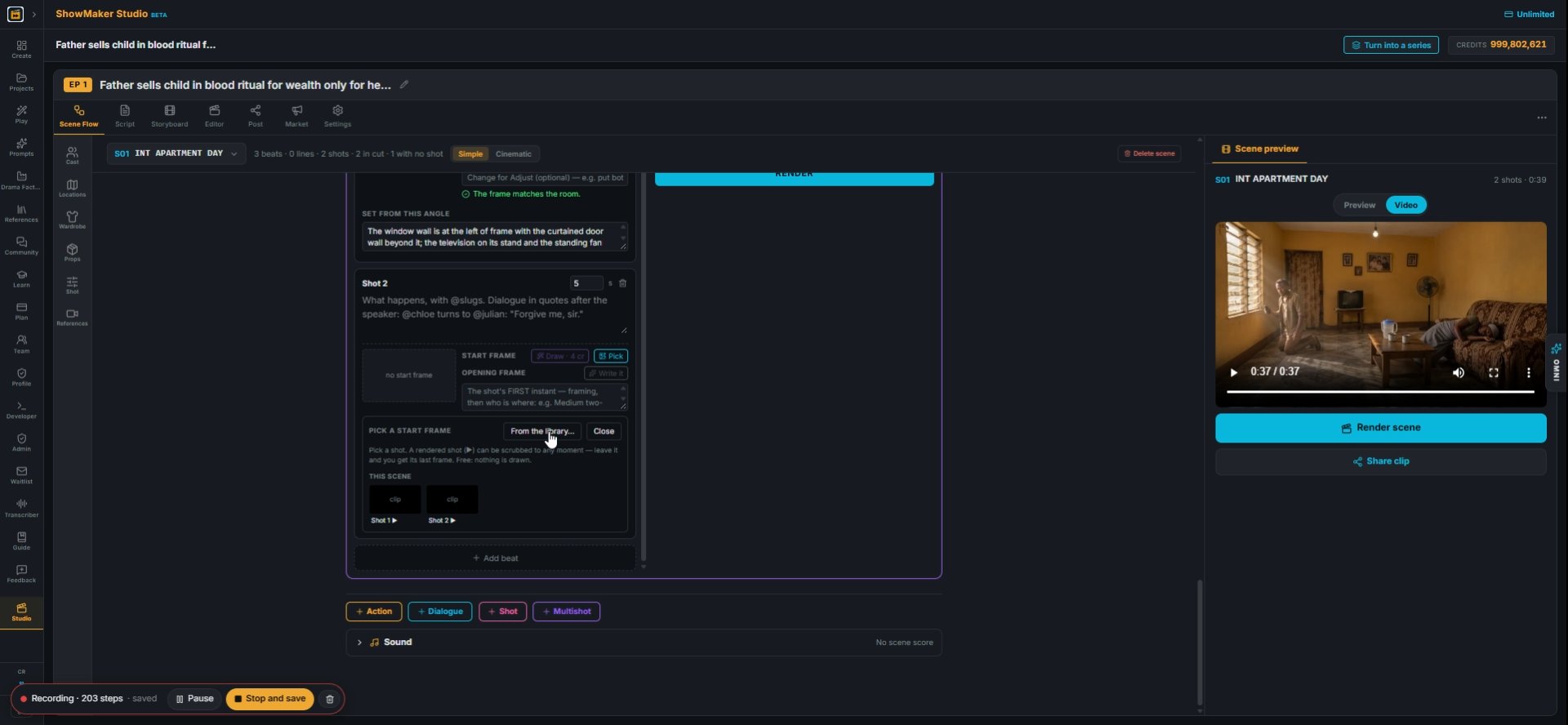
7To continue from footage you already have, press Pick instead. Under THIS SCENE, choose a rendered clip.
Use its last frame
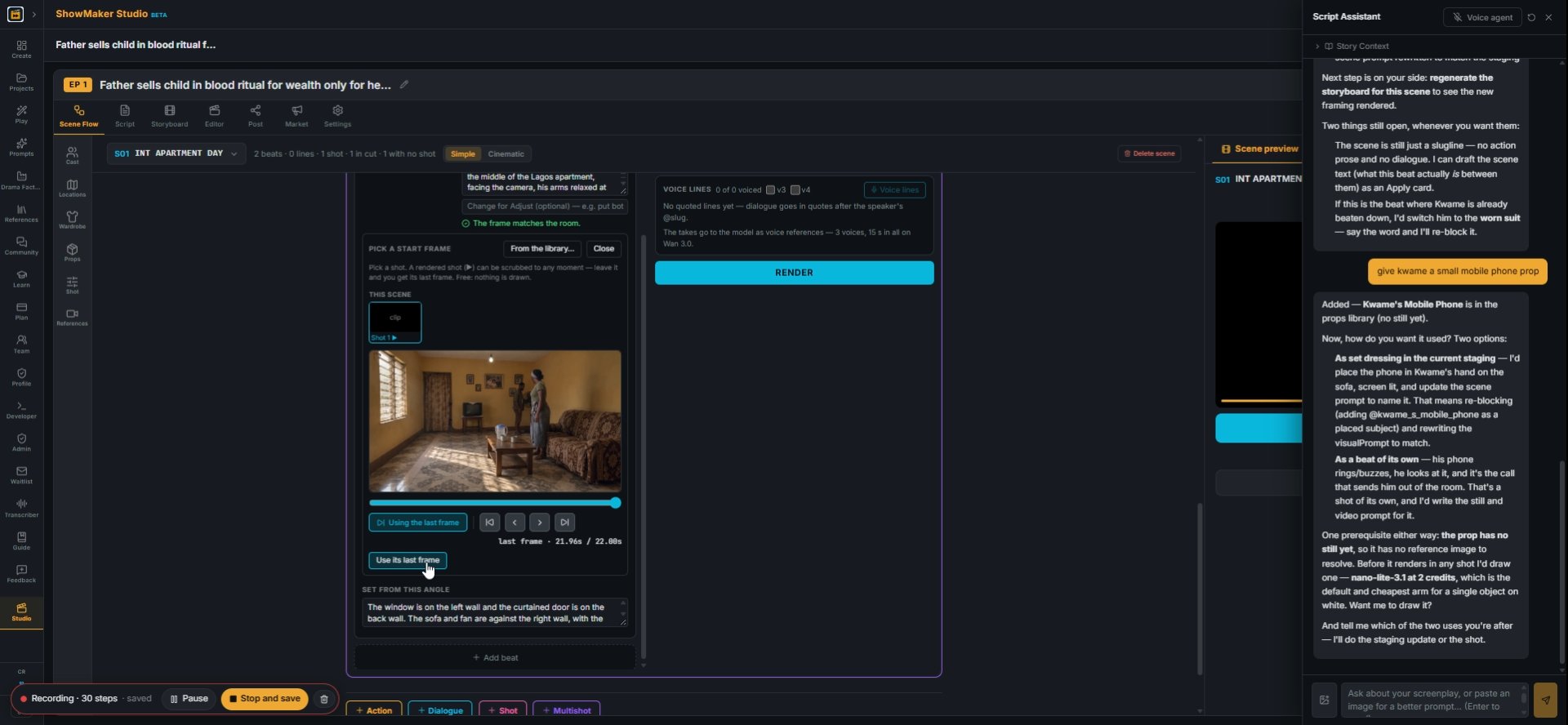
8The clip opens on its last frame. Press Use its last frame to start the beat exactly where the previous shot ended. Picking is free.
Use the frame at 21.48s
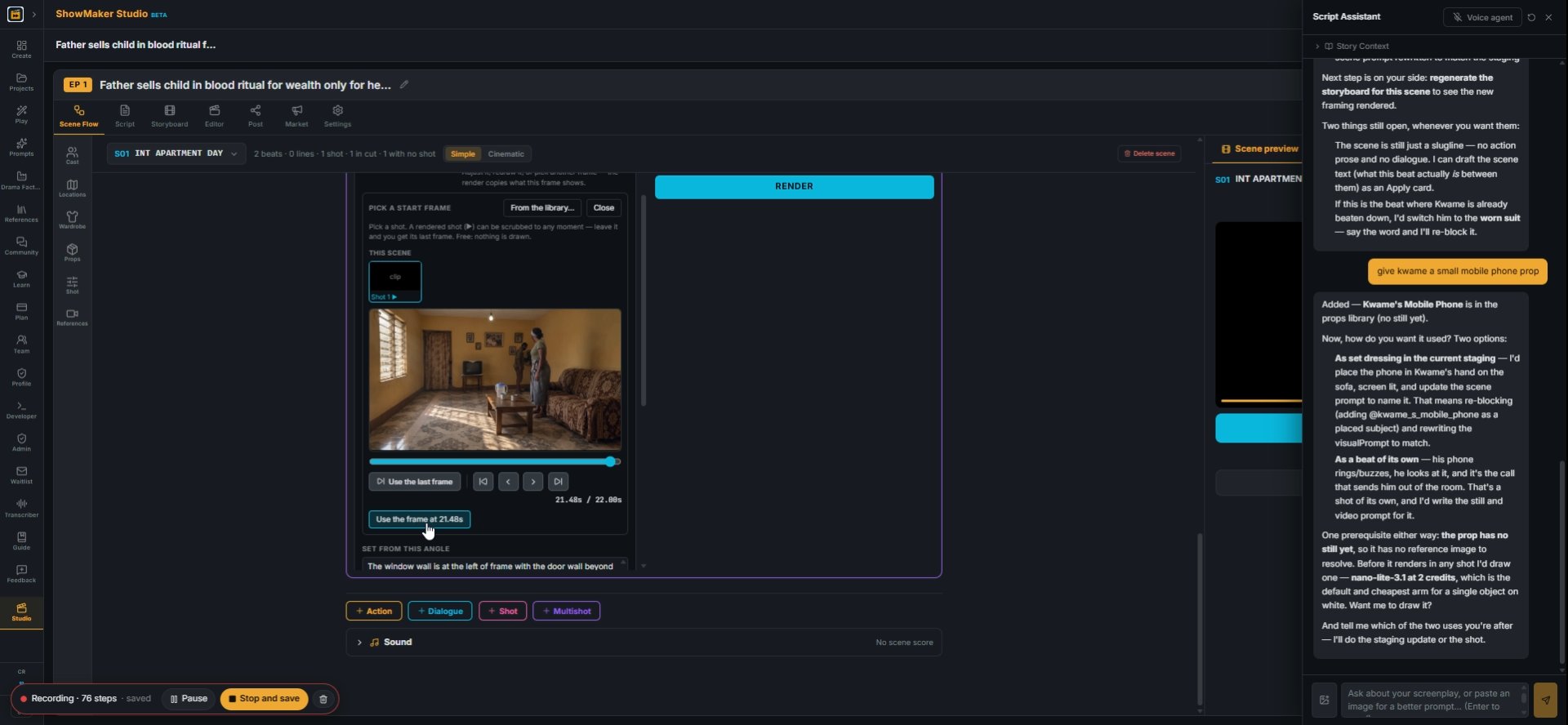
9Or scrub the slider to any moment and press Use the frame at… to take that frame instead.

Adjust it until it's right

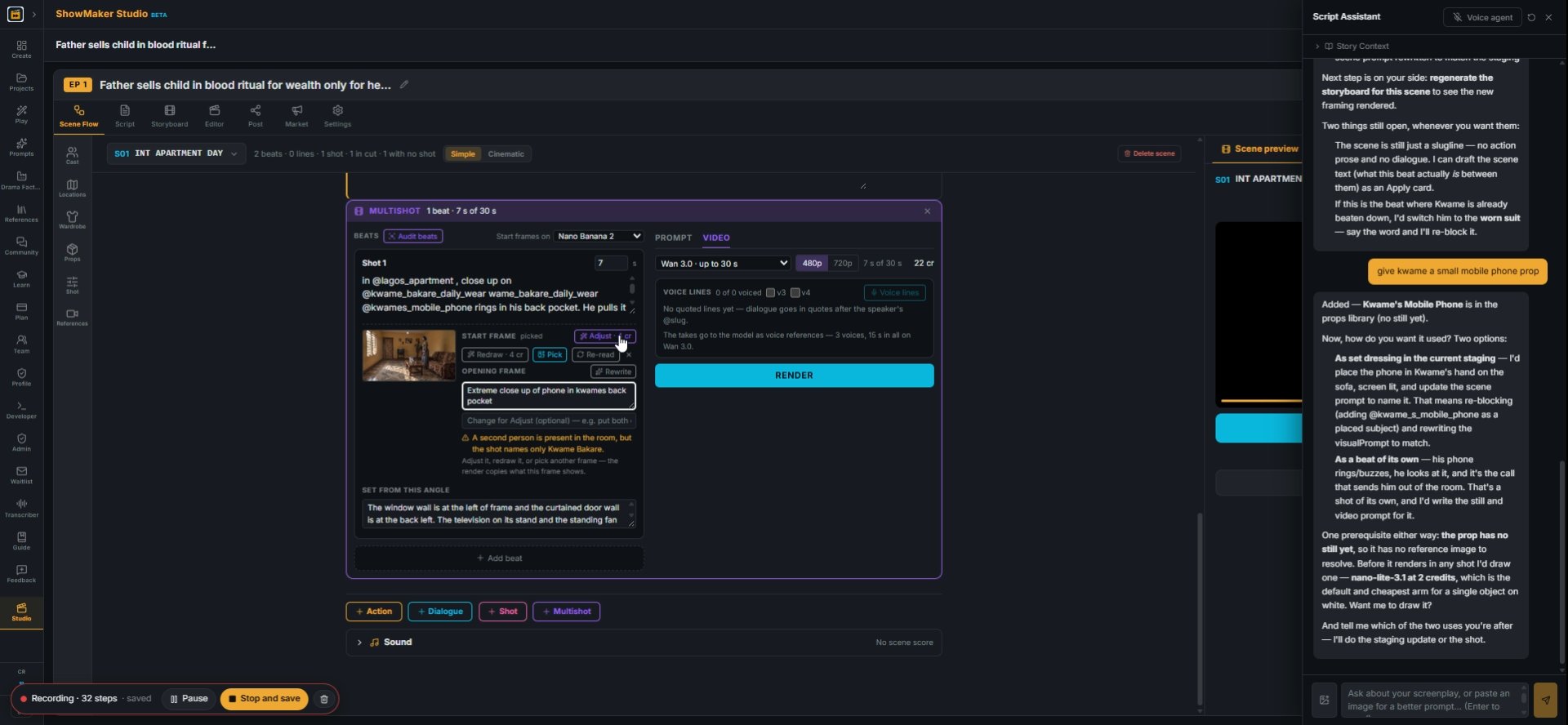
The shot's FIRST instant — framing, then who is where: e.g. Medium two-shot fro…
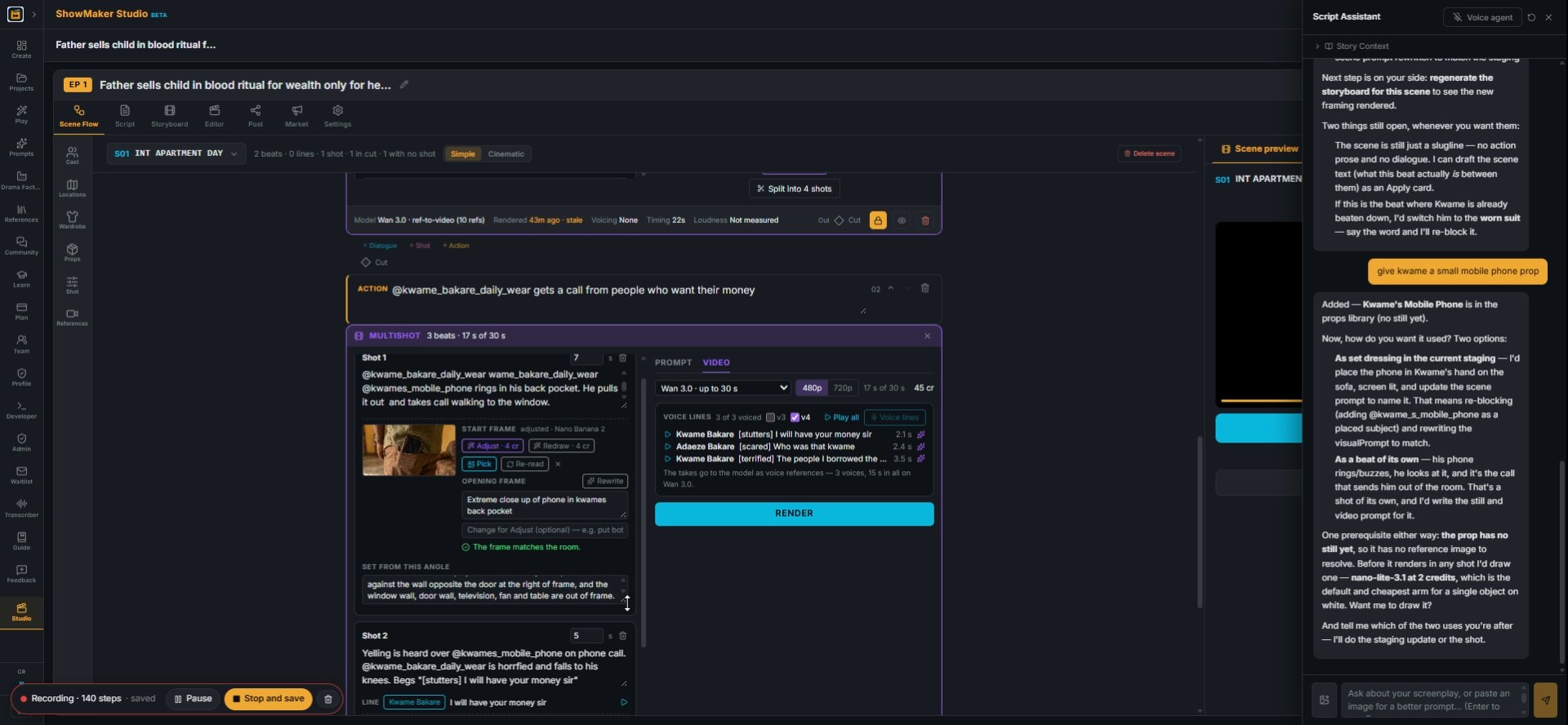
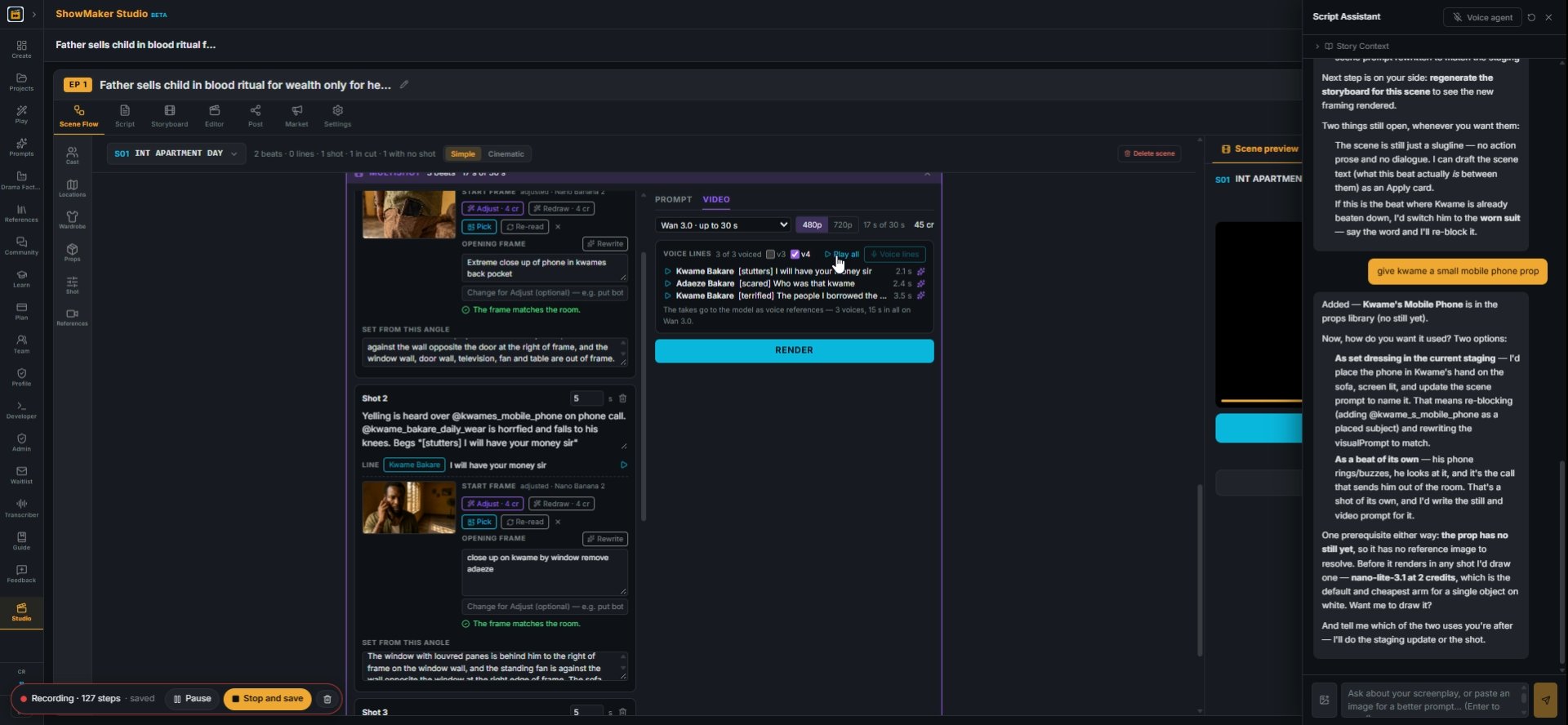
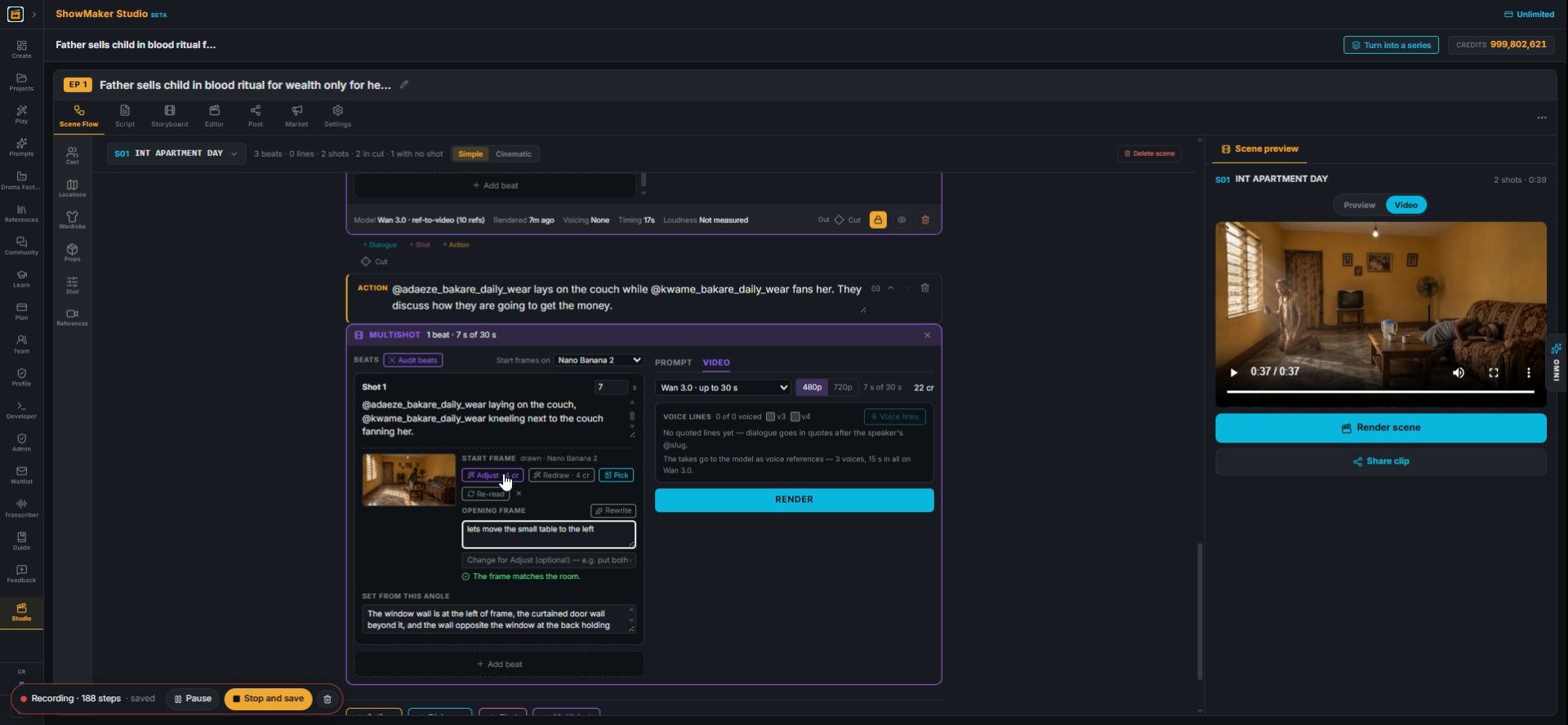
10Change the OPENING FRAME text to the shot you want, e.g. "Extreme close up of phone in Kwame's back pocket", and press Adjust · 4 cr. Adjust edits the current frame instead of drawing a new room.
The shot's FIRST instant — framing, then who is where: e.g. Medium two-shot fro…
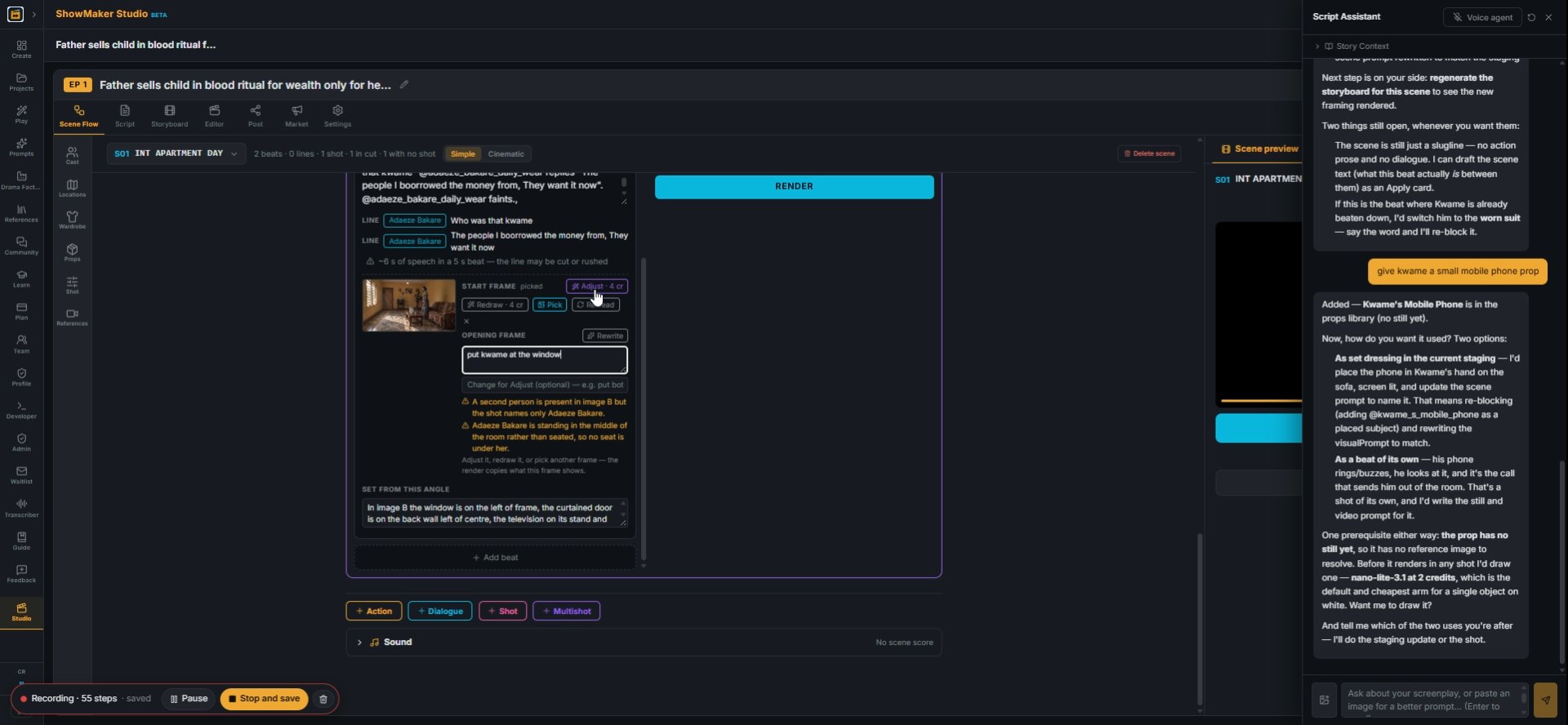
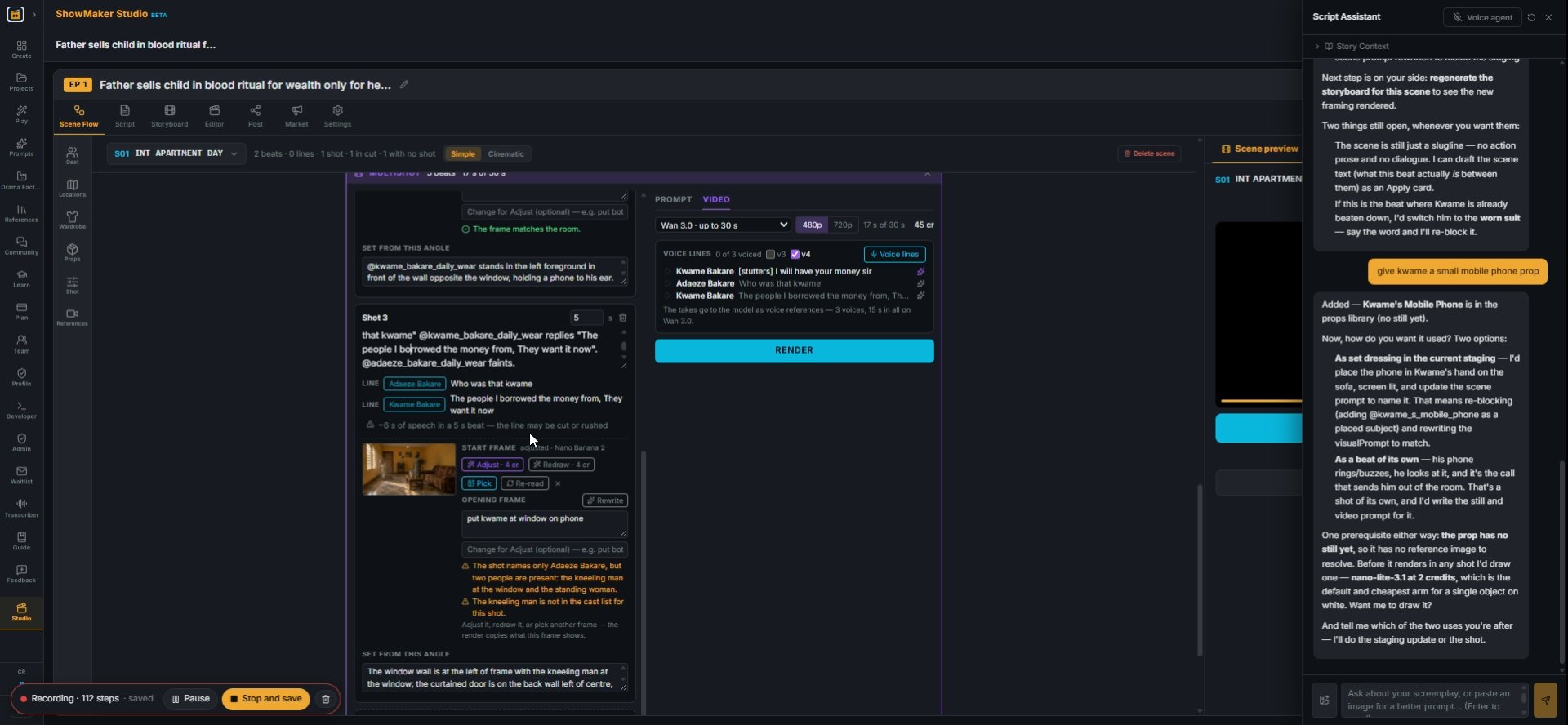
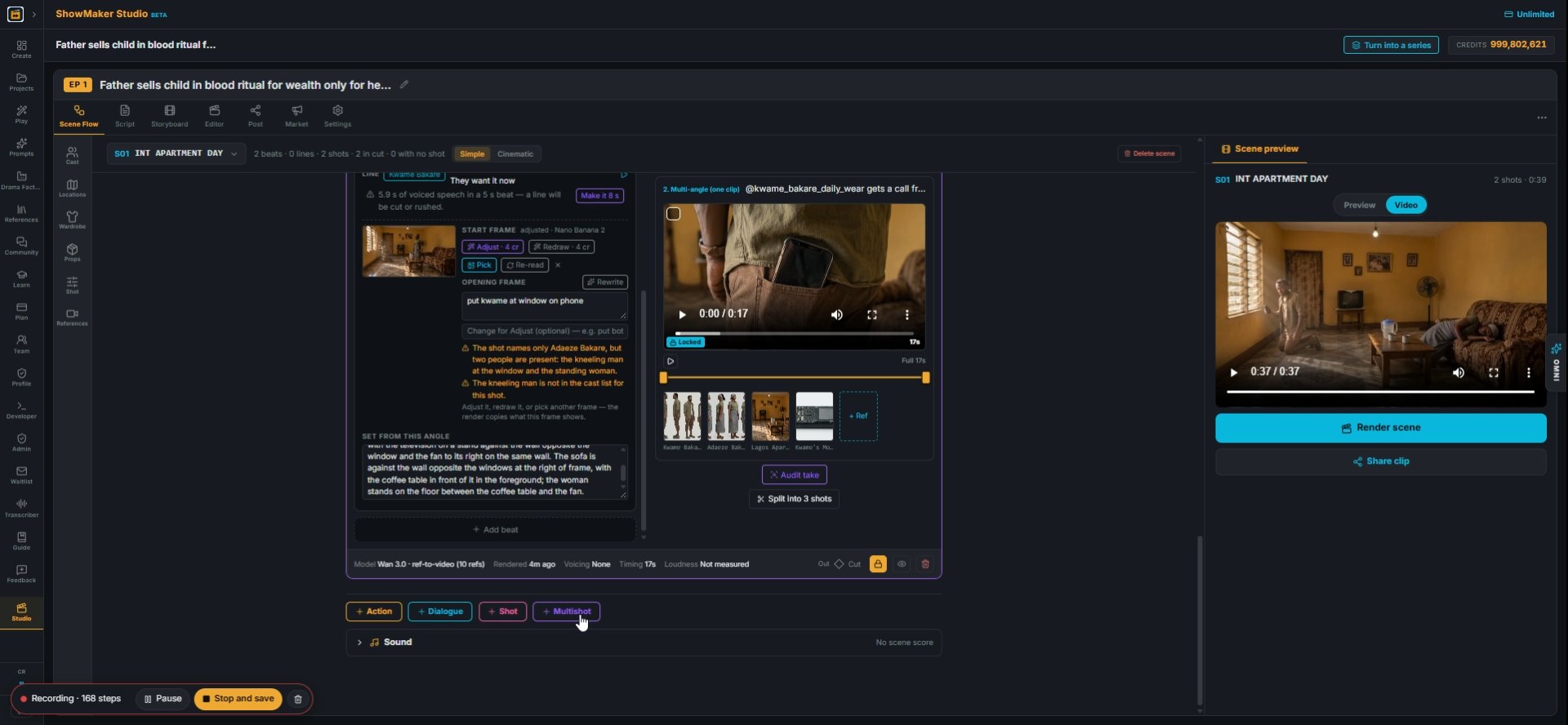
11Or type a small change in Change for Adjust, like "put Kwame at the window", and press Adjust · 4 cr.
The shot's FIRST instant — framing, then who is where: e.g. Medium two-shot fro…
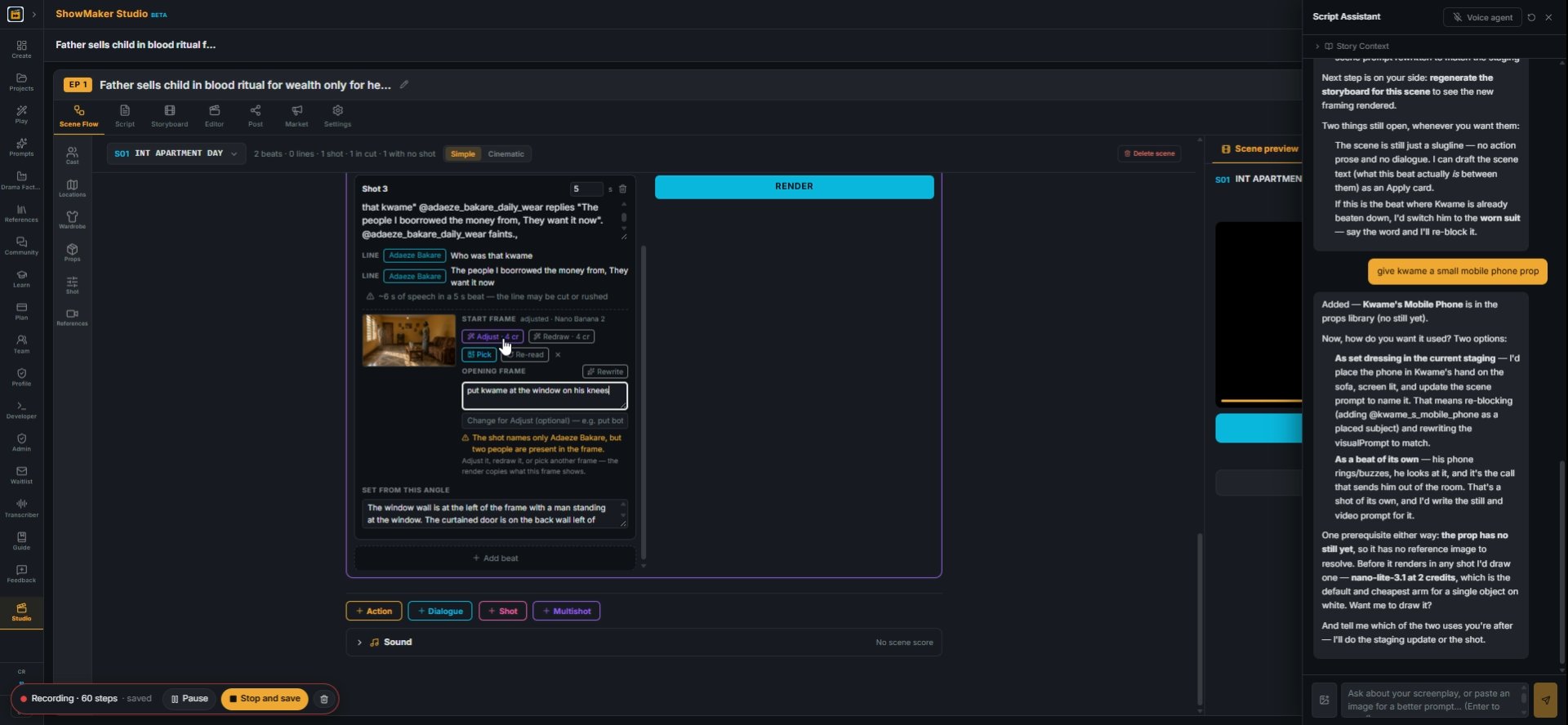
12Build the change up step by step ("put Kwame at the window on his knees") until the pose matches the beat.
START FRAME adjusted · Nano Banana 2 Adjust · 4 cr Redraw · 4 cr Pick Re-read O…
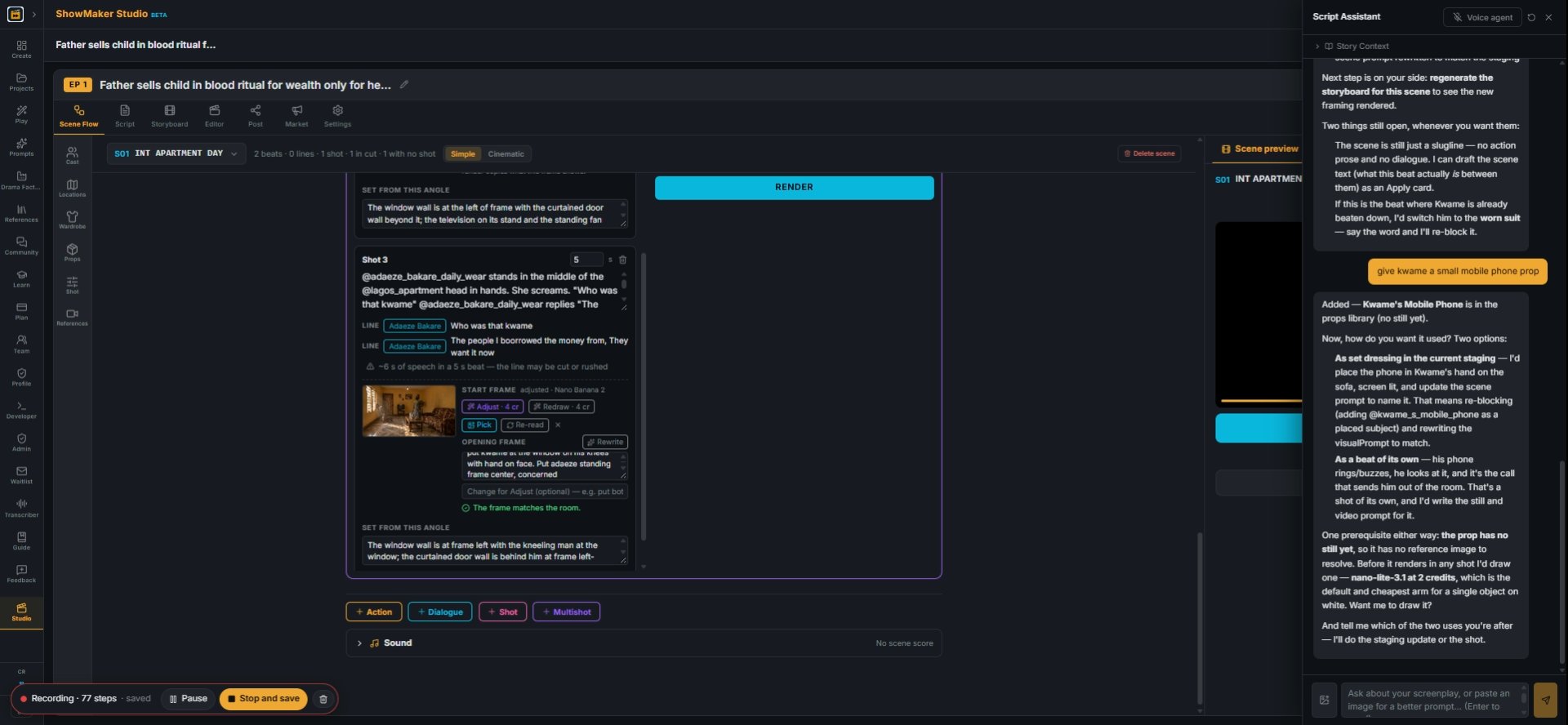
13When the frame is right, the check turns green, "The frame matches the room", and SET FROM THIS ANGLE is updated for that frame.
The shot names only Adaeze Bakare, but two people are present: the kneeling man…
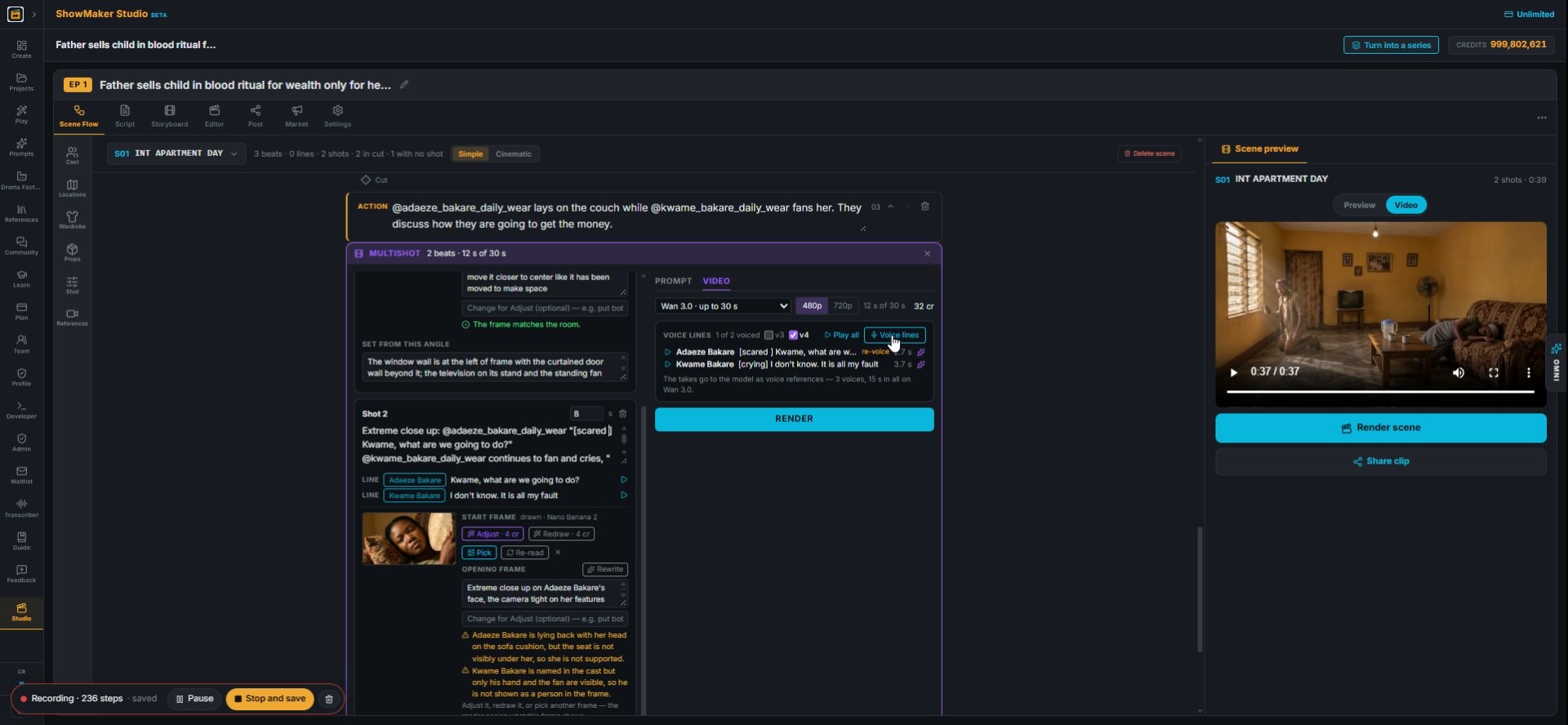
14Read the checks under each frame. Here: "The shot names only Adaeze Bakare, but two people are present." Either name the second person in the beat or adjust them out of the frame.
Where the furniture, windows and doors sit in this frame, and where each person…
15You can edit SET FROM THIS ANGLE yourself, e.g. "the window wall is at the left of frame". It is sent with the beat so the model keeps the layout after each cut.

Voice and render the panel

~6 s of speech in a 5 s beat — the line may be cut or rushed
16Watch for a timing warning like "~6 s of speech in a 5 s beat". Lengthen the beat or shorten the line, or the line gets rushed.
Voice lines
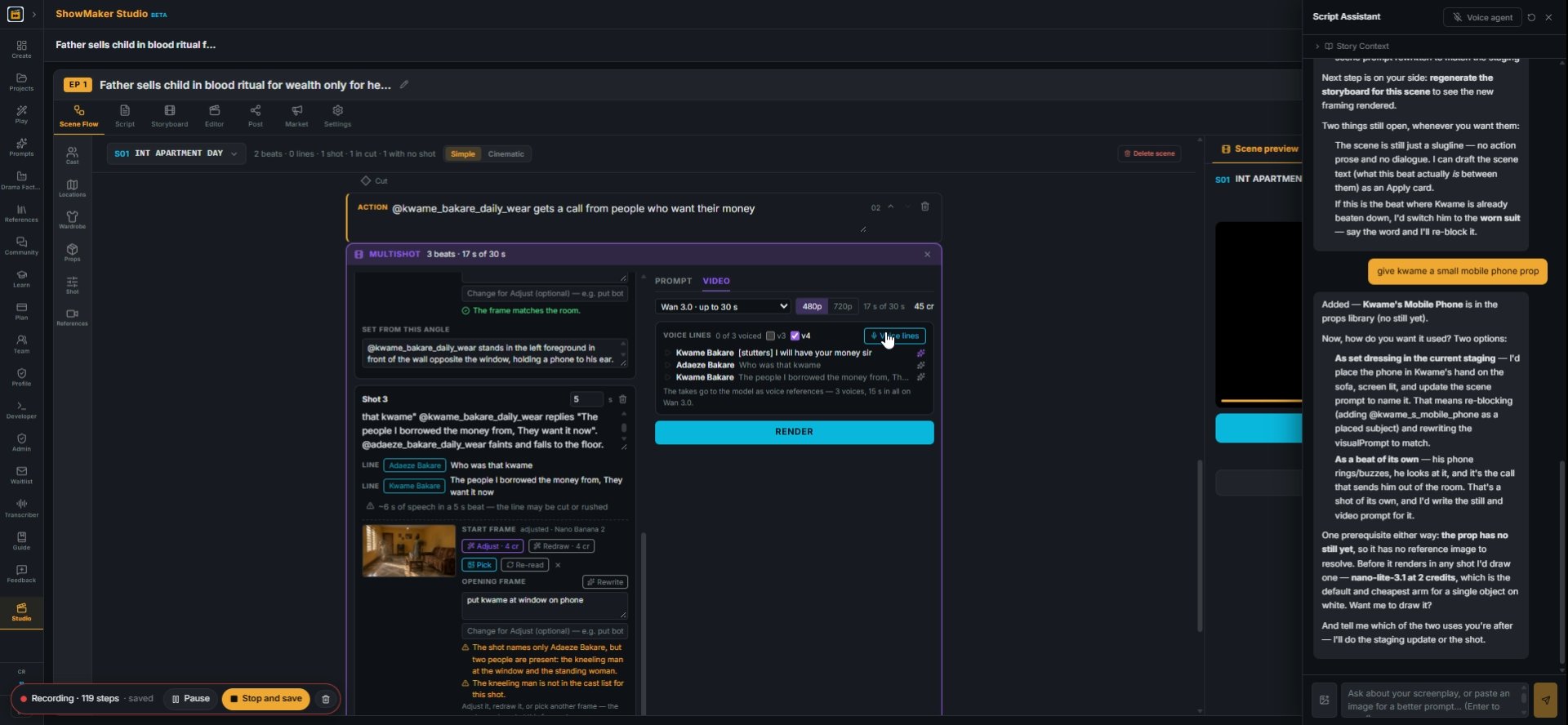
17In the VIDEO tab, press Voice lines to record every quoted line in its character's voice.
Play all
18Press Play all to hear the takes in order before you spend anything on video.
RENDER
19Press RENDER. Each beat starts on its own start frame, so the room holds from the first cut to the last.
Render
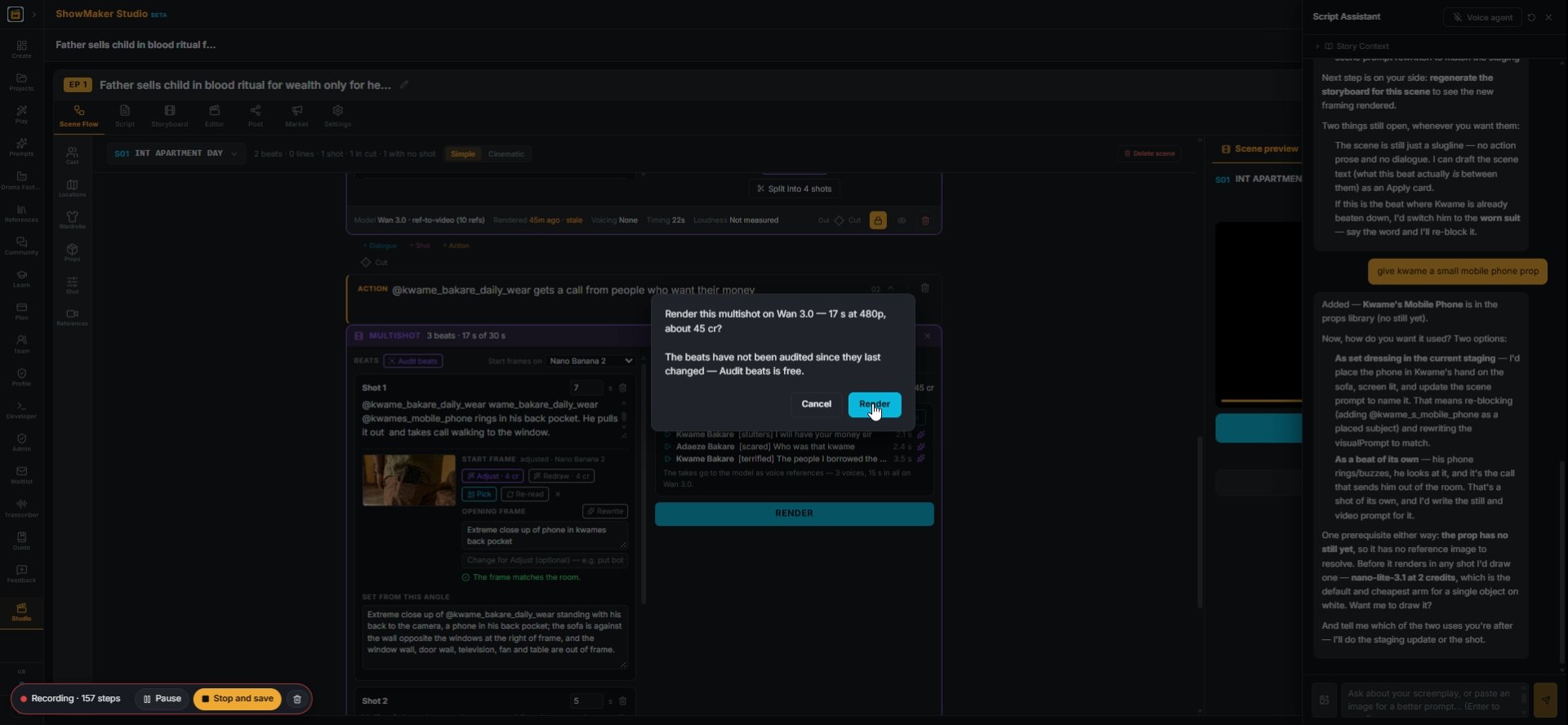
20The confirm box shows the length and price (17 s on Wan 3.0 at 480p, about 45 cr). If you changed the beats, Audit beats first; it's free.
Render scene
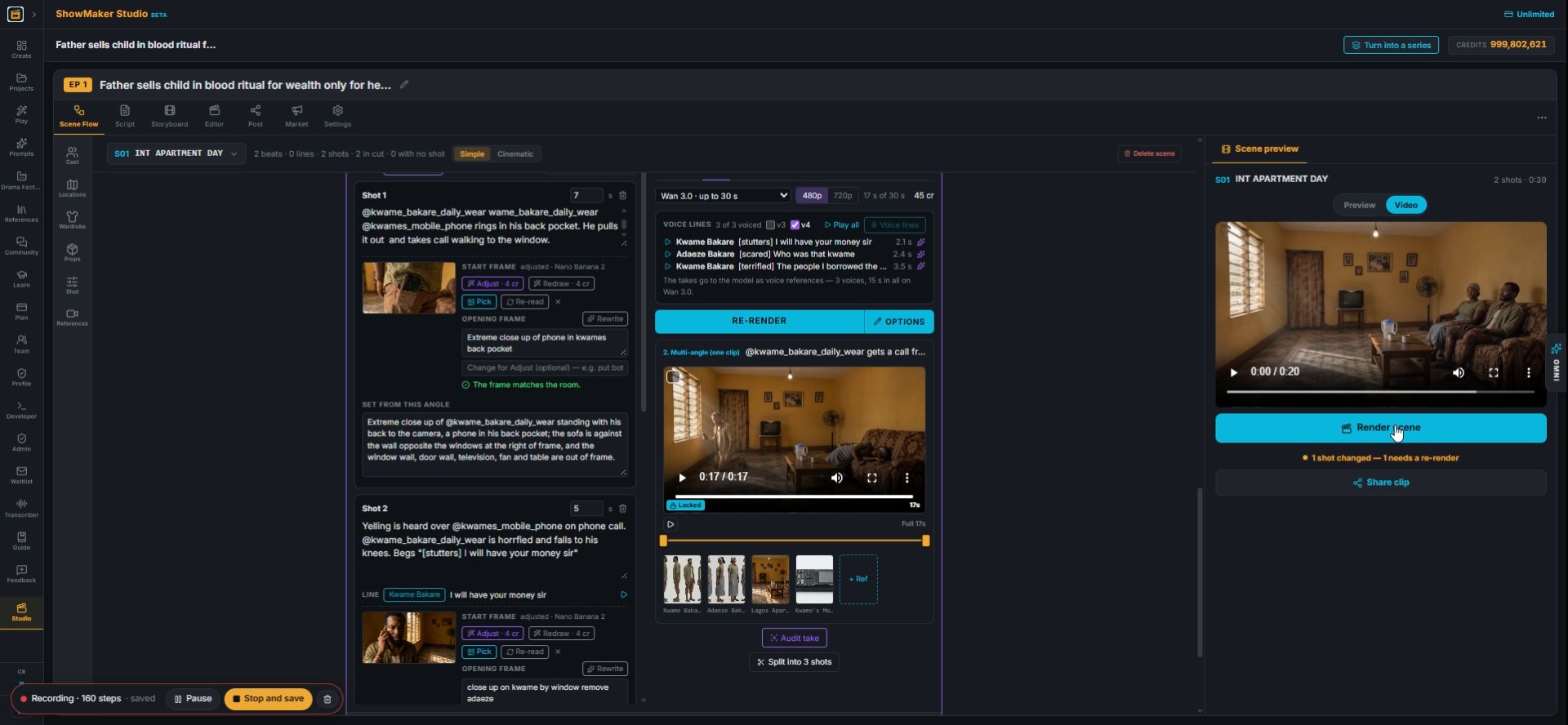
21When the take is in, press Render scene to put it into the scene preview.

Do the same for the next scene
Multishot
22Press + Multishot to add a panel for the next beat of the story.
What happens, with @slugs. Dialogue in quotes after the speaker: @chloe turns t…
23Write the first beat with @slugs and press Draw · 4 cr for its start frame.
The shot's FIRST instant — framing, then who is where: e.g. Medium two-shot fro…
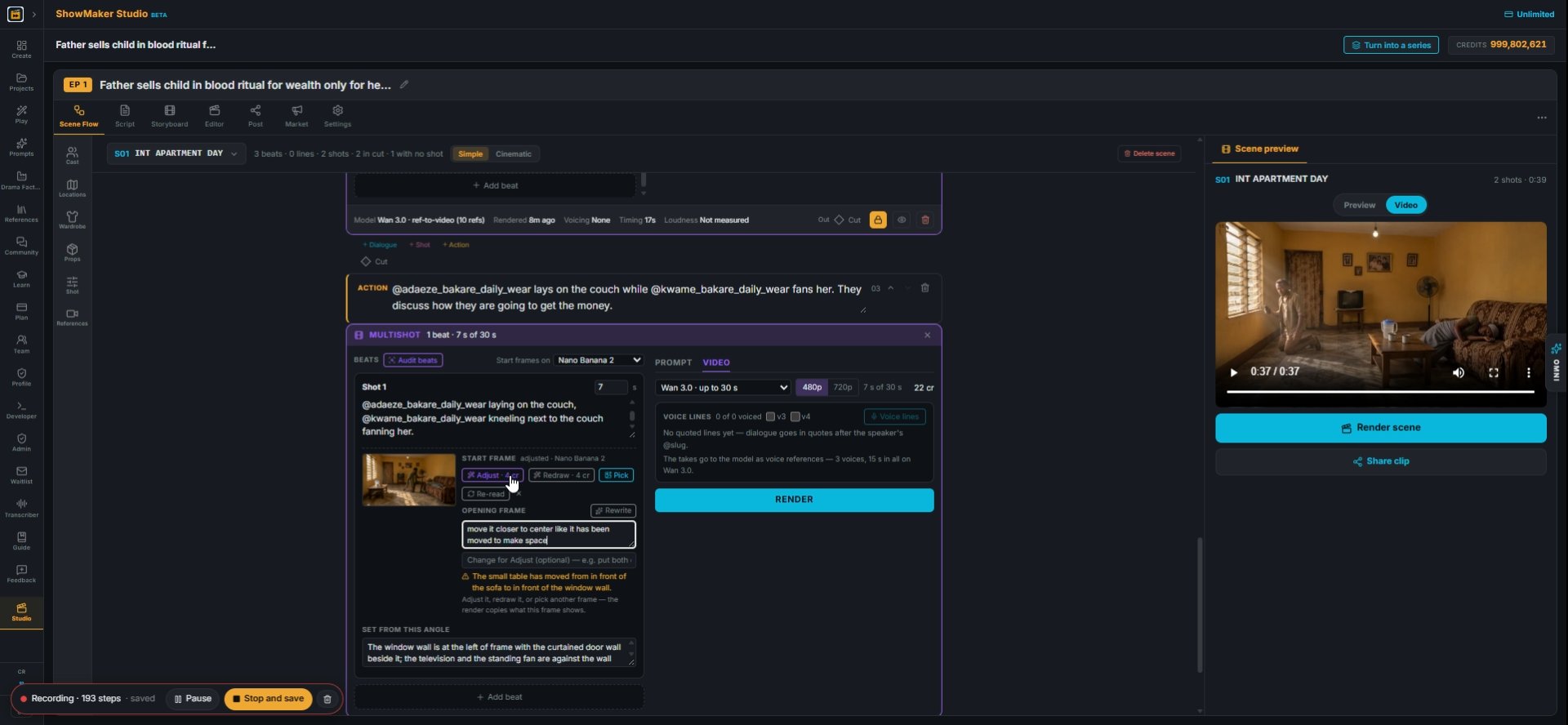
24Fix the set dressing in words: "move the small table to the left", then Adjust · 4 cr.
The shot's FIRST instant — framing, then who is where: e.g. Medium two-shot fro…
25If the check complains ("The small table has moved from in front of the sofa"), adjust again, e.g. "move it closer to center like it has been moved to make space".
How long this beat runs, in seconds
26Set each beat's length in seconds in the box next to its number. Longer beats leave room for the dialogue.
Pick
27Add the next beat with + Add beat. To reuse a picture you already have, press Pick on its START FRAME.
From the library…
28Press From the library… to choose any still from your project, or pick a clip from THIS SCENE.
What happens, with @slugs. Dialogue in quotes after the speaker: @chloe turns t…
29Or write the beat and its line, e.g. "[scared whisper] Kwame, what are we going to do?", and press Draw · 4 cr.
What happens, with @slugs. Dialogue in quotes after the speaker: @chloe turns t…
30Check the warnings under the new frame and fix the beat or Adjust until they clear.
RENDER
31Press Voice lines, Play all, then RENDER the panel.
Delete this shot — it goes to the Bin, takes and all
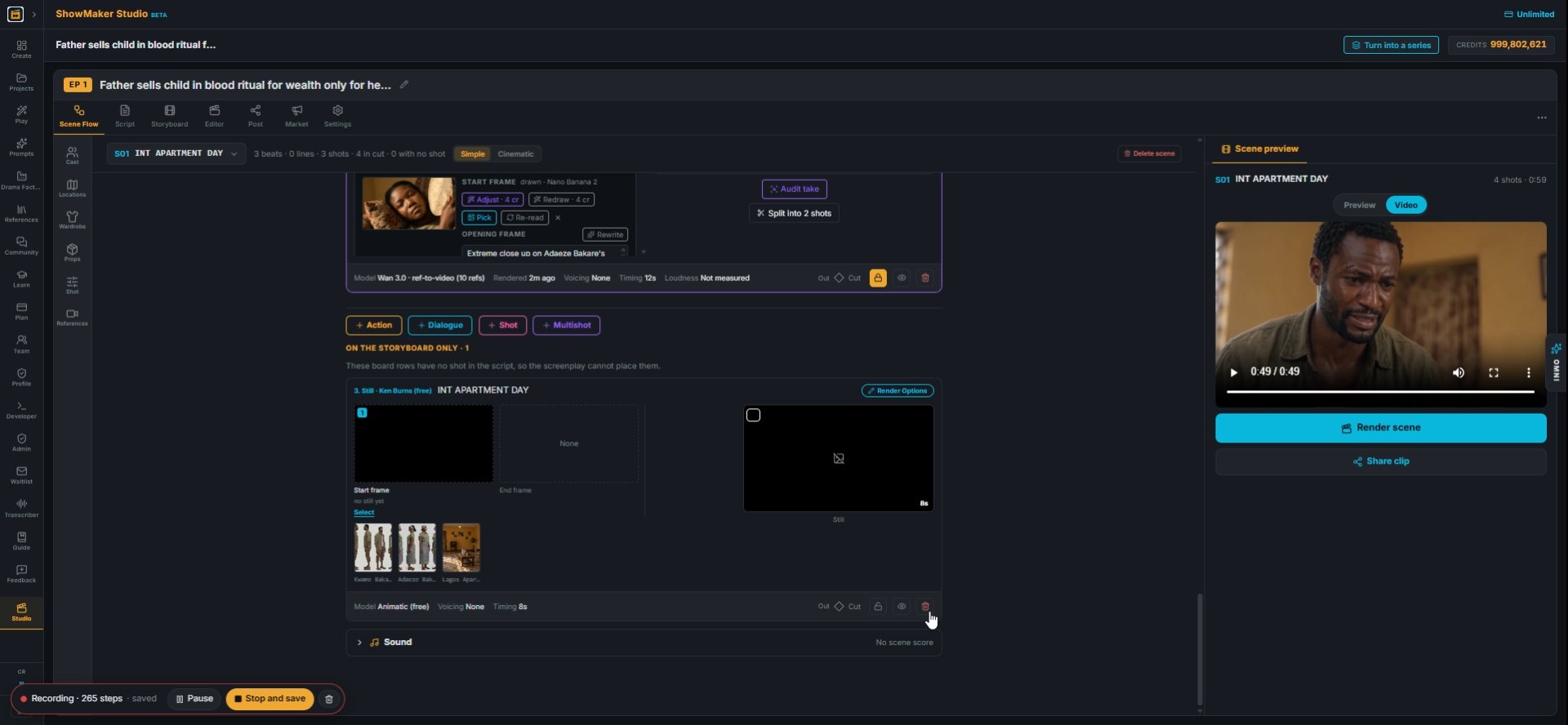
32Shots that are only on the storyboard sit under ON THE STORYBOARD ONLY. Delete one you no longer need with the bin icon; it goes to the Bin, takes and all.

Make your own episode.

Start free with 200 credits: a narrated film from AI stills, no credit card.

Keep the room steady in AI video: a start frame for every Multishot beat | ShowMaker Studio