Step-by-step guide · 25 steps

How to Make an AI Superhero Fight Scene: Thor vs Doom Fan Film

Turn one line of action into a Thor vs Doctor Doom fan film shot full of lightning: draw the start frame, direct it in plain words, write the motion and render it on Wan 3.0 in ShowMaker Studio's Scene Flow. Fan-made; not affiliated with Marvel.

Write the beat
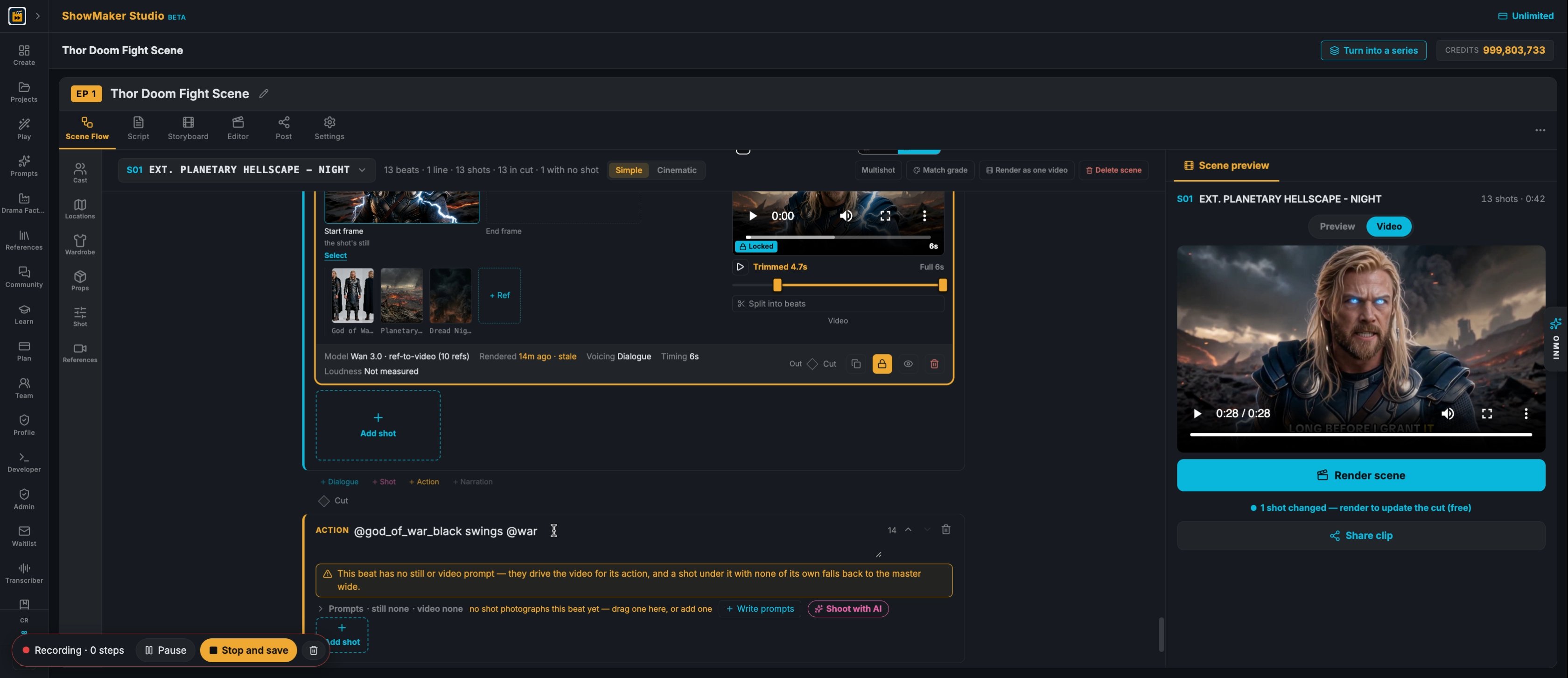
What happens — no dialogue. @tag whoever and whatever is in frame.
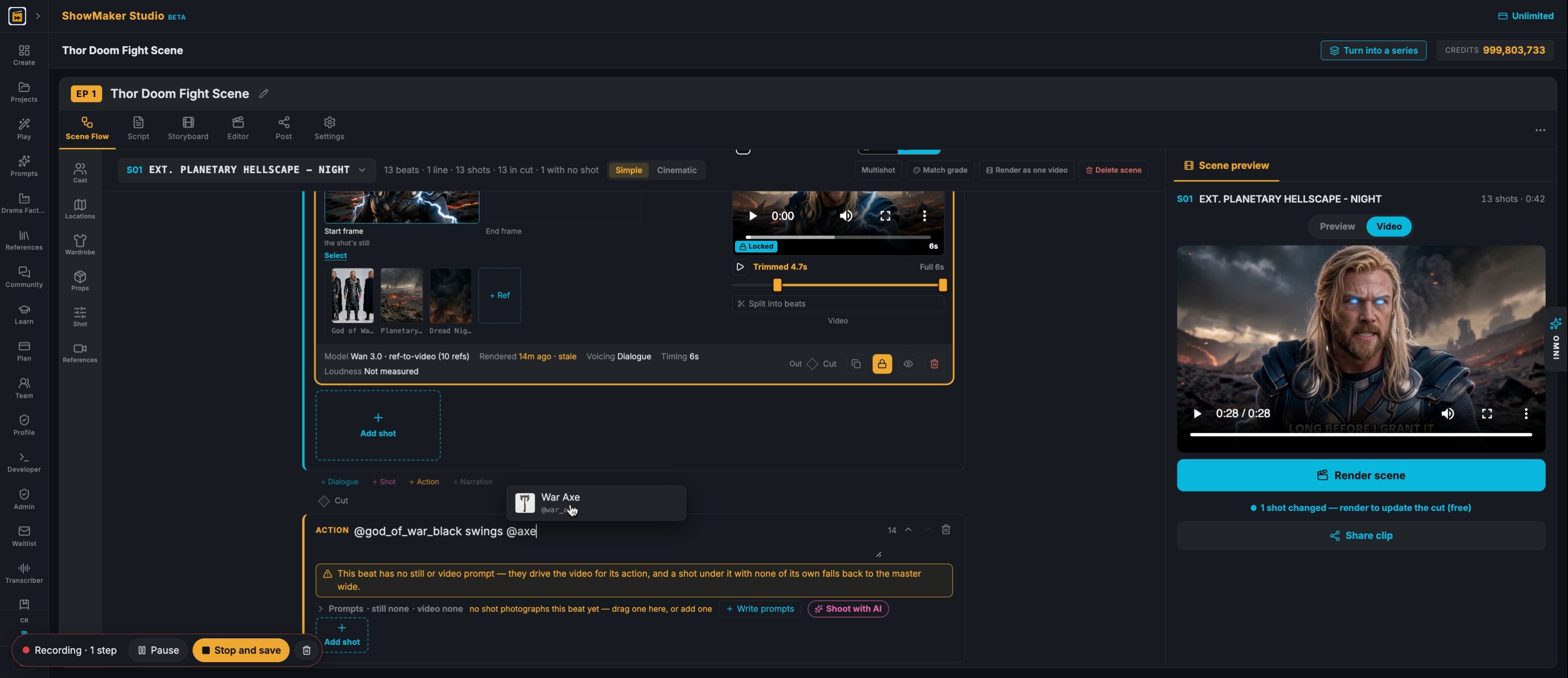
1In Scene Flow, click into the ACTION box of a new beat, where you write what happens with no dialogue. Type @ to tag the characters and props in frame; here the hero is @god_of_war_black.
War Axe @war_axe
2As you type @, a picker lists your cast and props. Choose War Axe @war_axe so the axe's reference picture is sent with the shot.
What happens — no dialogue. @tag whoever and whatever is in frame.
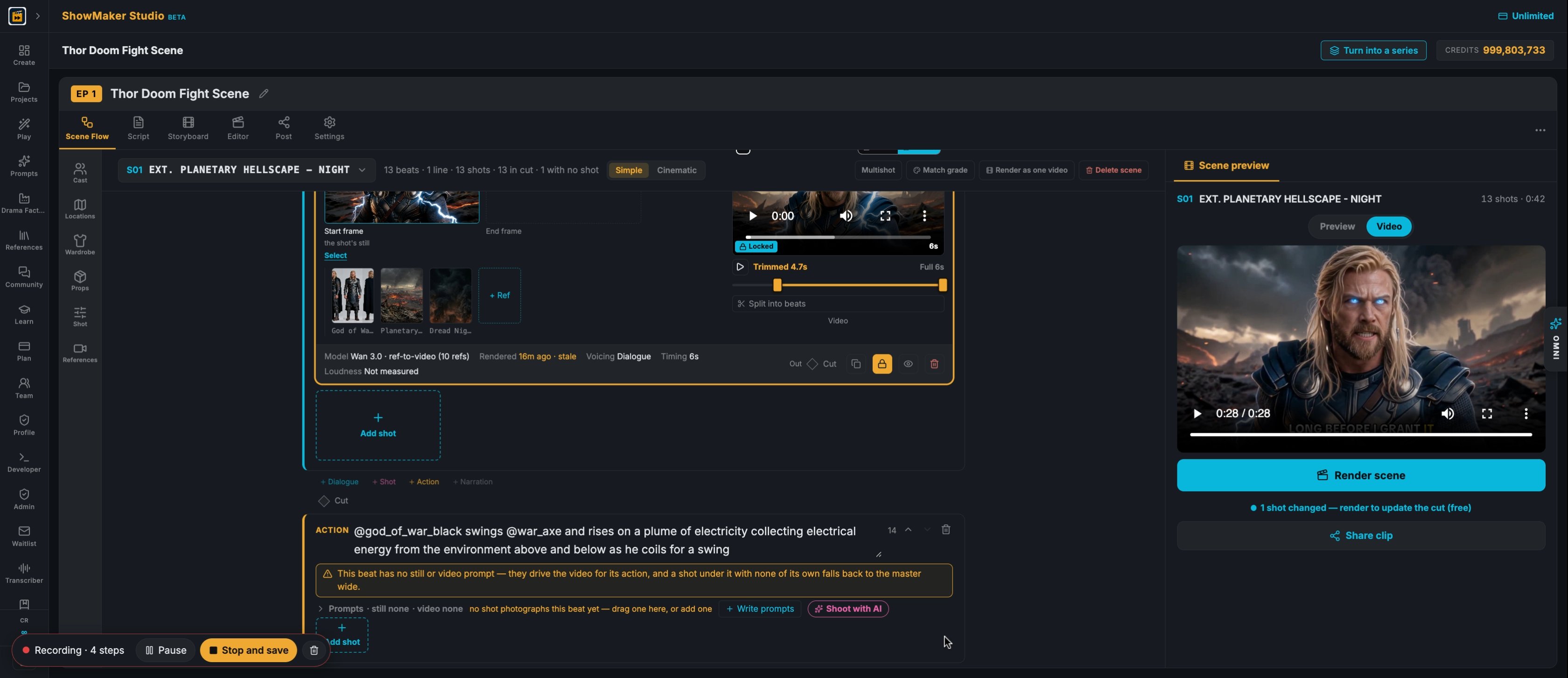
3Finish the action in plain words: "@god_of_war_black swings @war_axe and rises on a plume of electricity collecting electrical energy from the environment above and below as he coils for a swing".
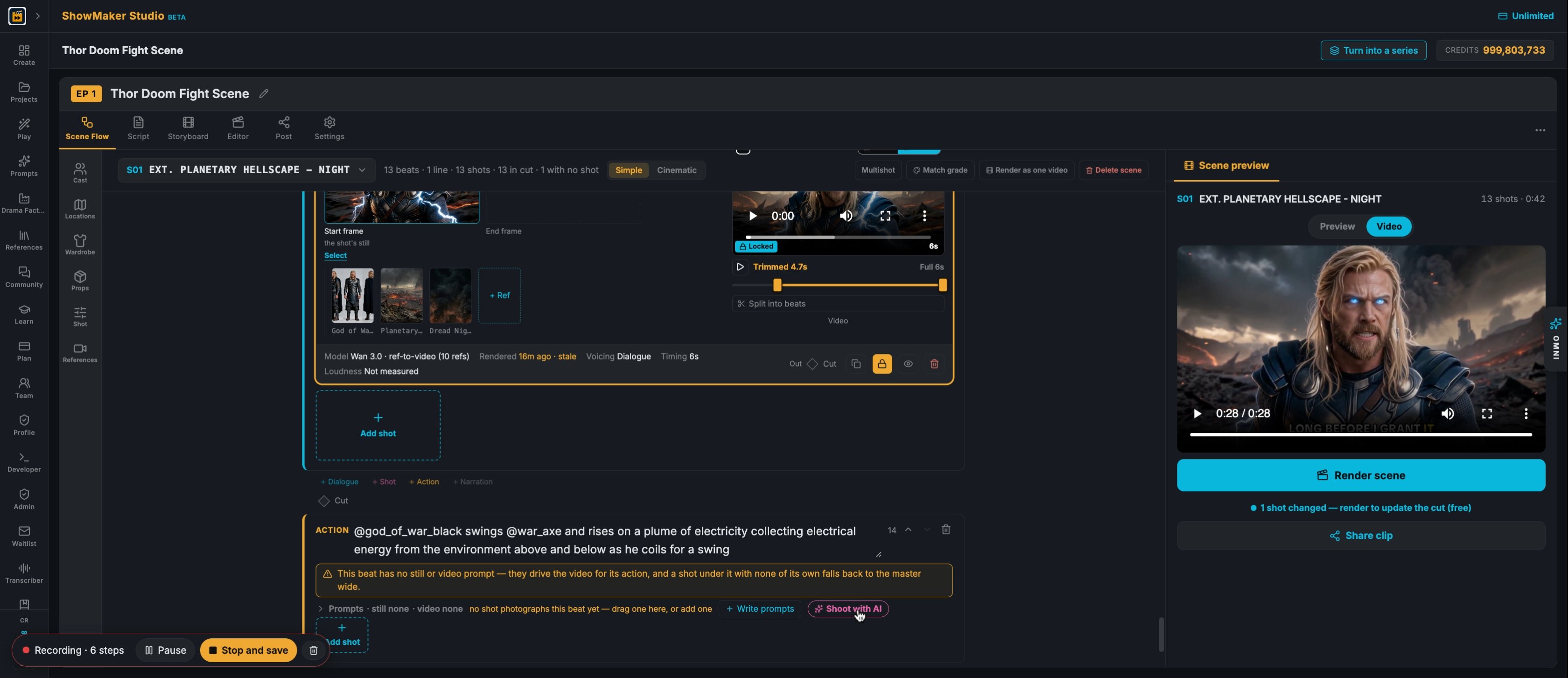
Shoot with AI
4The beat has no shot yet. Press Shoot with AI under it to build one.

Draw the start frame

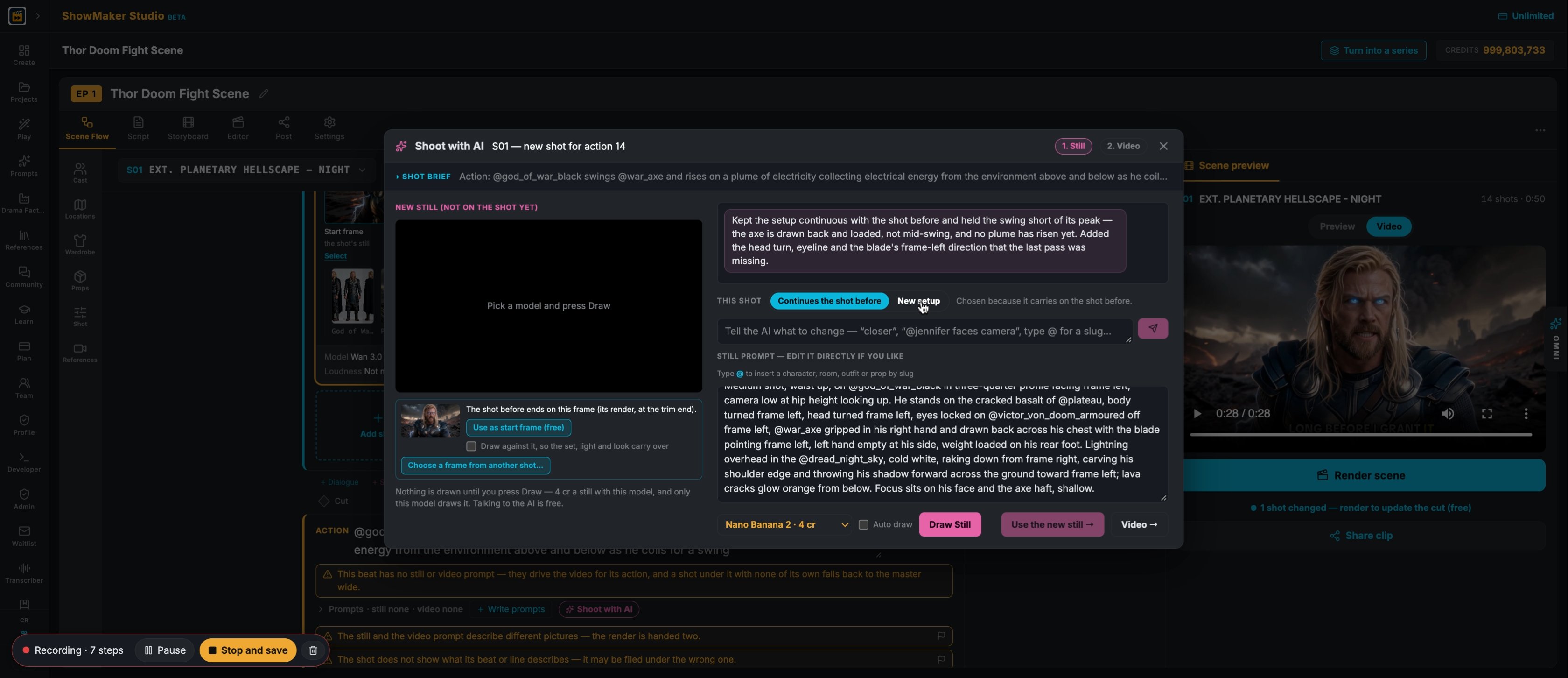
New setup
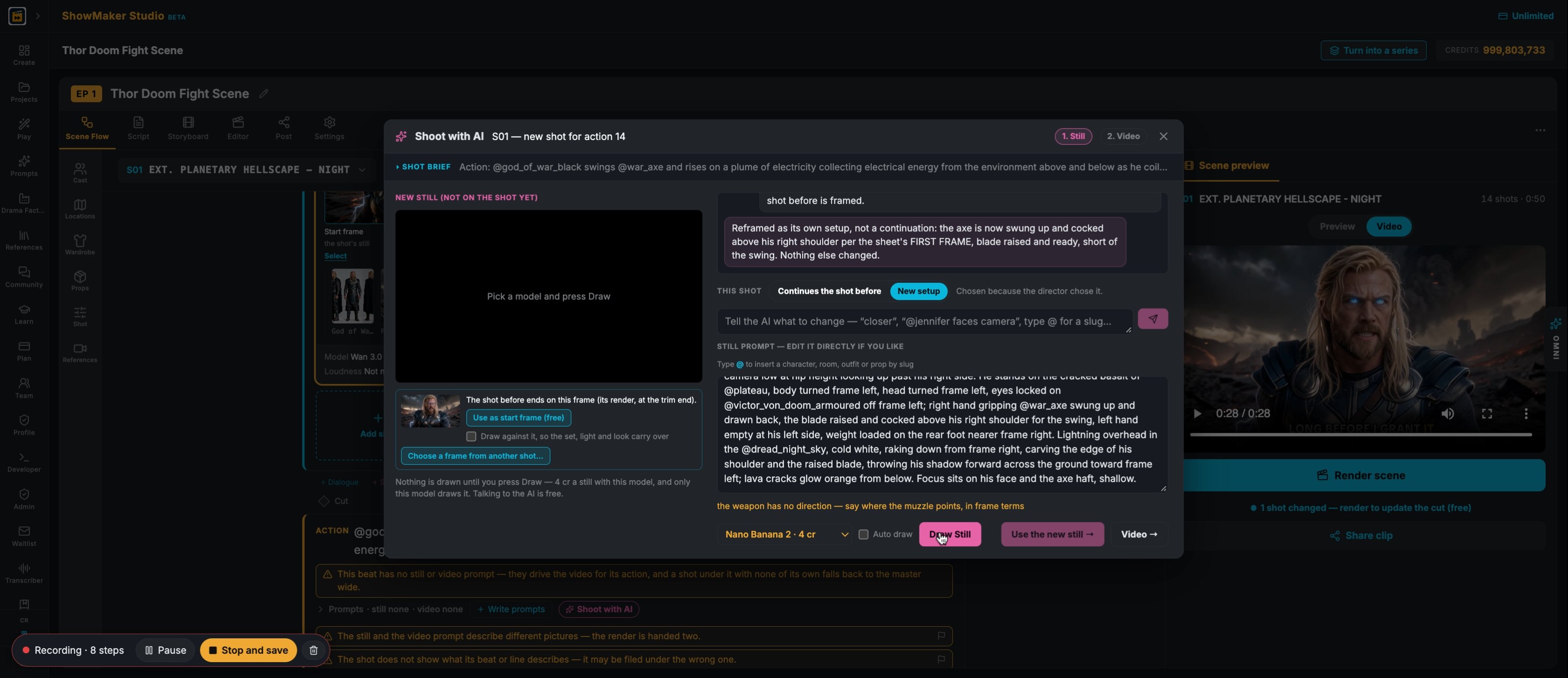
5Shoot with AI writes a still prompt from your beat. Under THIS SHOT, pick New setup when the shot should not carry on from the shot before.
Draw Still
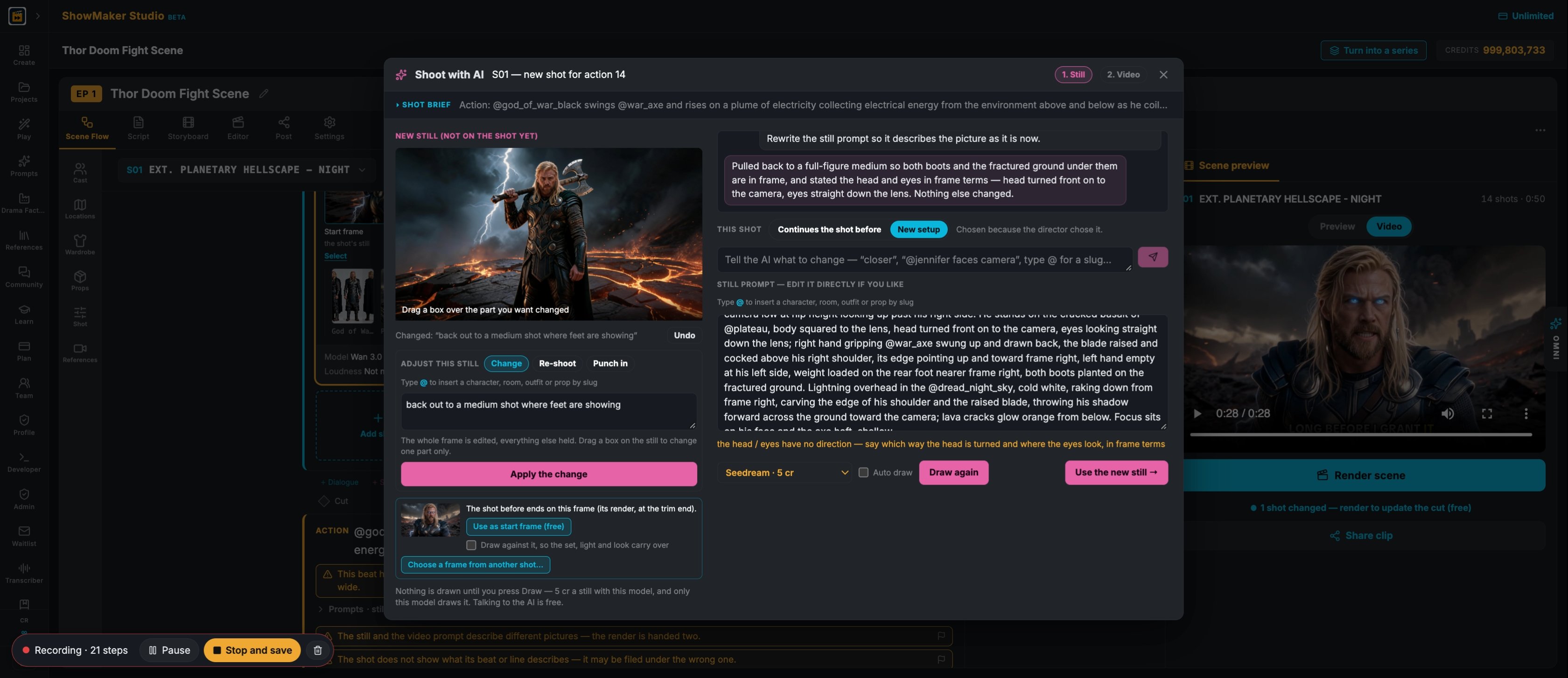
6Read the still prompt on the right (you can edit it directly), pick a still model and press Draw Still. Talking to the AI is free; only the draw costs credits.
Draw Still
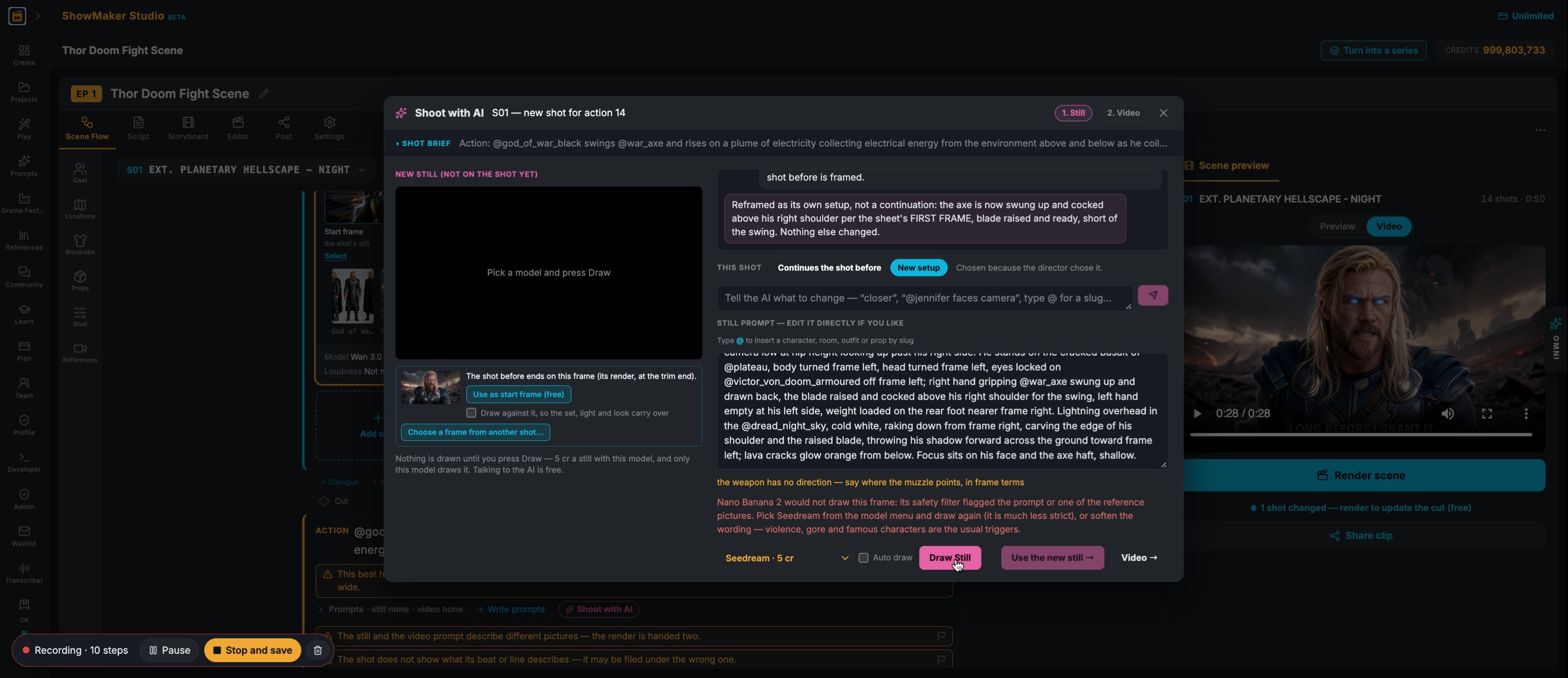
7If a model's safety filter refuses the frame (fights and famous-looking characters often trip it), switch the model to Seedream · 5 cr and press Draw Still again.

Direct the still in plain words

What to change — “no lights at all, near-black”, “his head turned frame left”…
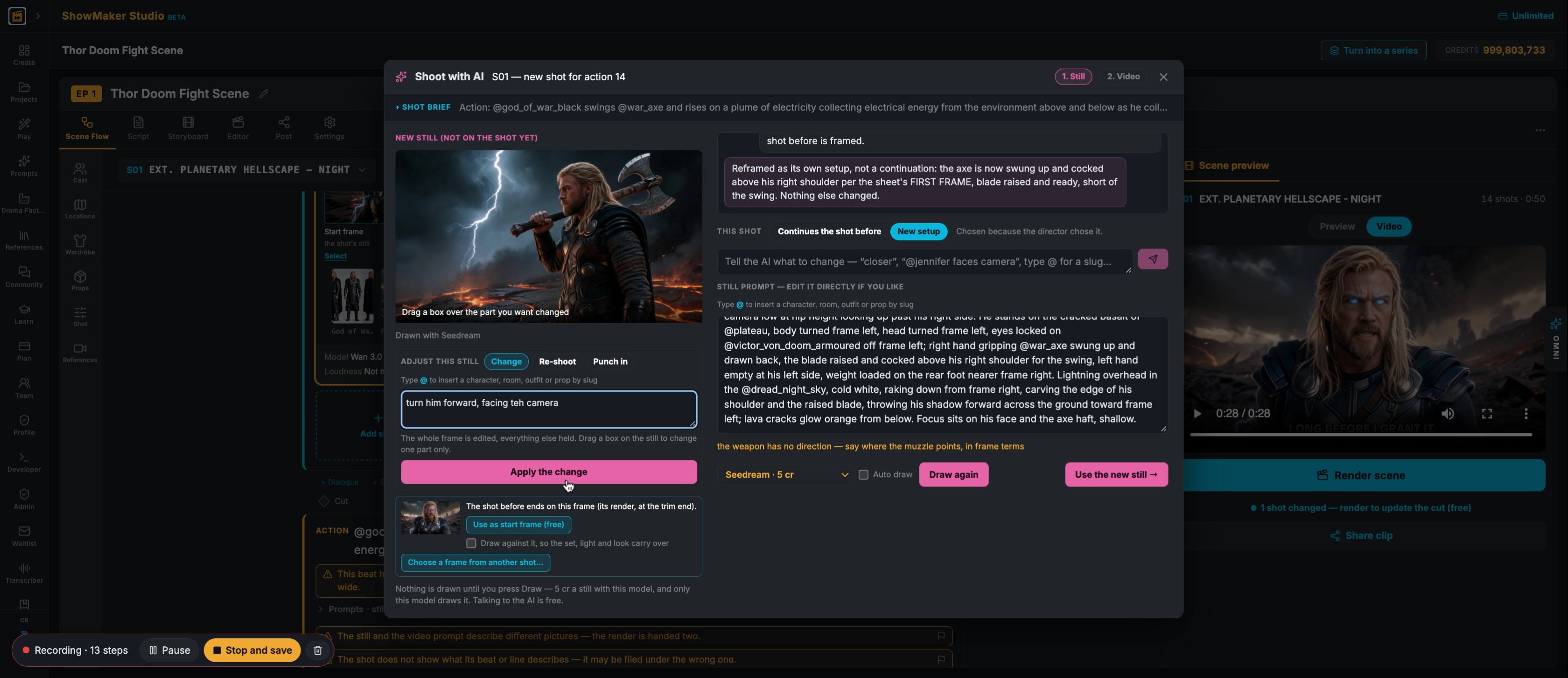
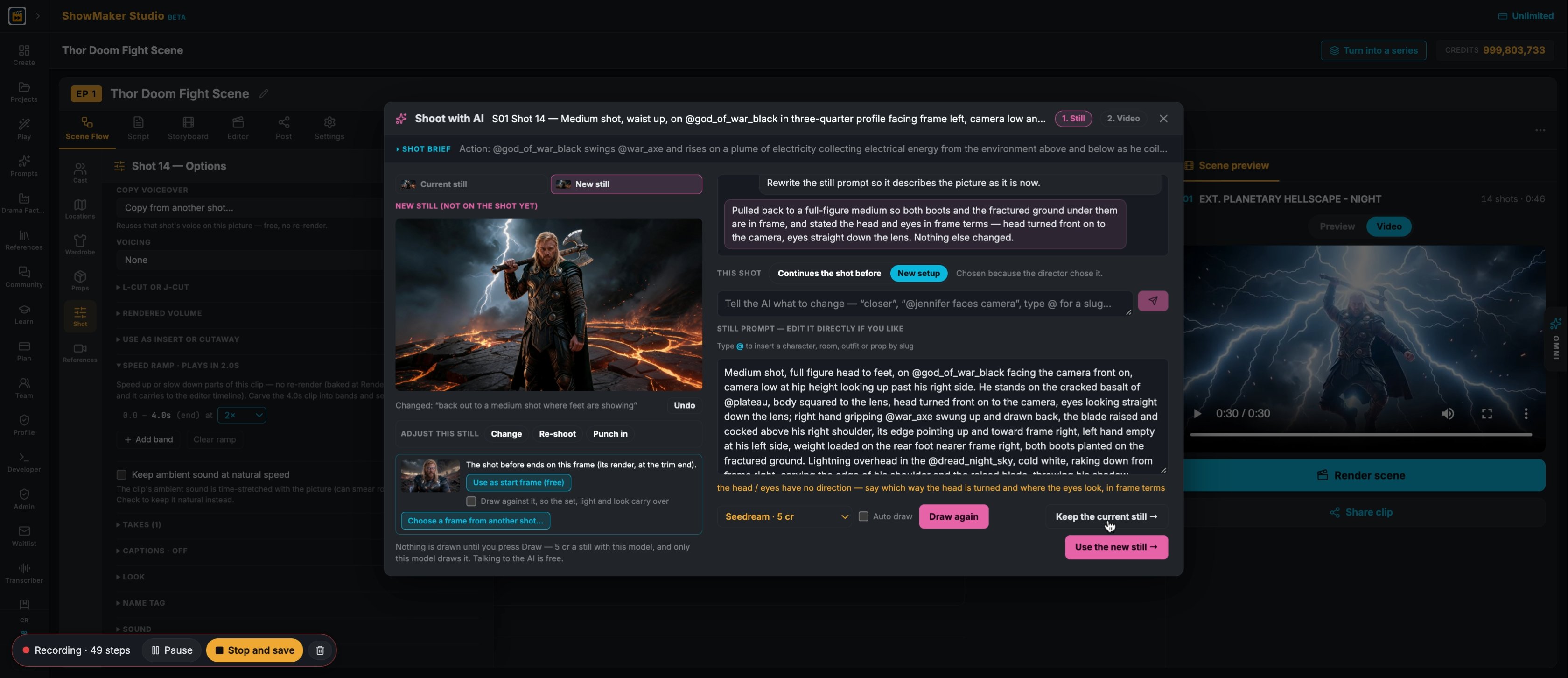
8Under ADJUST THIS STILL press Change, type what you want, e.g. "turn him forward, facing the camera", and press Apply the change. The whole frame is redrawn and everything else is kept.
What to change — “no lights at all, near-black”, “his head turned frame left”…
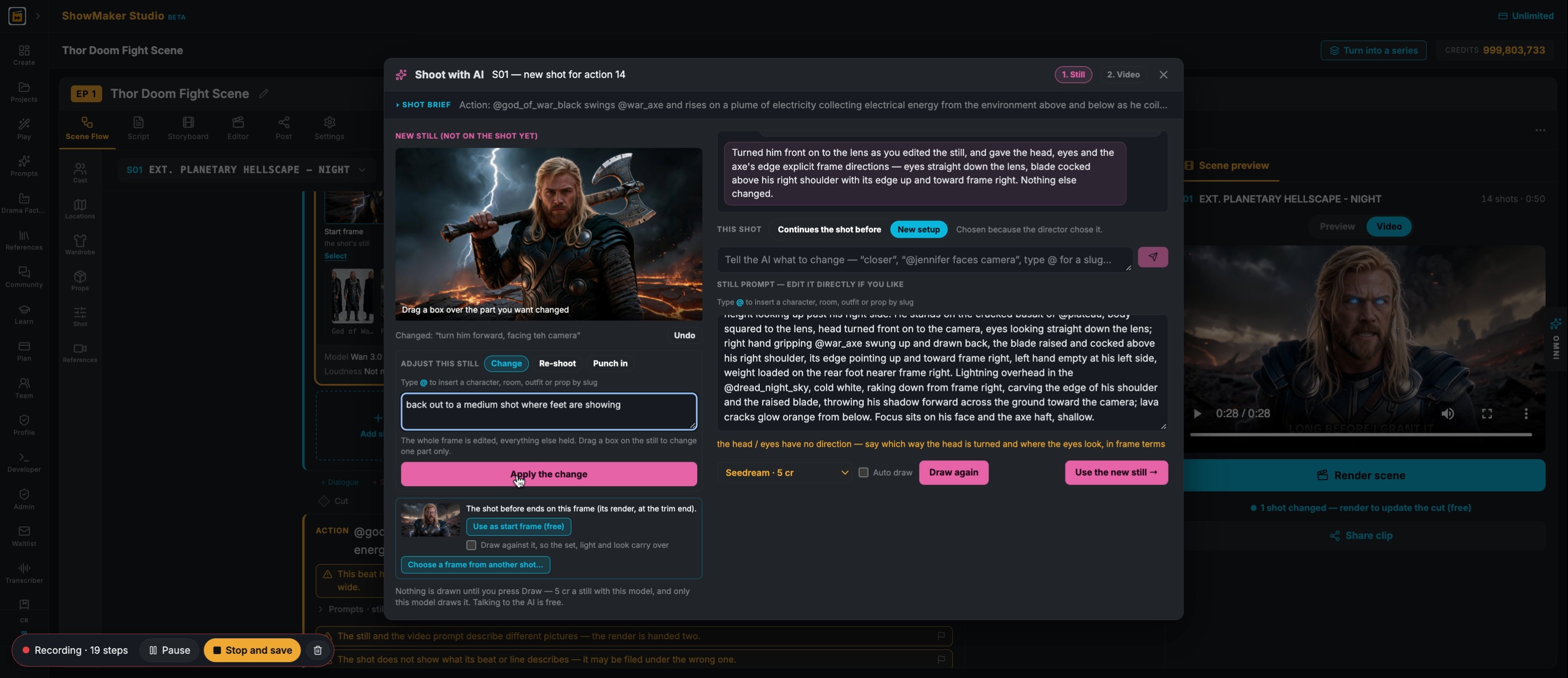
9Keep directing: "back out to a medium shot where feet are showing" and Apply the change again. Undo steps back if a change goes wrong.
Use the new still →
10The AI rewrites the still prompt to match the picture. When you like the frame, press Use the new still →.

Write the motion

Tell the AI what to change in the motion — type @ for a slug…
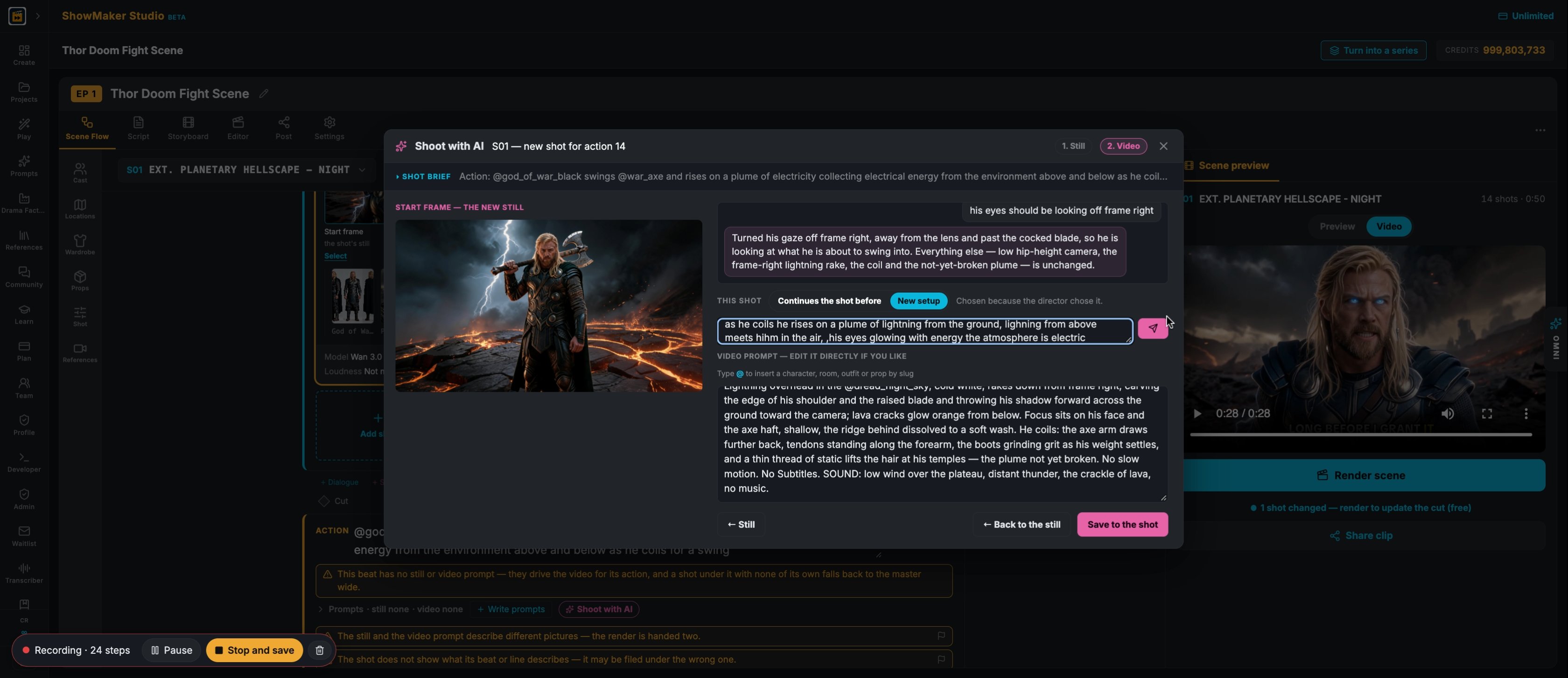
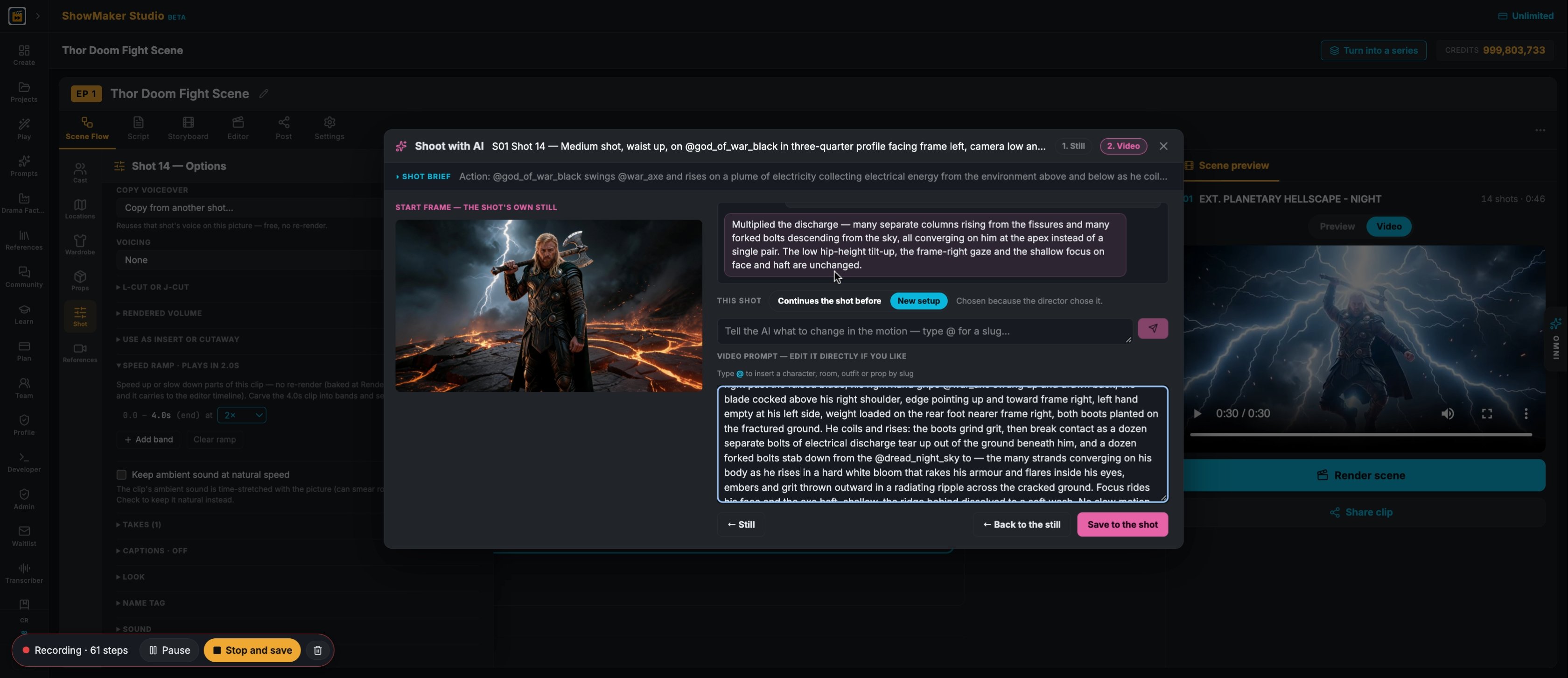
11Now the video prompt. In "Tell the AI what to change in the motion" describe the move: "as he coils he rises on a plume of lightning from the ground, lightning from above meets him in the air, his eyes glowing".
Save to the shot
12Press Send and the AI rewrites the VIDEO PROMPT (you can also edit it directly). When it reads right, press Save to the shot.

Pick the model and render

Render Options
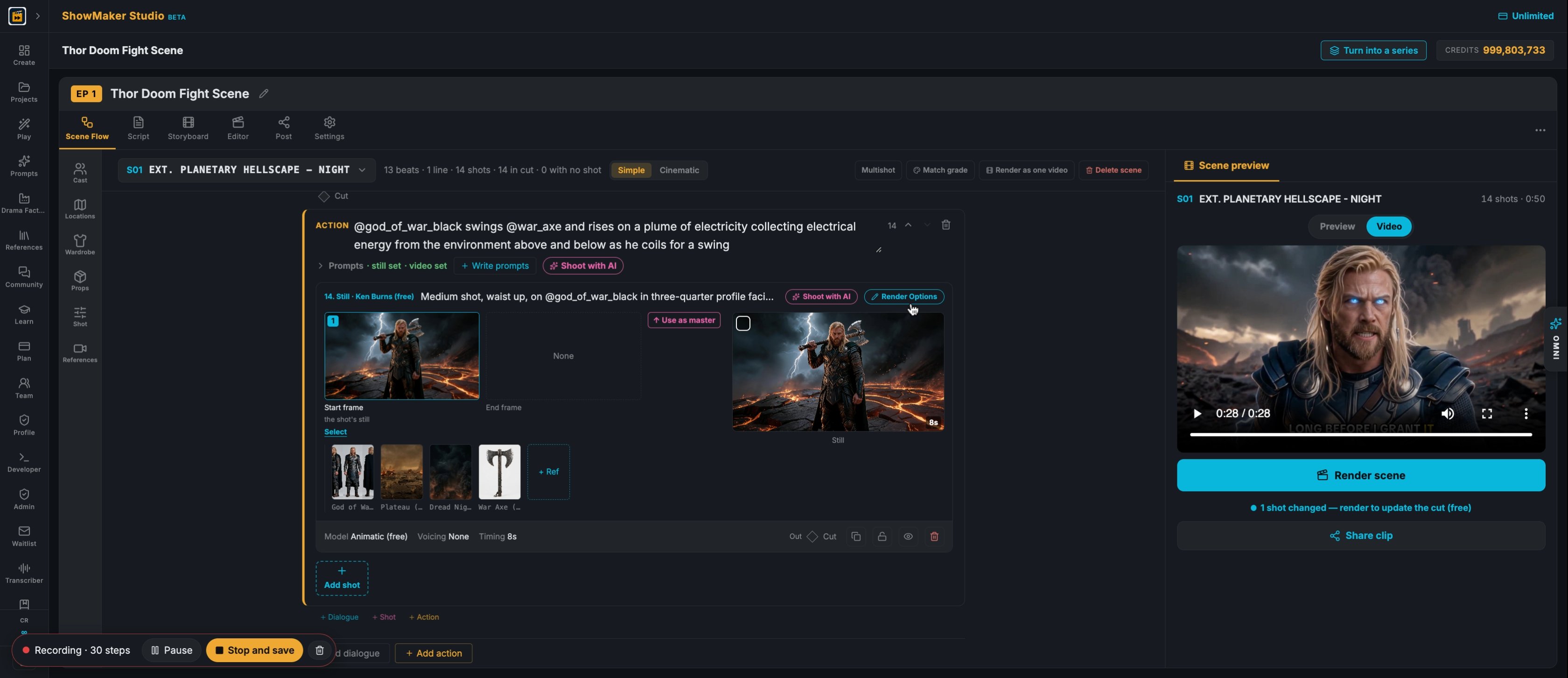
13The new shot sits under the beat with its start frame and references. Press Render Options on the shot.
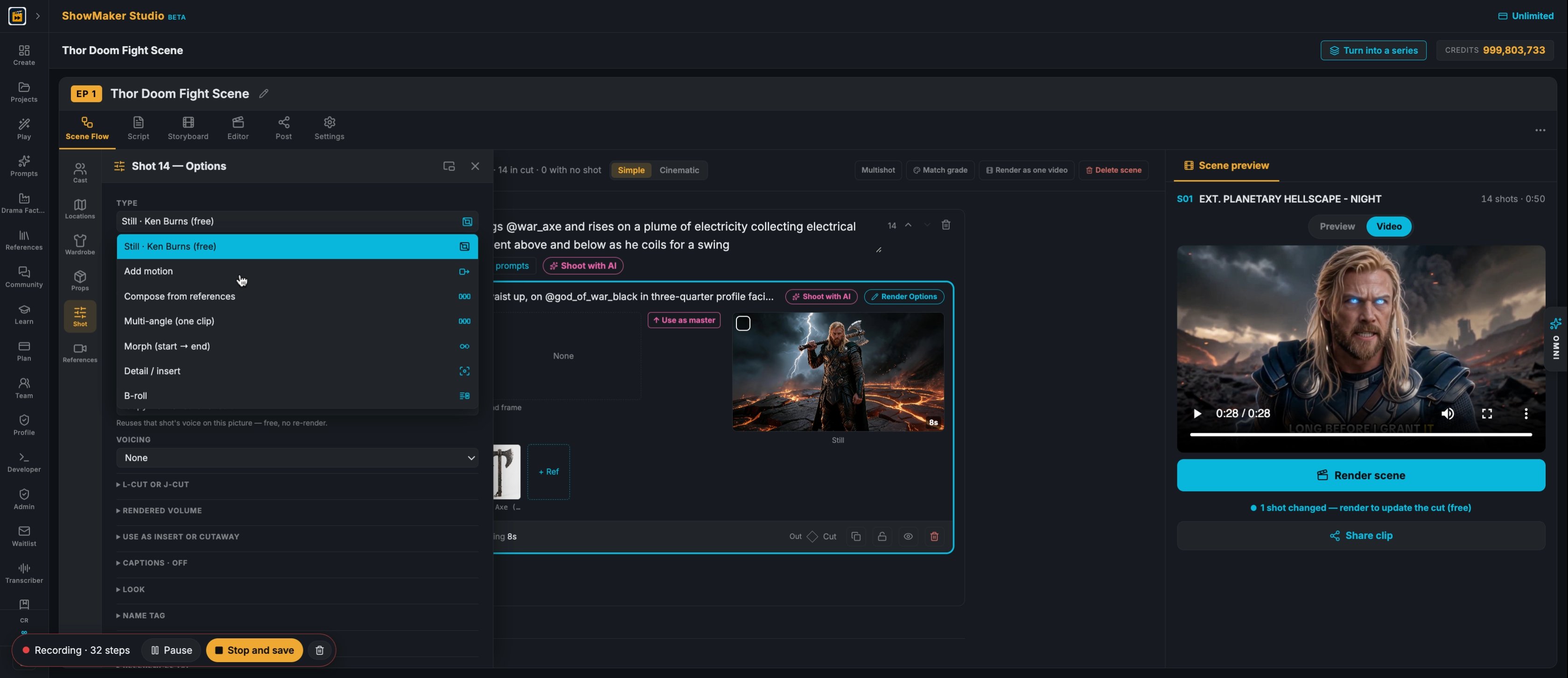
Add motion
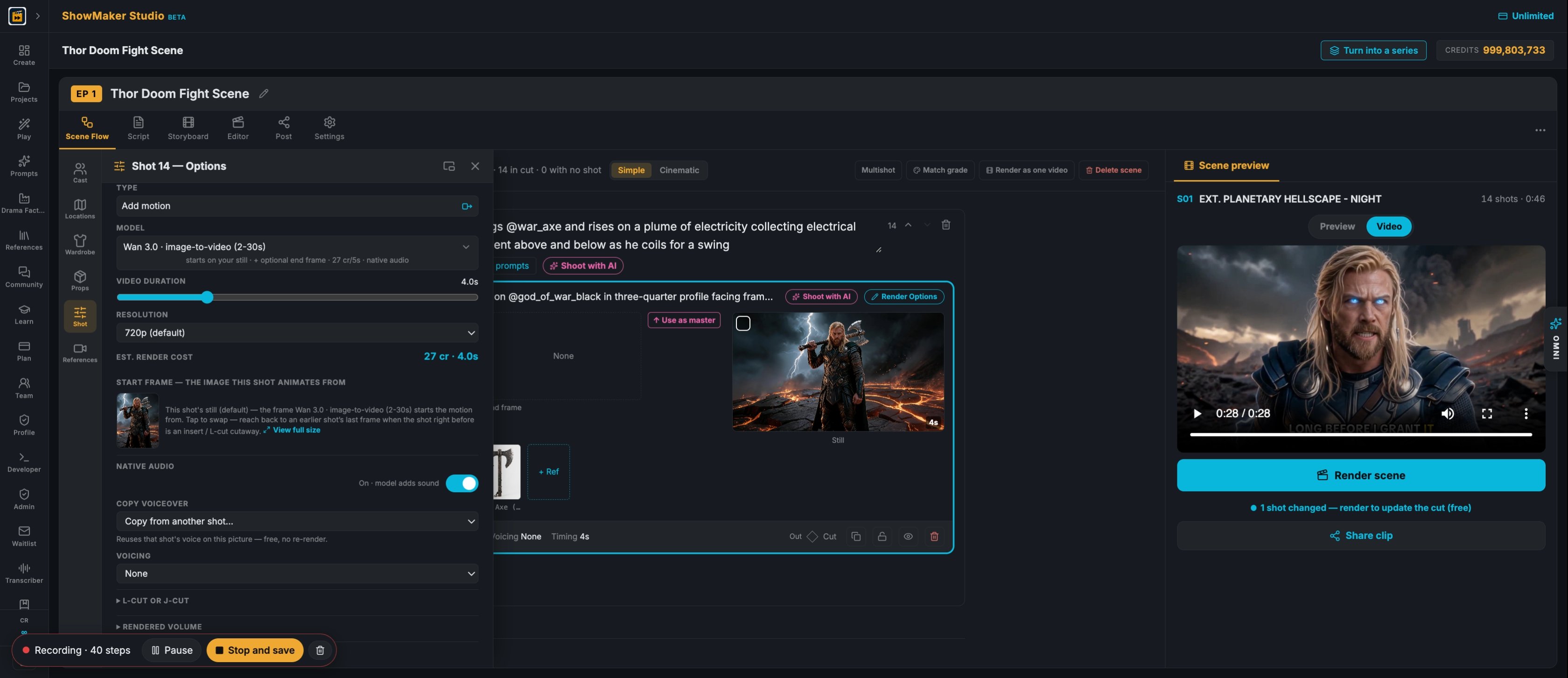
14Under TYPE, change Still · Ken Burns (free) to Add motion.
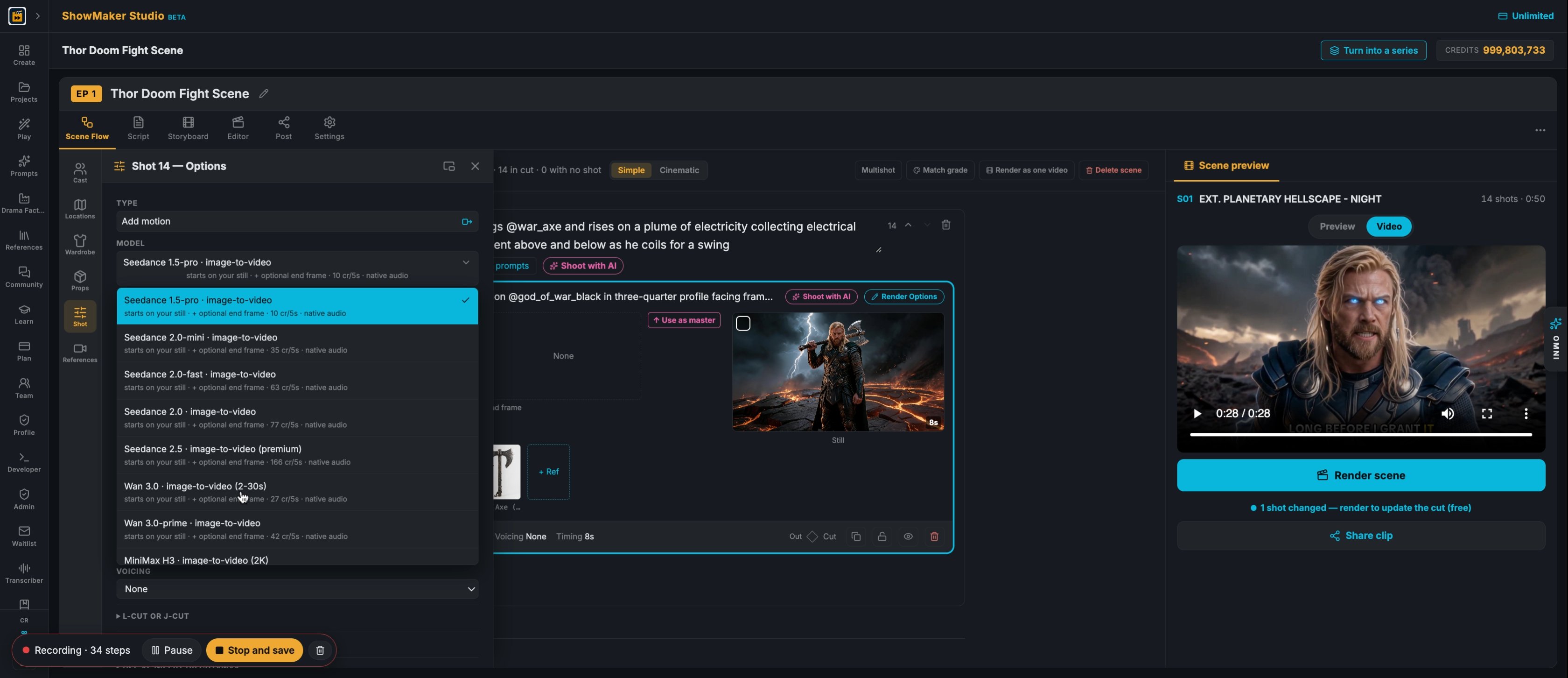
Wan 3.0 · image-to-video (2-30s) starts on your still · + optional end frame ·…
15Open MODEL and choose Wan 3.0 · image-to-video (2–30s). It starts on your still.
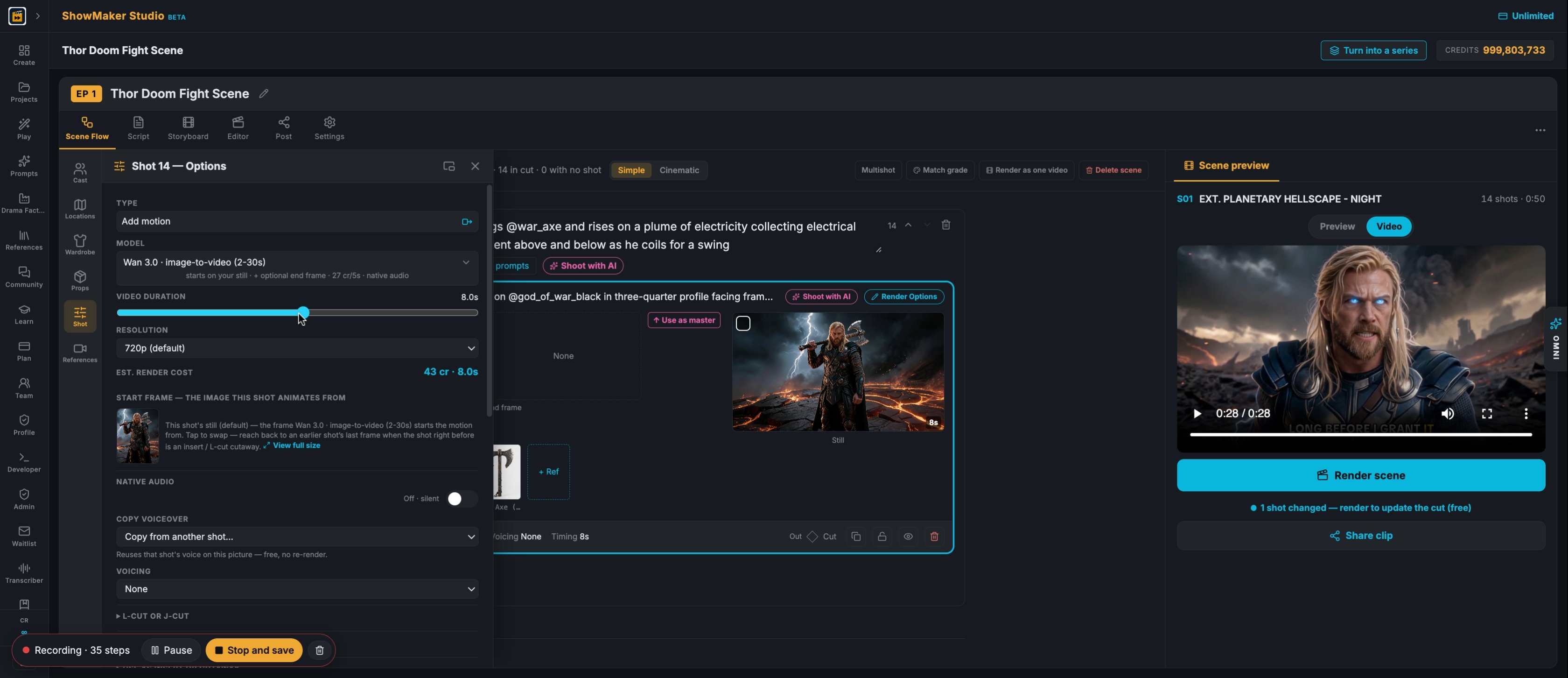
Step 16
16Drag VIDEO DURATION to set the length (4s here). EST. RENDER COST updates as you go.
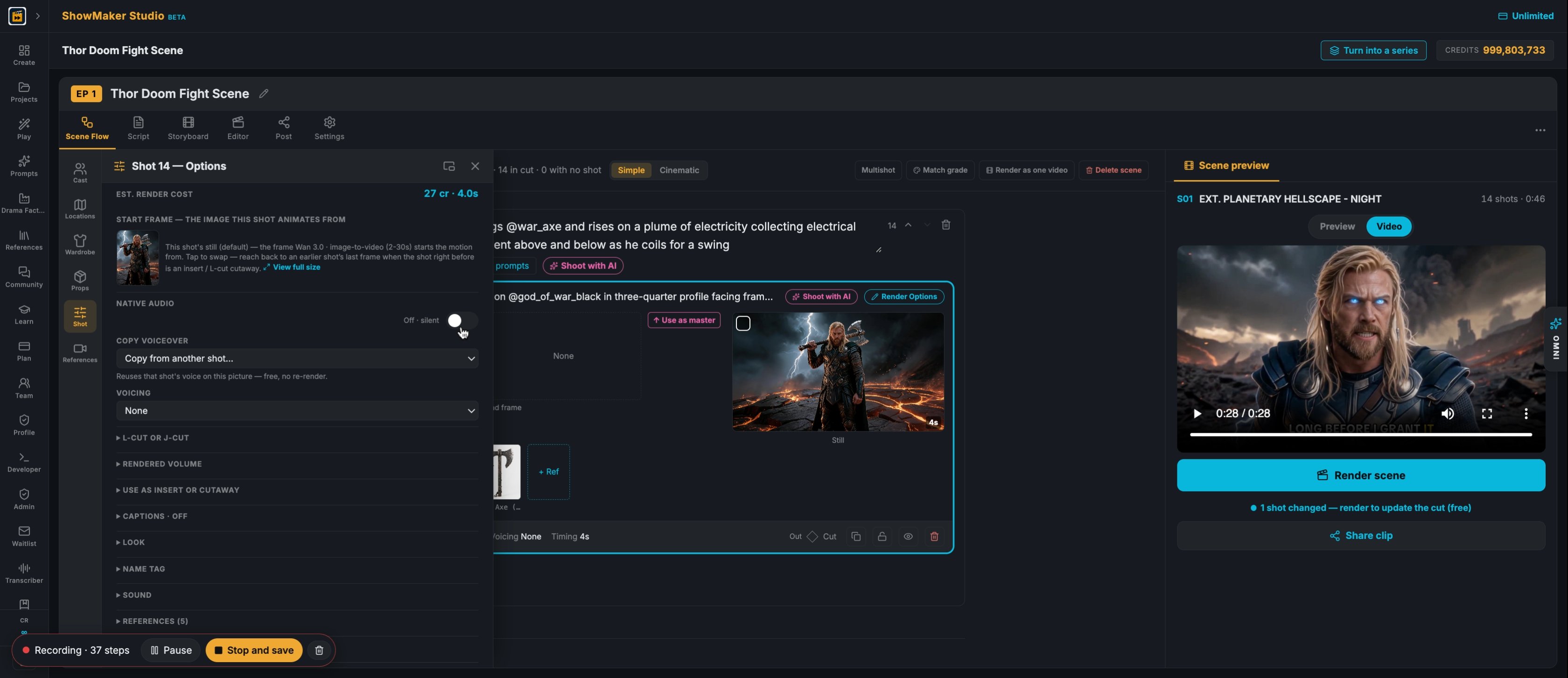
Step 17
17Turn NATIVE AUDIO on so the model adds sound, like thunder and crackling lightning.
Resolution480p720p (default)1080p
18Pick a RESOLUTION. 480p is the cheapest way to test a take; go up once you like it.
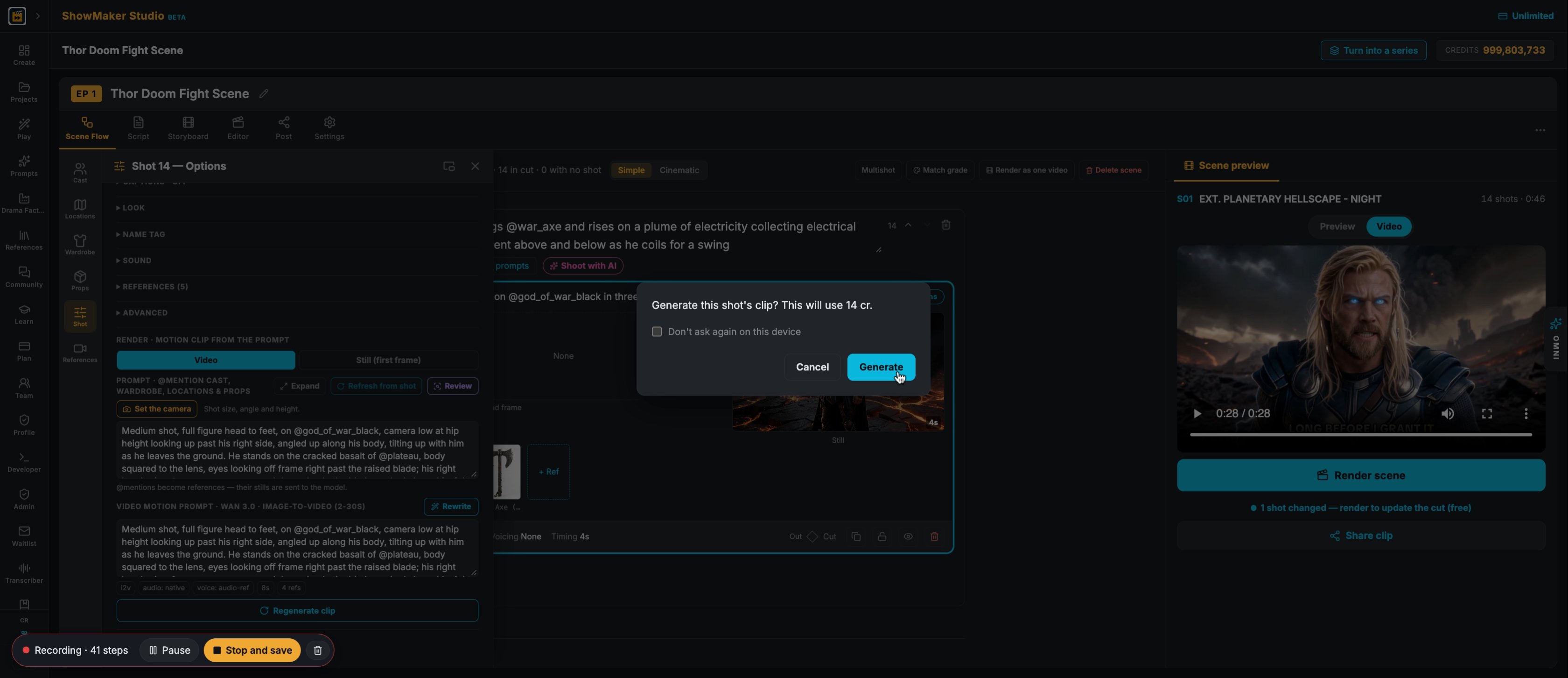
Generate
19Press Generate and confirm the credit cost in the dialog (14 cr for this 4s test).

Shape the timing and refine
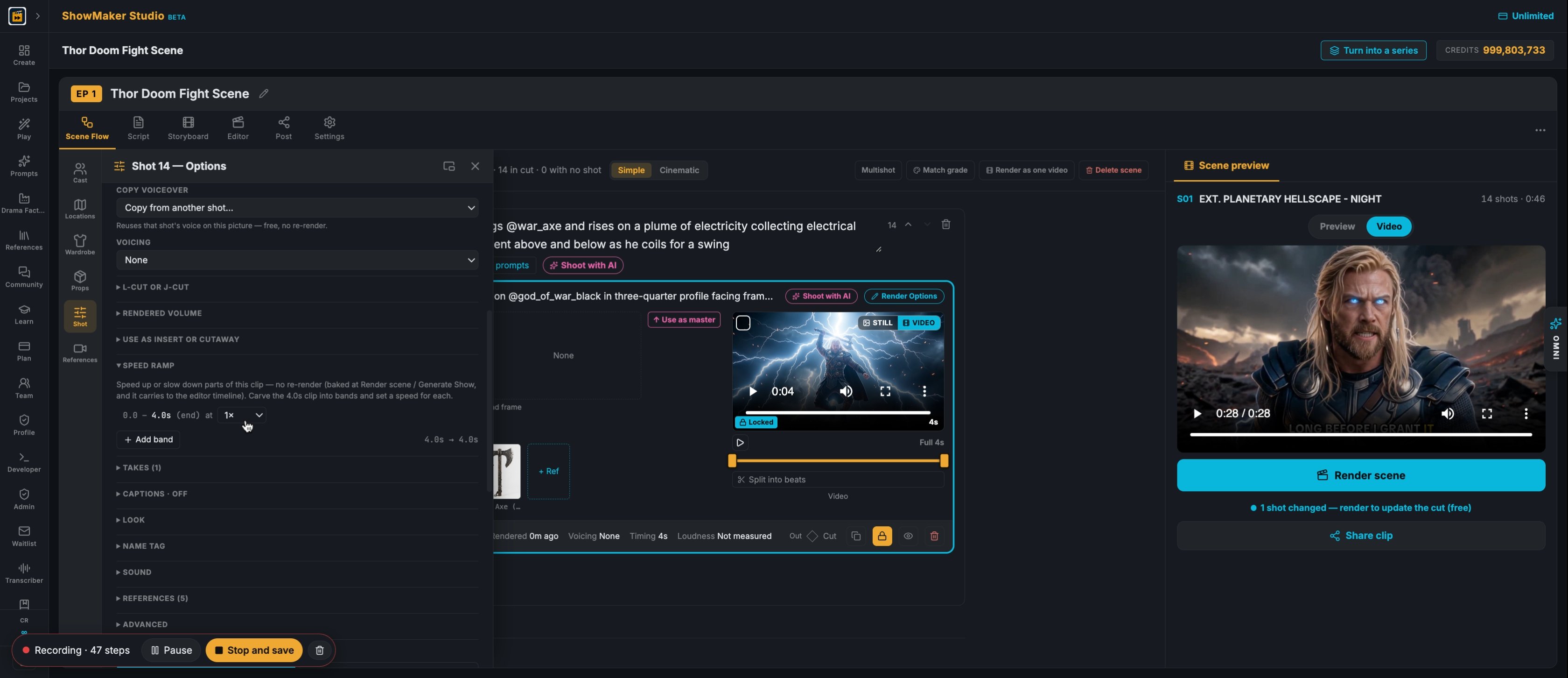
0.25× 0.5× 0.75× 1× 1.25× 1.5× 2× 3× 4× 5× 6× 8× 10×
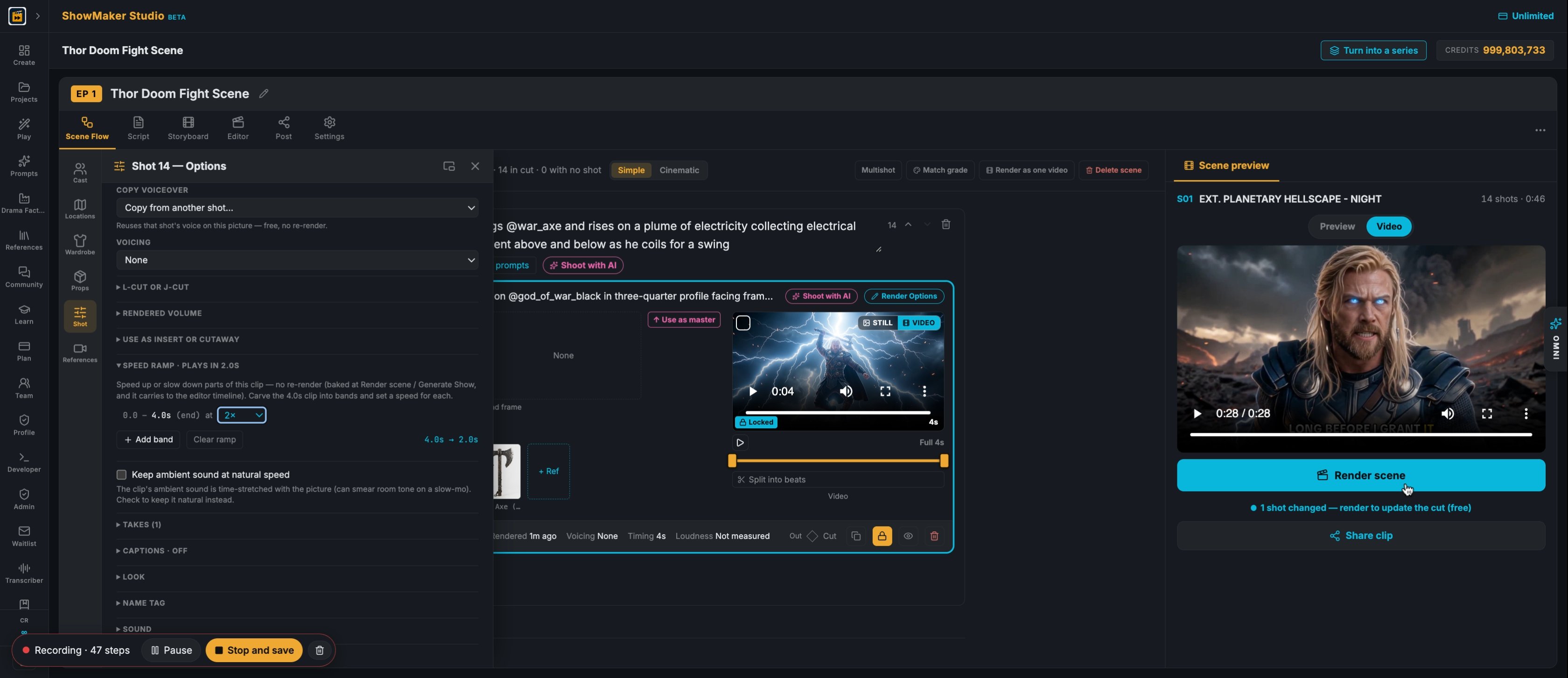
20Open SPEED RAMP in the shot options and set a speed for the clip, e.g. 2×. It is applied when the scene renders, with no re-render.
Render scene
21Press Render scene in the Scene preview to rebuild the cut with the new clip. It is free when only the cut changed.
Keep the current still →
22If you're not happy with the take, press Shoot with AI on the shot again and choose Keep the current still → to go straight to the motion.
Step 23
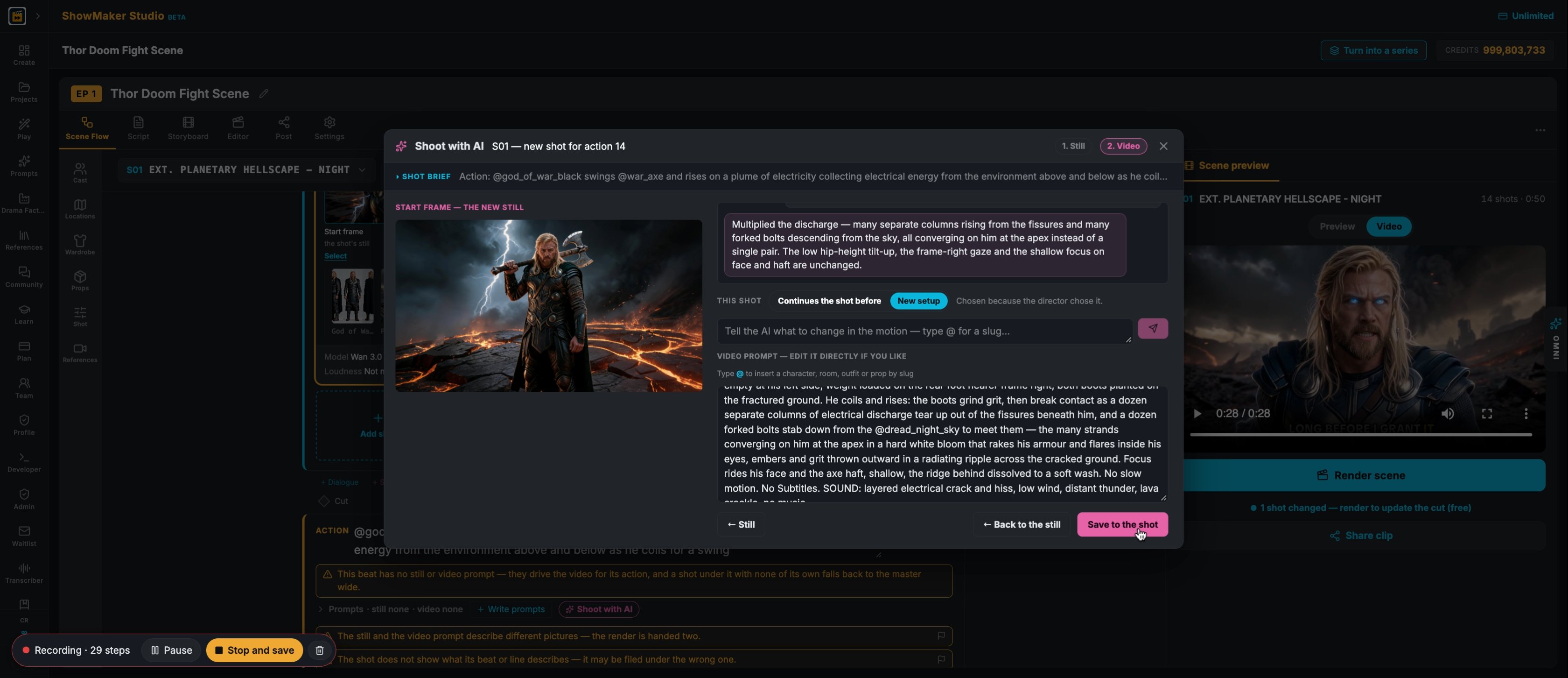
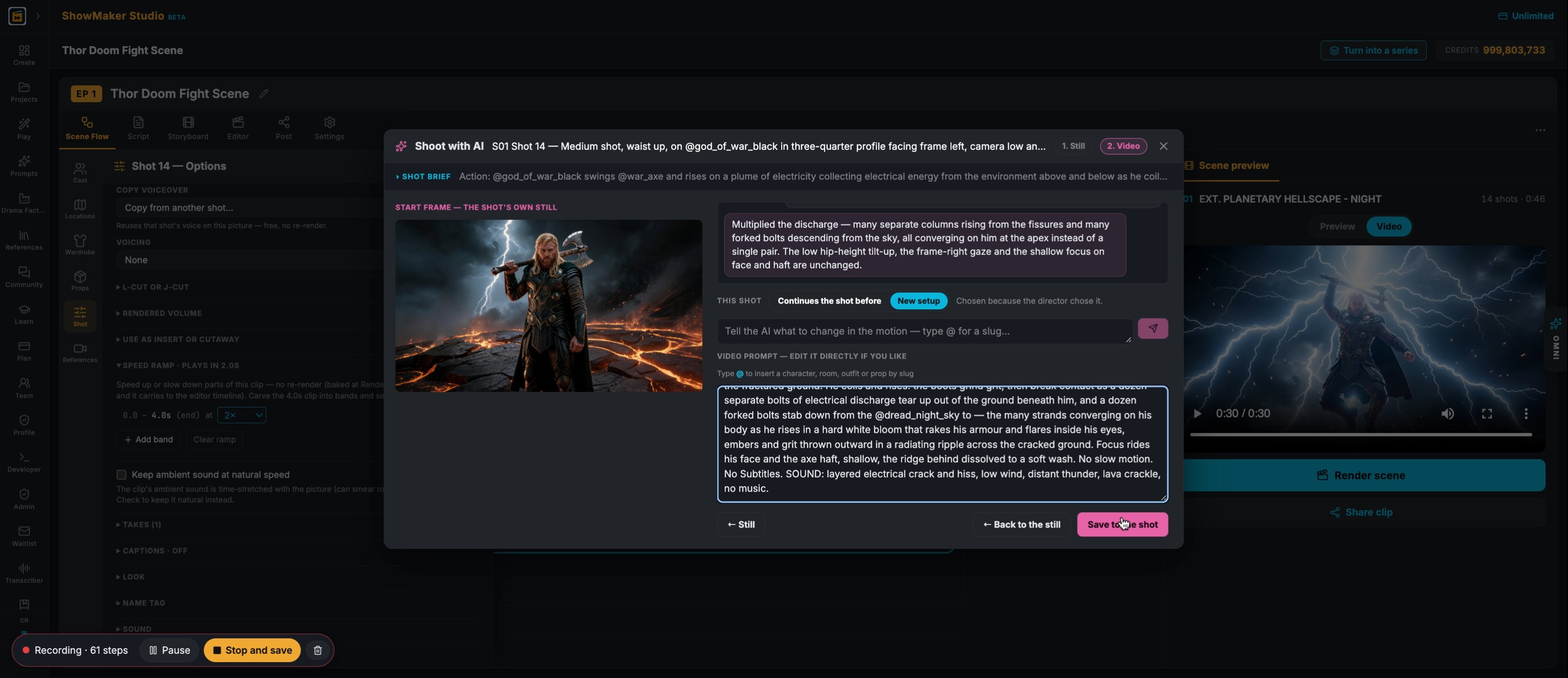
23Tell the AI what to change, or edit the VIDEO PROMPT directly. Here it asks for boots planted on the cracked ground and many bolts converging on him from above and below.
Save to the shot
24Press Save to the shot to store the new video prompt.
Unlock & re-render
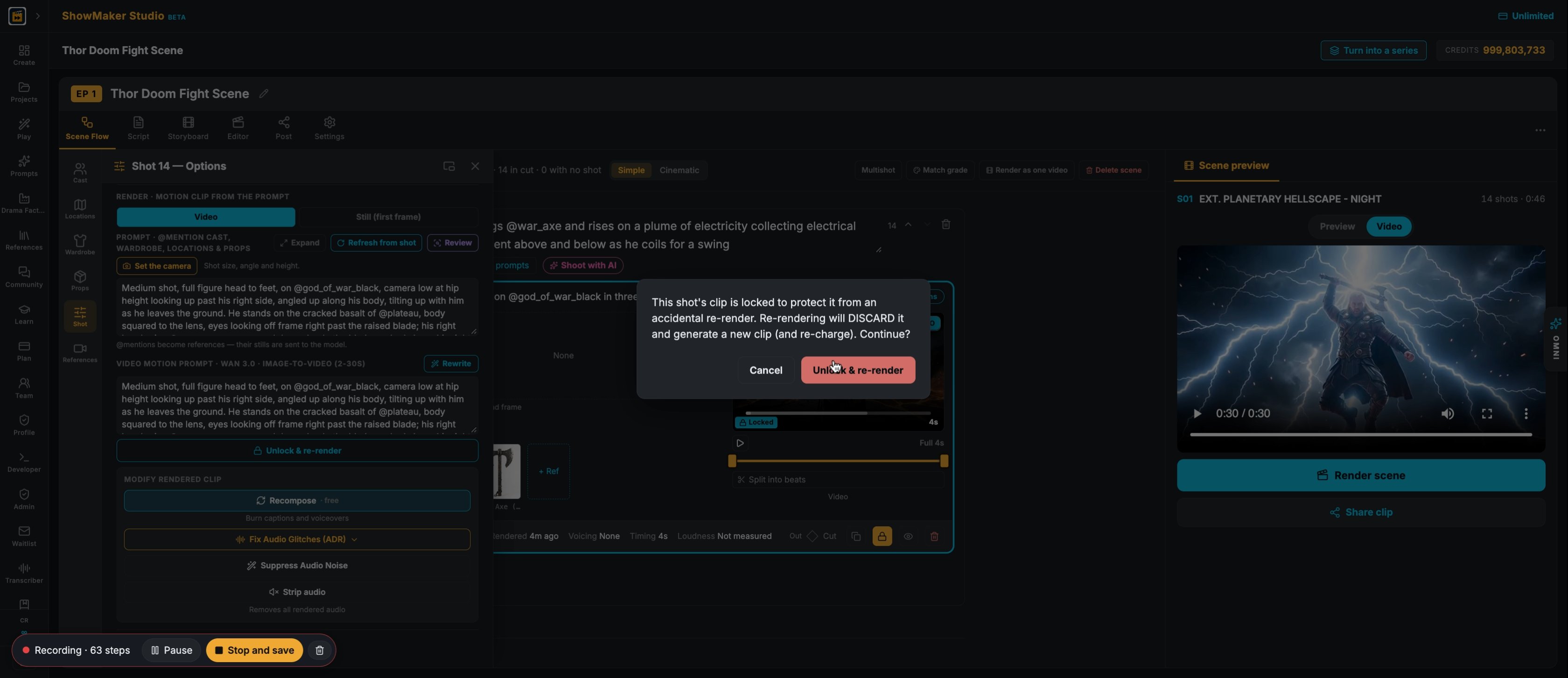
25A rendered clip is Locked so it can't be replaced by accident. Press the re-render button and confirm to render the new take.

Make your own episode.

Start free with 200 credits: a narrated film from AI stills, no credit card.

How to Make an AI Superhero Fight Scene: Thor vs Doom Fan Film | ShowMaker Studio