Step-by-step guide · 39 steps

Build an AI scene shot by shot: stills, punch-ins and cheap renders

Turn each action beat into its own shot with Shoot with AI: draw and fix the still, write the motion, punch in for close-ups, and render short clips on cheap models. Built on Misty and the Monk.

Draw the first still
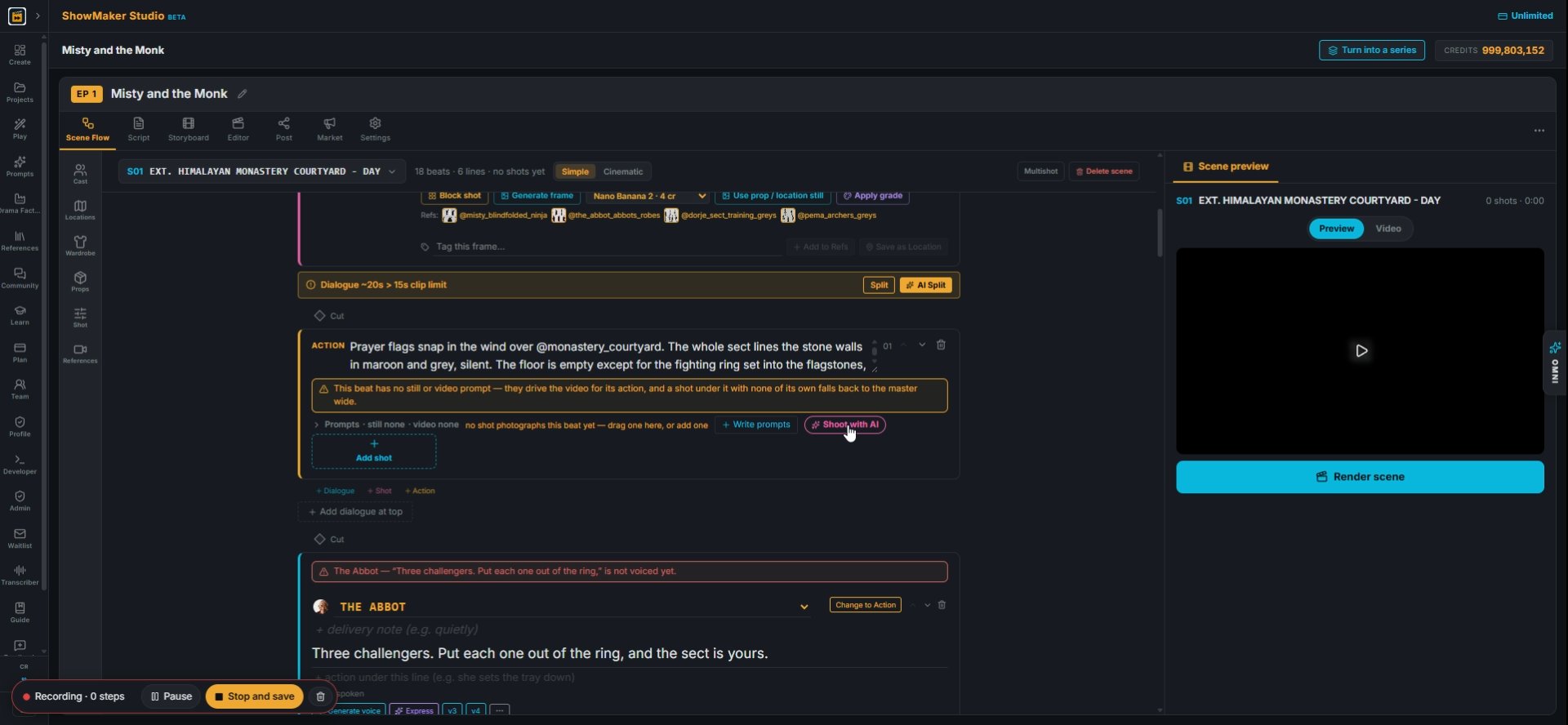
Shoot with AI
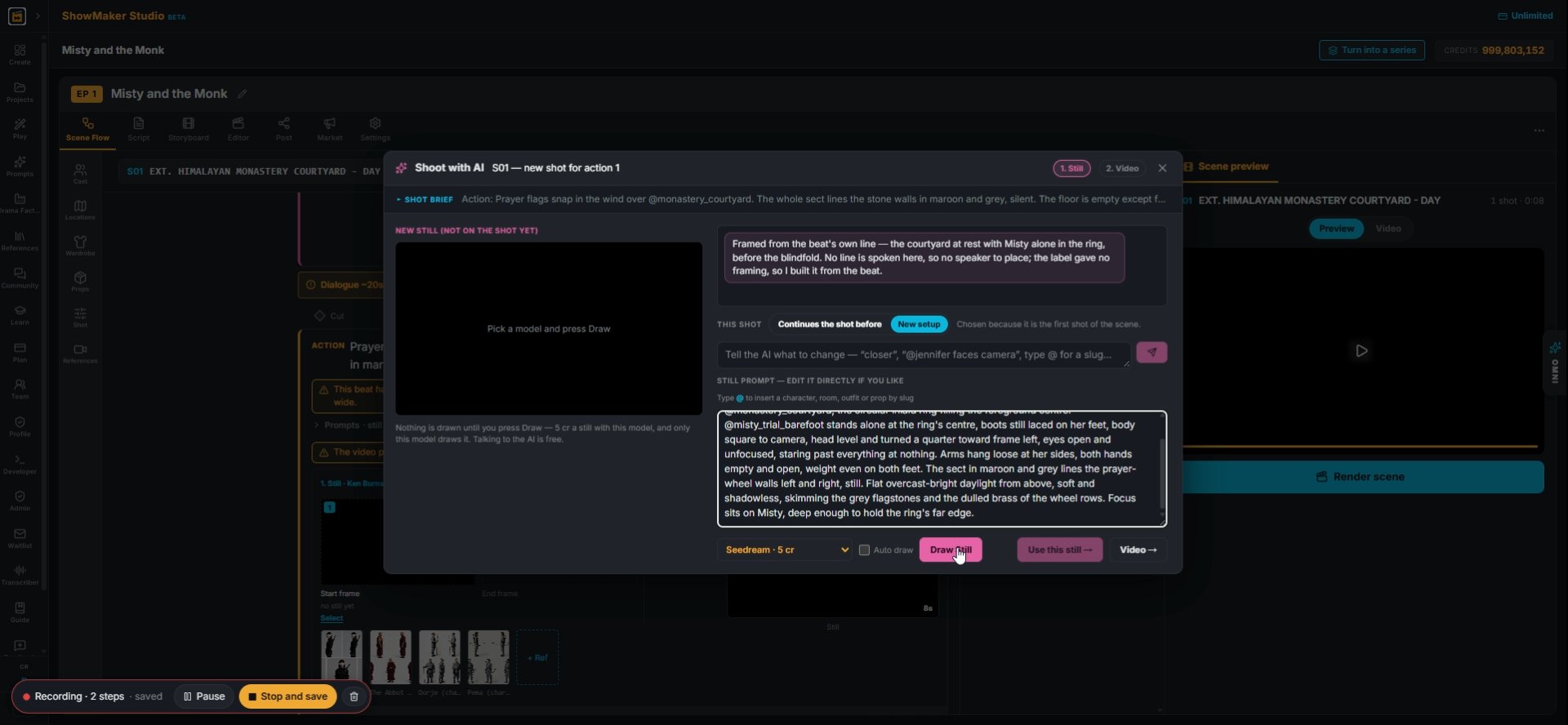
1In Scene Flow, find an ACTION beat that has no shot yet and press Shoot with AI under it. The shot is built from the beat's own text.
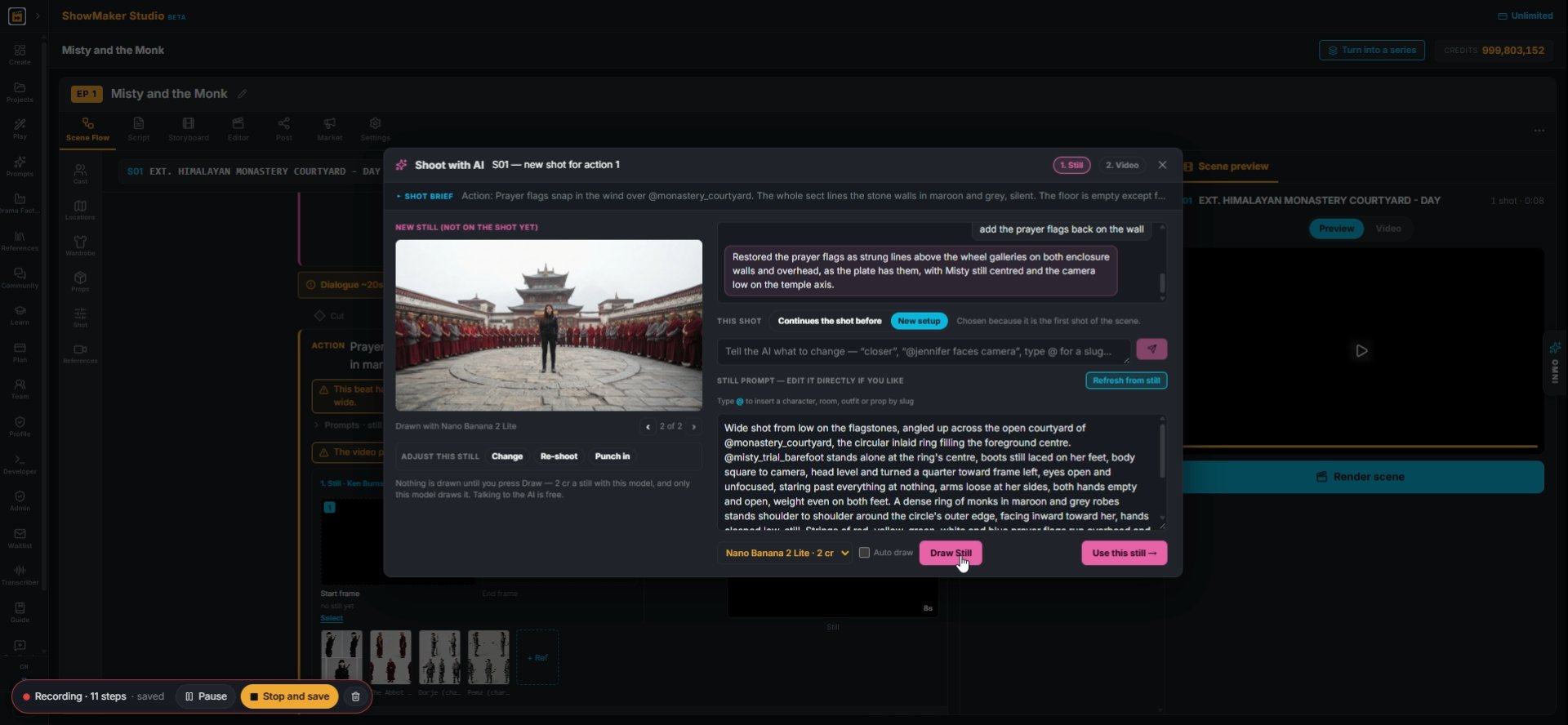
Draw Still
2Step 1 is the Still. Check the still prompt the AI wrote, pick a model in the dropdown (Seedream · 5 cr here) and press Draw Still.
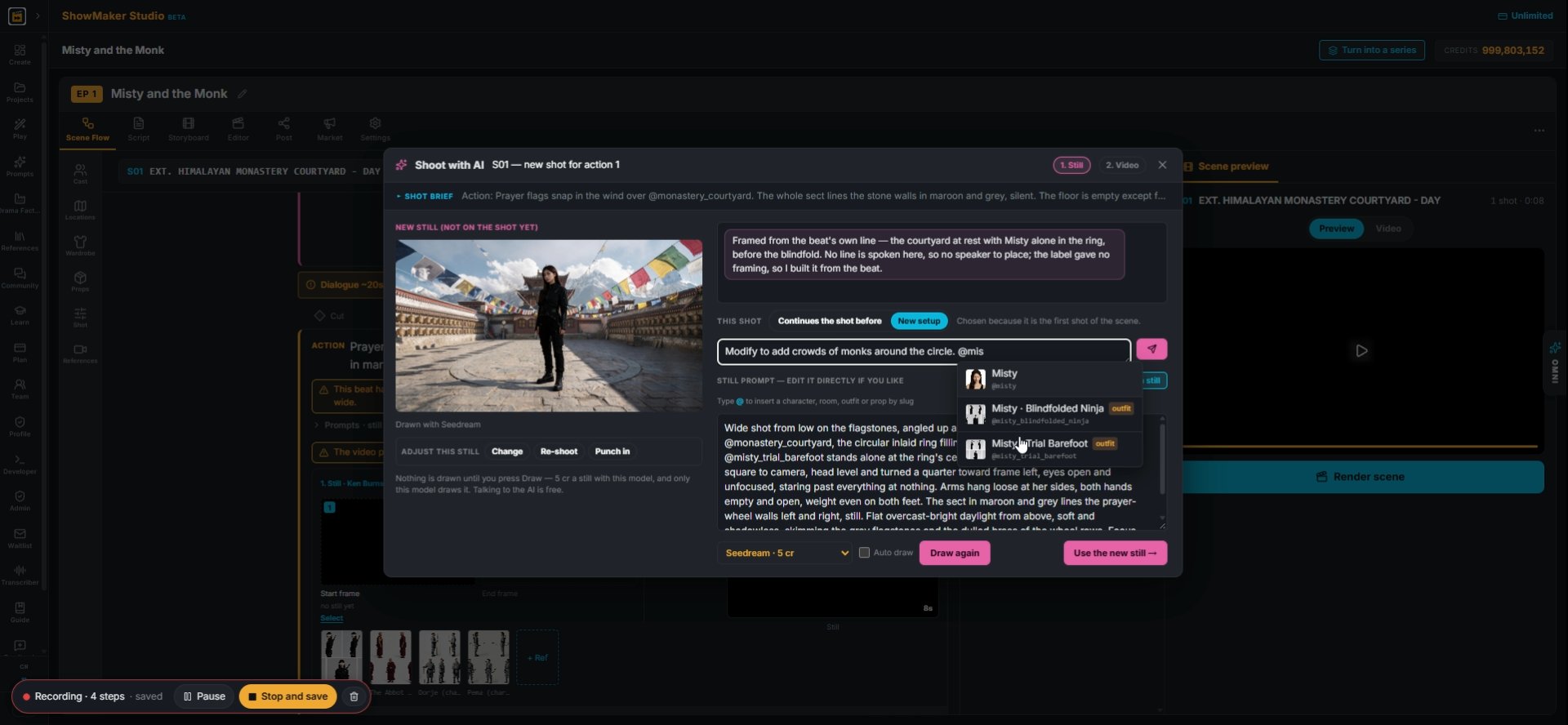
Misty · Trial Barefoot outfit @misty_trial_barefoot
3If it's not quite right, tell the AI what to change in the box, e.g. "add crowds of monks around the circle". Type @ to pick a character, outfit or prop by its slug.
Draw Still
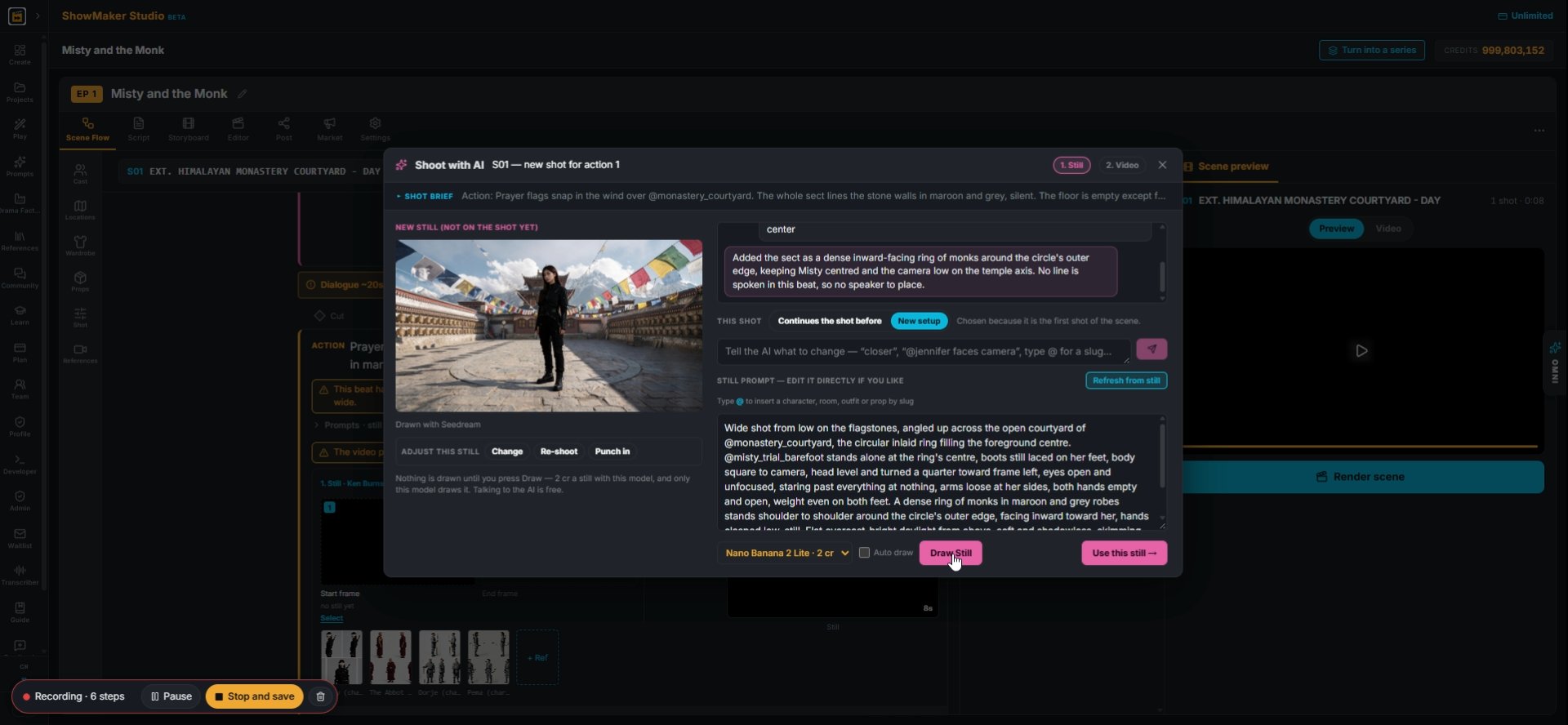
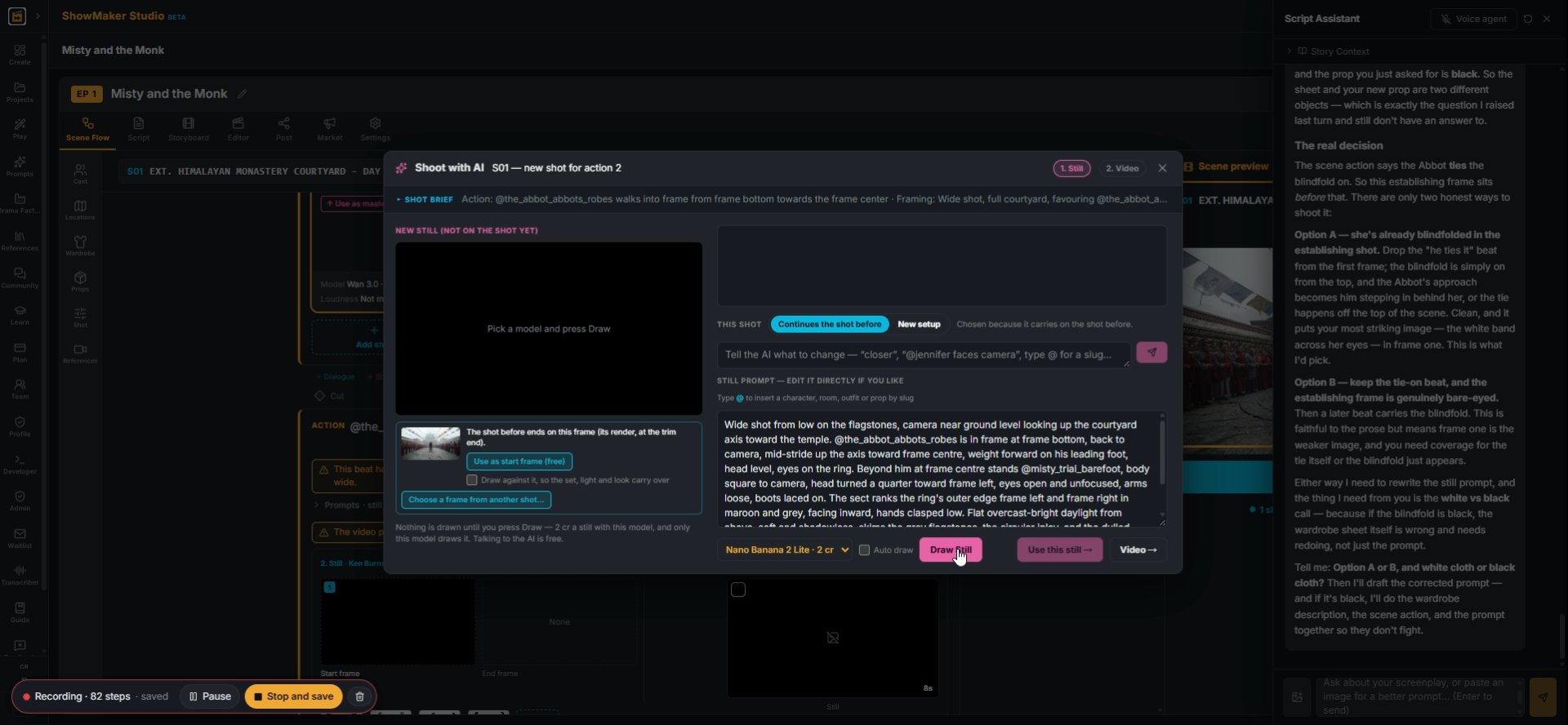
4Switch to a cheaper model when you're iterating: Nano Banana 2 Lite is 2 cr a still. Press Draw Still to draw the new version.
Tell the AI what to change — “closer”, “@jennifer faces camera”, type @ for a s…
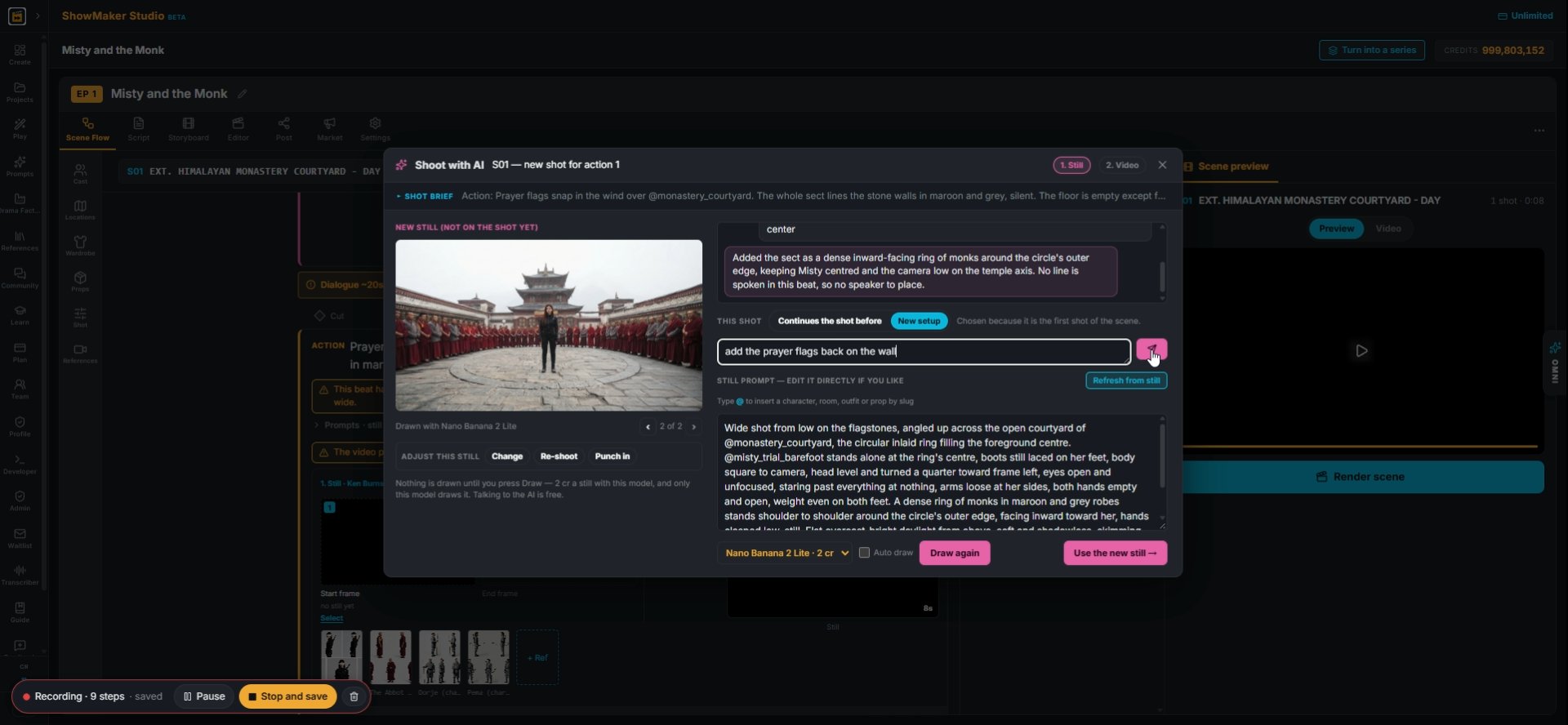
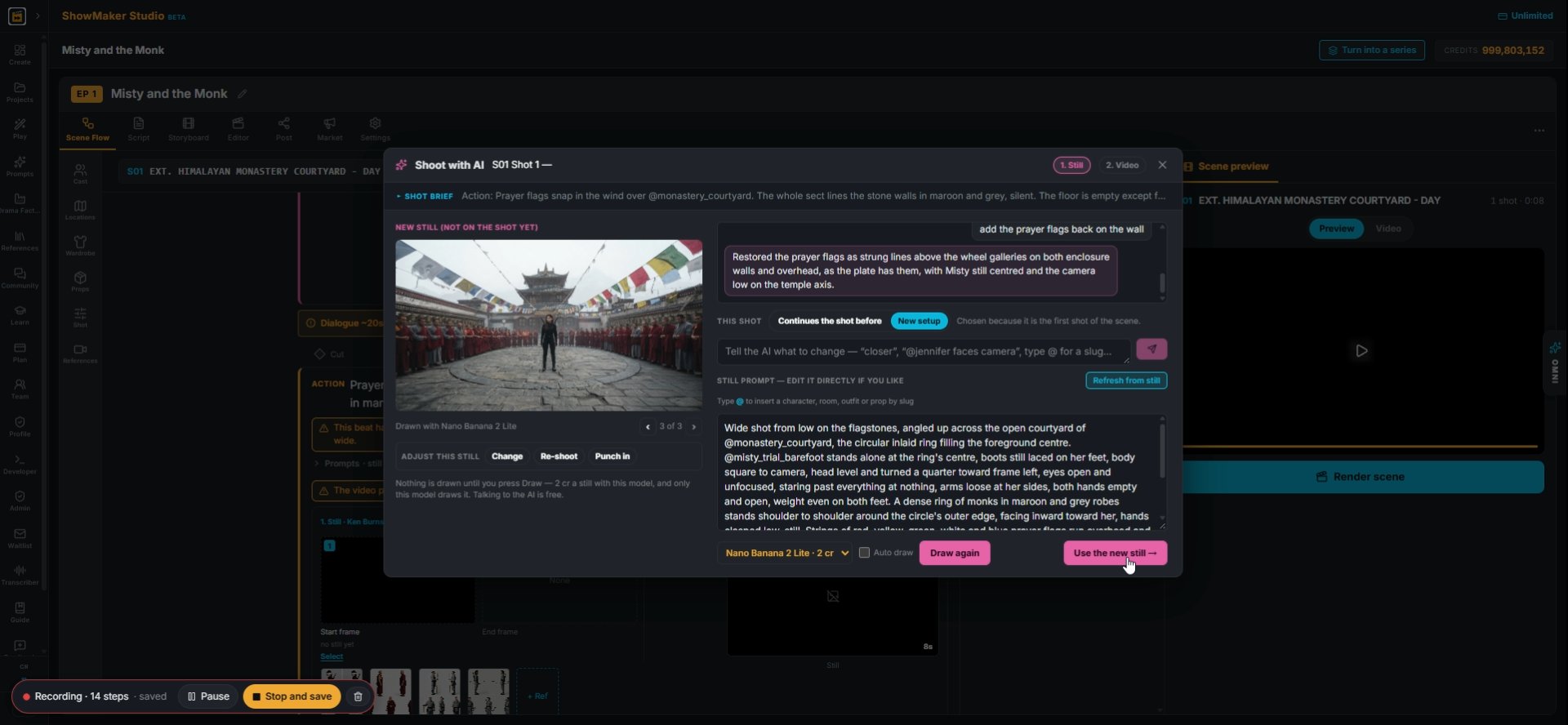
5Keep refining in plain words, like "add the prayer flags back on the wall", and press send. The AI updates the still prompt for you.
Draw Still
6Press Draw Still again. Use the arrows under the picture to flip between takes; nothing is saved to the shot until you choose.
Use the new still →
7When the frame is right, press Use the new still → to move on to the Video step.

Write the motion and pick a model
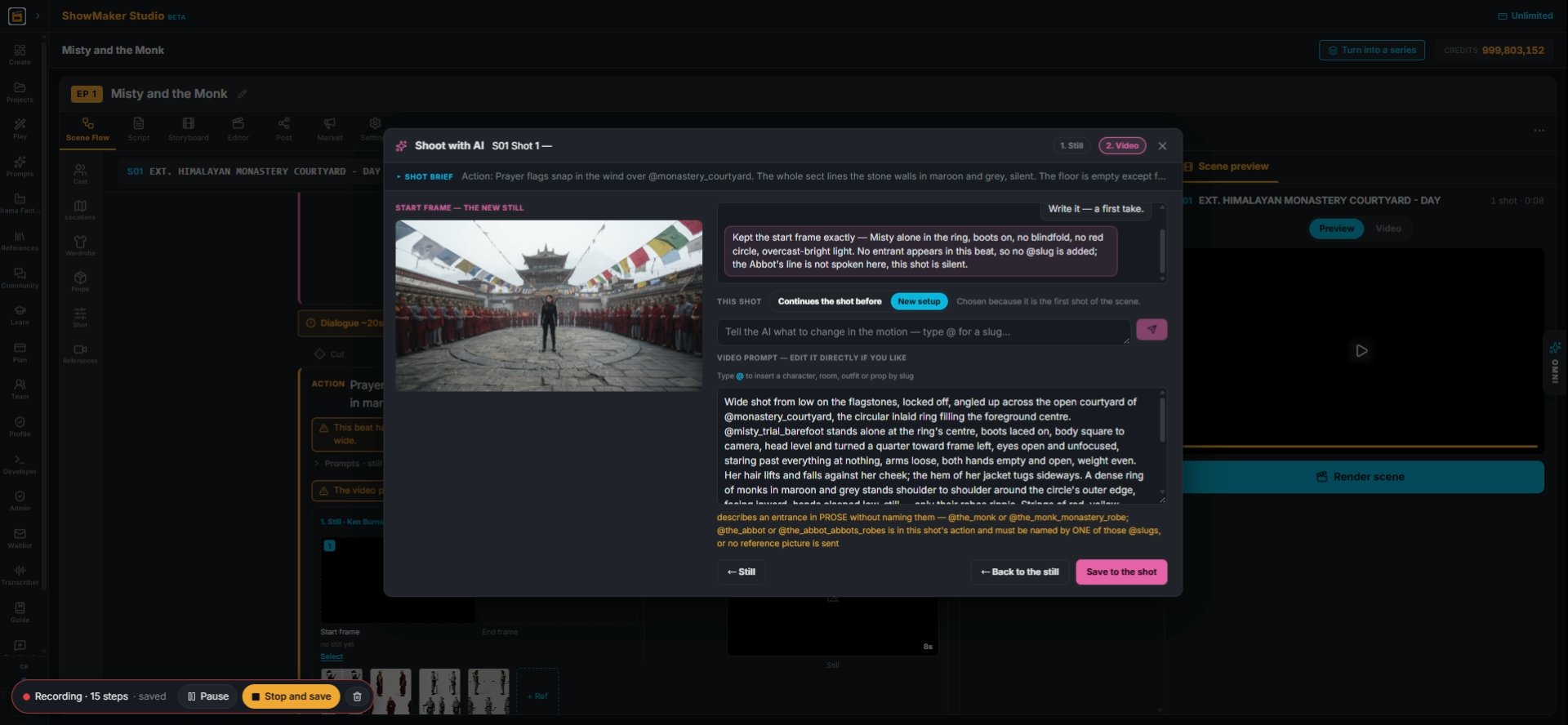
Tell the AI what to change in the motion — type @ for a slug…
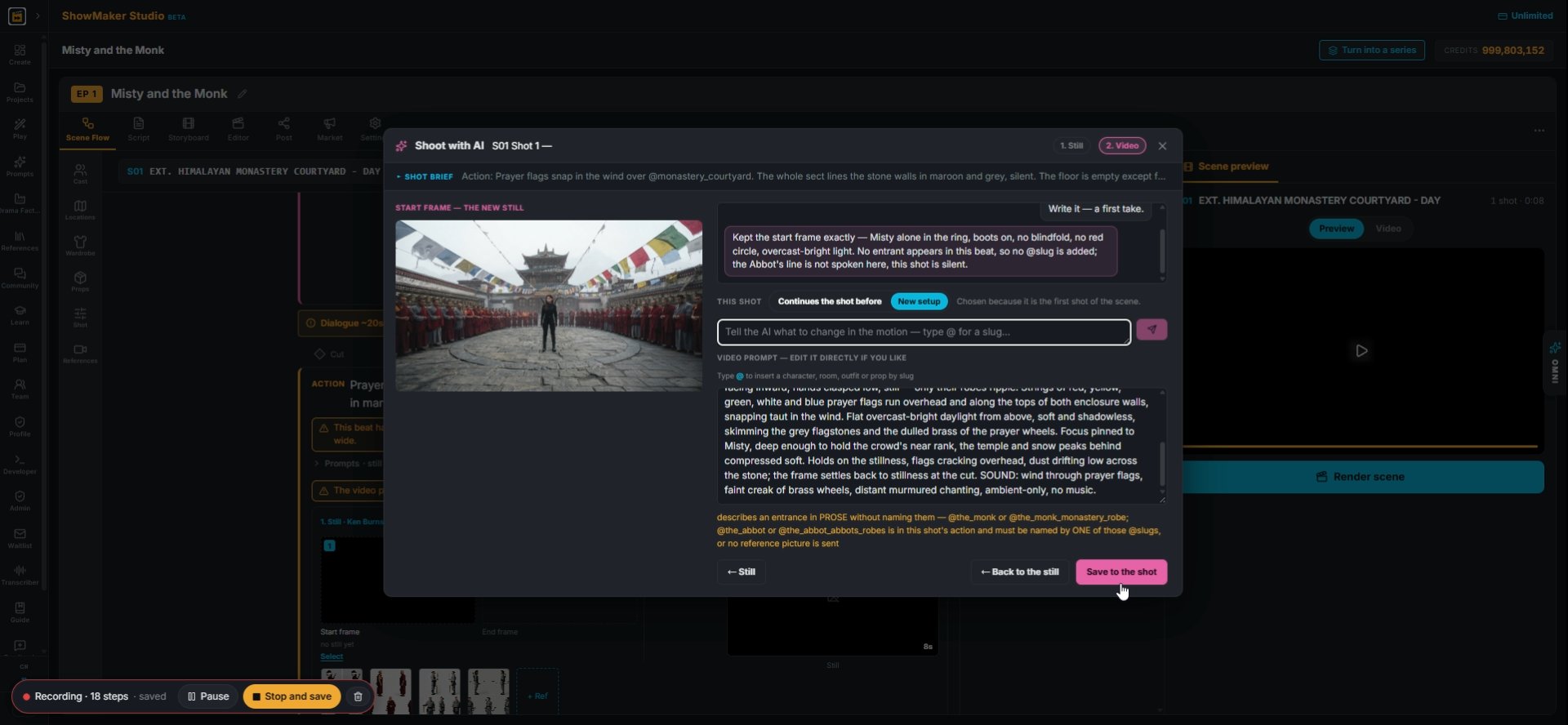
8Step 2 is the Video. The video prompt starts from your still. Type what should move in the box, or edit the prompt directly.
Save to the shot
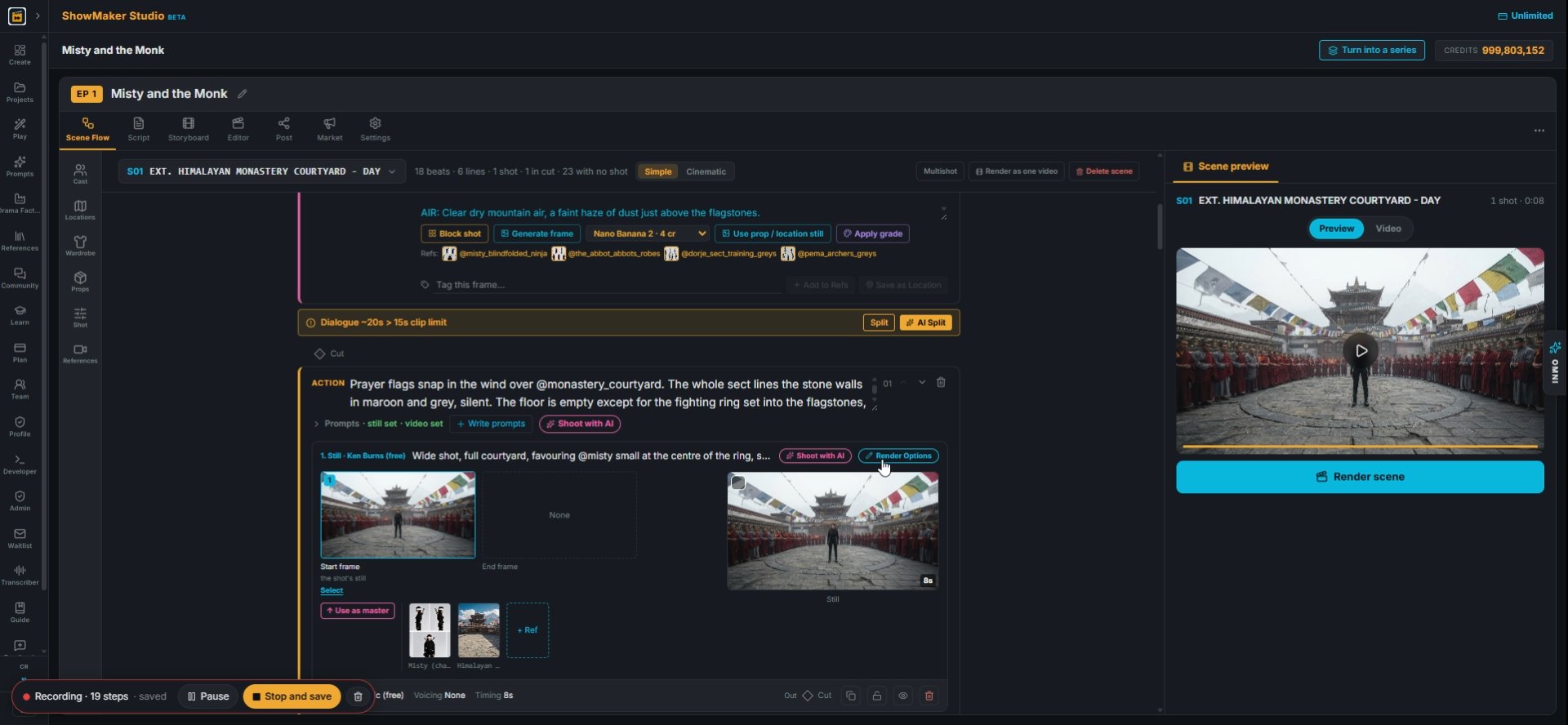
9Press Save to the shot. The still and both prompts land on a new shot under the beat.
Render Options
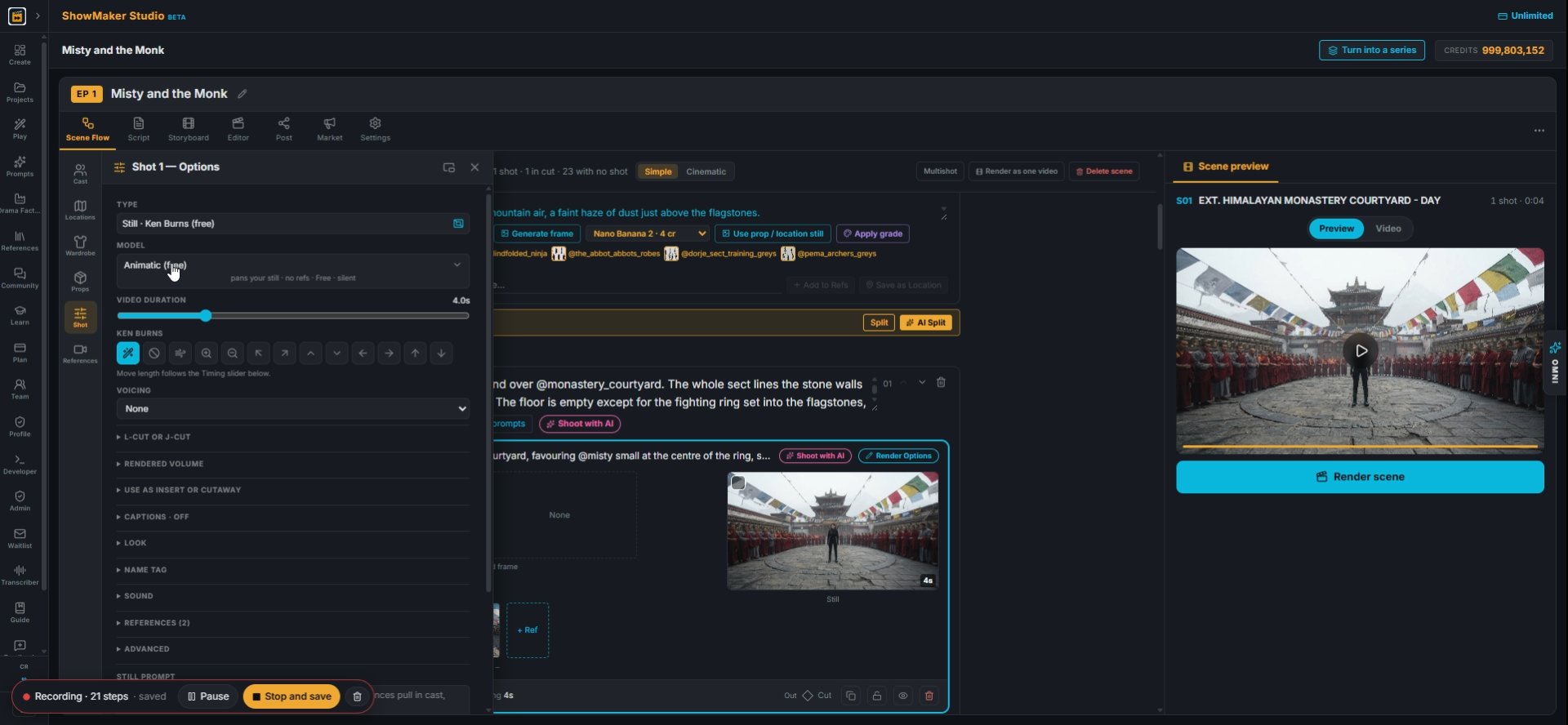
10Press Render Options on the shot to choose how it is animated.
Animatic (free) pans your still · no refs · Free · silent
11By default a new shot is an Animatic (free): it pans your still with no sound. Good for a rough cut before you spend anything.
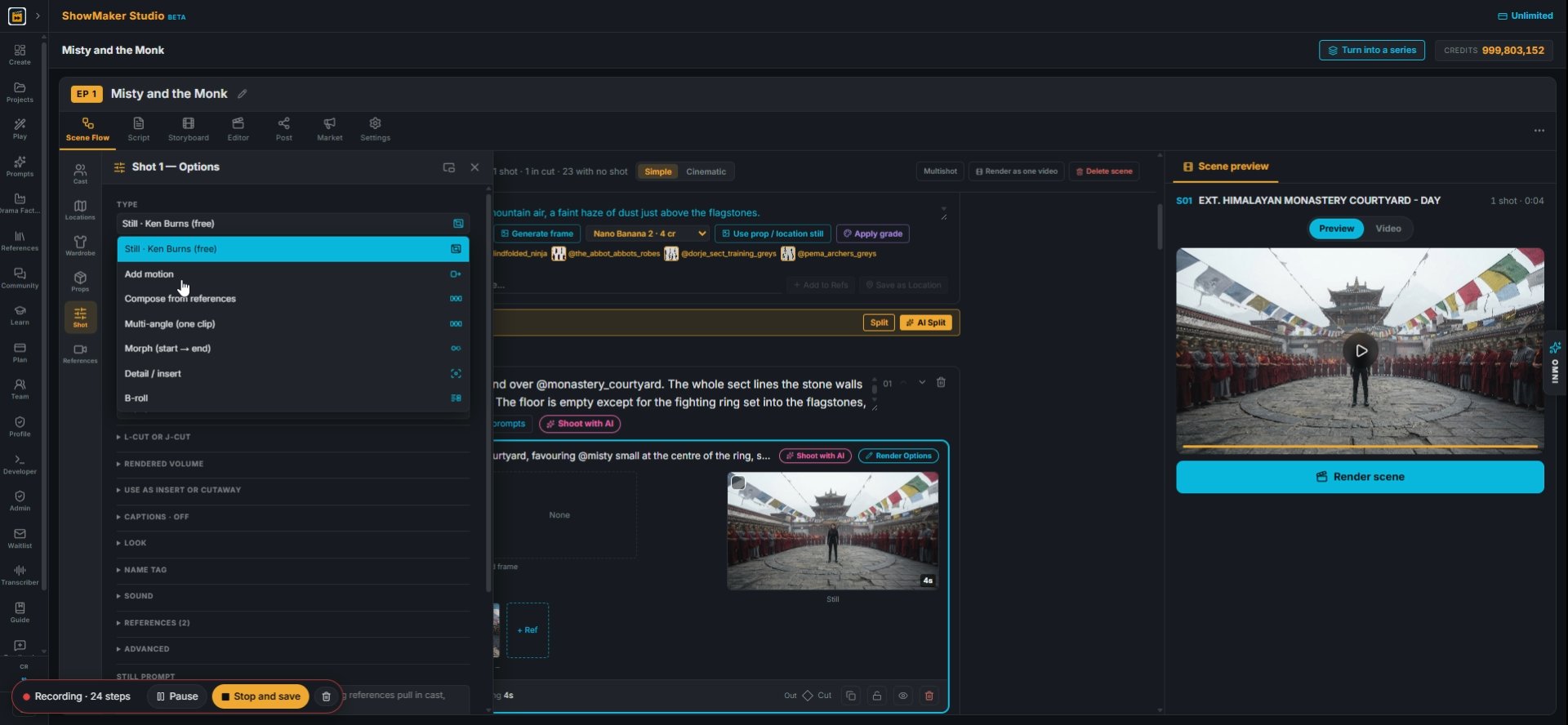
Add motion
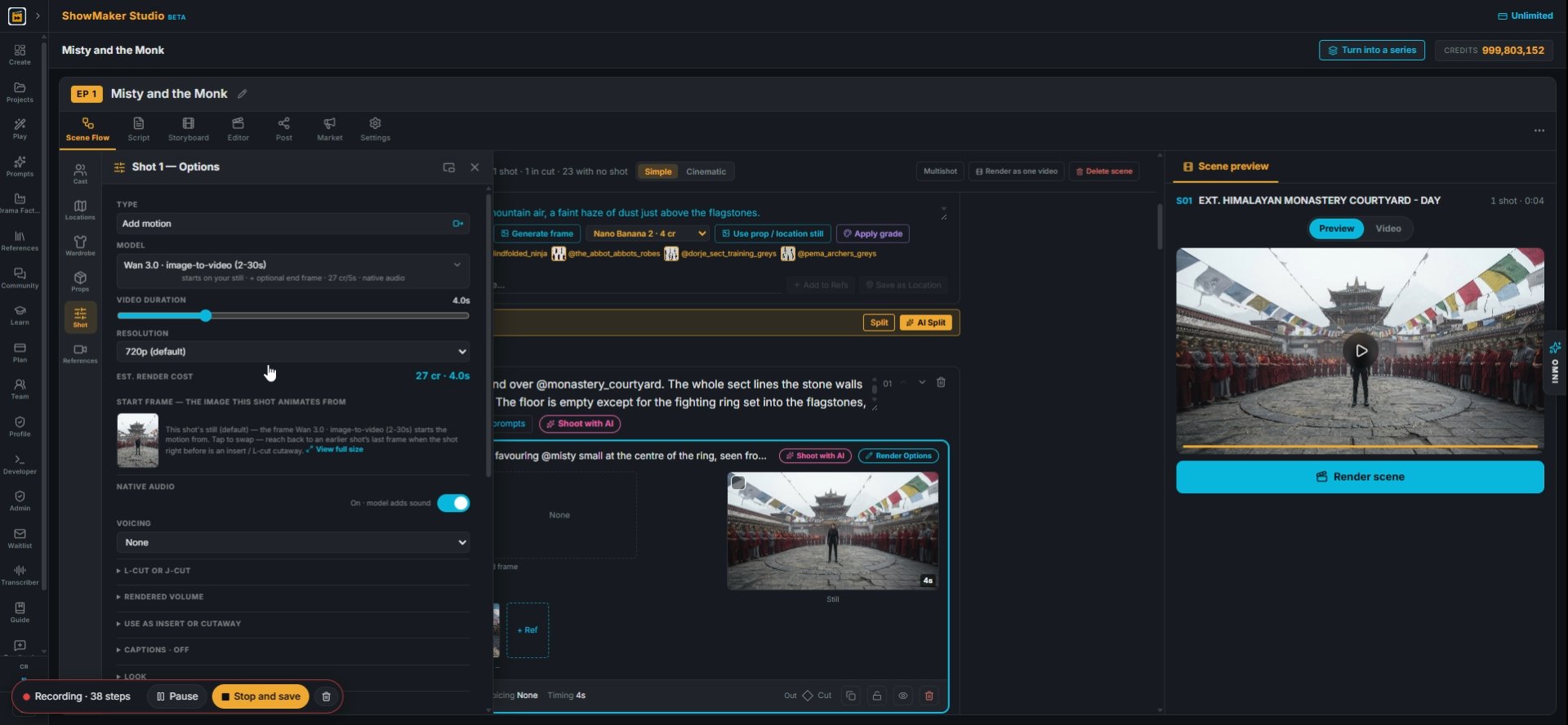
12For real motion, open TYPE and choose Add motion. The clip starts on your still.
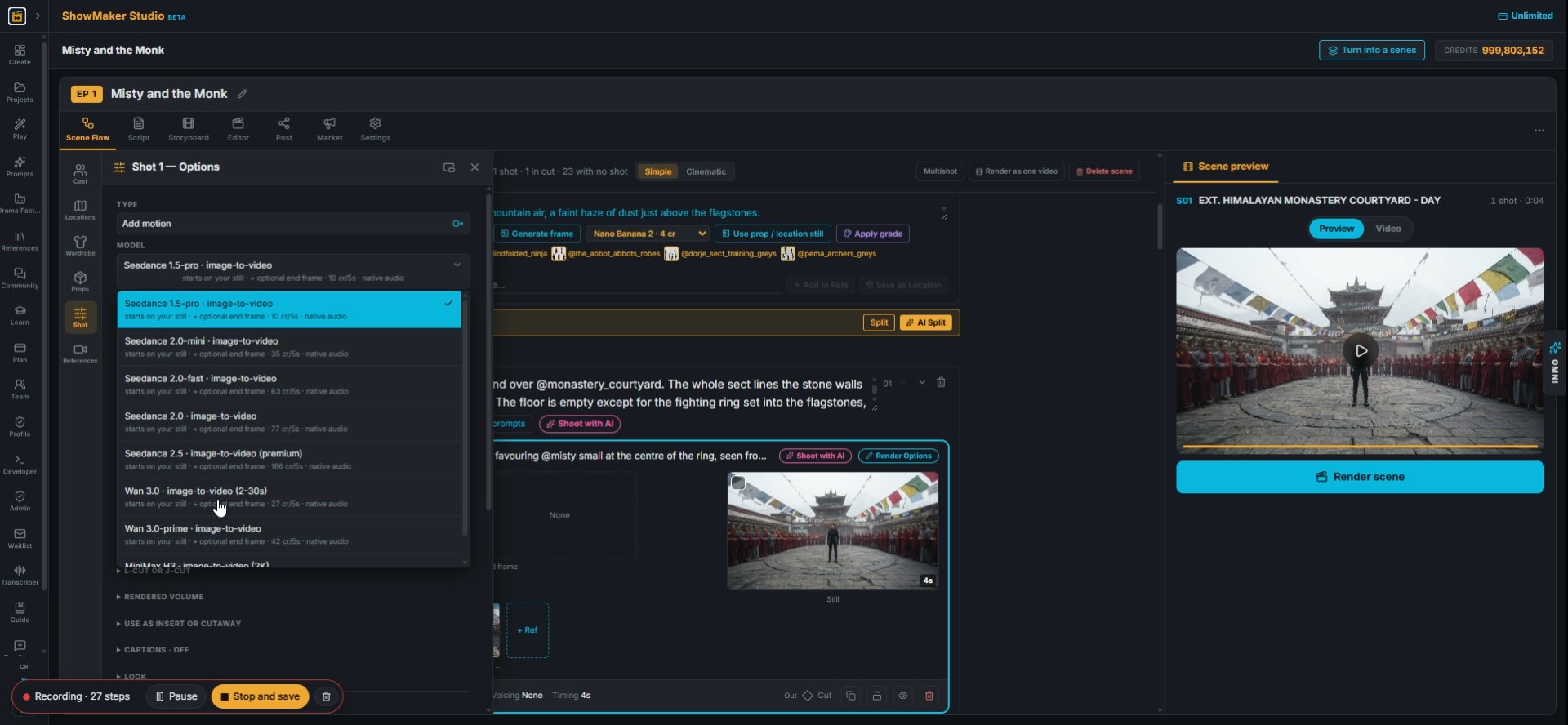
Wan 3.0 · image-to-video (2-30s) starts on your still · + optional end frame ·…
13Open MODEL and pick one. Wan 3.0 image-to-video takes 2 to 30 s and is one of the cheapest; Seedance and Wan 3.0-prime cost more.
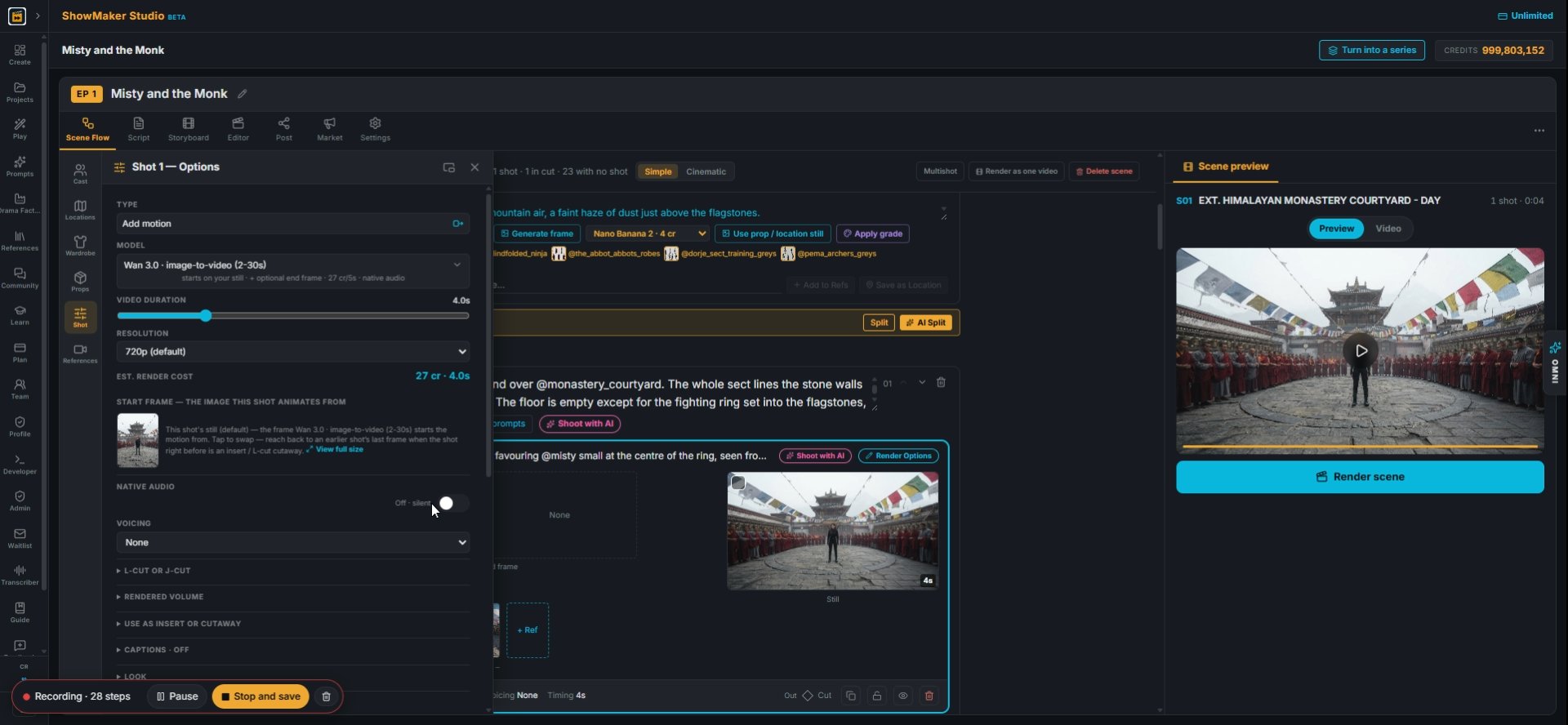
NATIVE AUDIO Off · silent
14Turn NATIVE AUDIO on if you want the model to add sound (wind, footsteps, chanting).
Resolution480p720p (default)1080p
15Set RESOLUTION to 480p for drafts. The EST. RENDER COST updates as you change model, length and resolution.
Generate
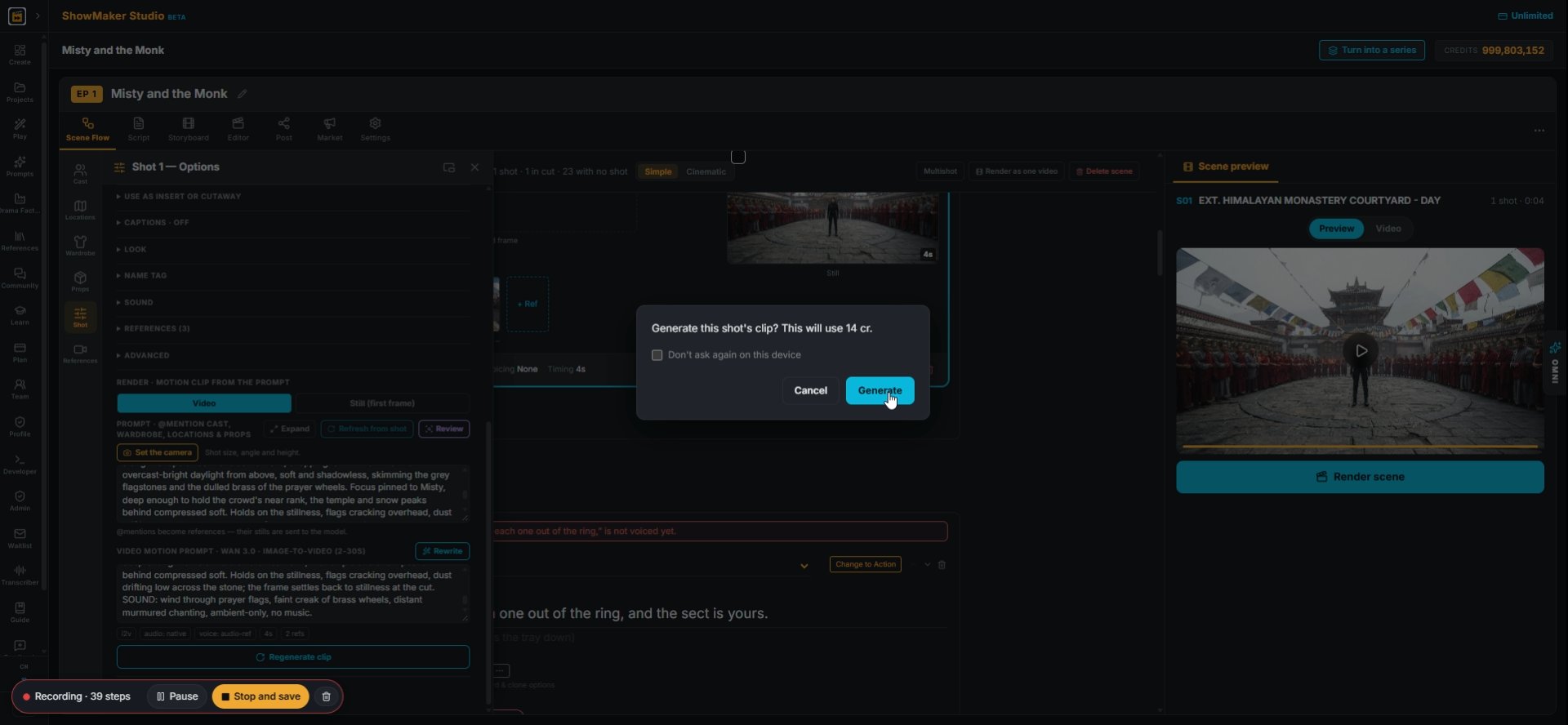
16Press Regenerate clip, then Generate in the confirm box. It shows the price first (14 cr for this 4 s shot at 480p).

Continue to the next shot
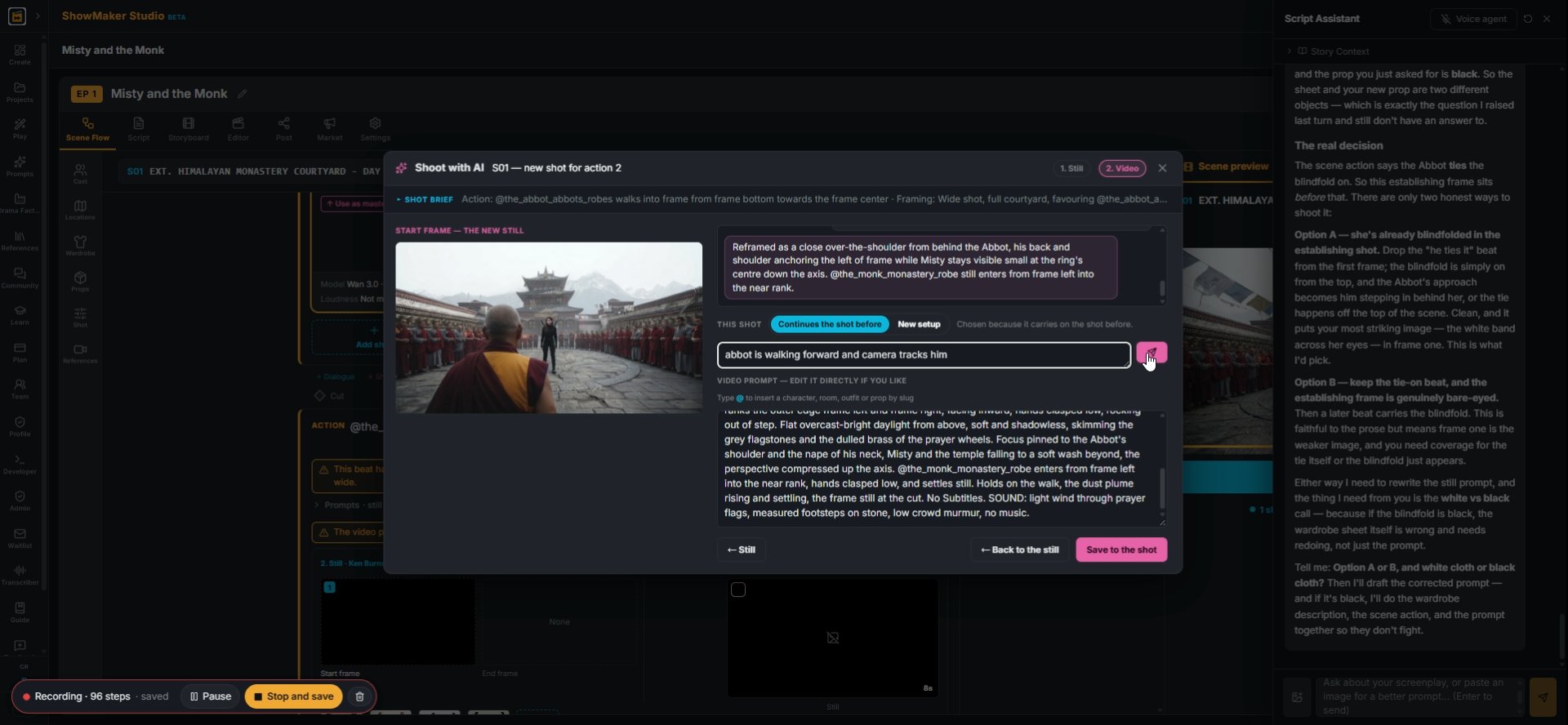
What happens — no dialogue. @tag whoever and whatever is in frame.
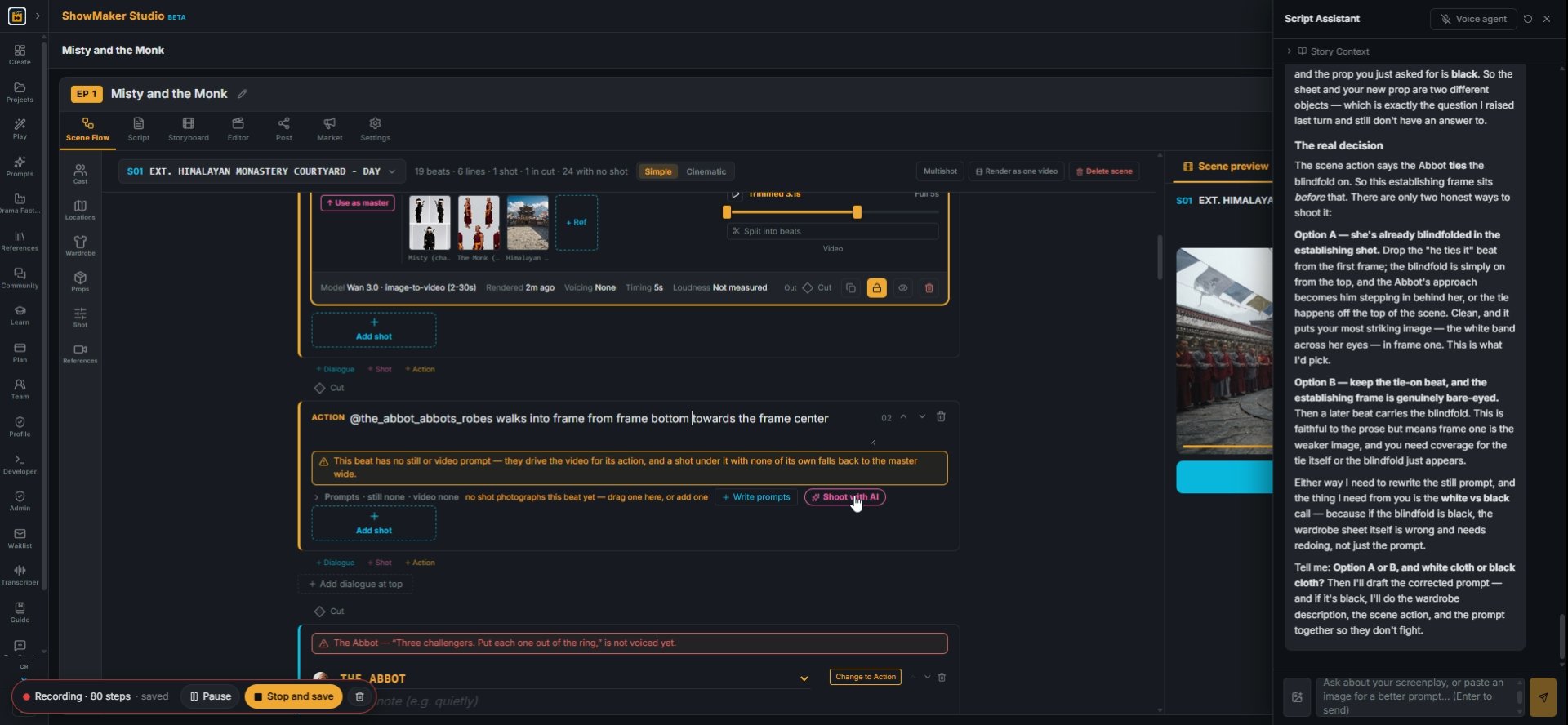
17Write the next action beat with @slugs, e.g. "@the_abbot_abbots_robes walks into frame from frame bottom", and press Shoot with AI.
Draw Still
18The new shot continues the shot before. The AI frames it from the beat and keeps the room, cast and light.
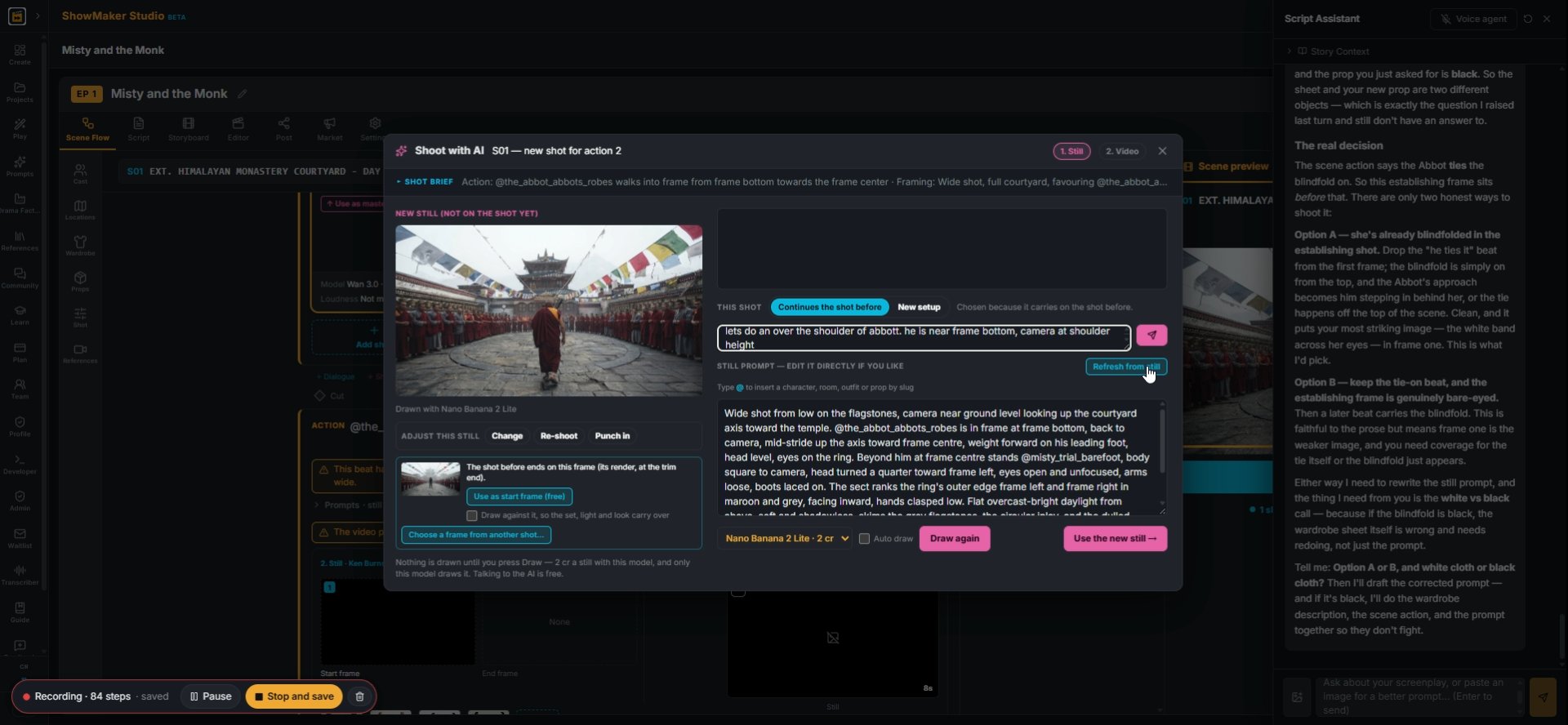
Tell the AI what to change — “closer”, “@jennifer faces camera”, type @ for a s…
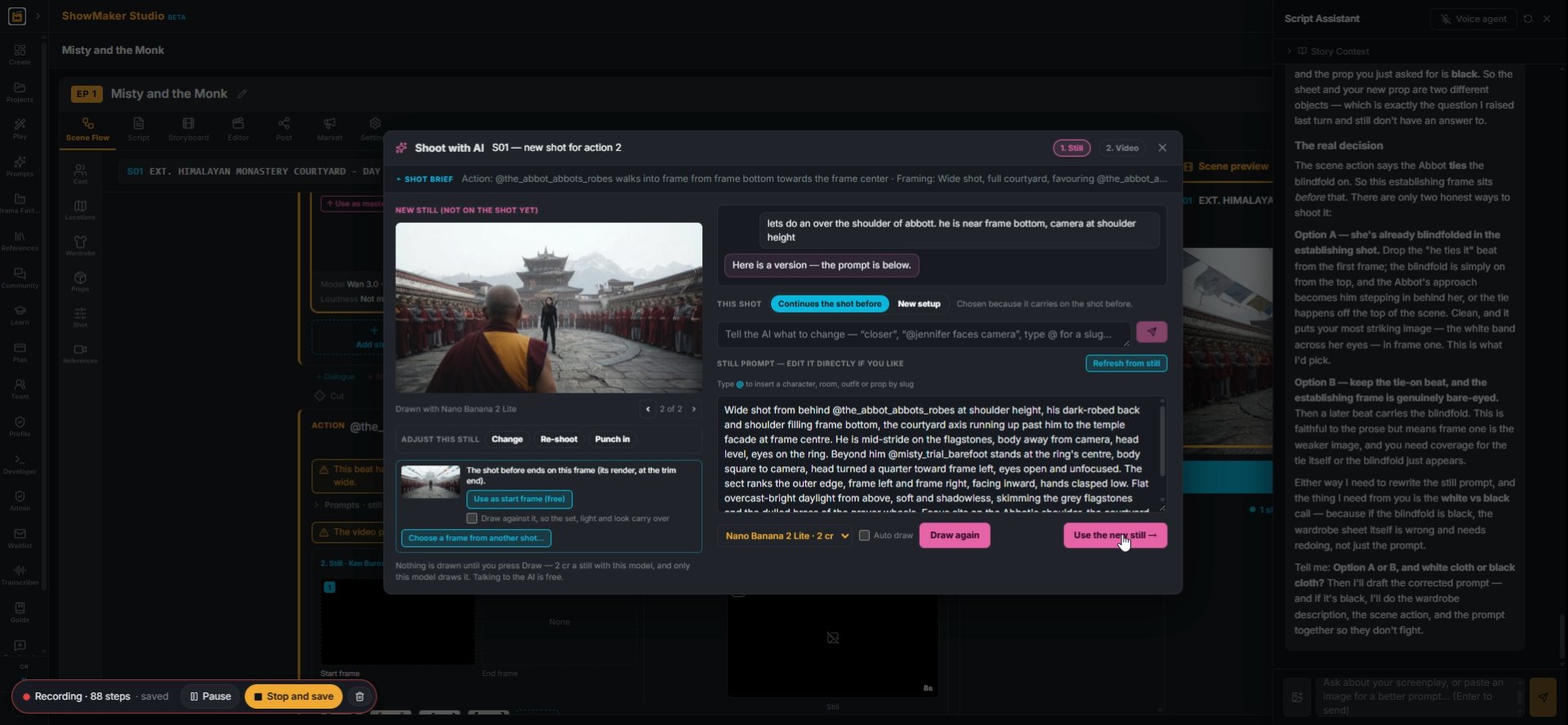
19Ask for the angle you want, e.g. "over the shoulder of the abbot, near frame bottom, camera at shoulder height", then Draw Still.
Use the new still →
20Press Use the new still → when the framing works.
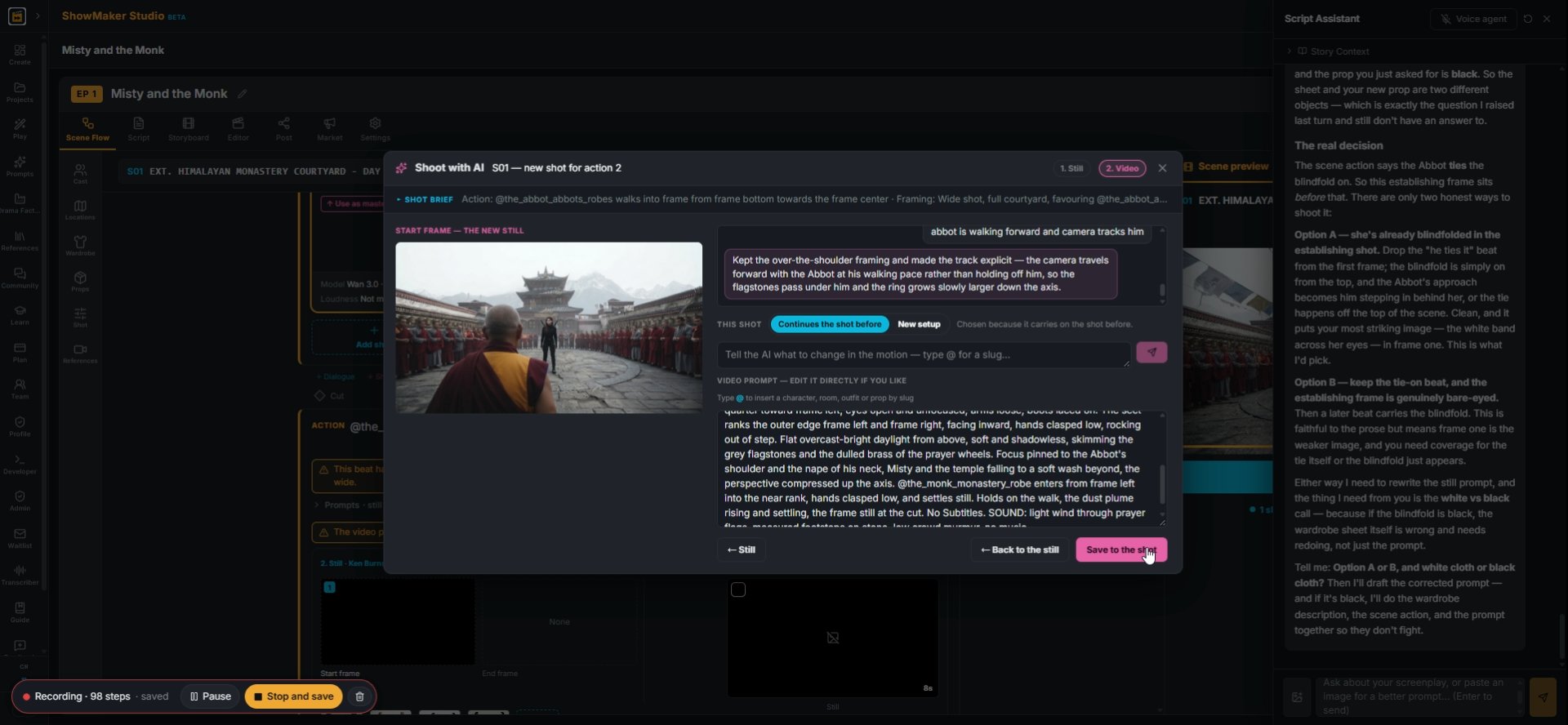
Tell the AI what to change in the motion — type @ for a slug…
21In the Video step, describe the move: "abbot is walking forward and camera tracks him". The AI rewrites the video prompt to match.
Save to the shot
22Press Save to the shot.

Punch in for a close-up

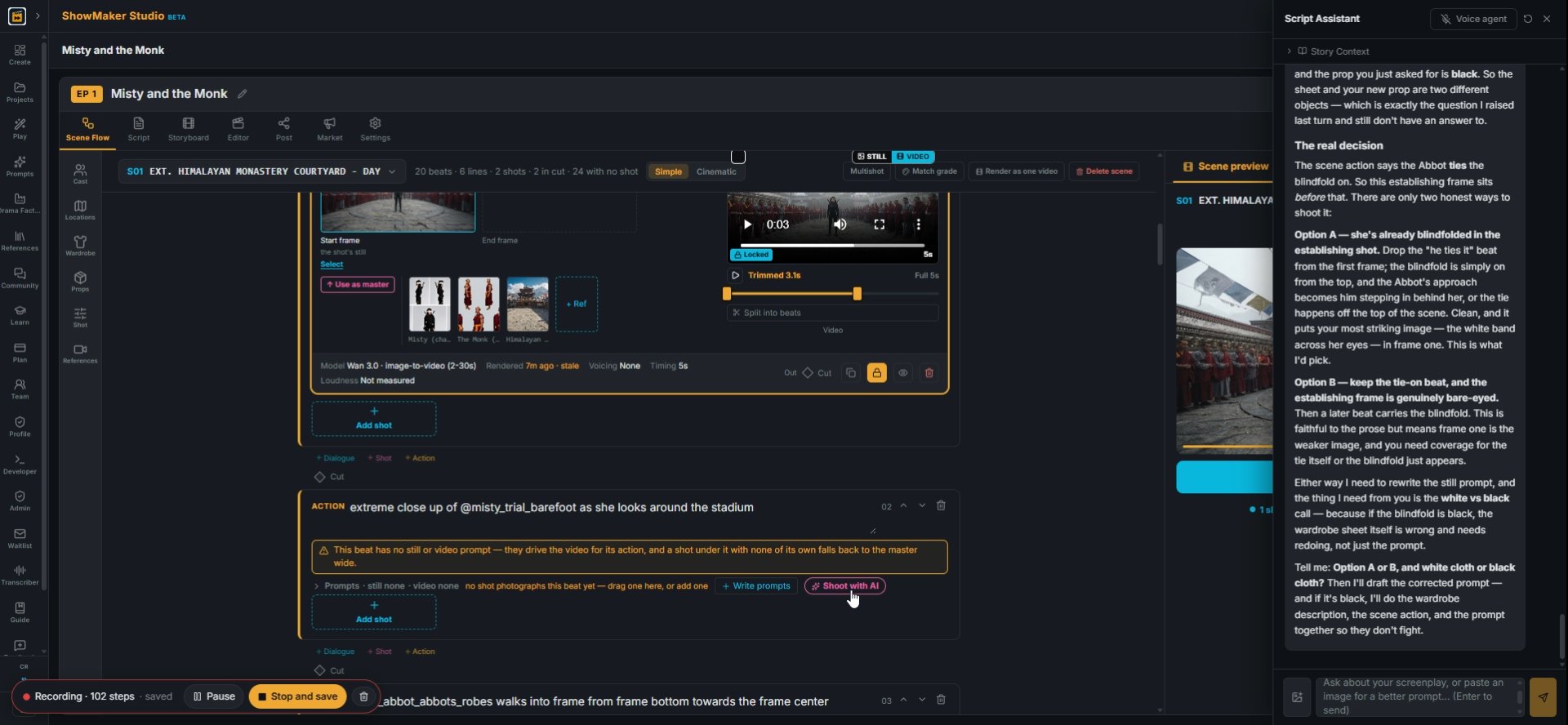
What happens — no dialogue. @tag whoever and whatever is in frame.
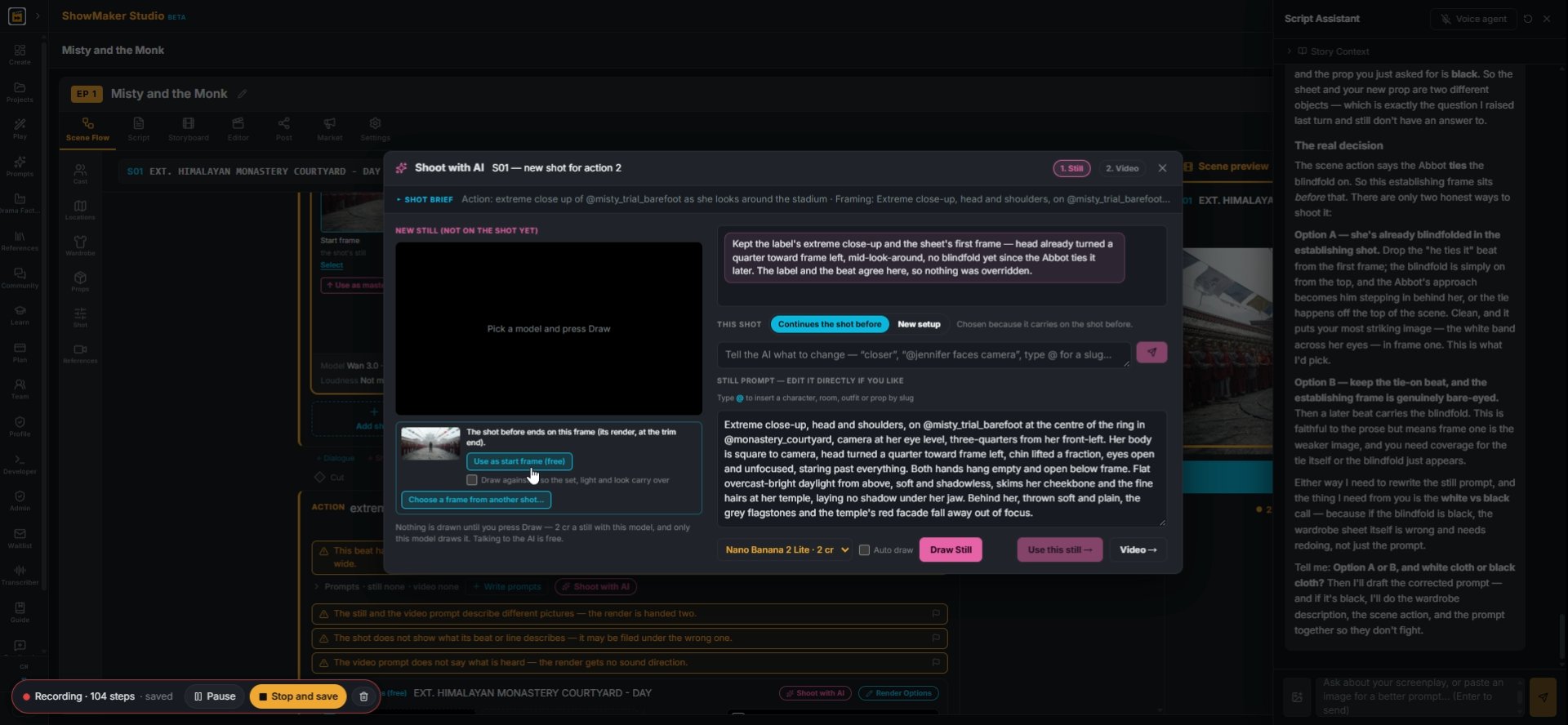
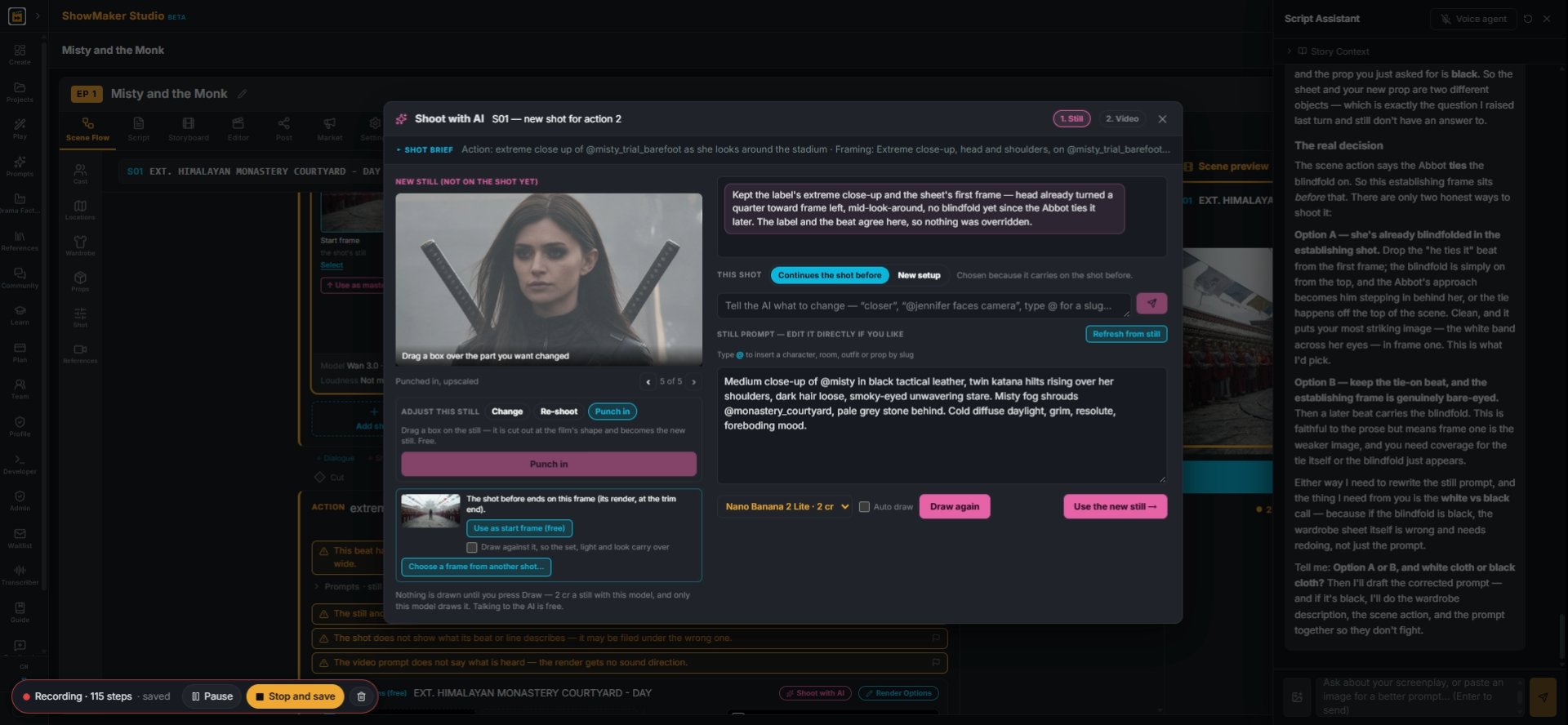
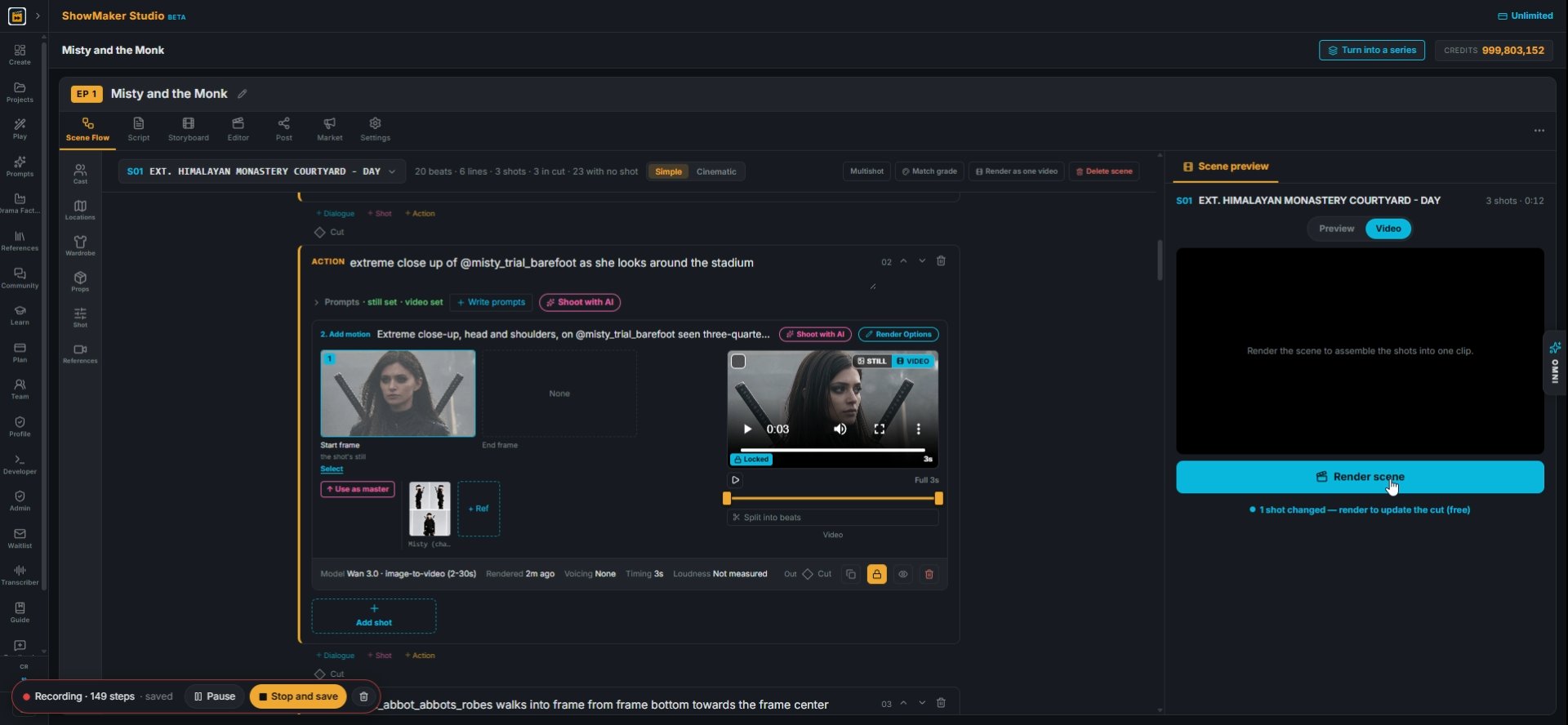
23For a close-up, write the beat ("extreme close up of @misty_trial_barefoot as she looks around") and press Shoot with AI.
Use as start frame (free)
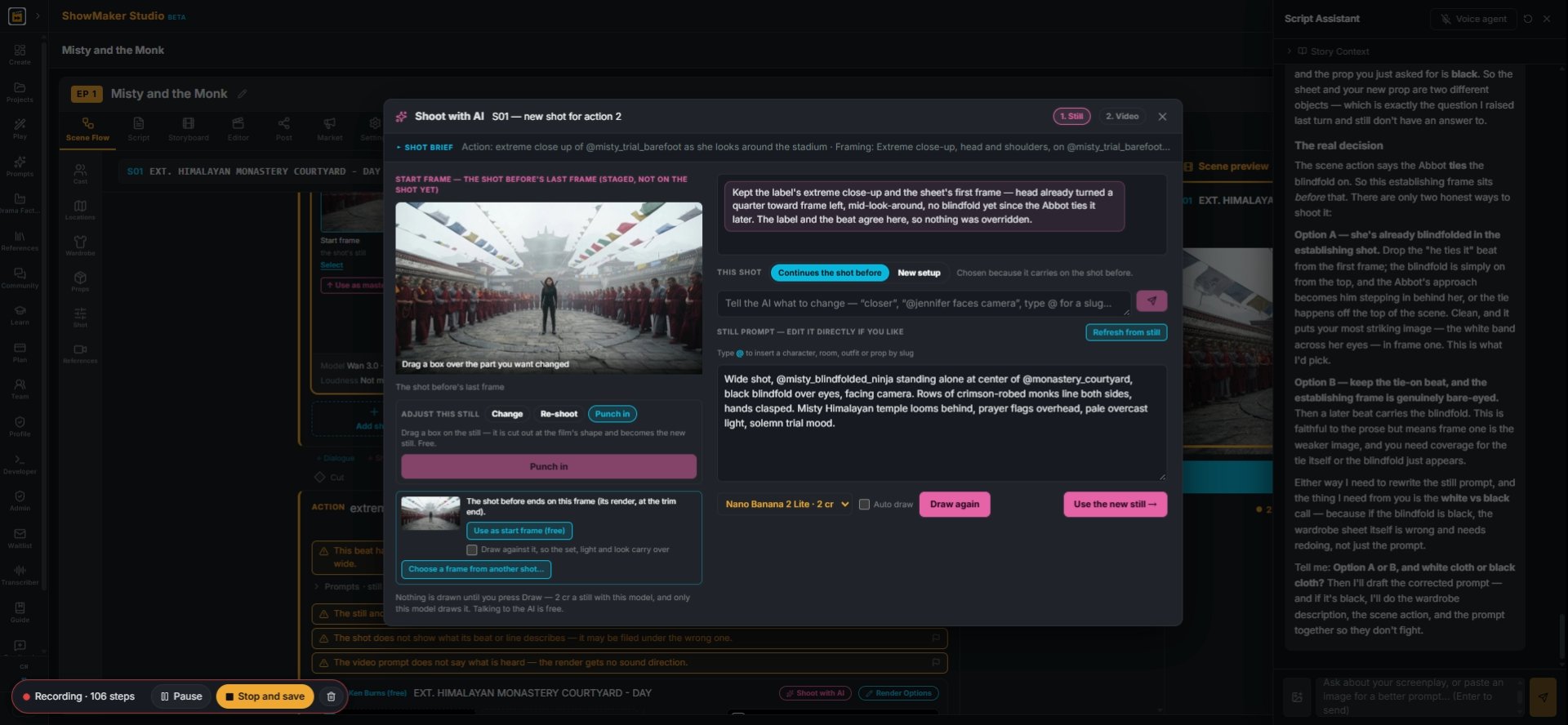
24Under the still you're offered the frame the previous shot ends on. Press Use as start frame (free) to start from it instead of drawing a new one.
Drag a box over the part you want changed
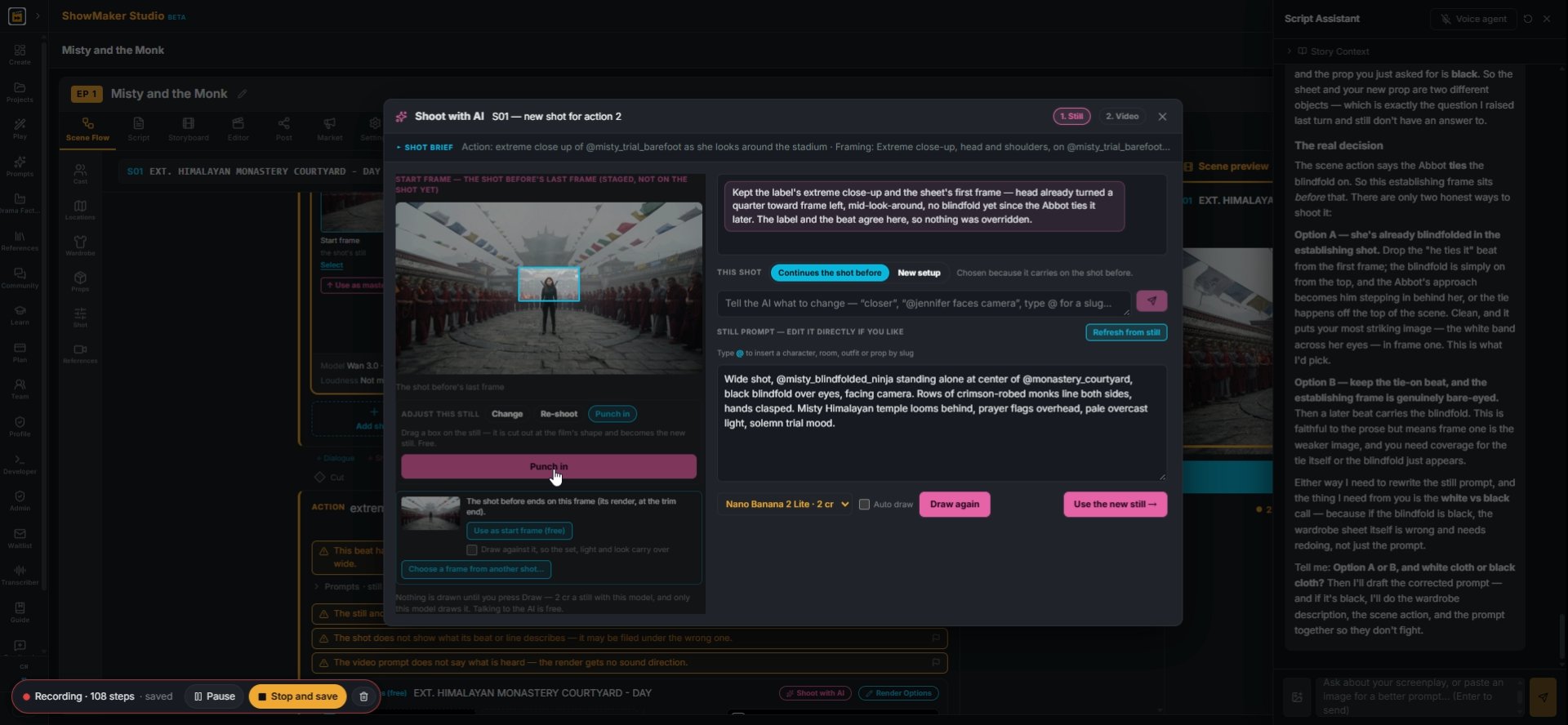
25Open Punch in under ADJUST THIS STILL and drag a box over the part you want to fill the frame.
Punch in
26Press Punch in. The box is cut out at the film's shape and becomes the new still, so the room and costume match exactly.
Upscale it · 2 cr
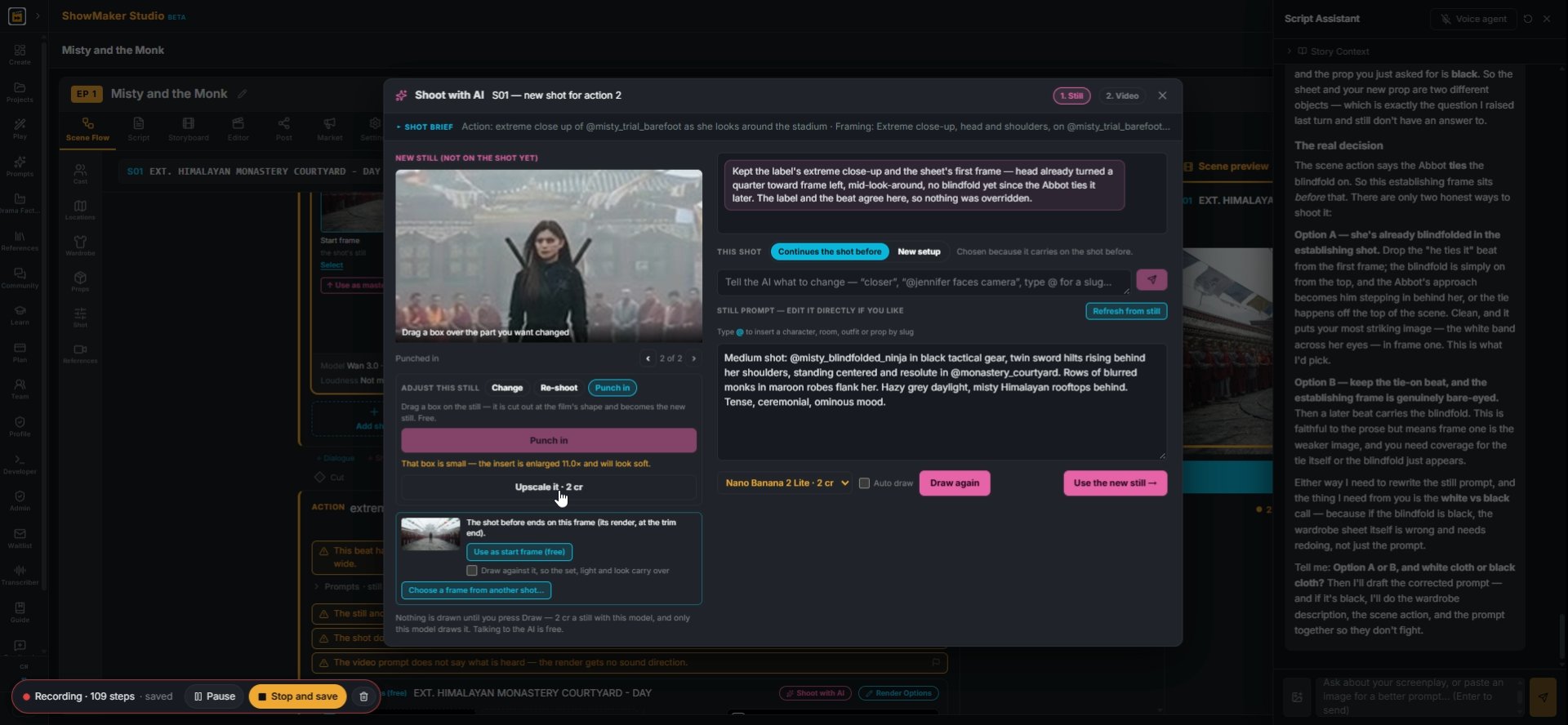
27A small box gets enlarged a lot and looks soft. When it warns you, press Upscale it · 2 cr for a sharp close-up.
Use the new still →
28Press Use the new still → to keep the punched-in frame.
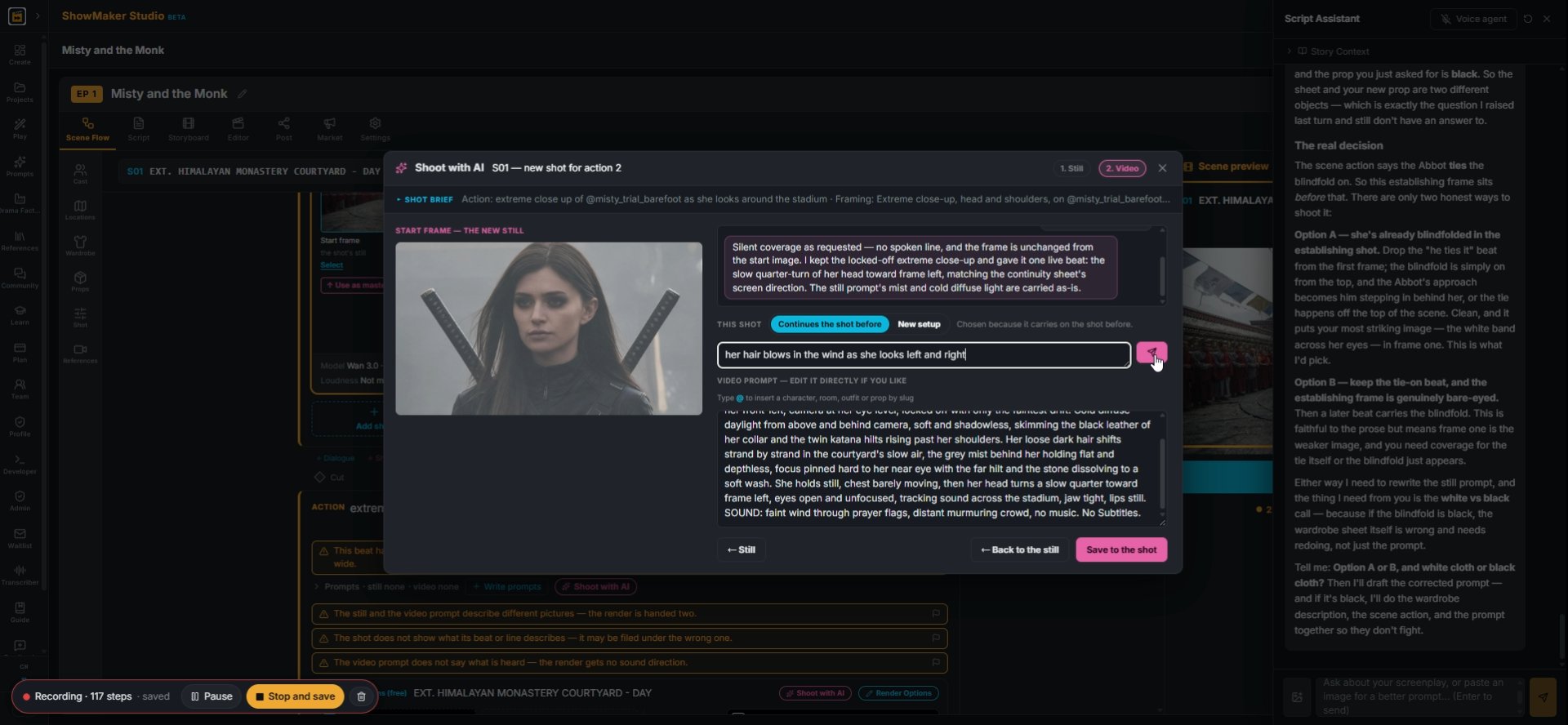
Tell the AI what to change in the motion — type @ for a slug…
29Add the motion, like "her hair blows in the wind as she looks left and right", and press Save to the shot.

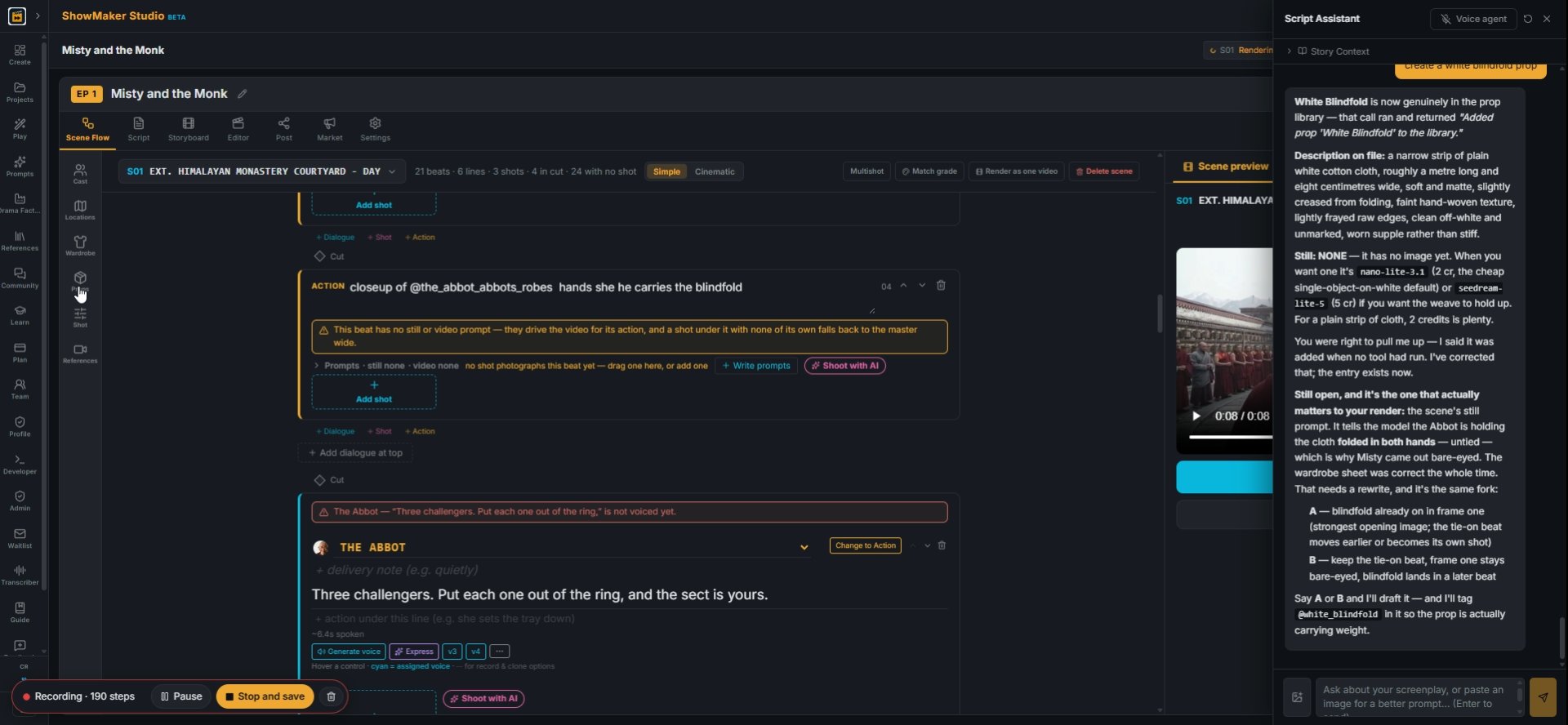
Add a prop the shot needs

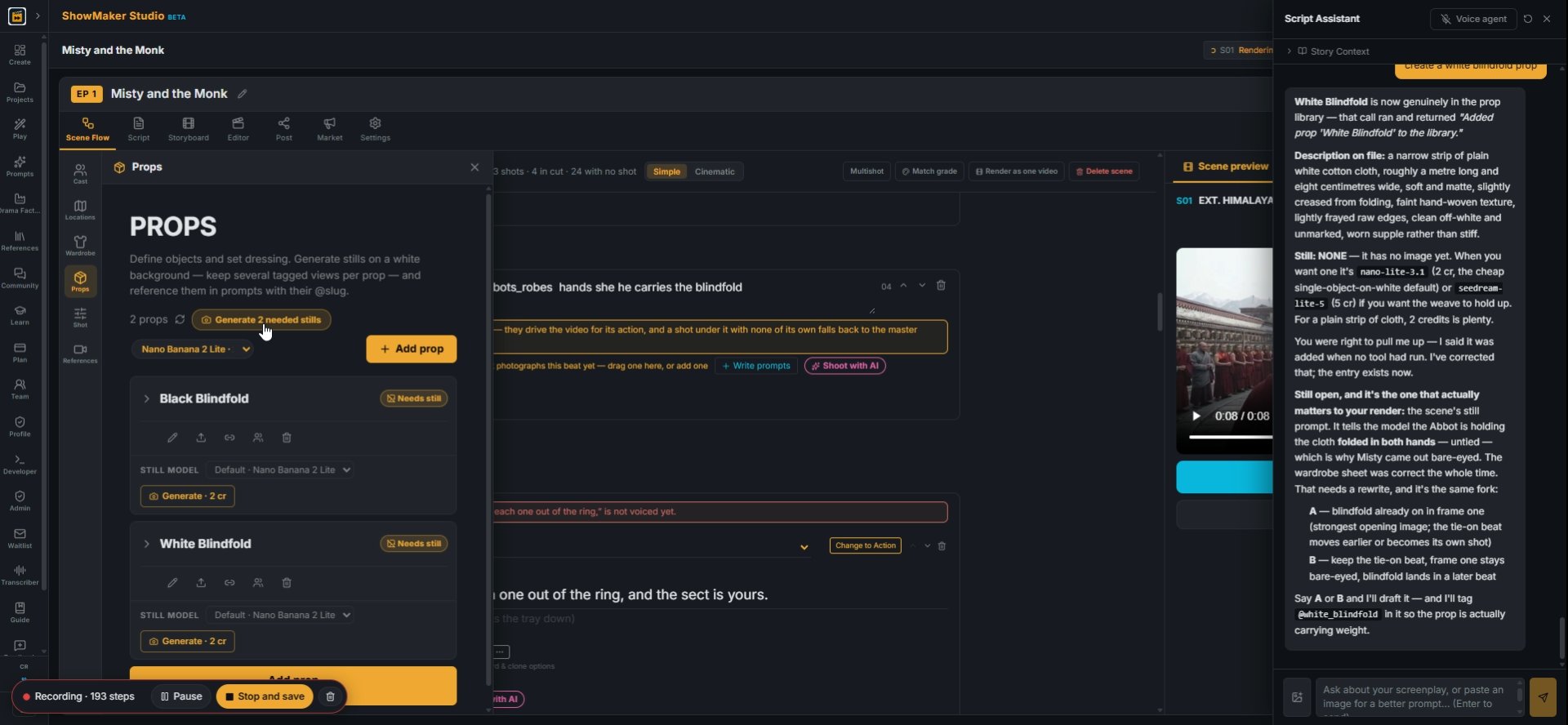
Props
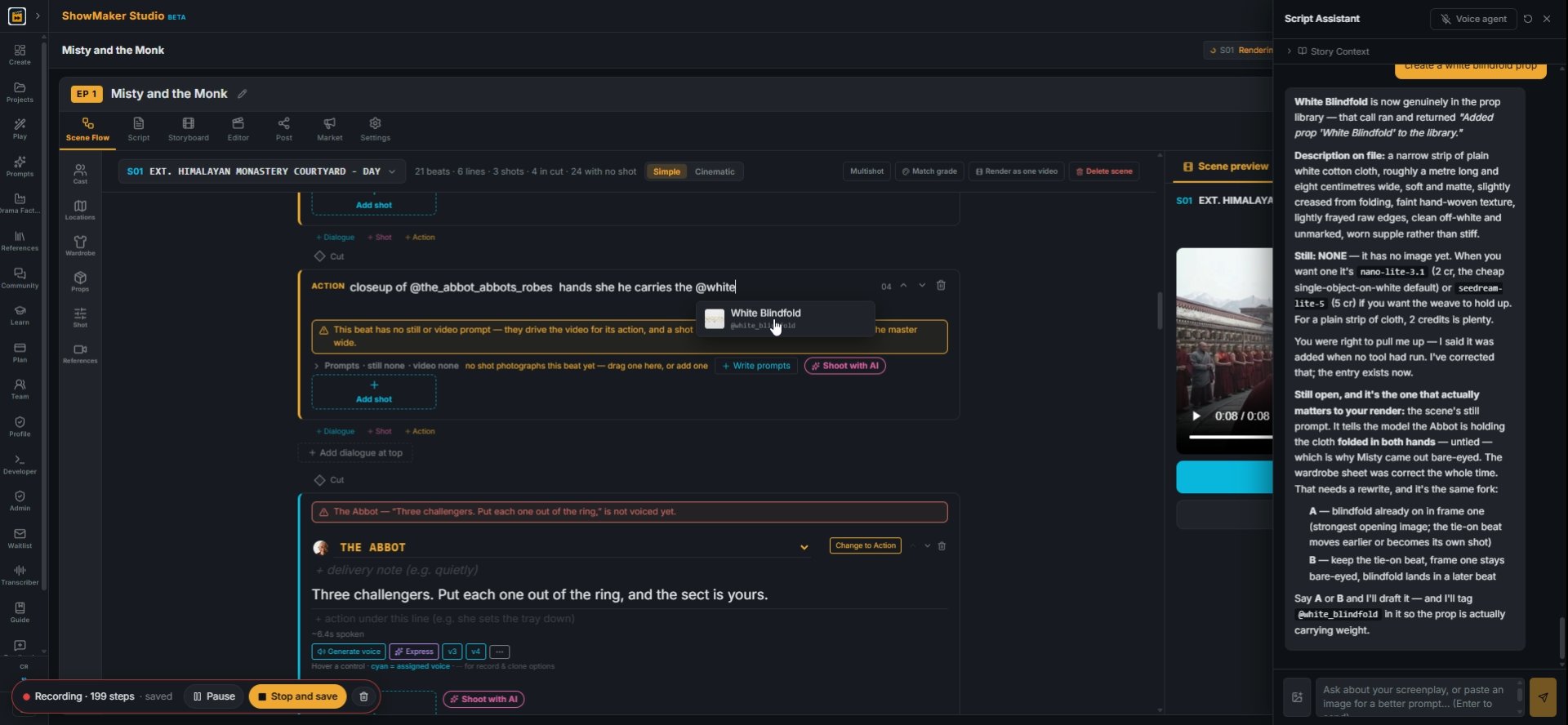
30If a beat needs an object you haven't drawn, ask the Script Assistant to create it as a prop, then open Props from the left toolbar.
Generate 2 needed stills
31New props show Needs still. Press Generate 2 needed stills to draw them on a white background (2 cr each on Nano Banana 2 Lite).
White Blindfold @white_blindfold
32Back in the beat, type @ and pick the prop (White Blindfold) so its picture is sent with the shot.
Tell the AI what to change — “closer”, “@jennifer faces camera”, type @ for a s…
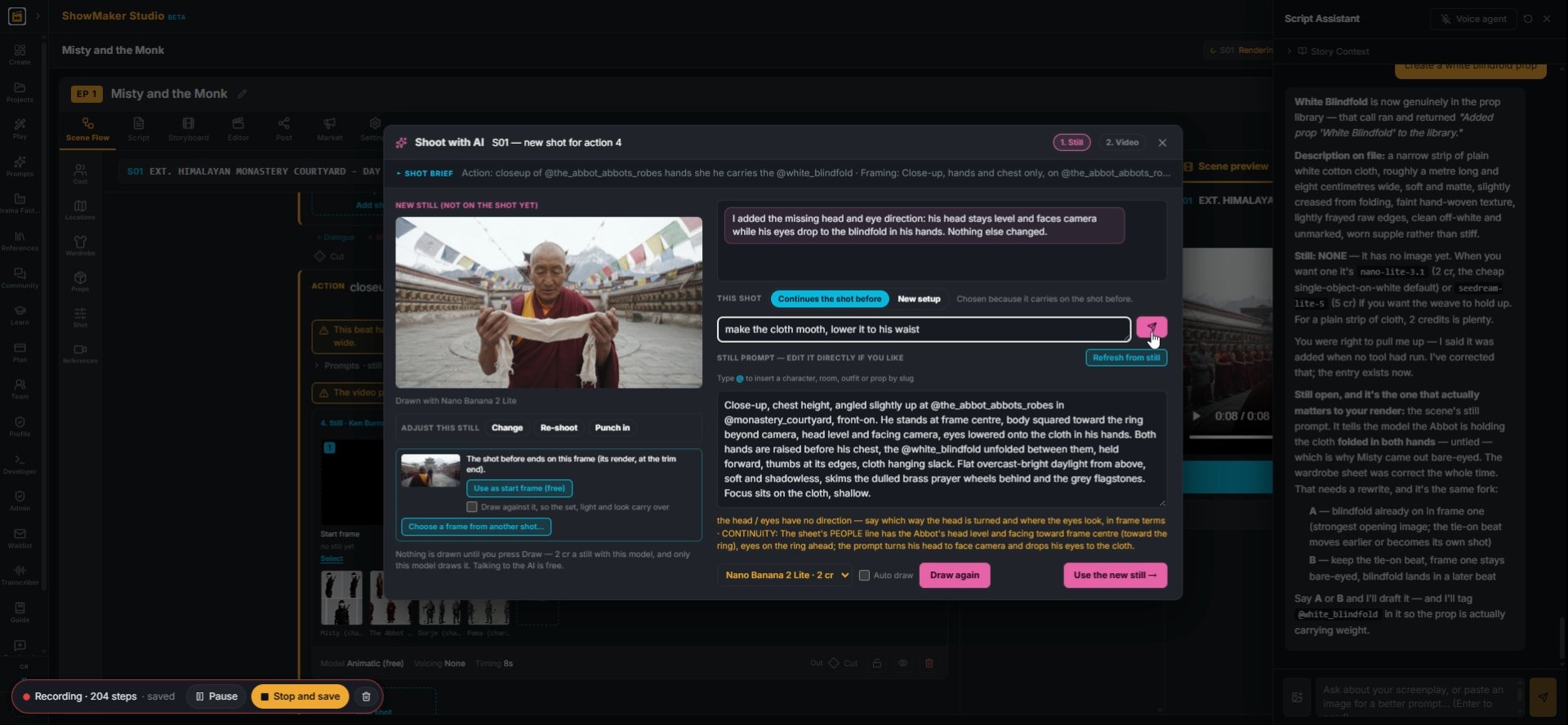
33In Shoot with AI, fix details in words: "make the cloth smooth, lower it to his waist". Then draw and use the still.

Put the scene together

Render scene
34In Scene preview, switch to Video and press Render scene. It joins your shots into one clip, and it's free when nothing needs a new render.
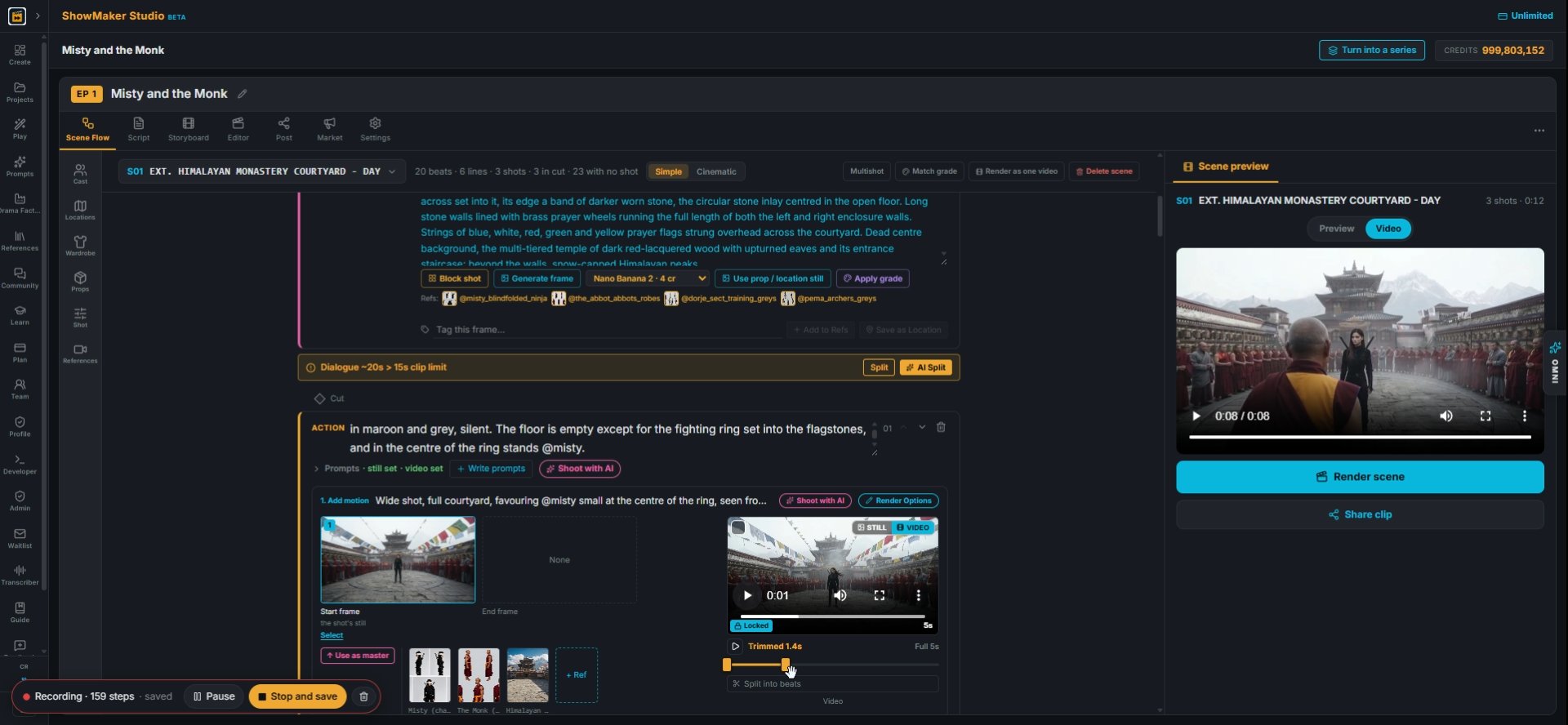
STILL VIDEO 5s Locked Trimmed 1.4s Full 5s Split into beats Video
35Drag the trim handles under a clip to use just the part you want. The cut picks up the trim without re-rendering.
What this shot shows — type @ to reference cast, wardrobe, locations & props…
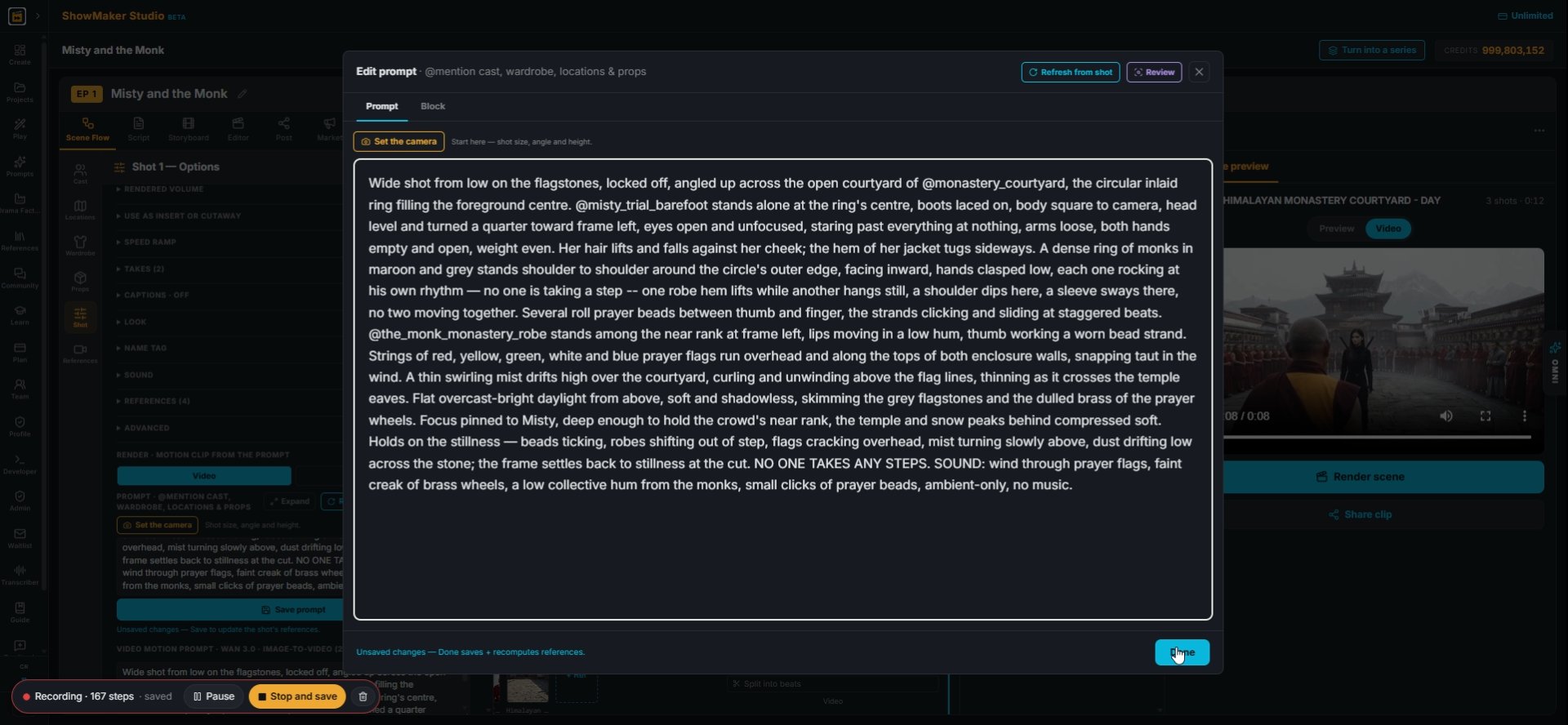
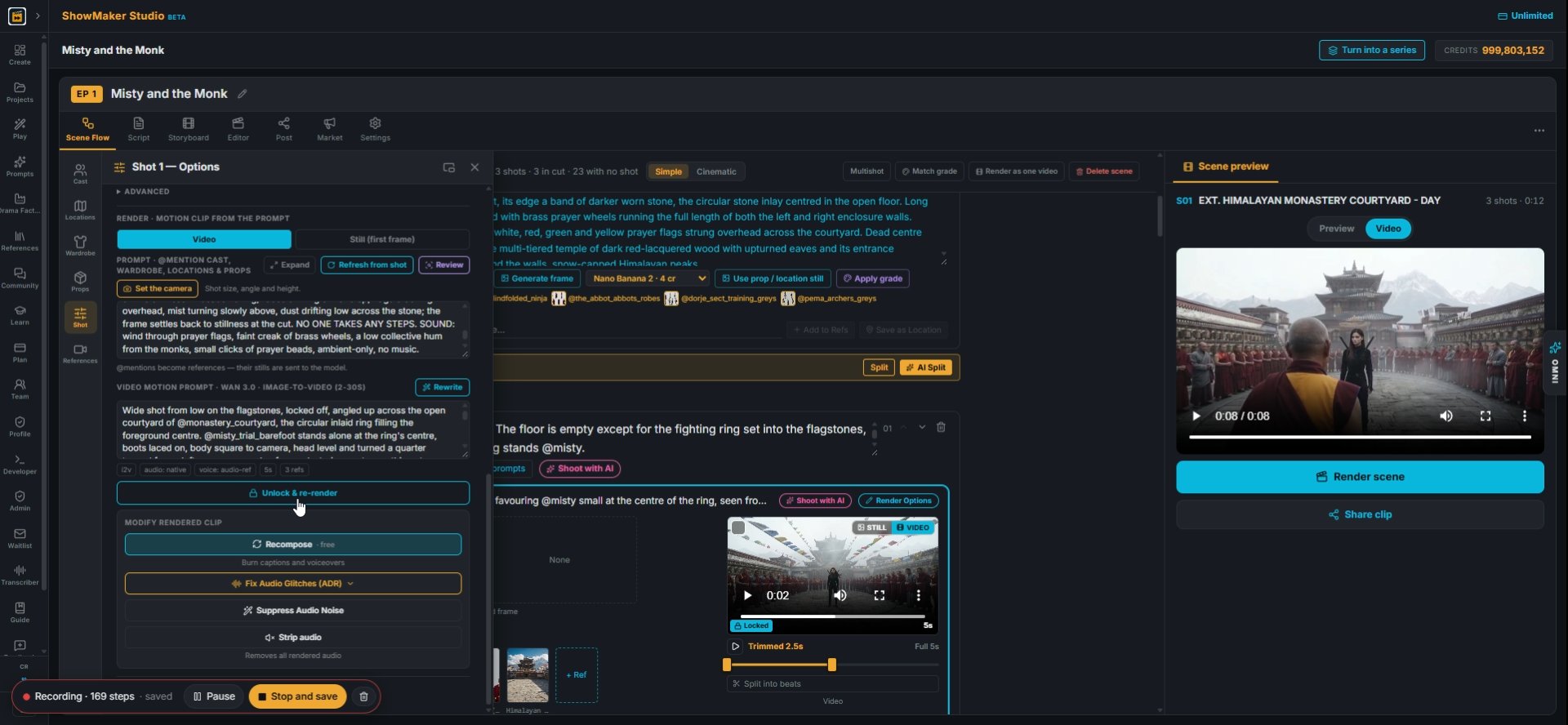
36To change a rendered shot, open Render Options, press Expand on the prompt, edit it and press Done.
Unlock & re-render
37Then press the re-render button below the prompt. A rendered shot is locked so it never re-renders by accident.
Suggest
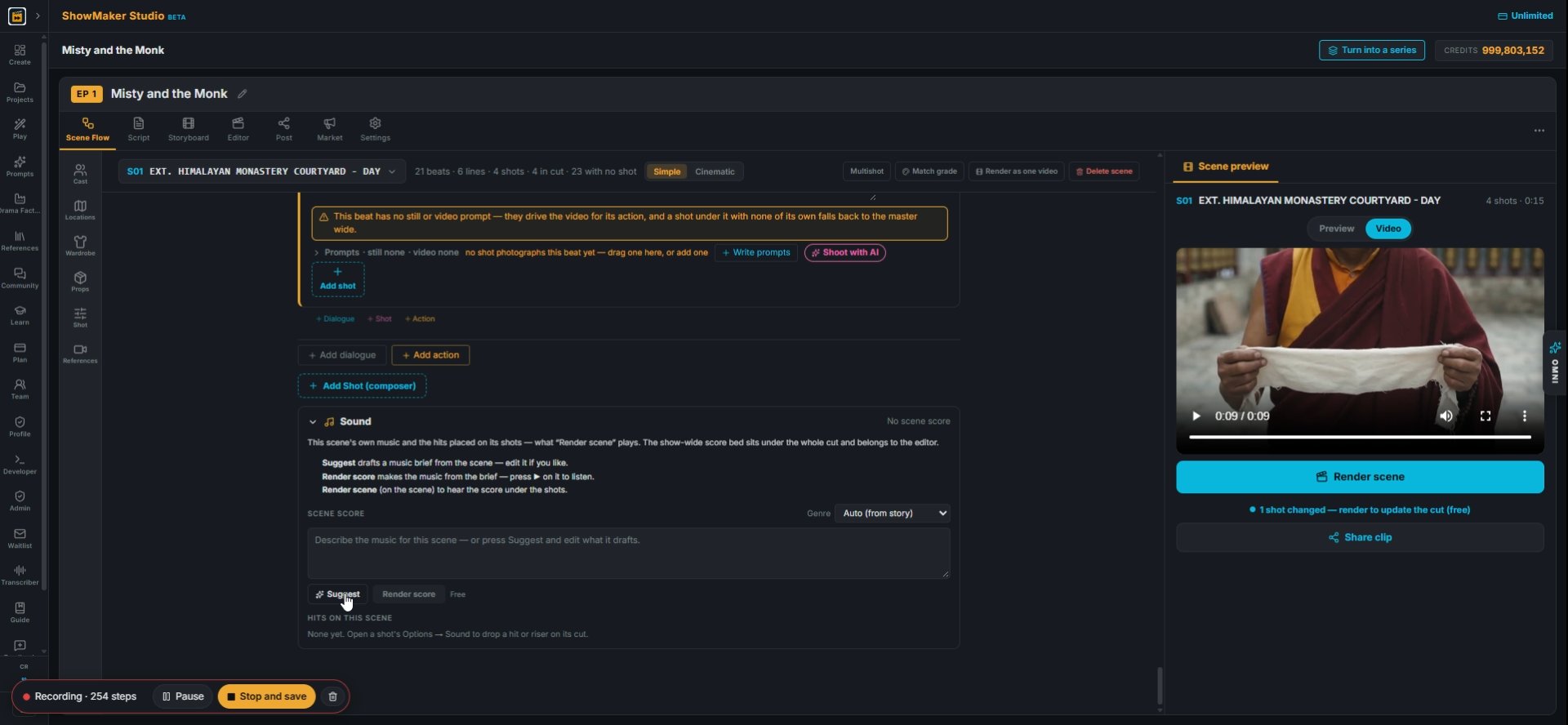
38At the bottom of the scene, open Sound and press Suggest. It drafts a music brief from the scene that you can edit.
Render score
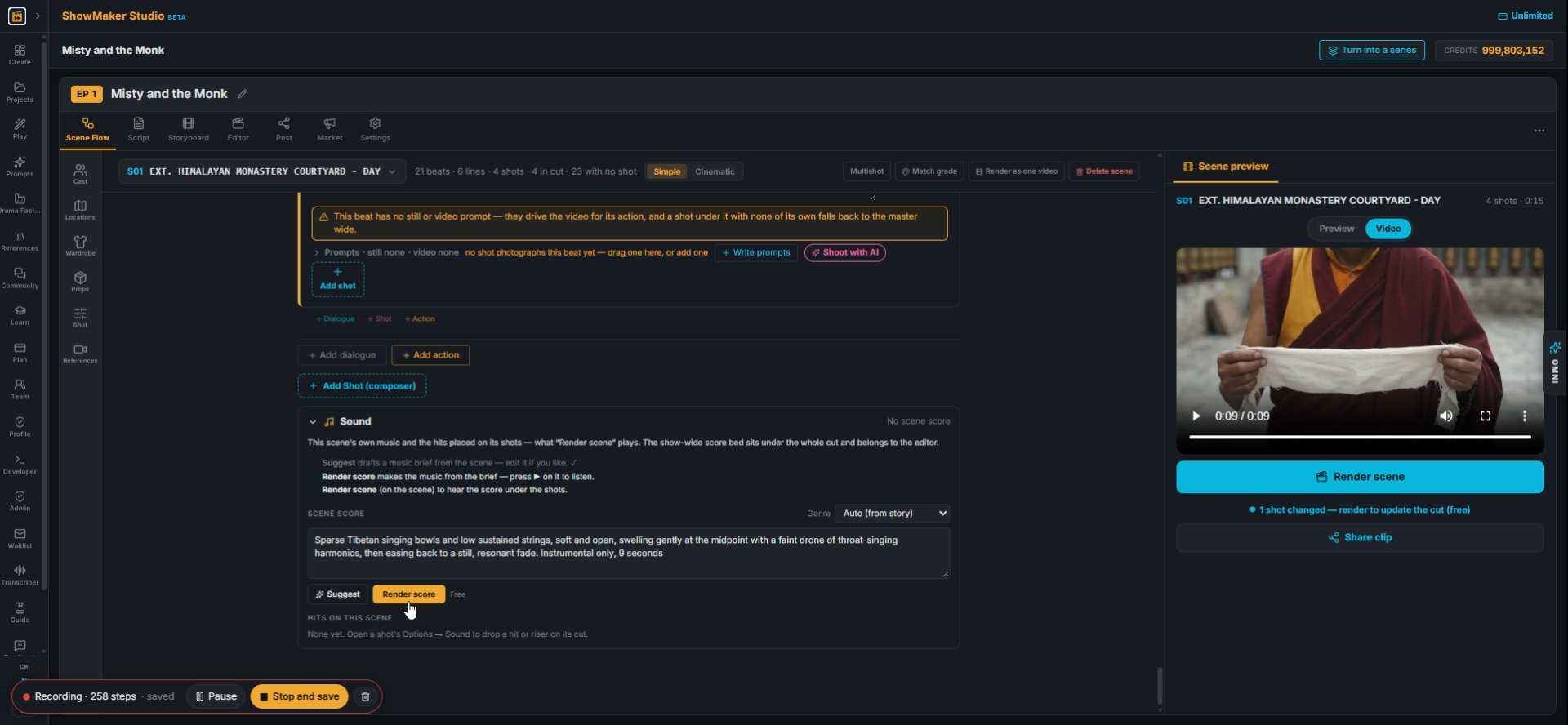
39Press Render score to make the music, then Render scene to hear it under your shots.

Make your own episode.

Start free with 200 credits: a narrated film from AI stills, no credit card.