Step-by-step guide · 34 steps

Build an AI fight shot by shot: props, sound effects and speed ramps

Shoot a short fight one cheap shot at a time. Create a prop with the Script Assistant, clean up stills with Change, add a sound effect, and speed up a stomp with a speed ramp.

Get the still right
Draw Still
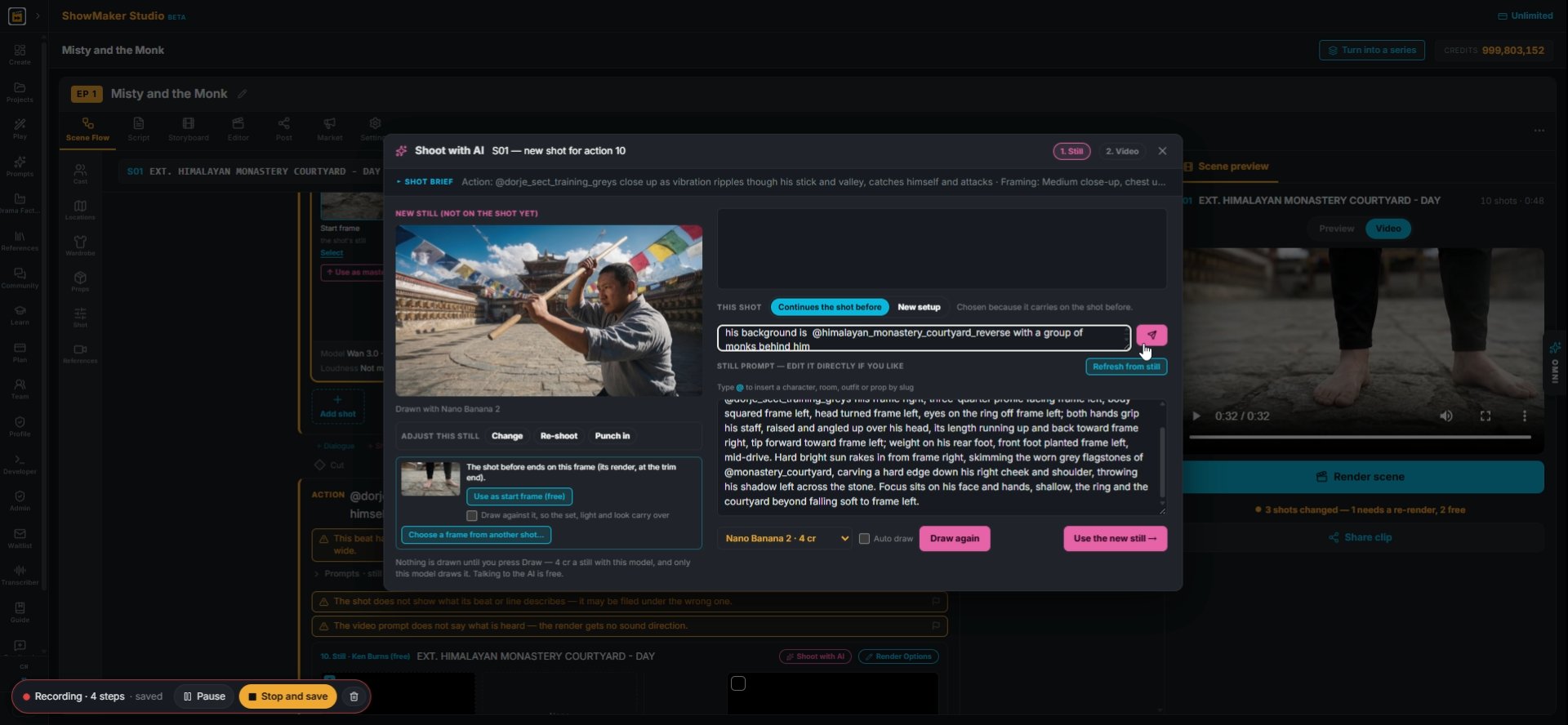
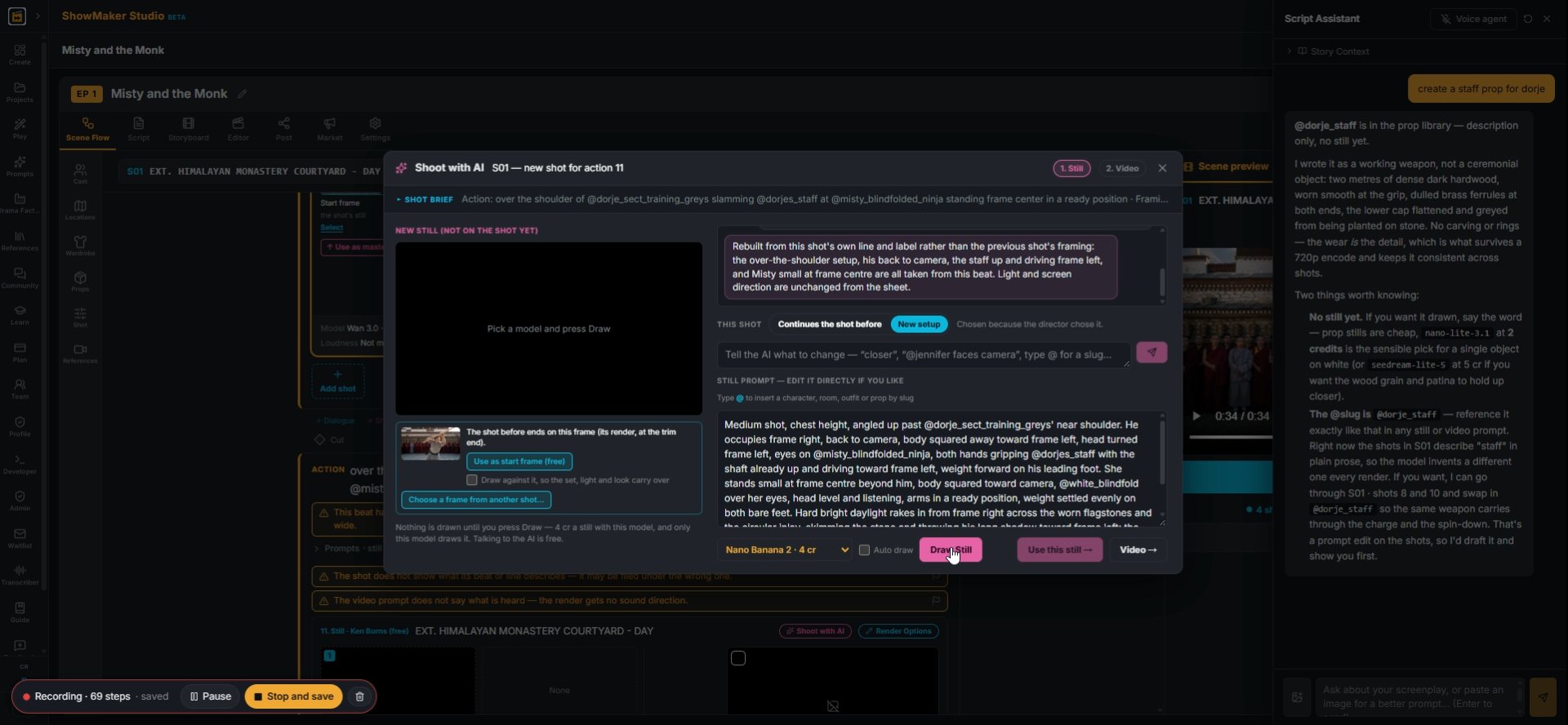
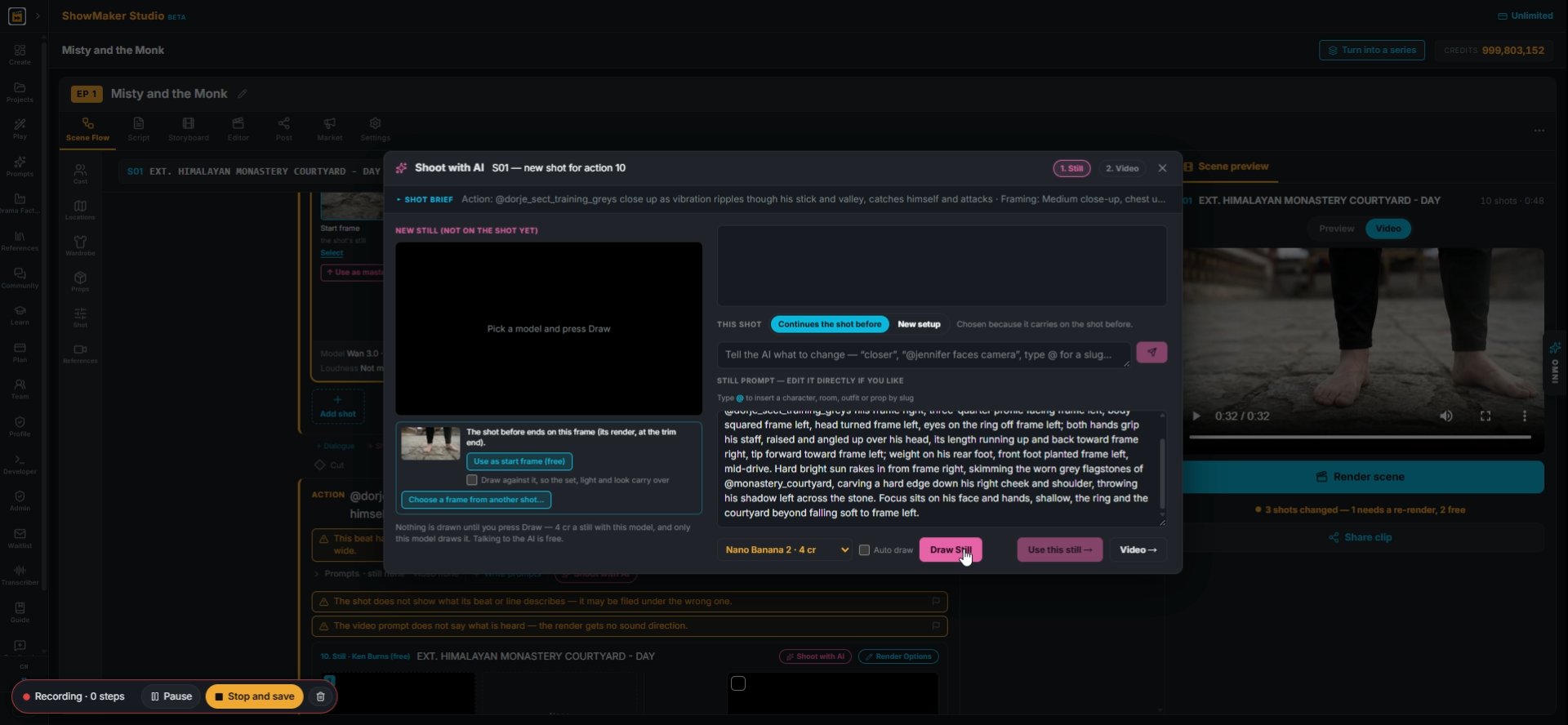
1In Shoot with AI, check the still prompt and press Draw Still. Nano Banana 2 costs 4 cr.
Tell the AI what to change — “closer”, “@jennifer faces camera”, type @ for a s…
2Set the background with a location tag. Here "his background is @himalayan_monastery_courtyard_reverse with a group of monks behind him" uses the reverse view of the courtyard.
Tell the AI what to change — “closer”, “@jennifer faces camera”, type @ for a s…
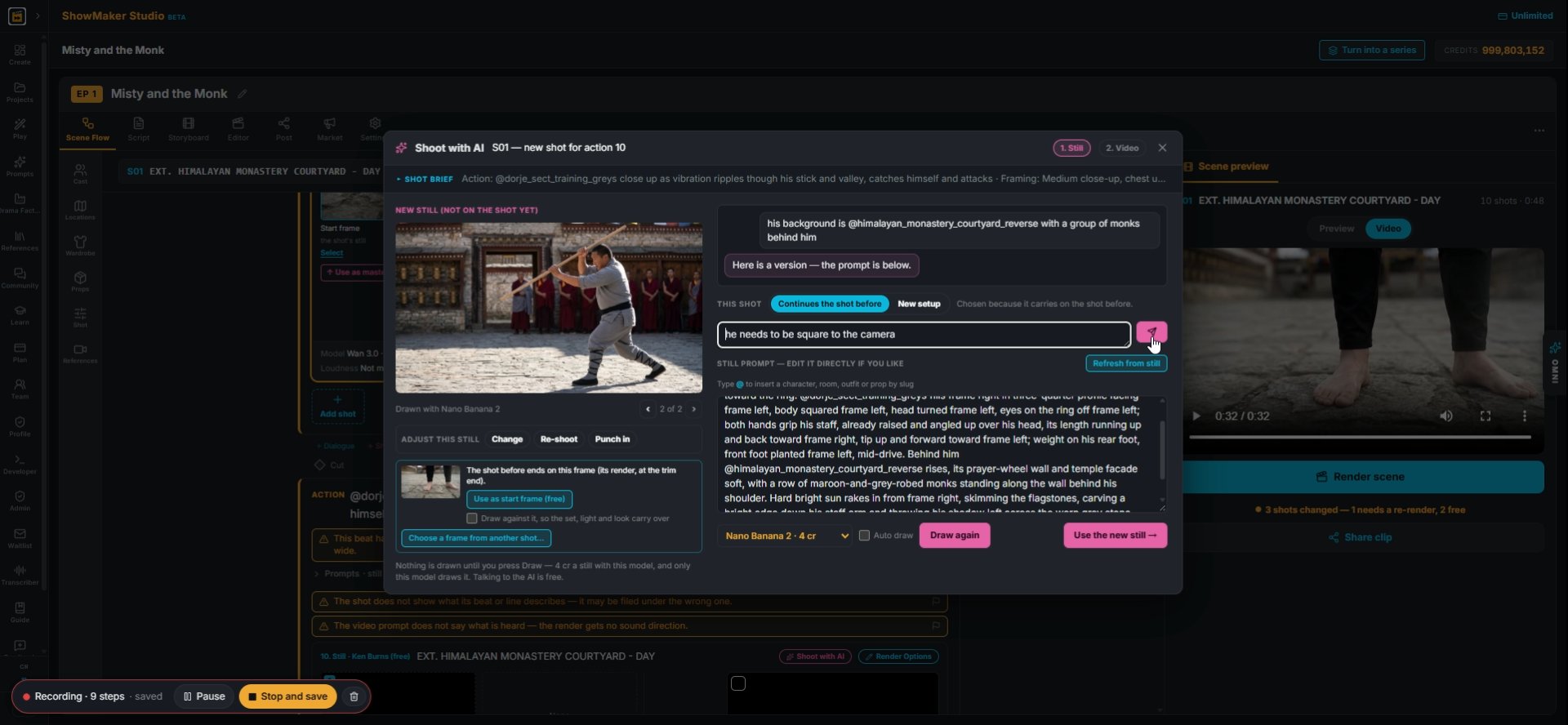
3Fix the pose in plain words, like "he needs to be square to the camera", and send.
Use the new still →
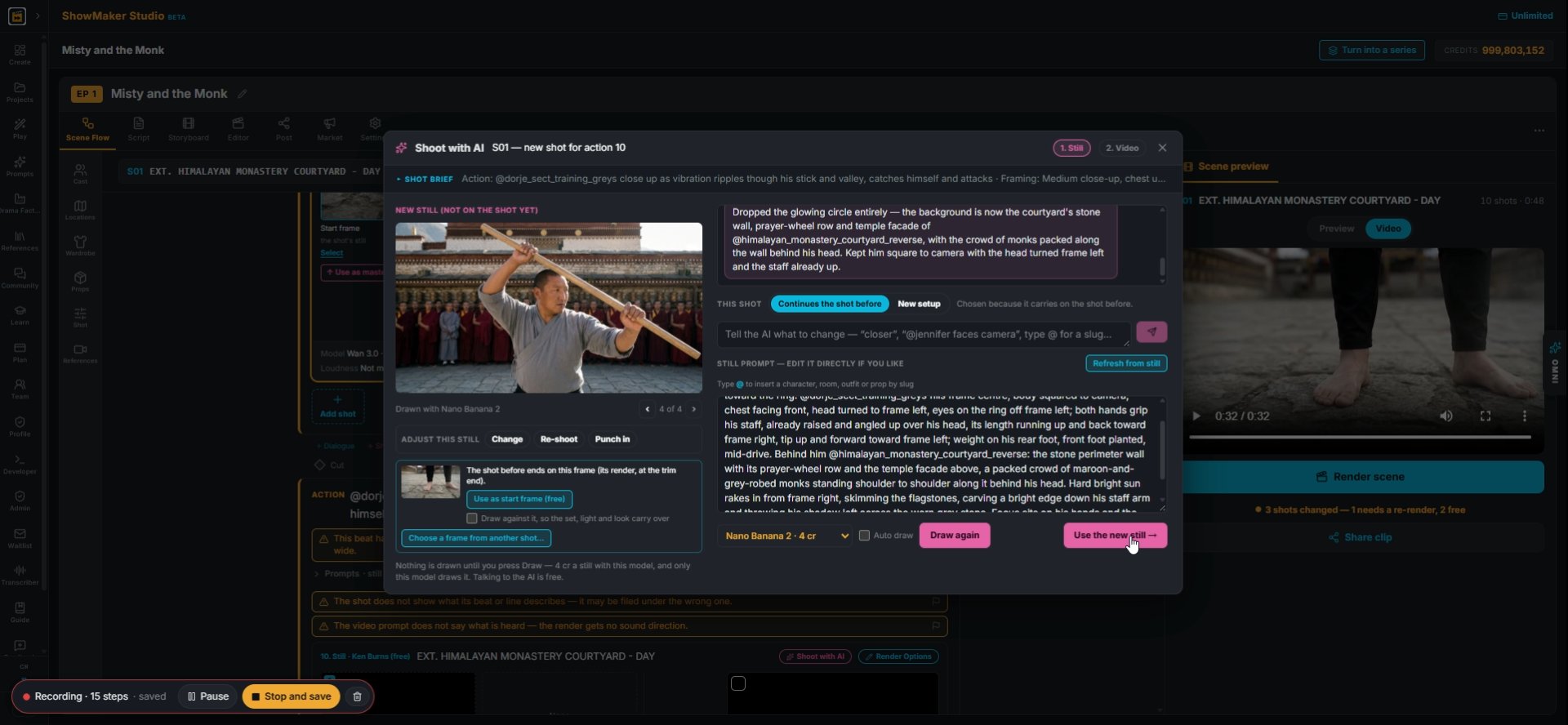
4When it looks right, press Use the new still.

Animate it and add a sound

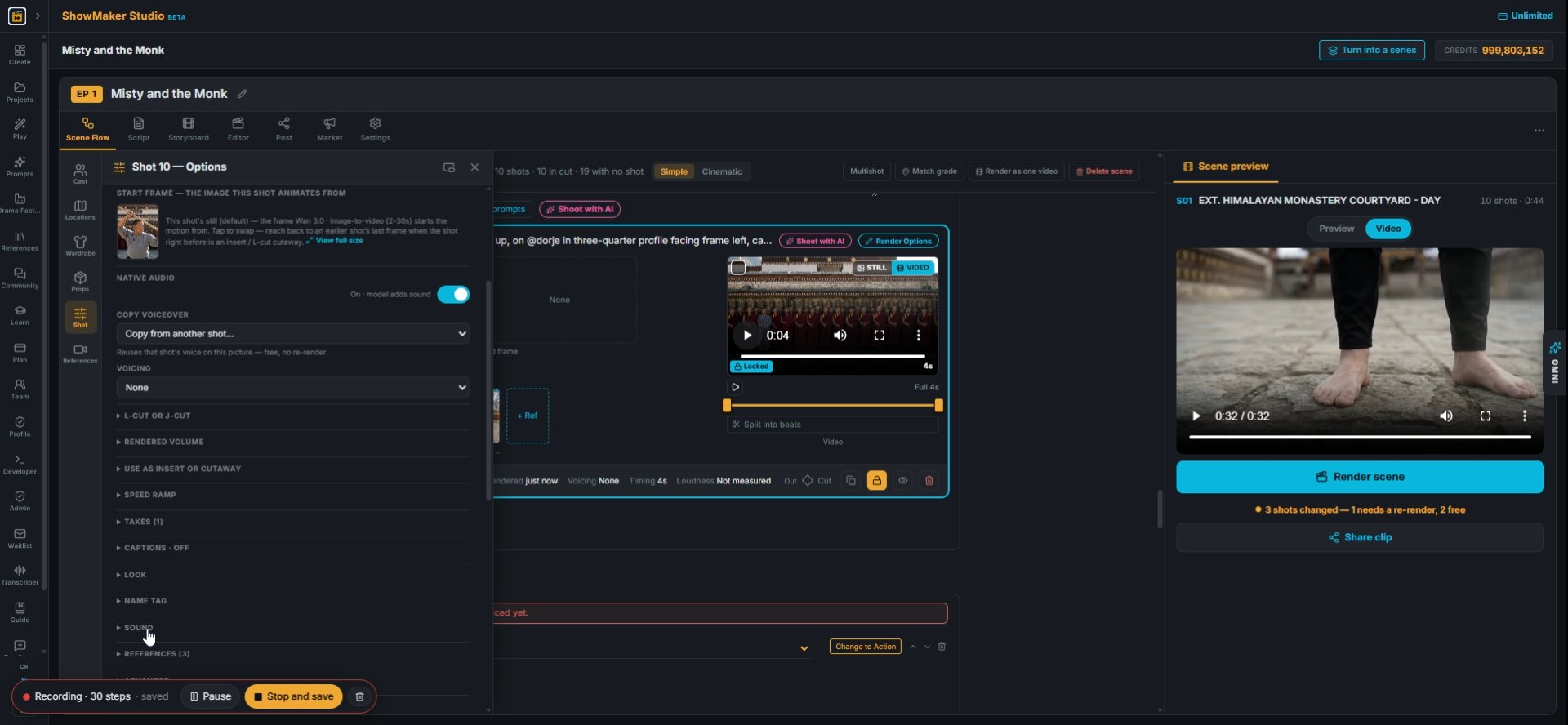
NATIVE AUDIO Off · silent
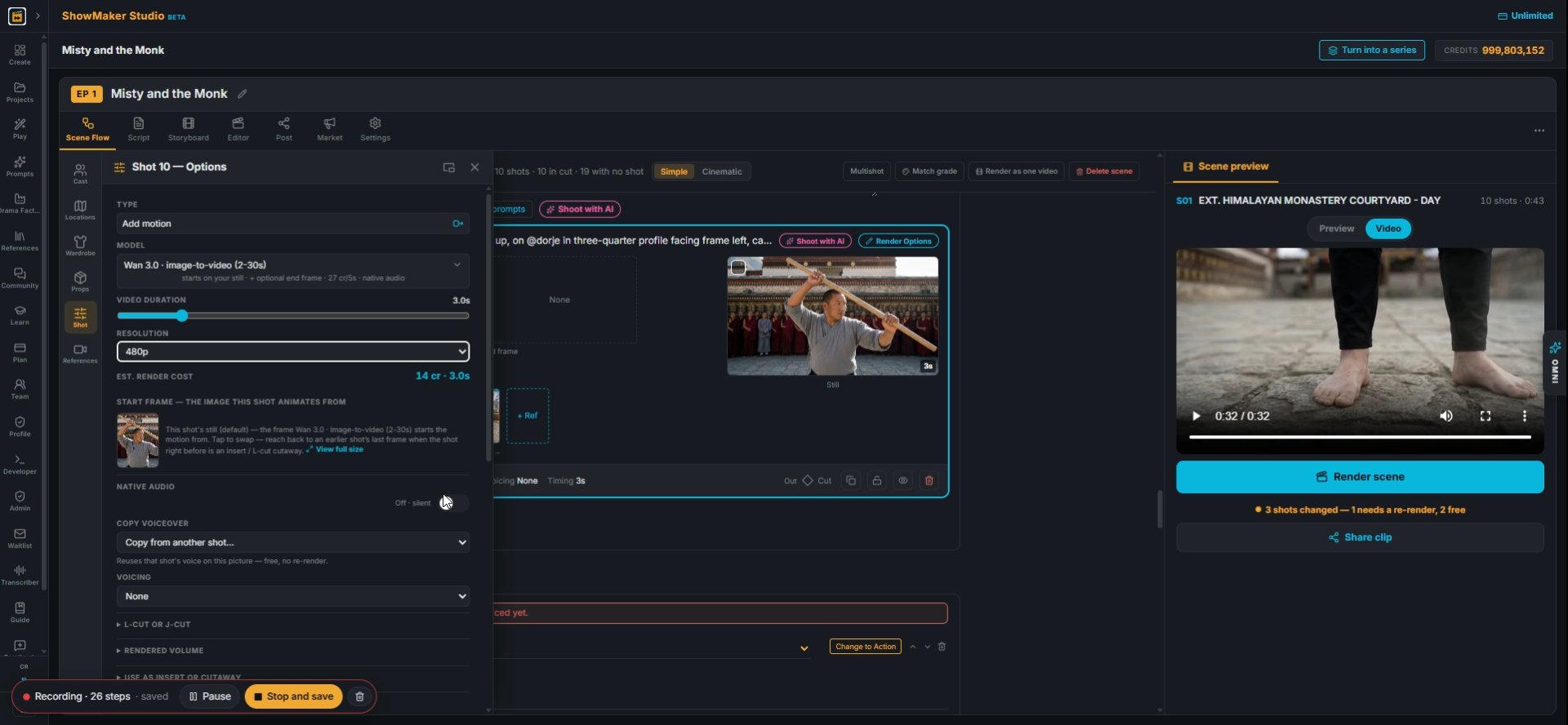
5In Render Options, set TYPE to Add motion, MODEL to Wan 3.0 image-to-video and RESOLUTION to 480p. A 3 second shot costs 14 cr.
SOUND
6Scroll down and open SOUND.
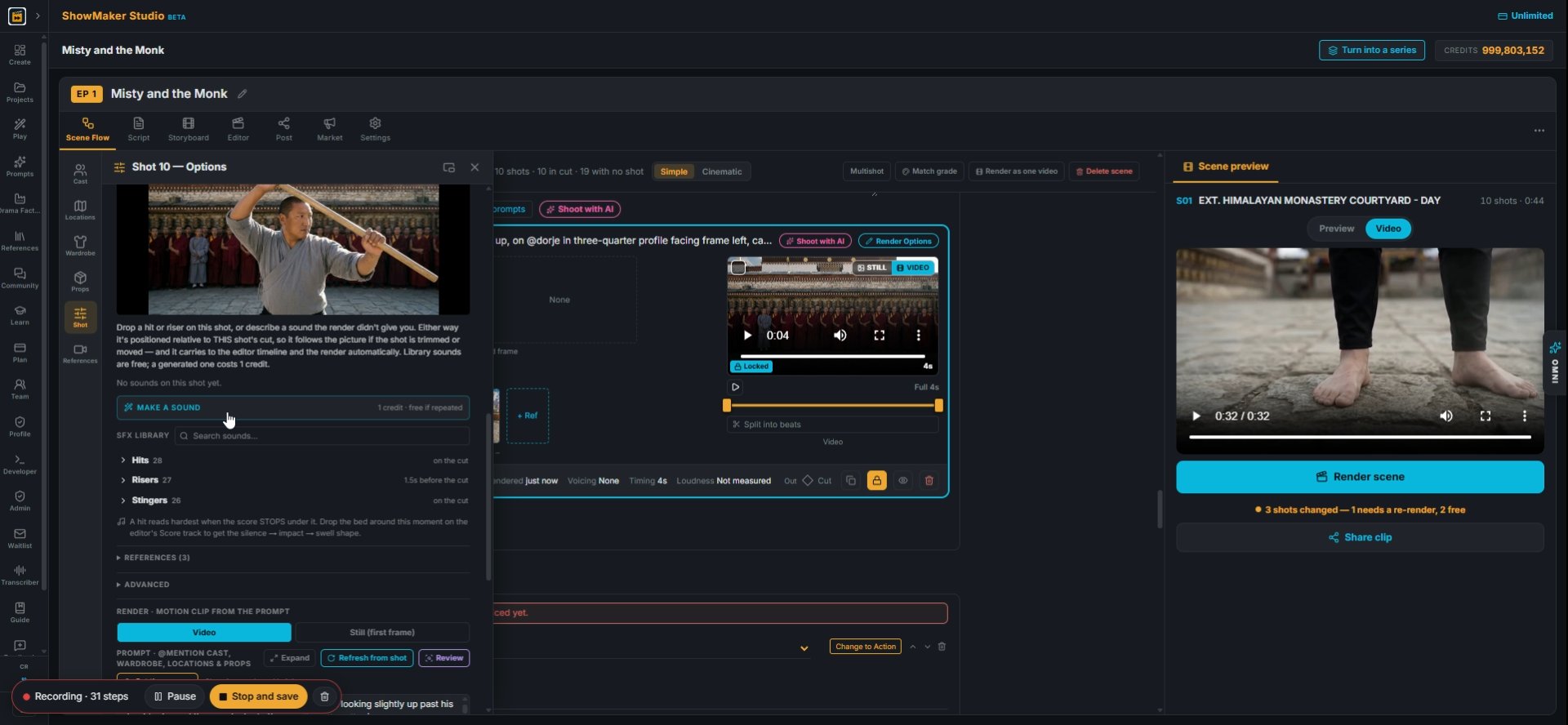
MAKE A SOUND 1 credit · free if repeated
7Press MAKE A SOUND. A new sound costs 1 credit, and the same one again is free.
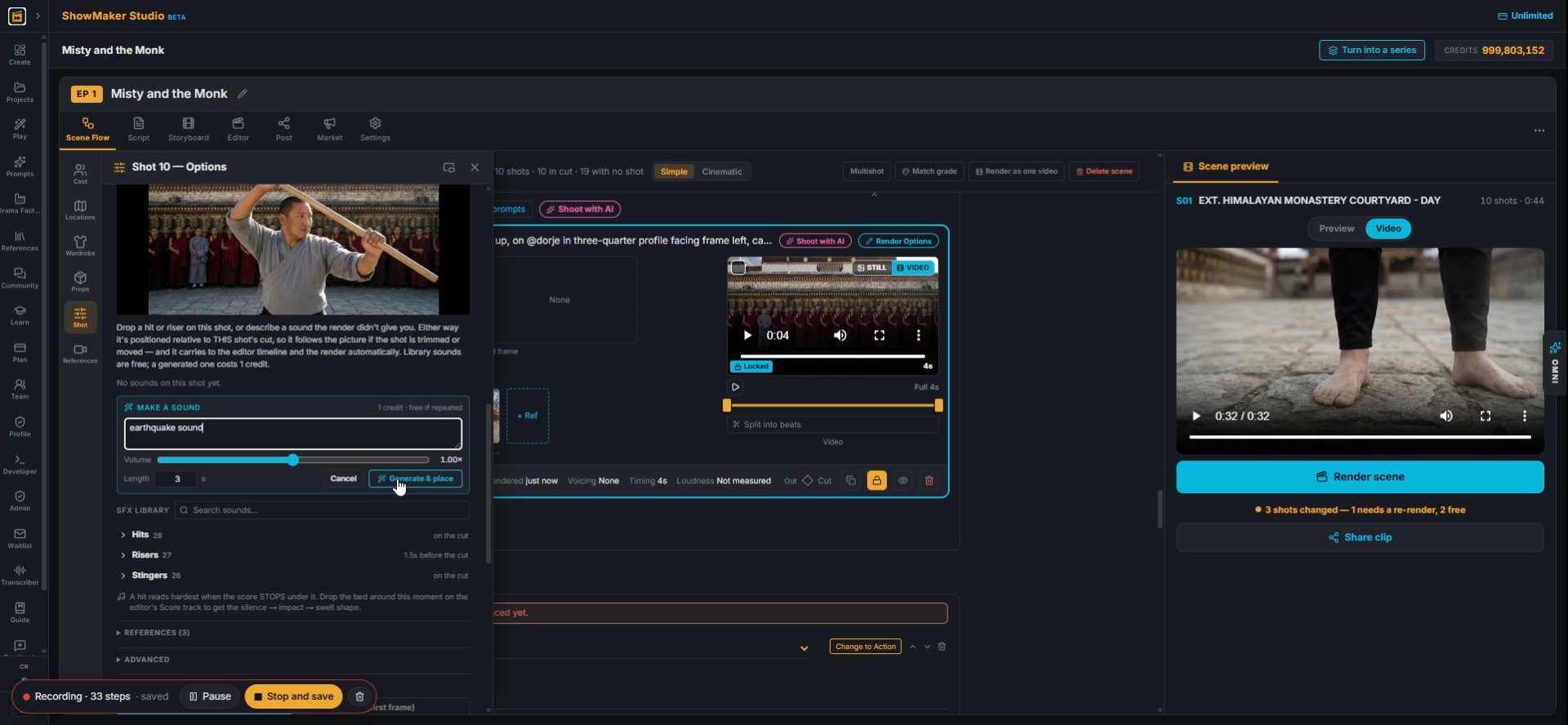
A wet slap, then a body hitting gravel…
8Describe it, like "earthquake sound", and press Generate & place.
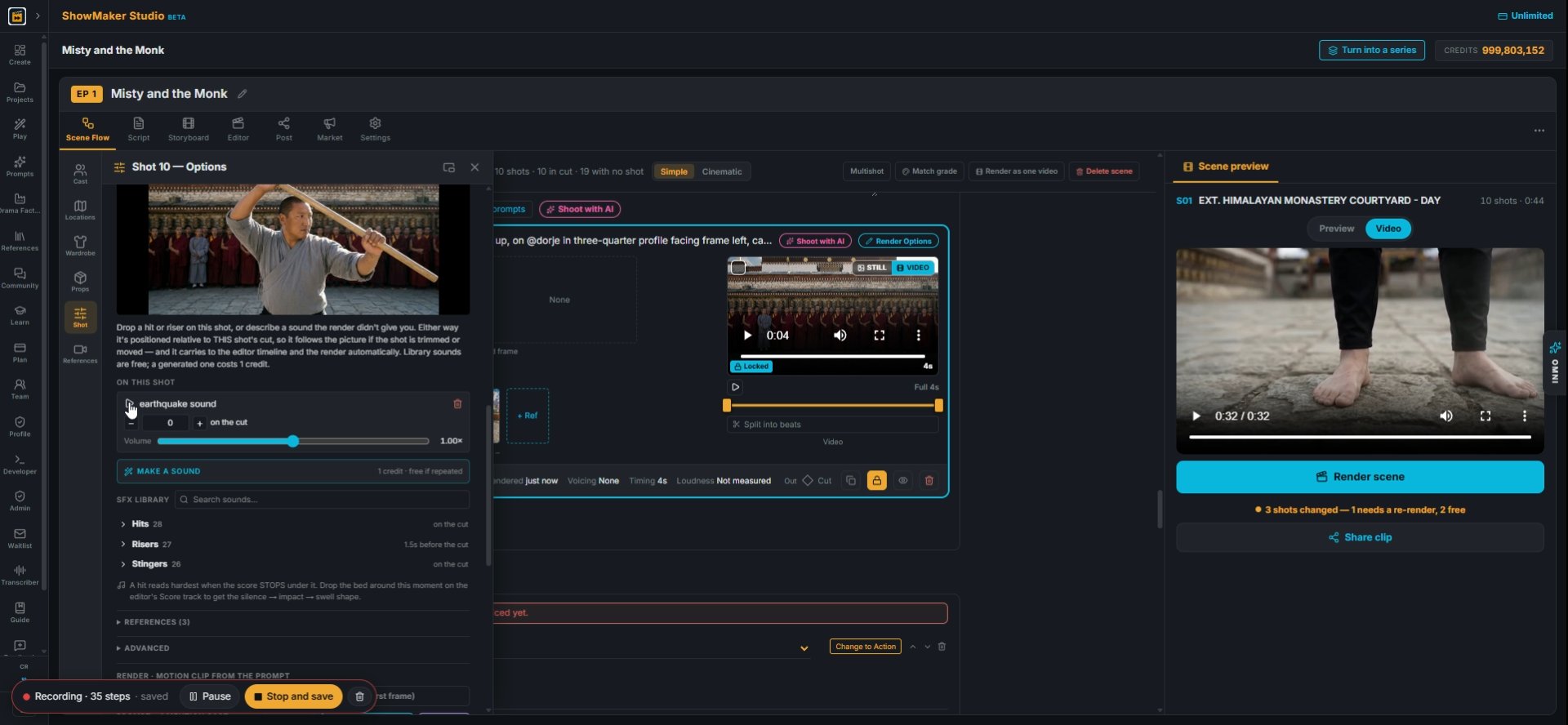
Hear it against this shot
9The sound sits on this shot. You can change its volume and when it starts.
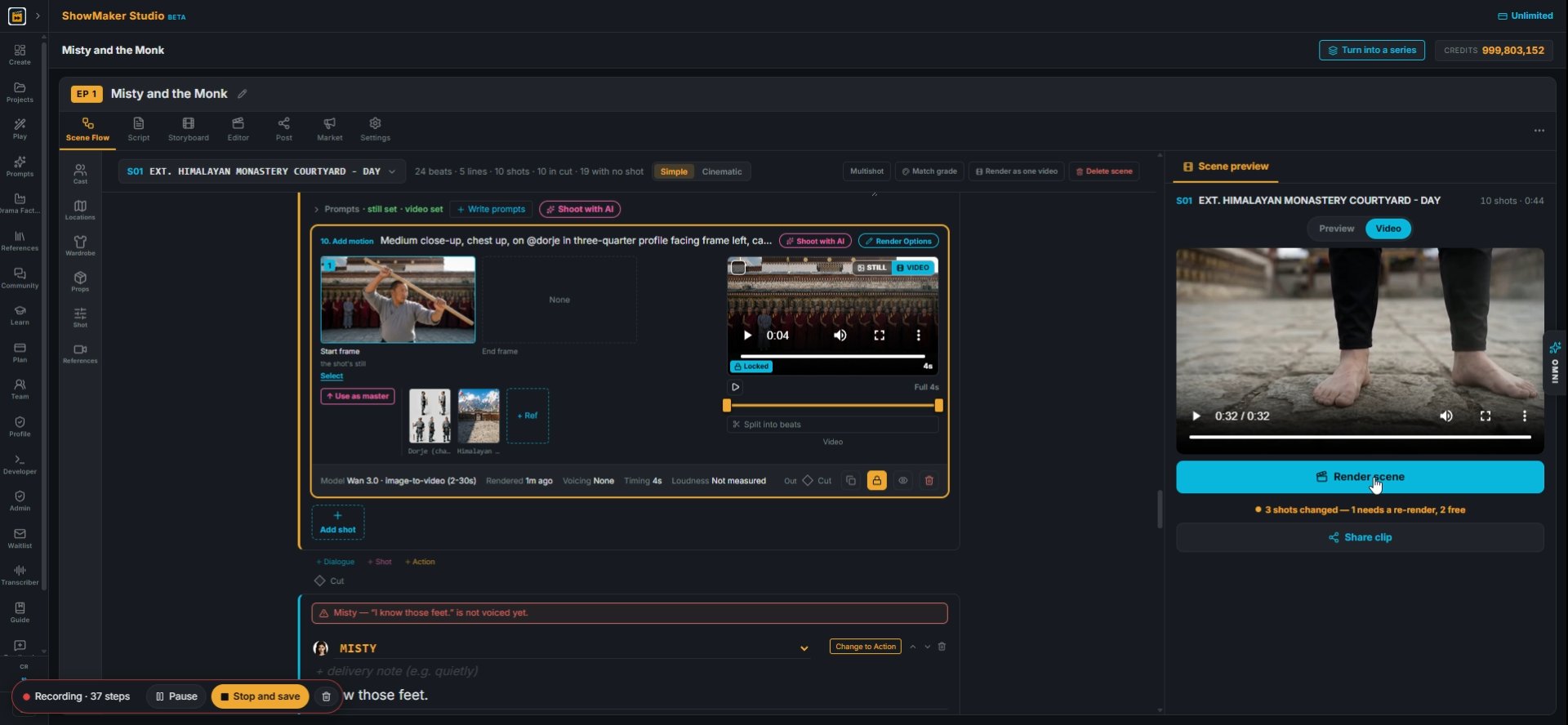
Render scene
10Press Render scene to hear it in the cut.

Make a prop for a new beat
What happens — no dialogue. @tag whoever and whatever is in frame.
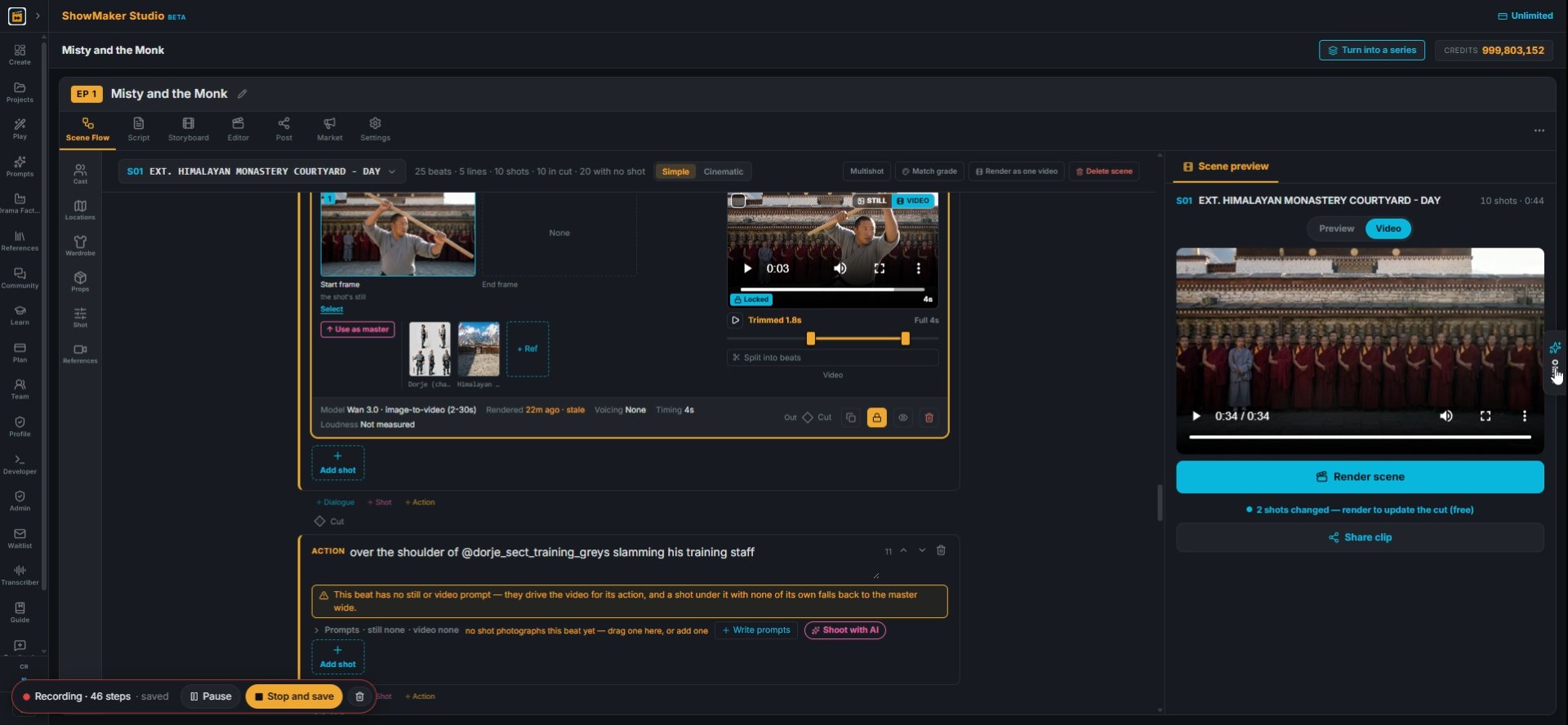
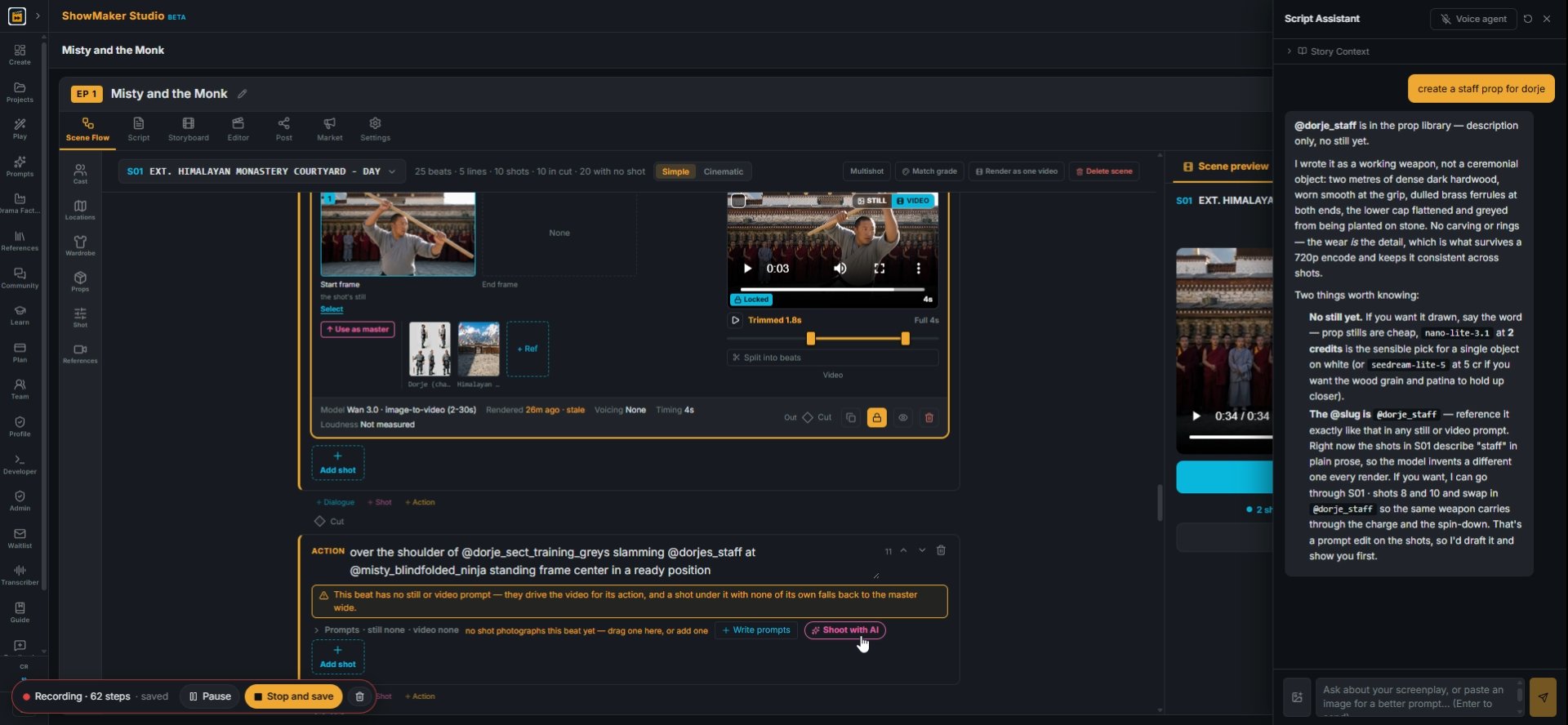
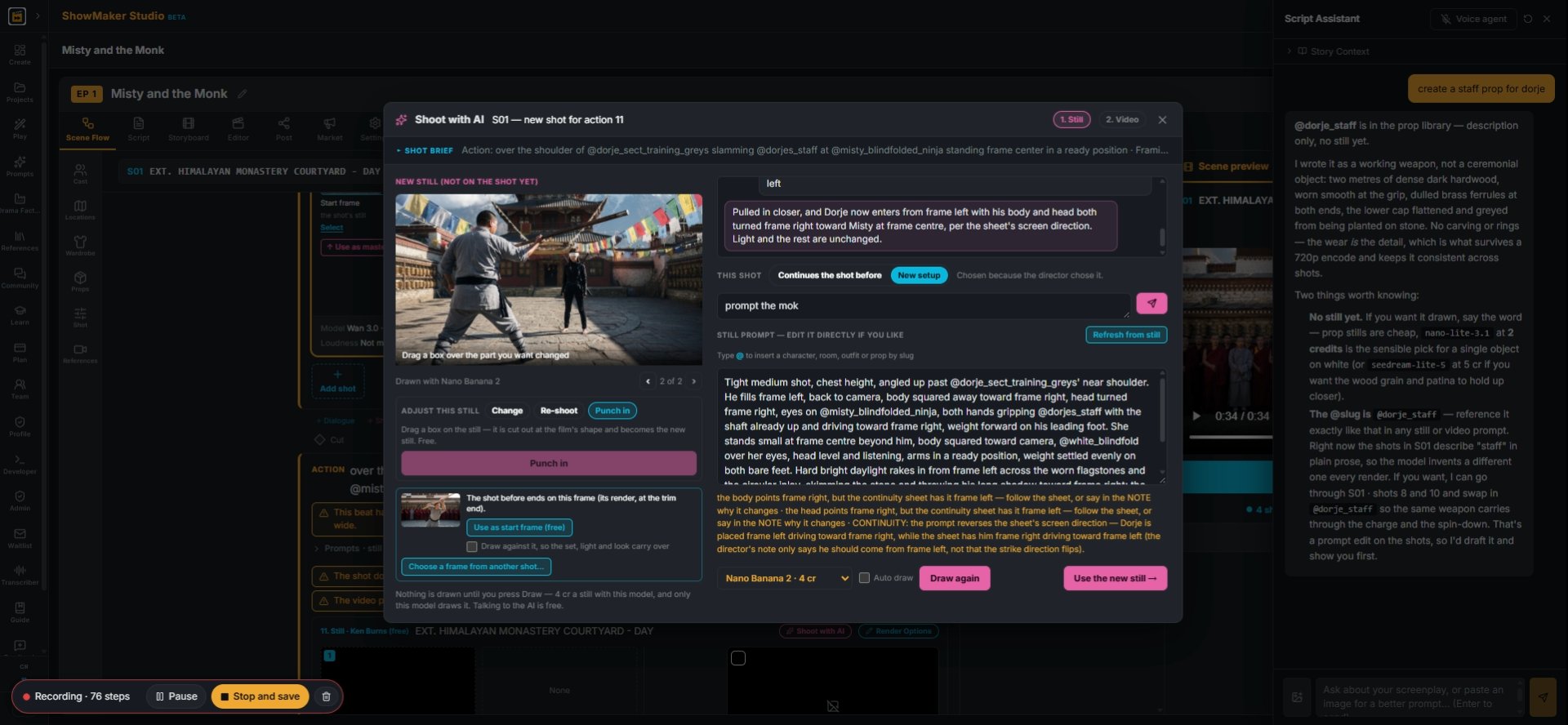
11Add a new ACTION line for the next beat: "over the shoulder of @dorje_sect_training_greys slamming his training staff".
Ask about your screenplay, or paste an image for a better prompt... (Enter to s…
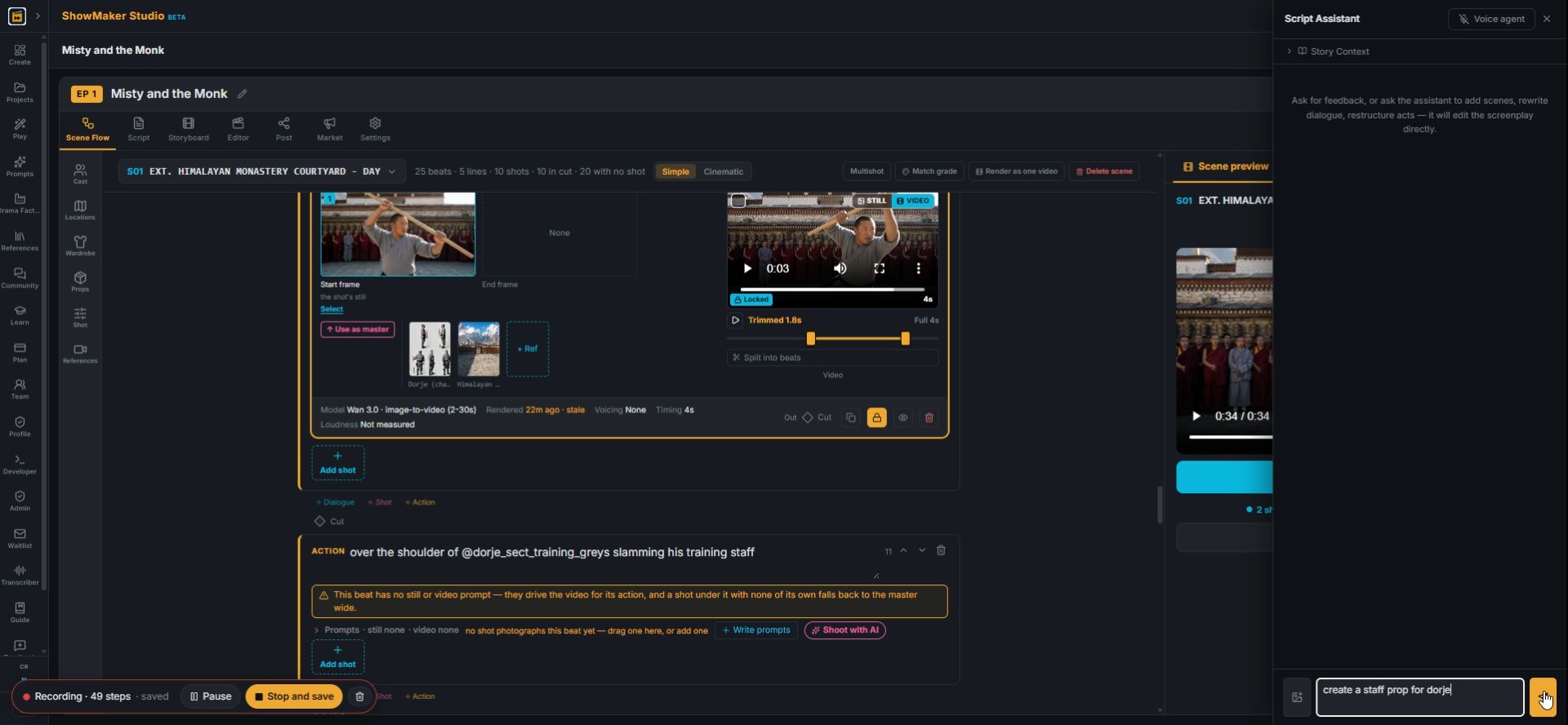
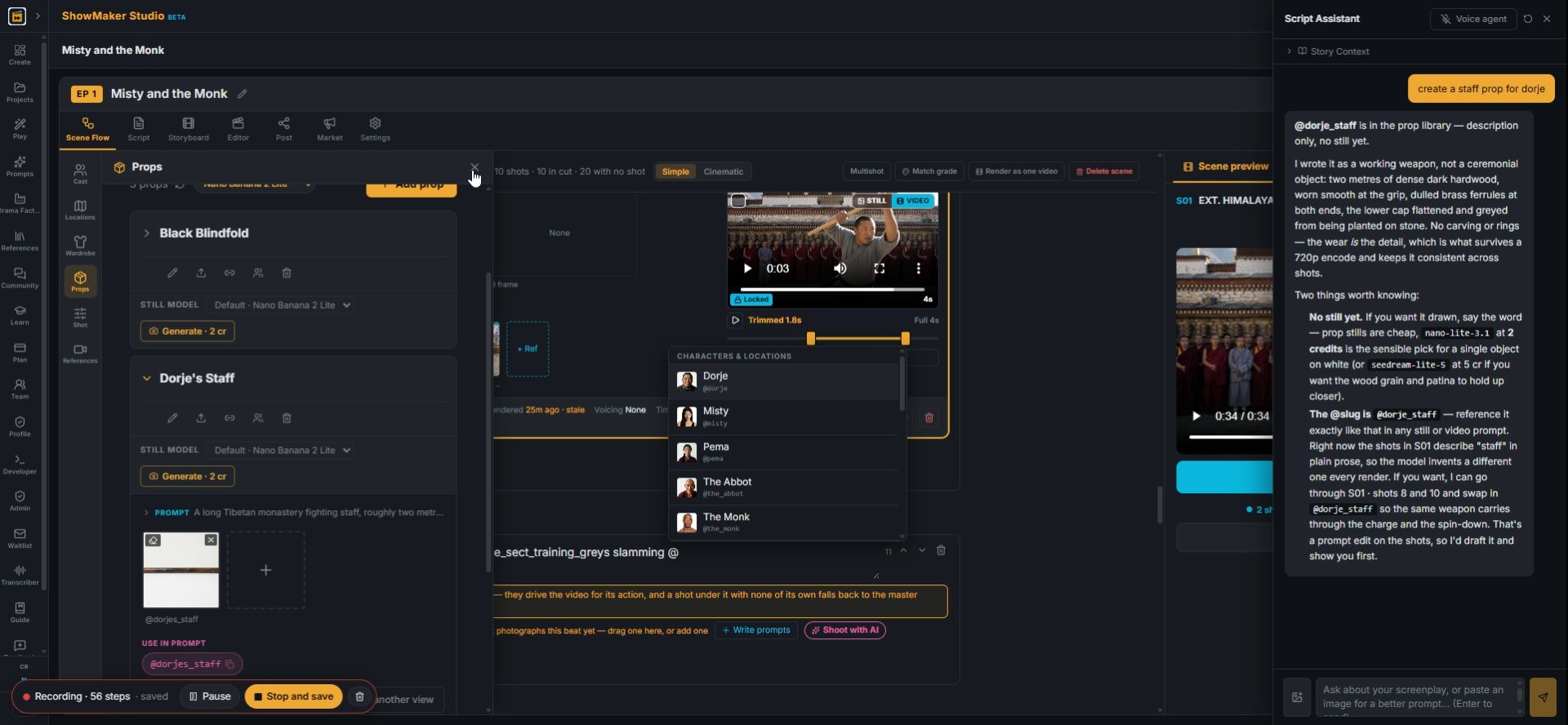
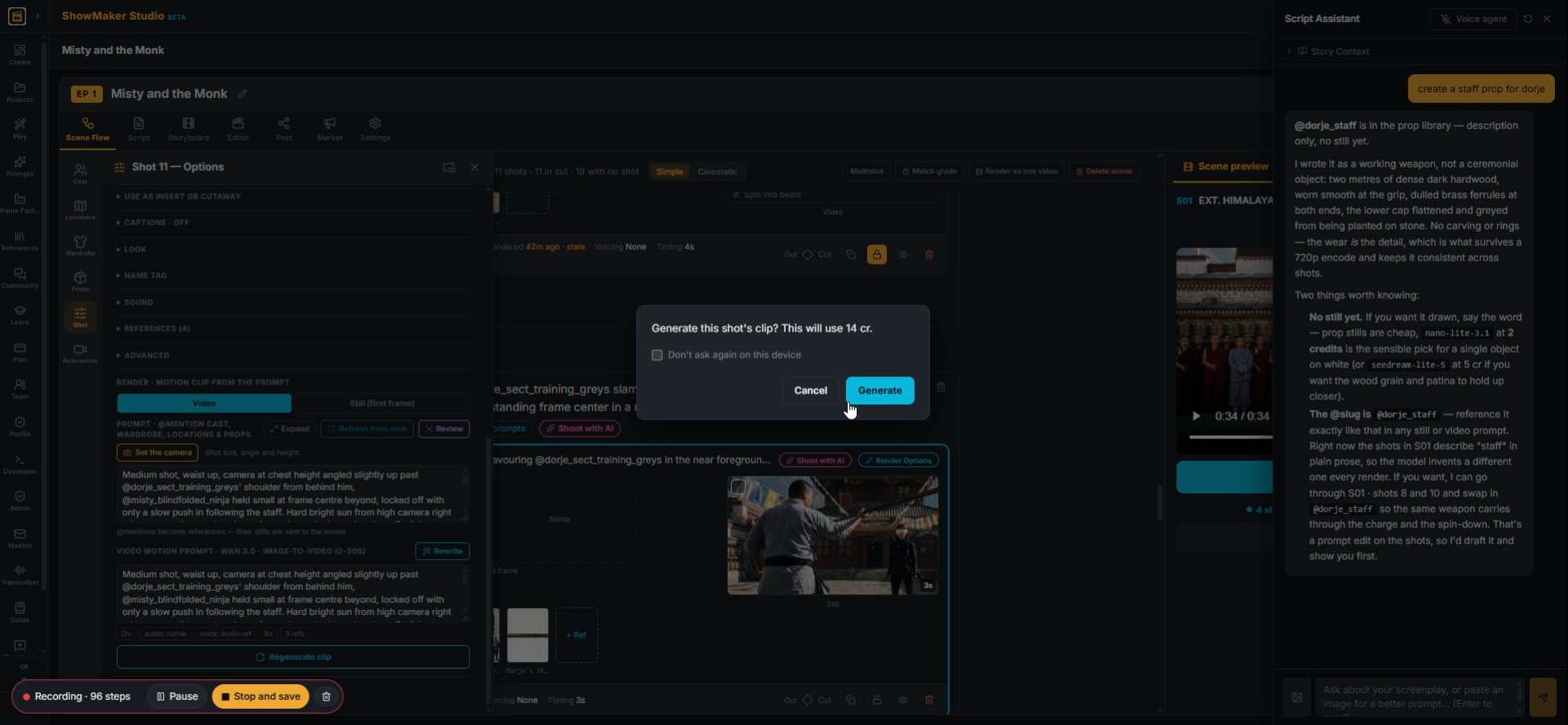
12The staff is not a prop yet. Open the Script Assistant and type "create a staff prop for dorje".
Generate a new still from the description — nano-lite-3.1
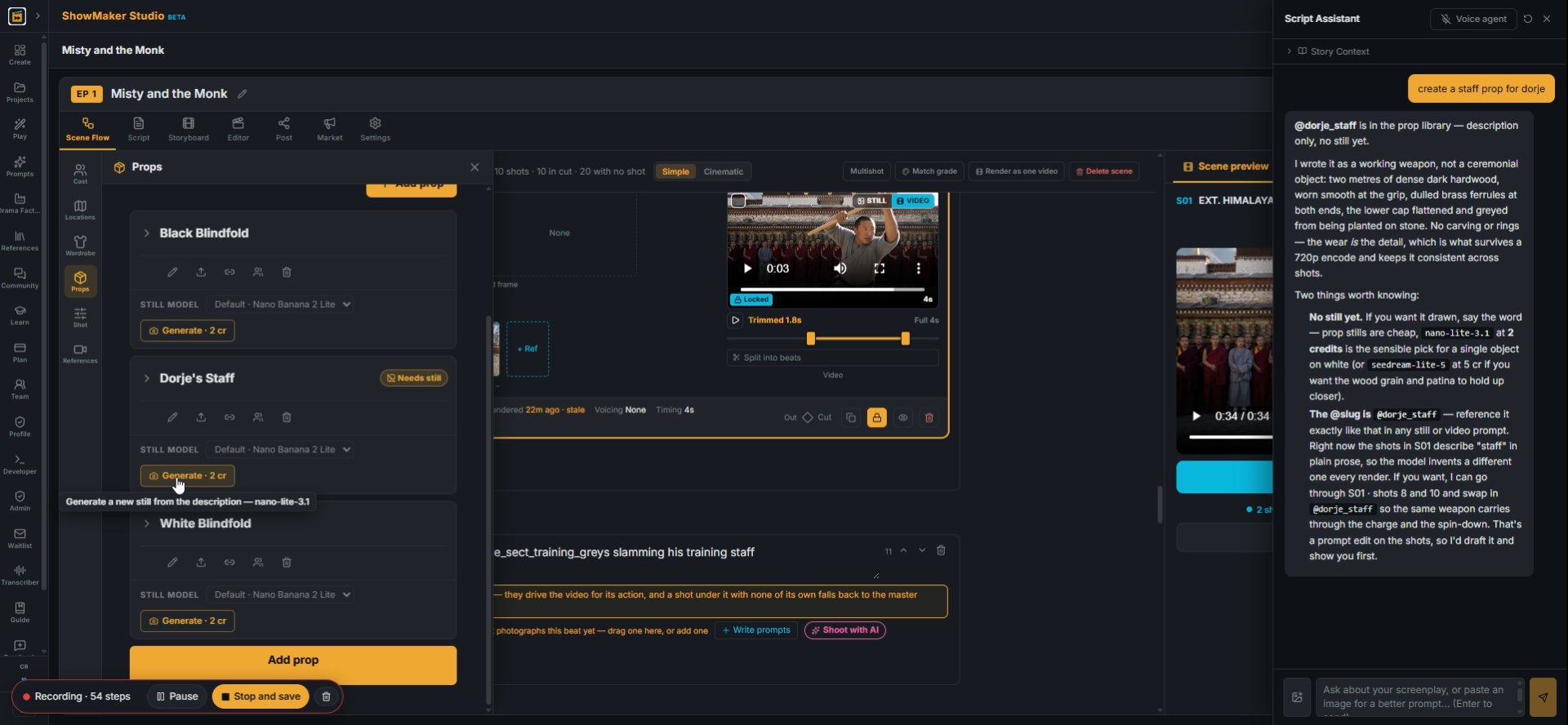
13The assistant adds Dorje's Staff to Props with a description. Press Generate (2 cr) to draw its picture.
What happens — no dialogue. @tag whoever and whatever is in frame.
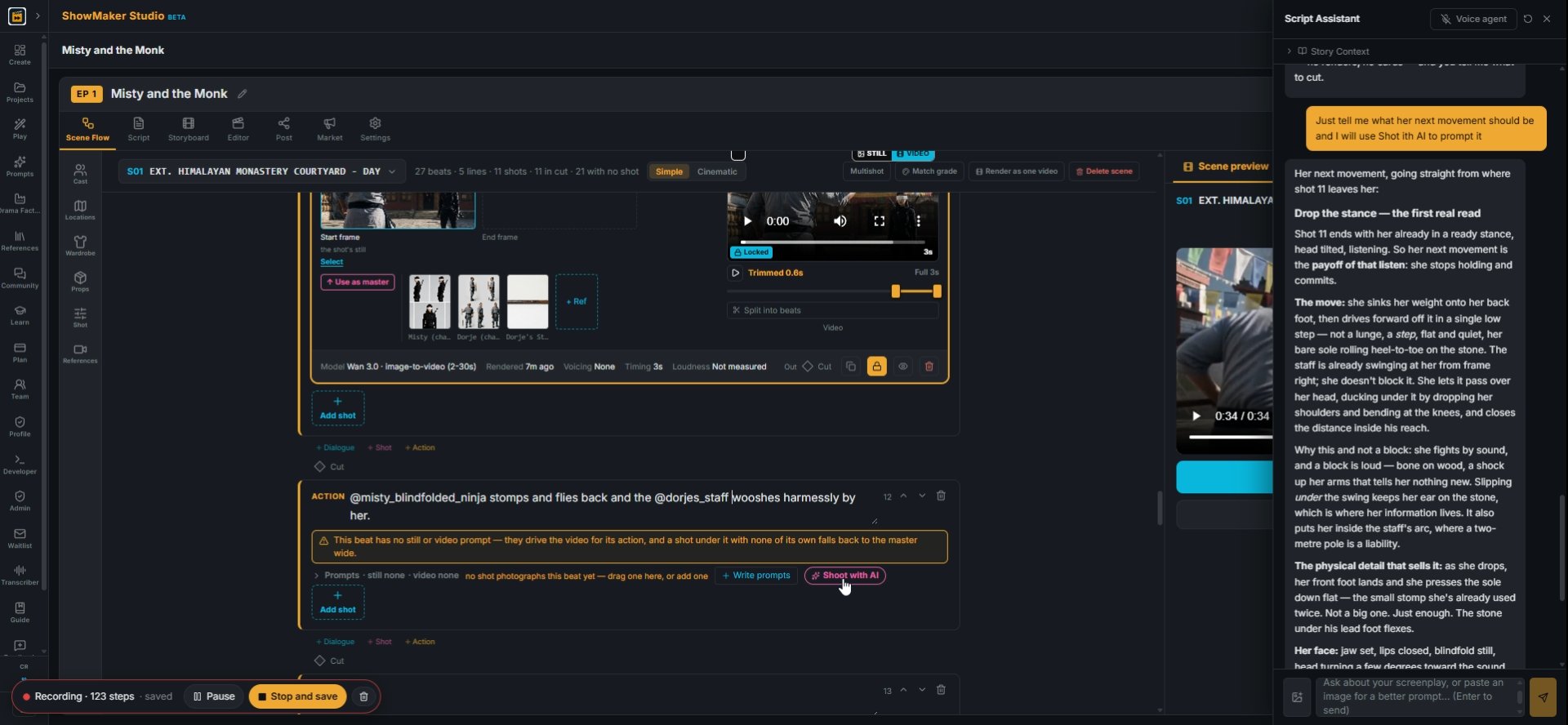
14Back in the action line, type @ and pick the prop, so it reads @dorjes_staff. Tagged props are sent to the model as pictures.
What happens — no dialogue. @tag whoever and whatever is in frame.
15Finish the line and press Shoot with AI.
Draw Still
16Press Draw Still.
Drag a box over the part you want changed
17Use Punch in and drag a box to frame the shot tighter.
Tell the AI what to change in the motion — type @ for a slug…
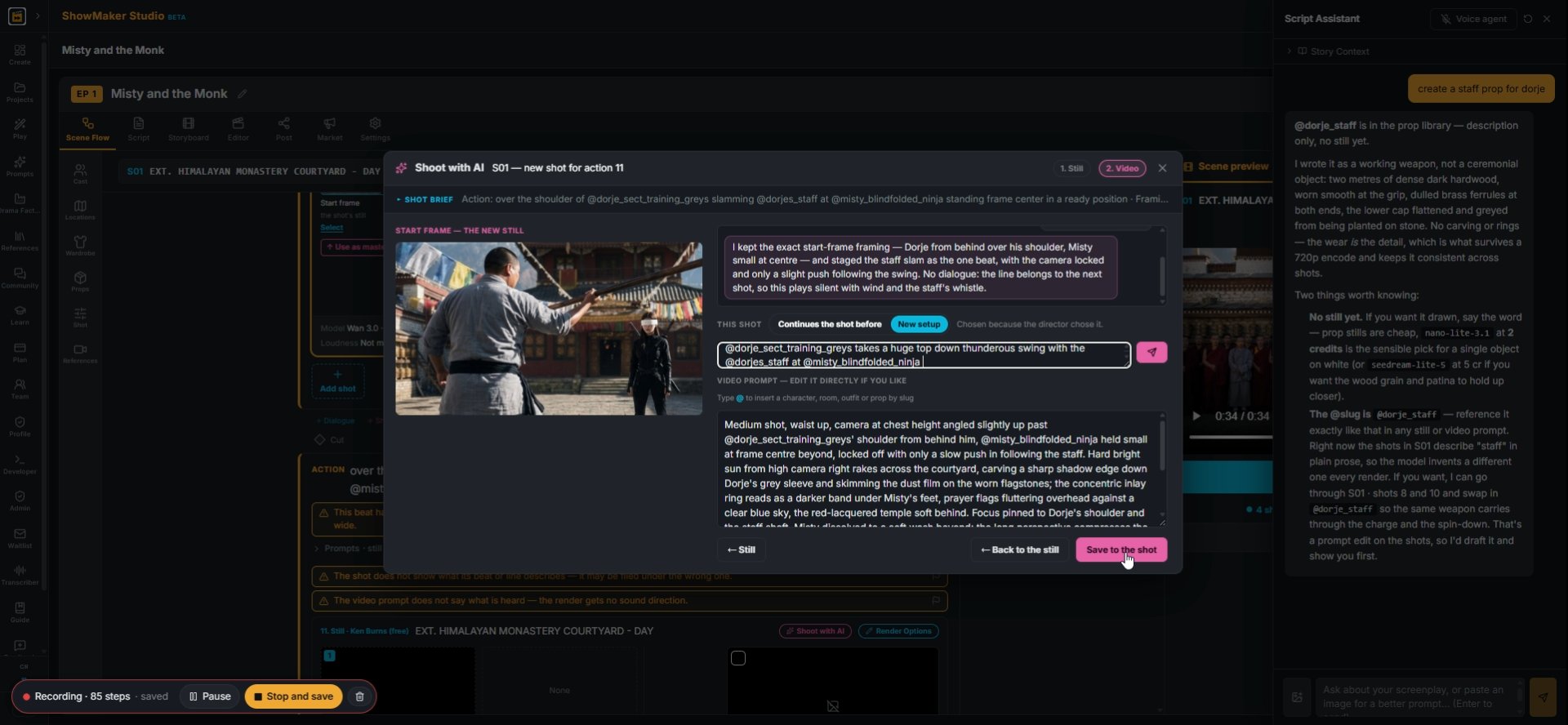
18In step 2, write the motion: "@dorje_sect_training_greys takes a huge top down thunderous swing with the @dorjes_staff". Press Save to the shot.
Generate
19Render it. The box shows the price before you spend, here 14 cr. Press Generate.

Clean up a frame with Change
What happens — no dialogue. @tag whoever and whatever is in frame.
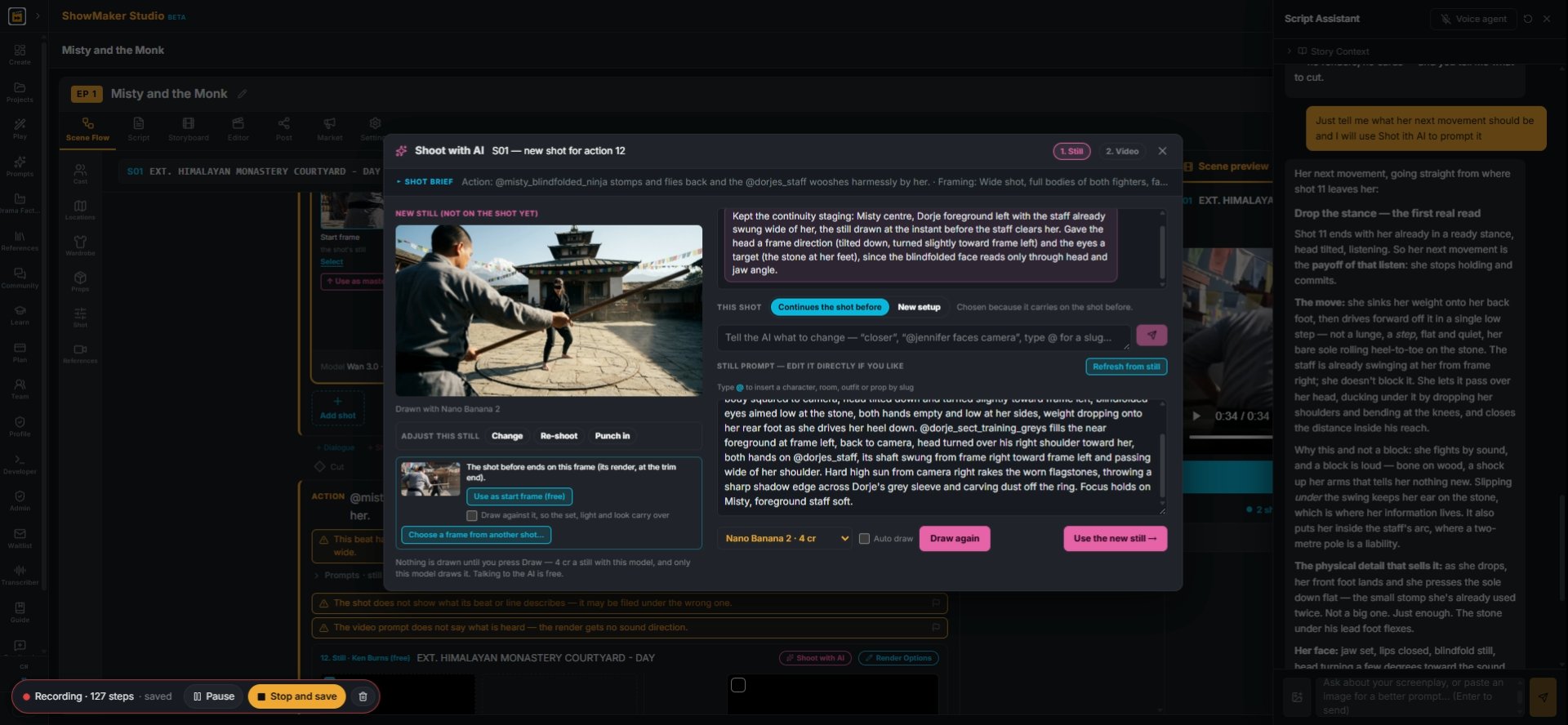
20Write the next beat: Misty stomps and flies back as the staff whooshes past her. Press Shoot with AI.
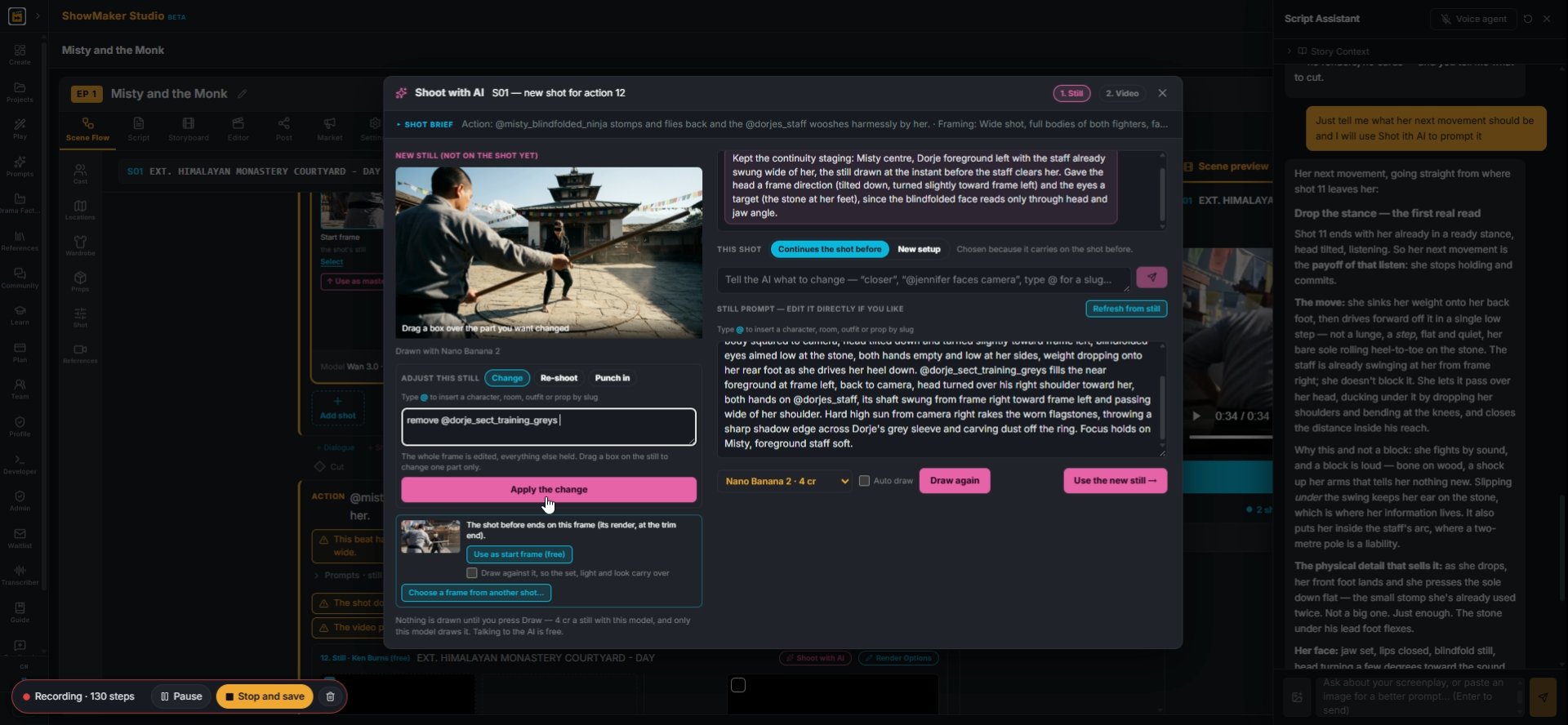
Change
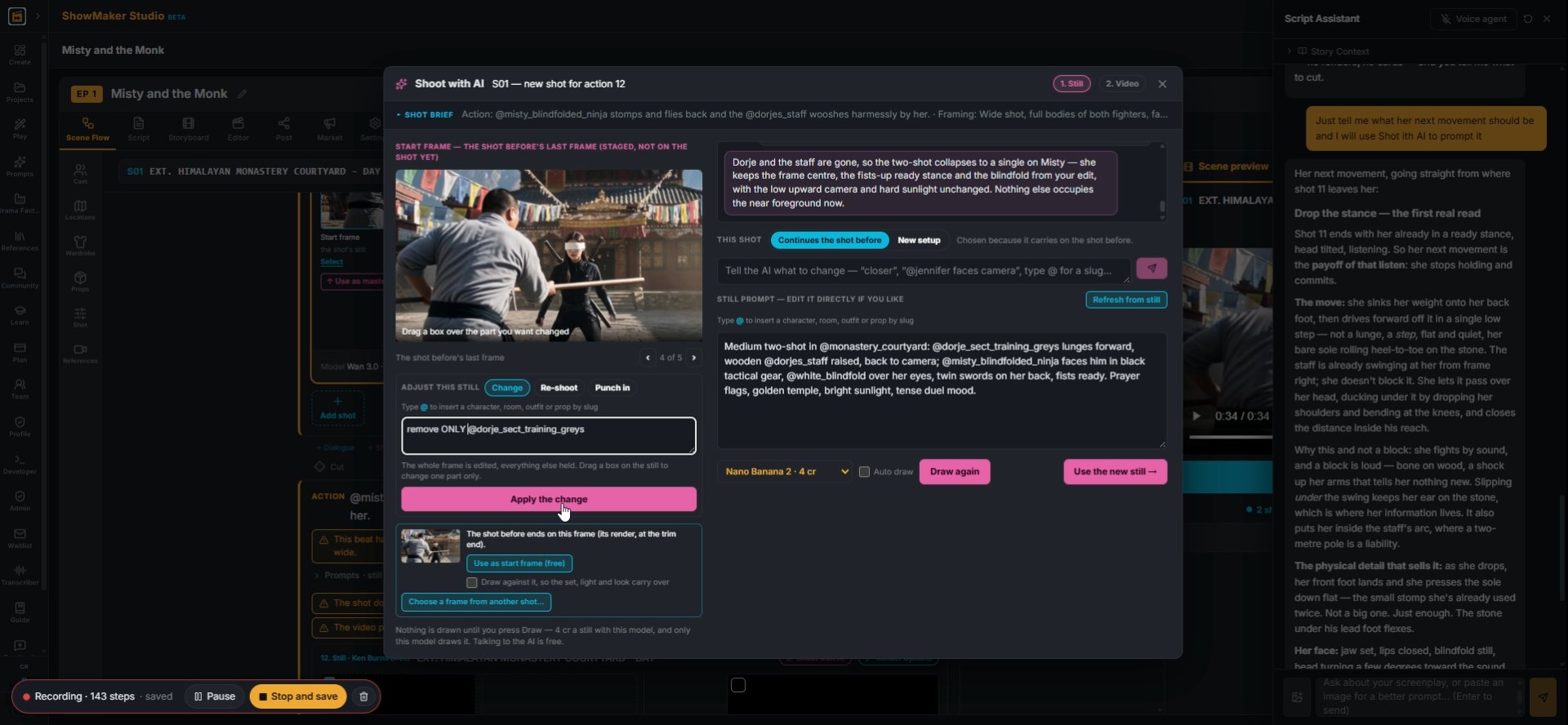
21The still shows both fighters, but this shot should only show Misty. Press Change.
What to change — “no lights at all, near-black”, “his head turned frame left”…
22Type "remove @dorje_sect_training_greys" and press Apply the change.
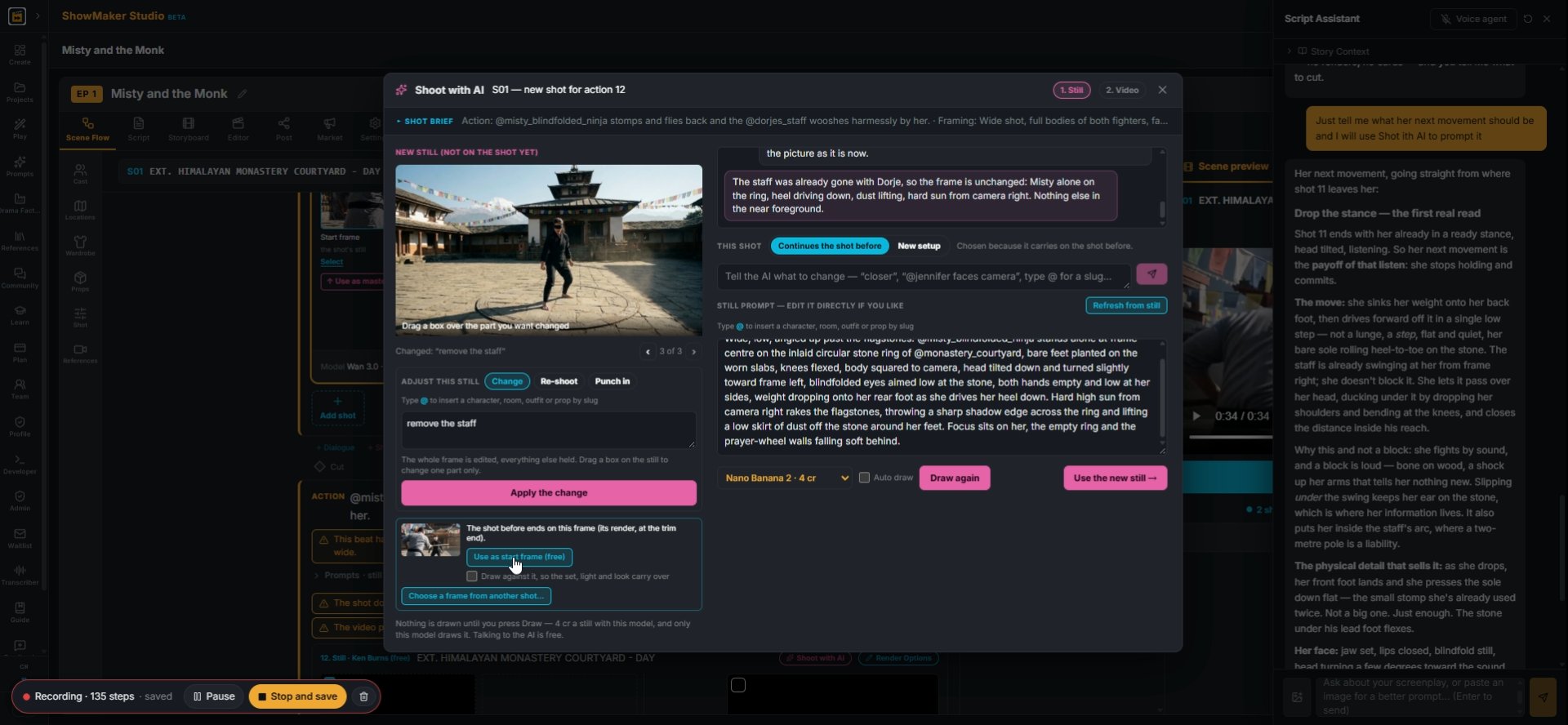
Use as start frame (free)
23Another choice is Use as start frame (free). It starts this shot from the last frame of the shot before.
What to change — “no lights at all, near-black”, “his head turned frame left”…
24If the change takes away too much, be exact: "remove ONLY @dorje_sect_training_greys".
What to change — “no lights at all, near-black”, “his head turned frame left”…
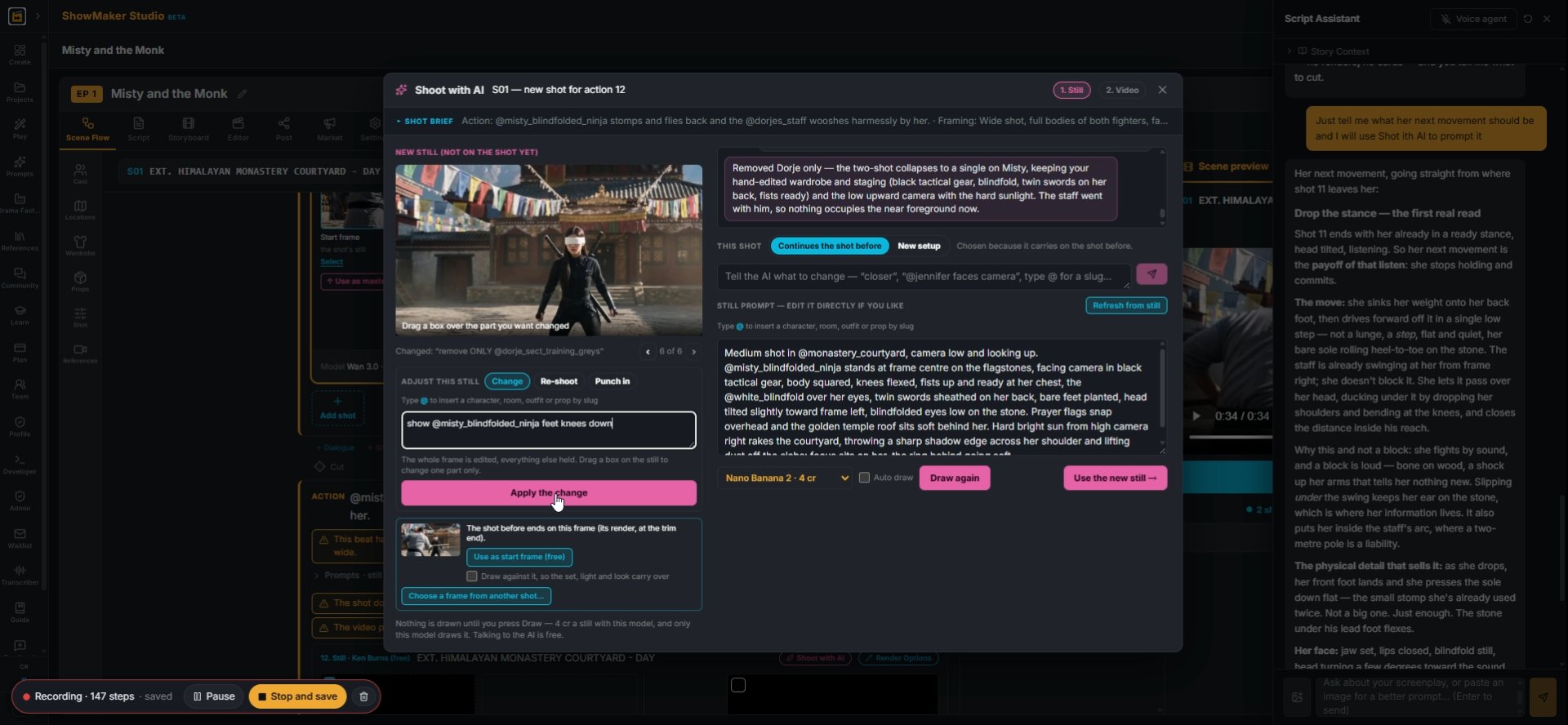
25Reframe the same way: "show @misty_blindfolded_ninja feet knees down".
Tell the AI what to change in the motion — type @ for a slug…
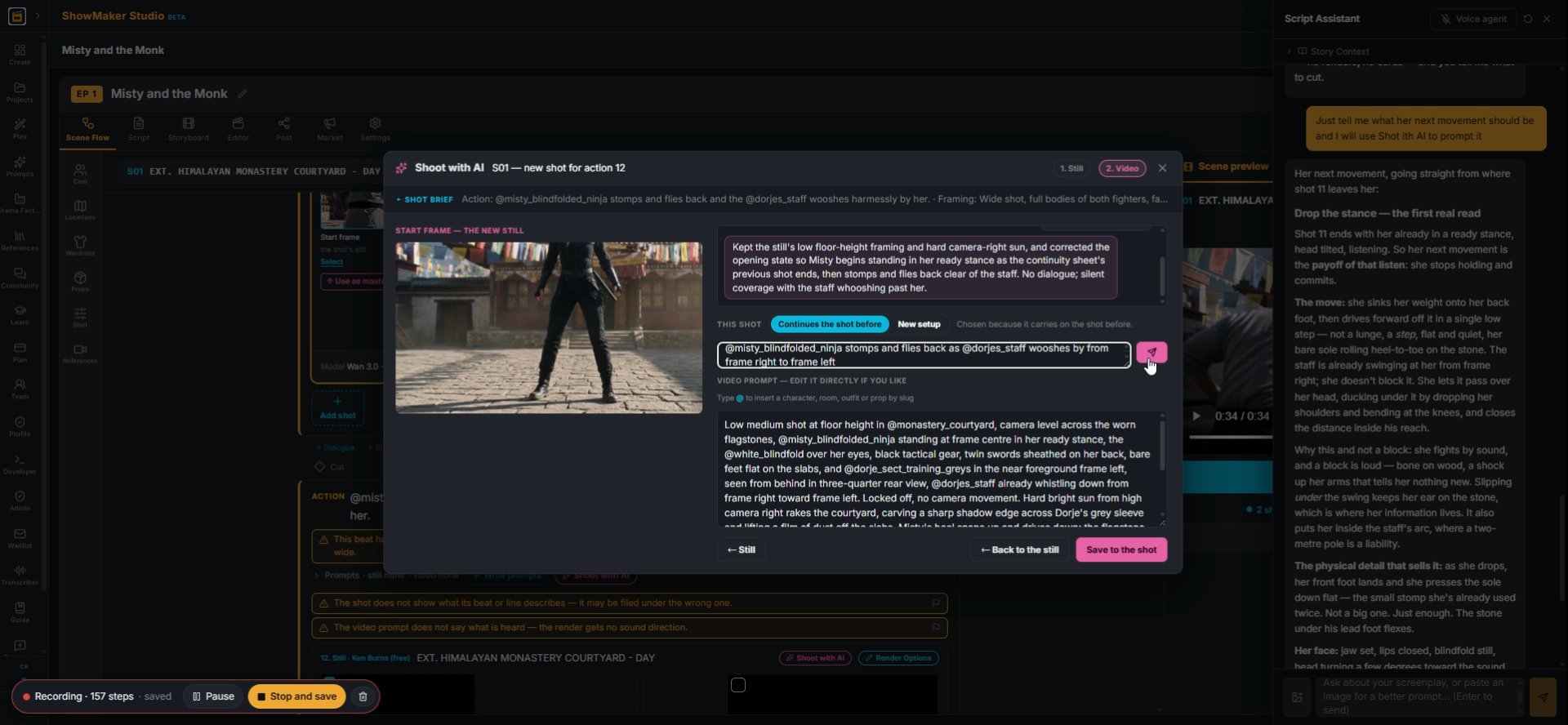
26In step 2, describe the motion. Say where things enter, like the staff coming from frame right.
Tell the AI what to change in the motion — type @ for a slug…
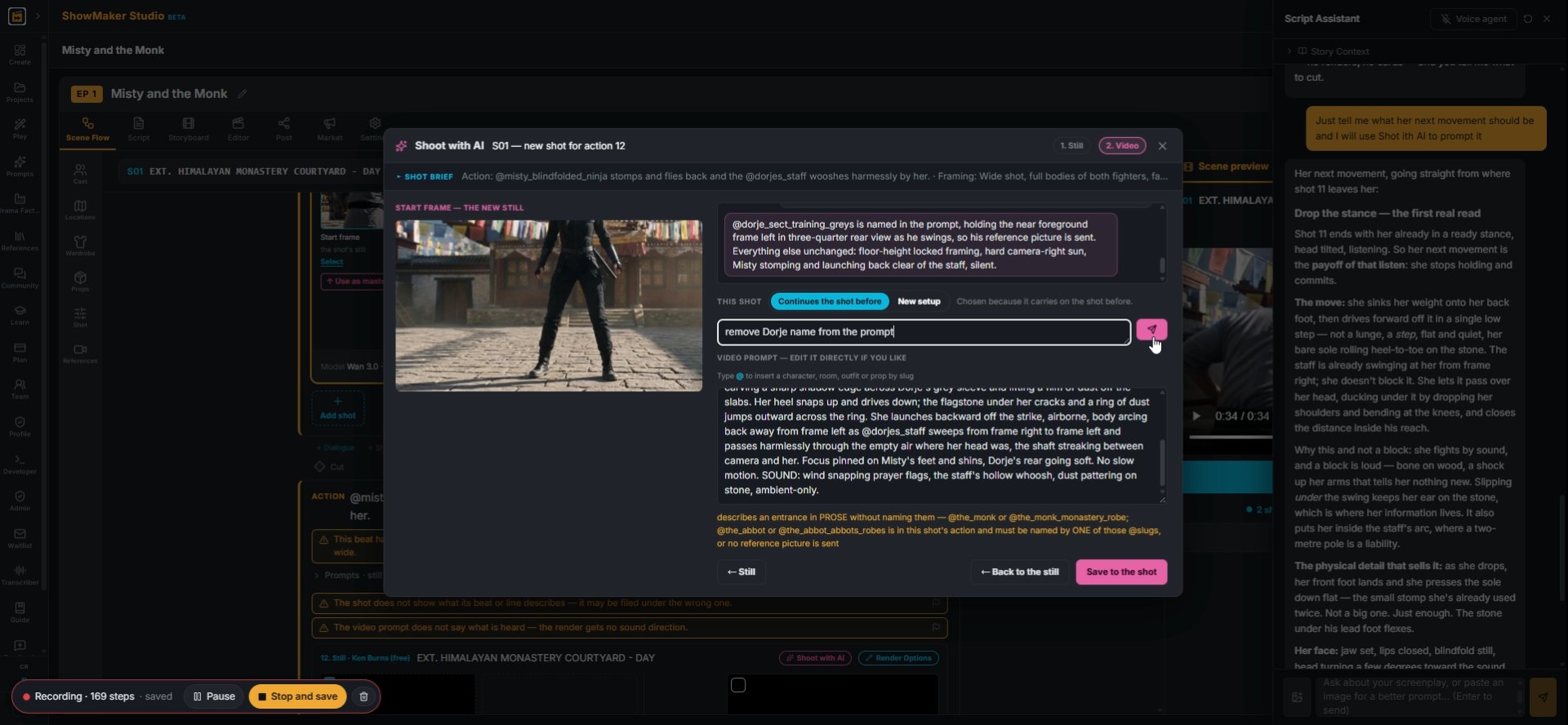
27If someone is named in the prompt but should not be seen, say so: "remove Dorje name from the prompt". Then save.

Fine-tune the stomp

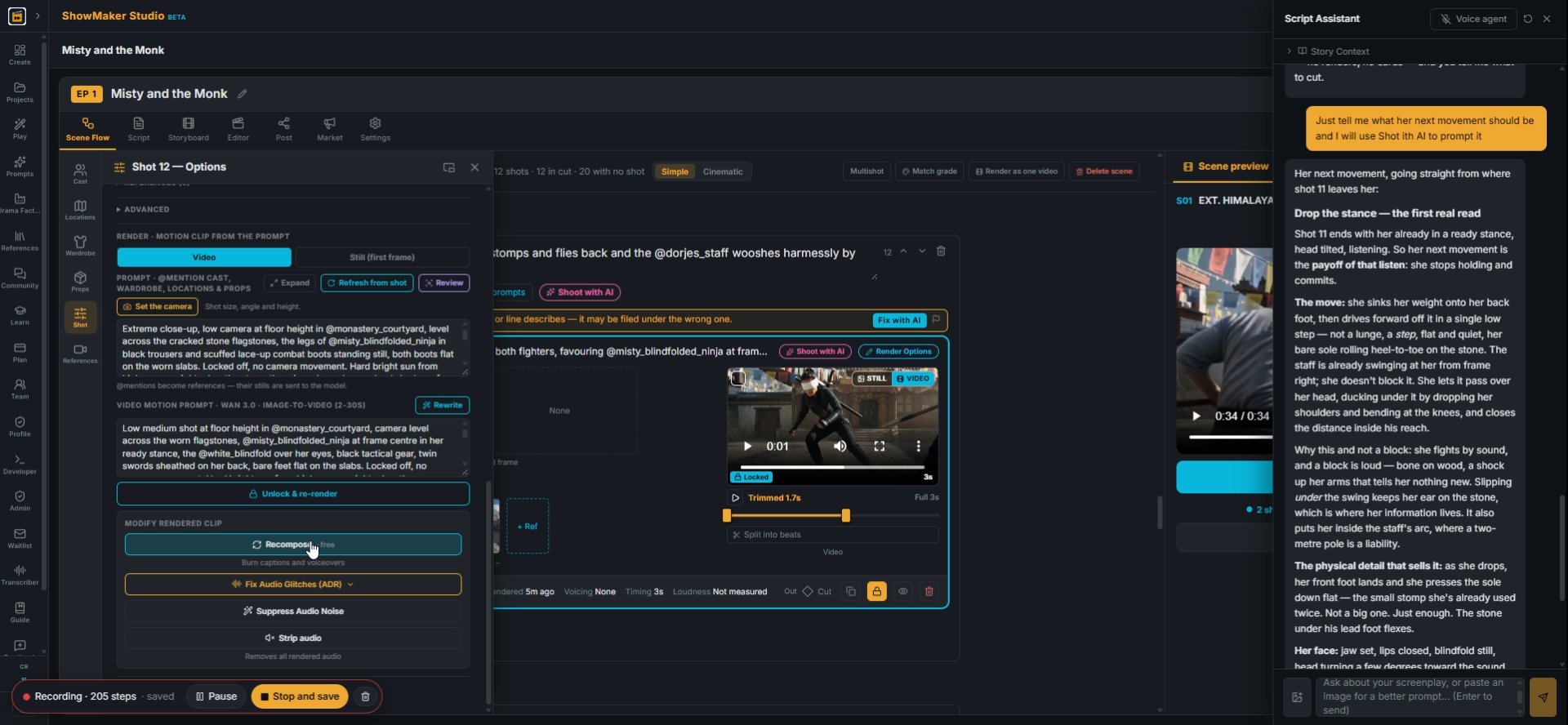
Recompose · free
28Recompose is free. It rebuilds the captions and voice on a clip without a new render.
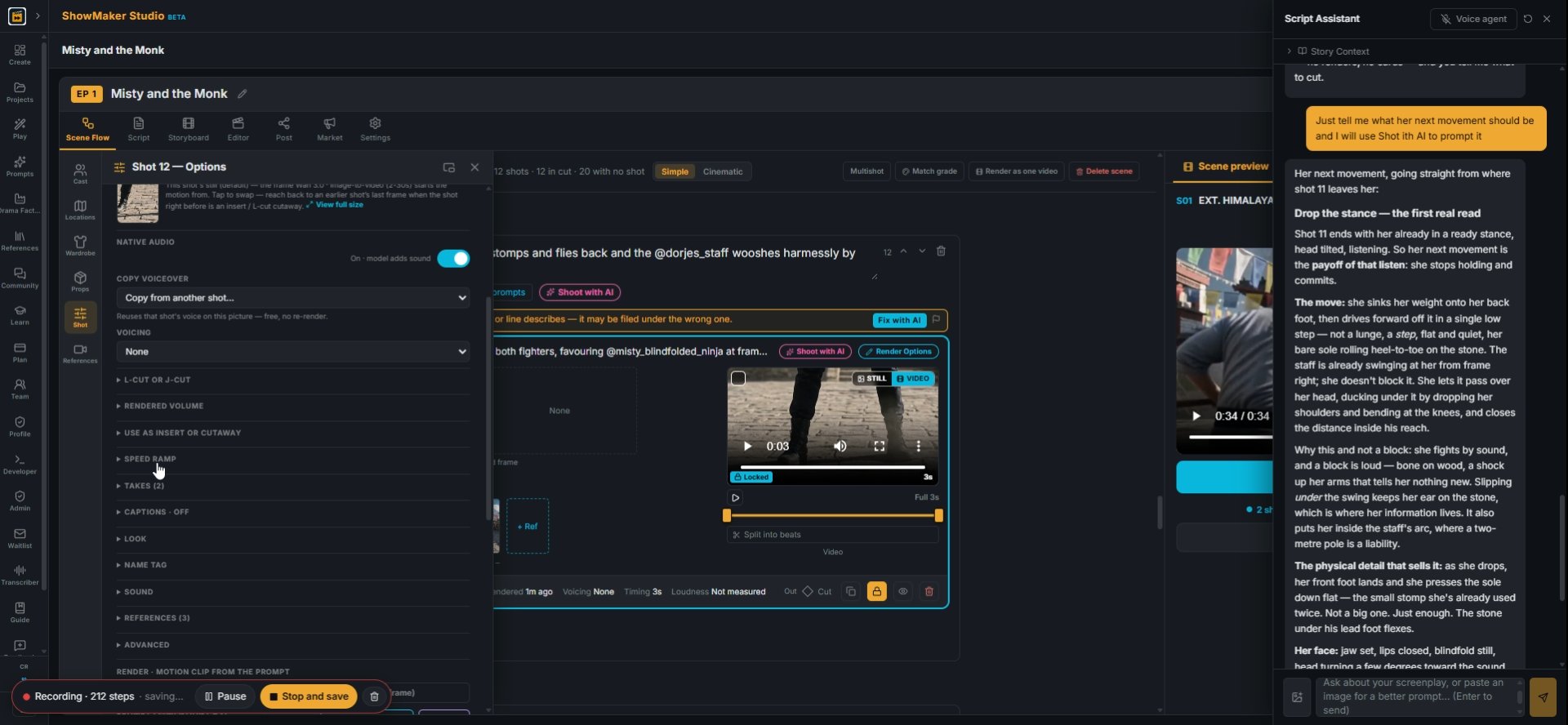
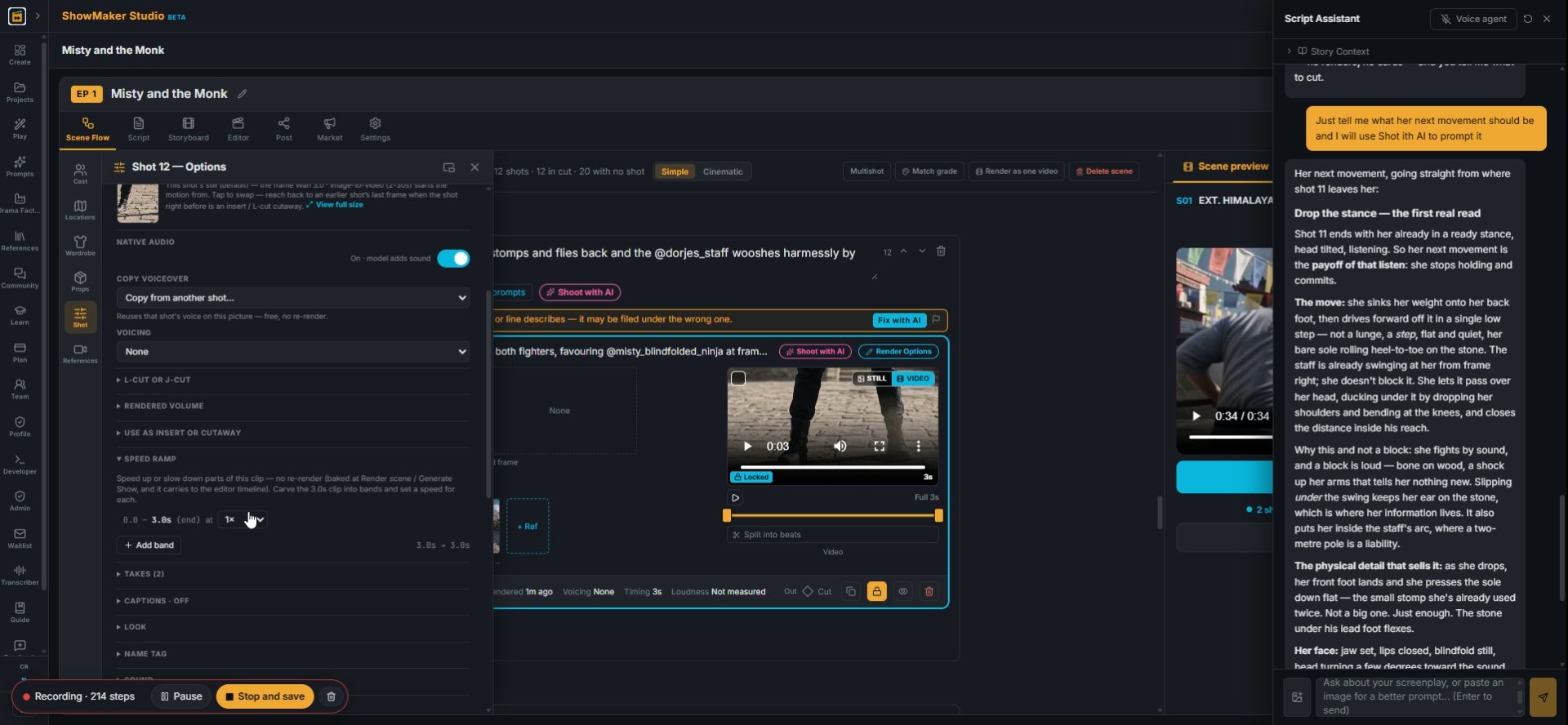
SPEED RAMP
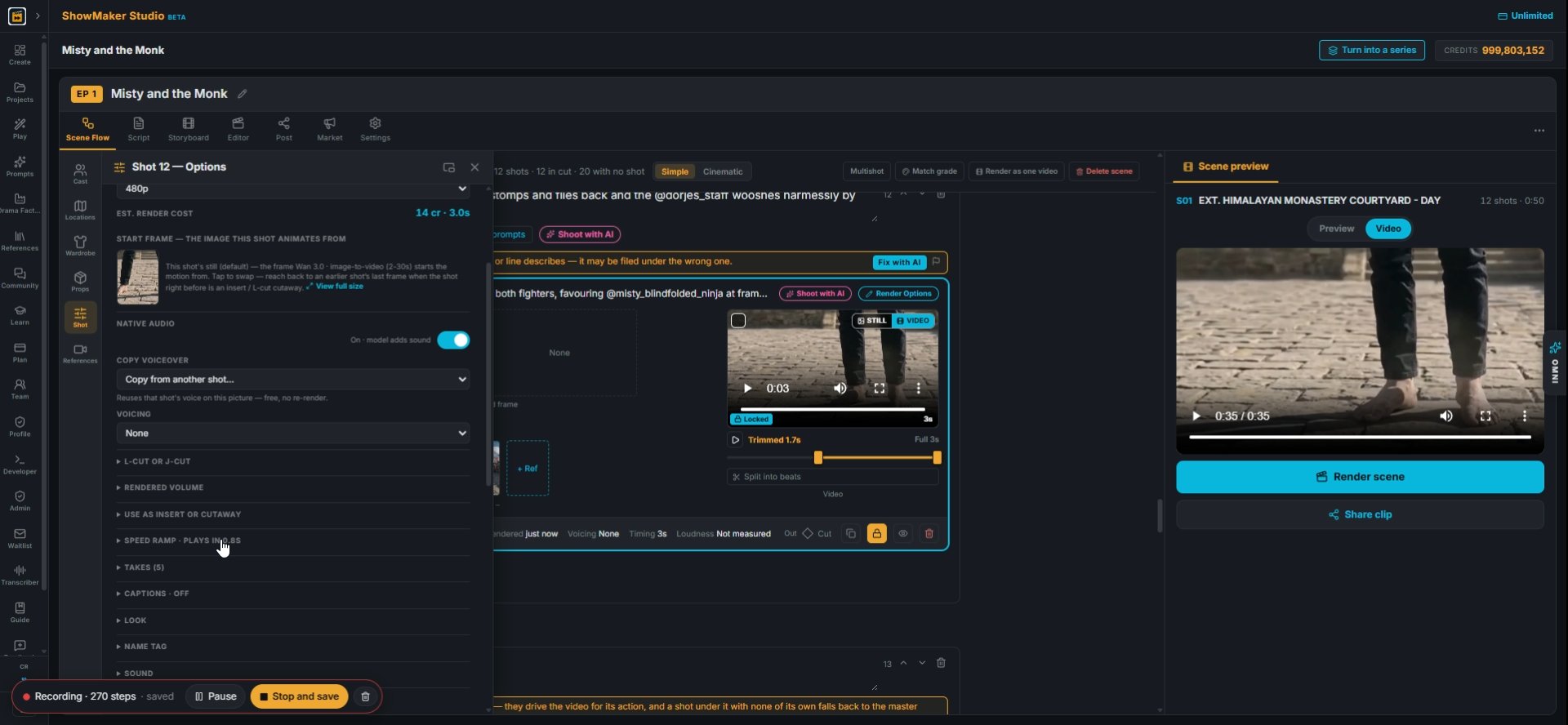
29To make a moment hit harder, open SPEED RAMP in Render Options.
0.25× 0.5× 0.75× 1× 1.25× 1.5× 2× 3× 4× 5× 6× 8× 10×
30Pick a speed for part of the clip, like 2x. The ramp is added when you render the scene, so it costs nothing.
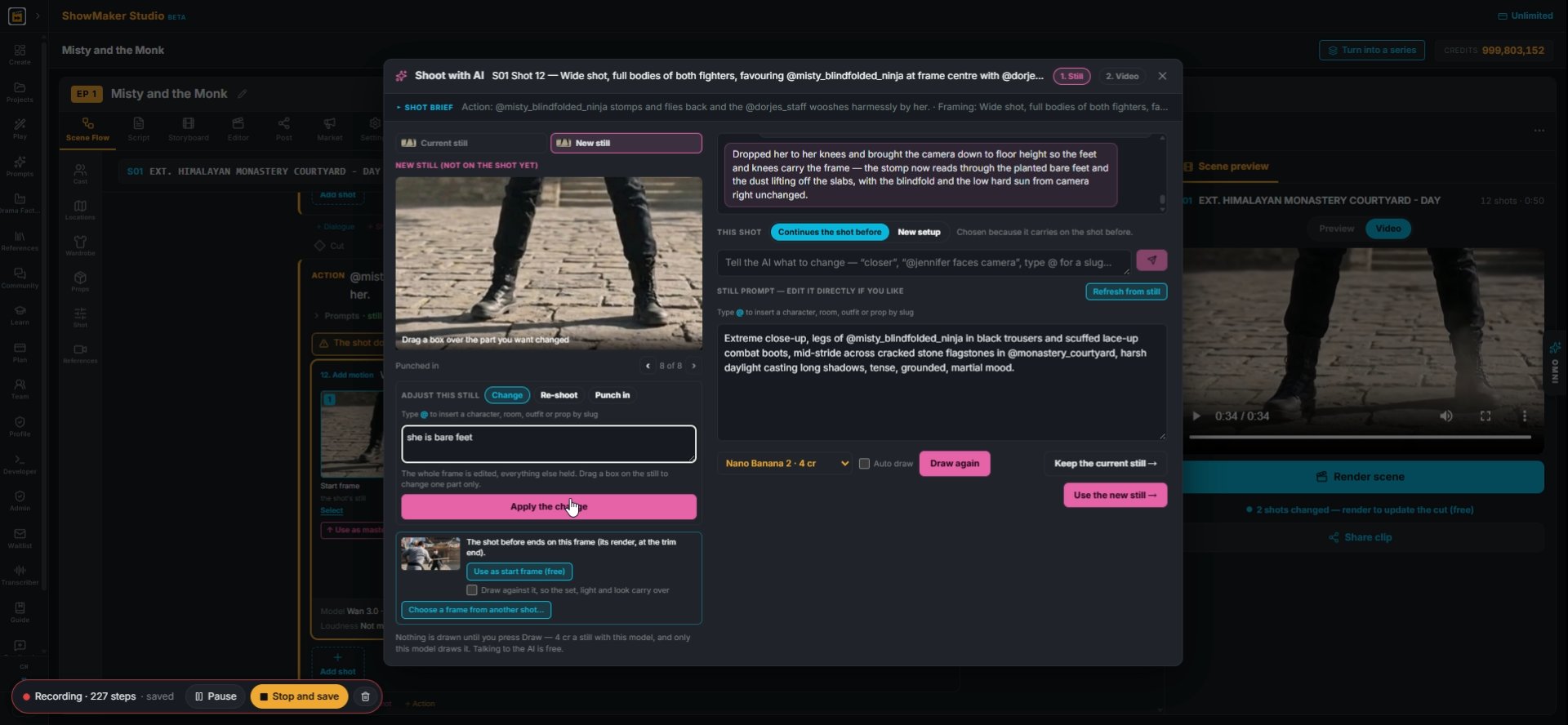
What to change — “no lights at all, near-black”, “his head turned frame left”…
31Small fixes to the still are quick: "she is bare feet".
Tell the AI what to change in the motion — type @ for a slug…
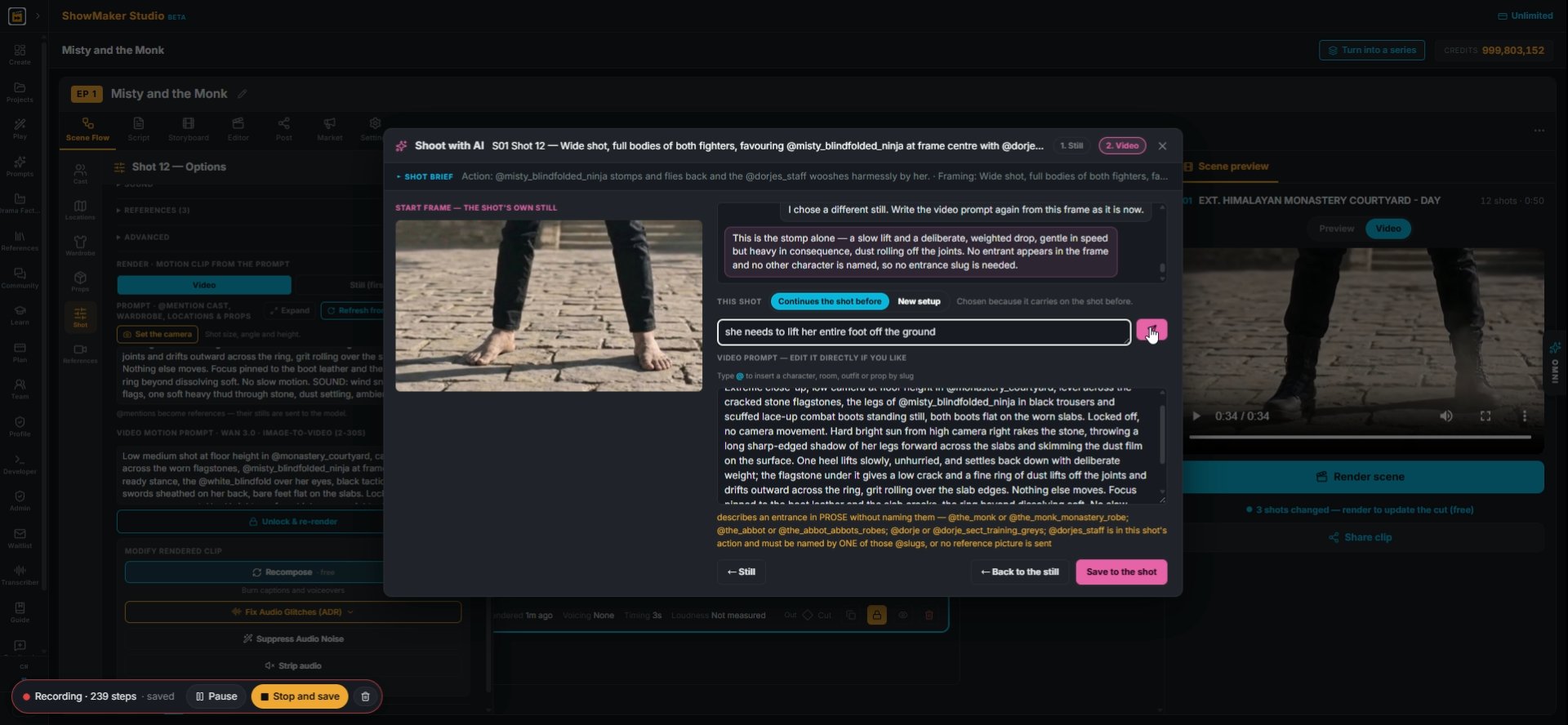
32Fixes to the motion work the same way: "she needs to lift her entire foot off the ground".
What this shot shows — type @ to reference cast, wardrobe, locations & props…
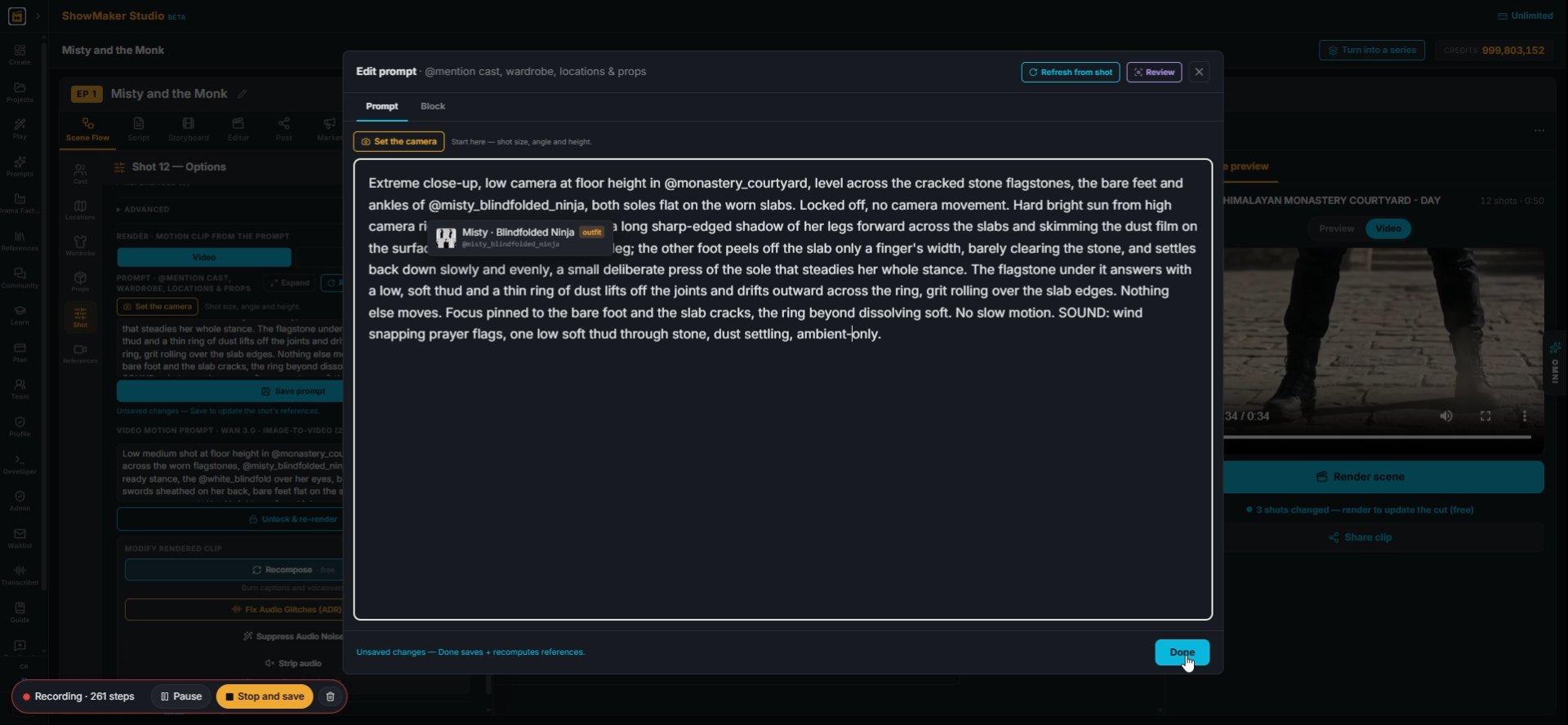
33You can also edit the shot's prompt by hand and press Done.
SPEED RAMP · PLAYS IN 0.8S
34The header now shows how long the ramped shot plays, here 0.8 s. Press Render scene to see the fight with the faster stomp.

Make your own episode.

Start free with 200 credits: a narrated film from AI stills, no credit card.

Build an AI fight shot by shot: props, sound effects and speed ramps | ShowMaker Studio